
In this guide
- What a Calibre conversion can break
- Raw HTML in the description, and sideways images
- When a store rejects the EPUB outright, and the A+ answer
- FAQ
- Calibre converted my EPUB and now stores reject it, what did the conversion break?
- My description has raw HTML showing on the product page, how do I fix the formatting?
- My ebook images show up sideways or stretched after conversion, what causes that?
- What should I do if a store rejects my EPUB file when I go wide?
- Can I add A+ Content to a paperback or only to the Kindle edition?
Conversion problems share a shape: the converter did exactly what it was told, and the store’s validator reads the result more strictly than your reading app does. Calibre conversions most often break on structure, tangled heading styles, split files, and metadata that does not match the listing. Raw HTML showing in a description means tags were pasted into a field that displays them as text, or written in a dialect the store does not accept. And images turn sideways because orientation lives in photo metadata that converters routinely ignore. Every one of these is fixable at the source file or the source text, which is the only place the fix survives the next upload.
Key takeaways:
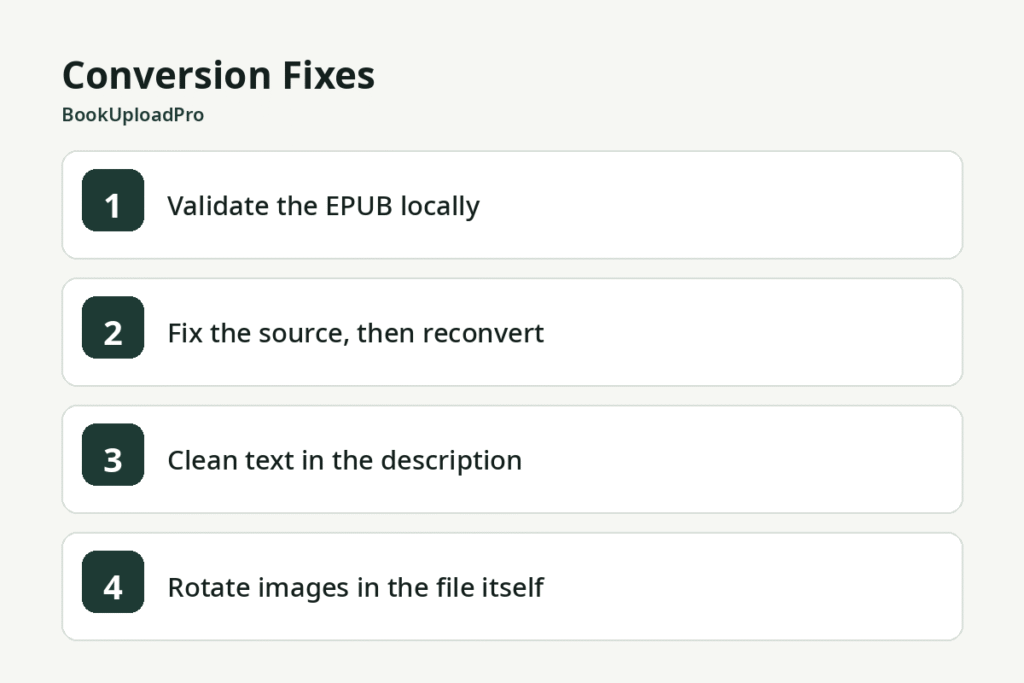
- Validate the converted EPUB locally before uploading anywhere. The rejection names a real fault, and EPUBCheck will usually find it first.
- Description fields are not web pages. Use only the formatting each store supports, or plain text, and repaste clean copy when tags show as text.
- Yes, A+ Content works for paperbacks as well as Kindle editions. It is set per ASIN and per marketplace in KDP.
What a Calibre conversion can break
Calibre is a powerful converter, and power cuts both ways. Converting from a Word file with inconsistent styles produces heading structures that fail validation or build a broken table of contents. Converting from PDF is worse: two column layouts, headers, and page numbers become part of the text flow. Converted files can carry font and encoding oddities, empty files, and metadata that disagrees with your listing, which is itself a rejection cause at several stores. The repair pattern is our standard one: validate the exact file, fix the named fault in the source, reconvert with clean input, and validate again before any store sees it. If the rejections started when you switched tools, our comparison of Kindle Create and Calibre explains where each tool’s output tends to fail.
Raw HTML in the description, and sideways images
A description that shows angle brackets and tag names on the page means the store took your markup literally. It happens when HTML written for one store, or copied from a web editor, is pasted into a store that supports a smaller tag set, or none. The fix is dull and permanent: strip the description back to plain text, then rebuild only the formatting that store documents as supported, bold, italics, line breaks, lists, and preview it in the store’s own editor before saving. Sideways or stretched images are the photo version of the same lesson: cameras record orientation as metadata rather than turning the pixels, converters and some stores ignore that metadata, and an image that looked upright in your photo app is stored on its side. Stretched images come from aspect ratio being forced during conversion. Fix both in the image itself: bake the rotation into the pixels, resize to the dimensions the book needs, then reconvert.
When a store rejects the EPUB outright, and the A+ answer
Go wide and one store will eventually say no while the others say yes. The answer is never to upload the same file again and hope: download the exact error, validate locally, and fix the named thing, because each store runs its own strictness and the strictest one is doing you a favor the lenient ones skipped. Our walkthrough of a file passing one store and failing another is the method in full. And the listing question: A+ Content is not Kindle only. KDP lets you build A+ Content for paperback ASINs as well as ebook ASINs, one project can be applied to both formats, and it must be created per marketplace. It appears in the From the Publisher section after Amazon reviews it, which takes days, so build it once, apply it to both editions, then repeat per store country you care about.
FAQ
Calibre converted my EPUB and now stores reject it, what did the conversion break?
Usually the structure: inconsistent source styles become bad headings and a broken contents file, PDF sources inject headers and page numbers into the text, and converted metadata can mismatch your listing. Validate with EPUBCheck, fix the source document, reconvert, and validate again.
My description has raw HTML showing on the product page, how do I fix the formatting?
The store is displaying your tags as text because it does not support that markup. Replace the description with clean plain text, then rebuild only the tags that store supports, and preview in its editor before saving. Do not paste HTML written for a different store.
My ebook images show up sideways or stretched after conversion, what causes that?
Sideways images are orientation metadata the converter ignored; the photo was never actually rotated at the pixel level. Stretched images had their aspect ratio forced. Rotate and resize the images themselves in an image editor, then rebuild the book file.
What should I do if a store rejects my EPUB file when I go wide?
Read the exact error, validate the file locally with EPUBCheck, fix the named fault at the source, re-export, and upload again. A stricter store is finding a real problem the others tolerated; re-uploading the same file changes nothing.
Can I add A+ Content to a paperback or only to the Kindle edition?
Both. A+ Content in KDP can be created for paperback and hardcover ASINs as well as Kindle editions, and one project can be applied to several ASINs. It is built per marketplace and appears in the From the Publisher section once Amazon approves it.