
In this guide

Your upload works on one store and fails on another with the same file because the stores do not run the same checks. Each store has its own rules for file size, image dimensions, metadata fields, and content, and its own strictness about each. Passing at KDP proves your file is a valid ebook. It does not prove it meets Apple Books or Kobo or Draft2Digital, any more than passing a driving test in one country proves you meet another country’s rules. The job is to find which store’s rule you broke, not to rebuild the book.
Key takeaways:
- A pass at one store is not a pass everywhere. Each store validates different things.
- The error message is the clue. Read it word for word before changing anything.
- Fix the source file once, re-export, and validate. Then upload the same corrected file to every store.
How to isolate the broken rule
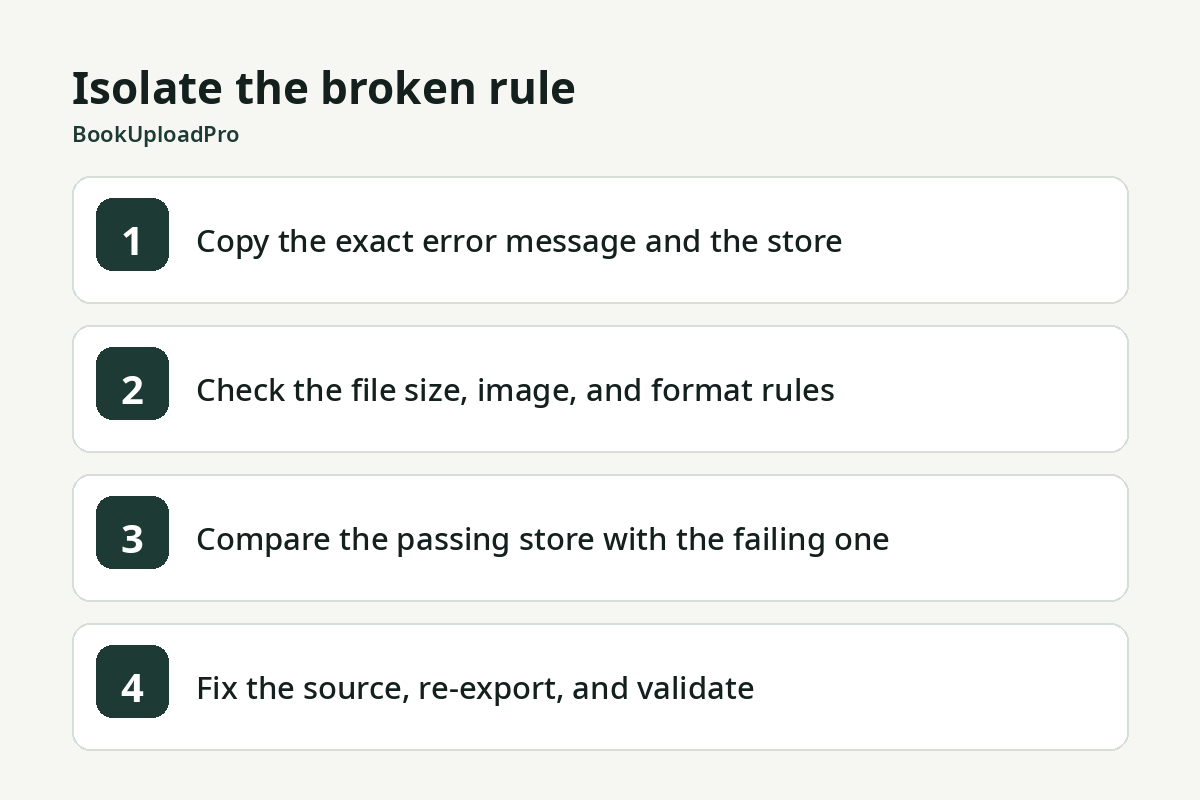
Start with the exact error message. Copy it down. Stores usually name the problem, whether it is an image, a metadata field, a file size, or a content rule, and that sentence is worth more than an hour of guessing. Next, check the three usual suspects for that store: file size limits, cover image size and format, and required metadata fields. Then compare what the passing store accepted with what the failing store demands. If the file passed at one store and failed at another, the difference between their rules is where the answer lives. Finally, fix the source and re-export rather than patching the uploaded file, so every store gets the same corrected version. Our Word to EPUB guide covers the clean export and validation routine that catches most of these before upload.
The differences that most often bite
Image rules differ the most. One store accepts a cover at a size another store rejects, and one store requires a specific ratio or file type. Metadata rules differ next: a keyword, category, or description that one store accepts can trip another store’s checks, especially where a store forbids competitor names or certain phrases in keywords. File size limits differ too, and a book with many large images can pass one store’s limit and fail another’s. Content rules also vary: AI generated content declarations, copyright checks, and category rules are enforced differently store by store. And some stores run the same EPUBCheck validation more strictly than others, so a file with warnings that one store tolerated can fail at a stricter one.
A practical routine for wide uploads
Upload to the strictest store first. If a file passes the strictest checks, it usually passes the rest, and you learn about problems early instead of after four successful uploads. Keep a short note per store of any tweak that store alone demanded, so the next book starts from the corrected master rather than from scratch. That note belongs with your master file and your metadata sheet, the same single source of truth our checklist builds.
FAQ
My upload works on one store but fails on another with the same file, how do I figure out which rule I broke?
Read the failing store’s error message first, it usually names the field or the file. Then check that store’s image, file size, and metadata rules against your file, fix the source, re-export, and validate before uploading again.
Should I make a different file for each store?
Usually no. One clean, validated EPUB should serve every store. Store specific files are the exception, for a store that demands a different cover size or a different metadata field. Keep one master and note the exceptions, rather than maintaining five separate books. Our master file post explains the setup.