
In this guide
- KDP: categories, not BISAC codes
- IngramSpark: BISAC codes in title setup
- Draft2Digital: BISAC codes in the metadata step
- Do you use the same codes on every store?
- FAQ
- Where do BISAC codes go in your KDP, IngramSpark, and Draft2Digital metadata?
- Where do I enter BISAC codes on KDP?
- Where do I enter BISAC codes on IngramSpark?
- Where do I enter BISAC codes on Draft2Digital?
- Do I use the same BISAC codes on every store?

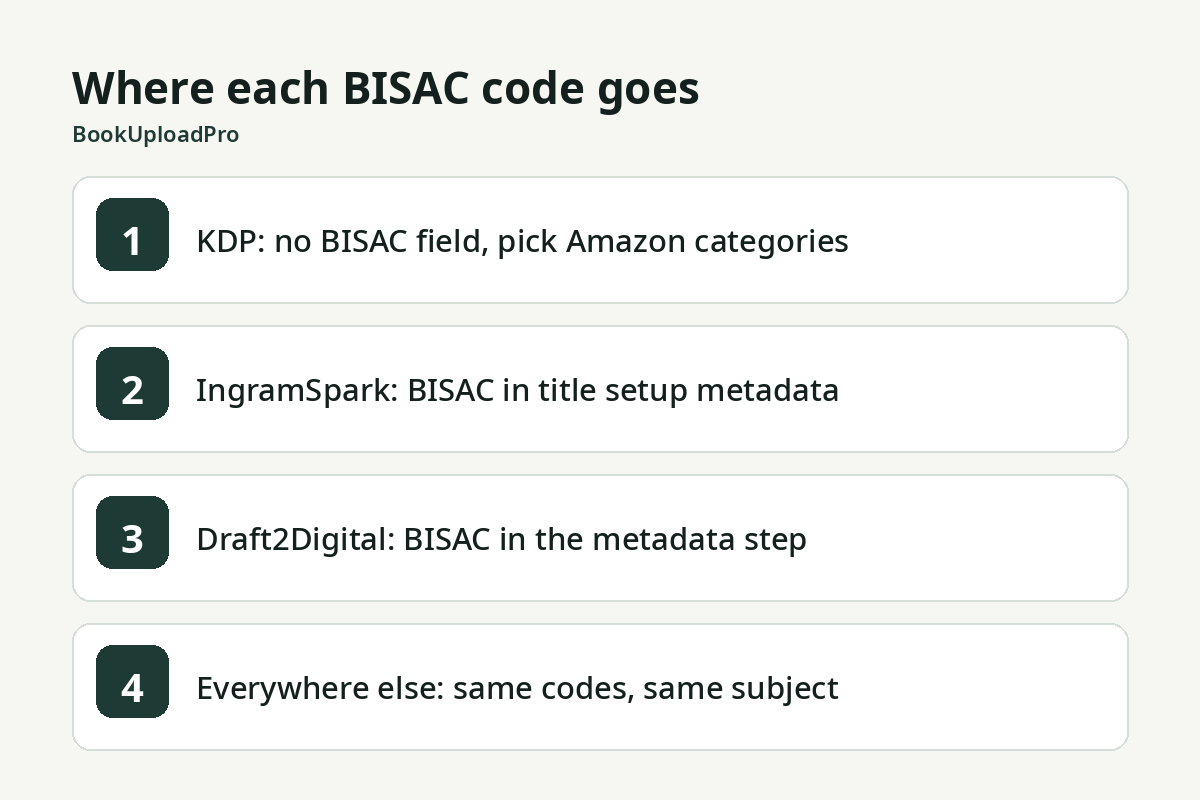
BISAC codes go in a different place on every platform, and on KDP they do not go anywhere at all, because Amazon stopped accepting them directly. If you hunt for a BISAC field inside KDP setup you will not find one, and that is by design, not an oversight. Here is the exact field for each of the three platforms, so you set the codes once and stop guessing: https://blog.bookuploadpro.com/what-are-bisac-codes/
Key takeaways:
- KDP has no BISAC field. You choose categories from Amazon’s own tree during KDP setup, and your BISAC codes reach Amazon only through your ISBN record.
- IngramSpark asks for BISAC codes during title setup, in the metadata section, before you upload files. Set them there, because they feed the catalog bookstores and libraries order from.
- Draft2Digital takes BISAC codes in its metadata step when you set up a book, then maps them to each store it distributes to.
KDP: categories, not BISAC codes
In KDP setup, the Details page asks you to pick categories from Amazon’s browse tree. You choose from the tree Amazon shows you, drilling down to the most specific node that fits, and Amazon handles the mapping behind the scenes. There is no box to type a code like FIC009000 into, and pasting one into a keyword field will not help: keywords and categories are separate fields with separate jobs. Your BISAC codes still matter for the Amazon listing, because they sit in your ISBN record at Bowker, and that record is part of the catalog data Amazon receives. If you use a free KDP ISBN, KDP registers the ISBN and its subject data for you: https://blog.bookuploadpro.com/bisac-codes-vs-amazon-categories/
IngramSpark: BISAC codes in title setup
IngramSpark’s title setup includes a metadata section where you enter BISAC subject codes for the title. Enter your primary code first, then your second and third, most specific first, before you move on to files and pricing. This matters more here than anywhere else, because IngramSpark’s catalog is what bookstores and libraries order from, and those buyers file by BISAC. A wrong code on IngramSpark does not just misplace the book on one storefront; it misplaces it across the wholesale network. Check the current BISG list before you type the codes in, and keep the same codes across the print and ebook editions unless an edition genuinely targets a different shelf: https://blog.bookuploadpro.com/subject-codes-compared/
Draft2Digital: BISAC codes in the metadata step
Draft2Digital collects BISAC codes in the metadata step when you set up a book for distribution. You select your subjects from the list D2D shows, and D2D carries those codes into the metadata it sends to each store, mapping them to each store’s own category system where needed. Because D2D distributes to Apple Books, Kobo, Barnes and Noble, Tolino, and the library platforms, the codes you enter here do the widest work of any single entry. Get them right once, and every downstream store inherits a correct subject: https://blog.bookuploadpro.com/what-is-wide-distribution/
Do you use the same codes on every store?
Yes, with one exception. The subject of the book does not change with the store, so the same two or three BISAC codes belong in every metadata record that accepts them. The exception is an edition that genuinely targets a different shelf, like a workbook edition coded to study aids while the narrative edition sits in the topic’s main code. Outside that case, identical codes keep your metadata consistent across stores, which is what every downstream system rewards. Keep a master metadata sheet with your BISAC codes, categories per store, keywords, and description, and prepare it once before you open any store’s form. A tool like BookUploadPro fills each retailer’s own upload form in your own browser from that prepared sheet, saving each book as a draft for your review, so the codes you chose are the codes every store receives: https://blog.bookuploadpro.com/upload-tool-review-and-drafts/
FAQ
Where do BISAC codes go in your KDP, IngramSpark, and Draft2Digital metadata?
KDP takes no BISAC codes; you pick Amazon categories from its tree. IngramSpark takes them in the title setup metadata section. Draft2Digital takes them in the metadata step when you set up a book for distribution.
Where do I enter BISAC codes on KDP?
Nowhere. Amazon stopped letting authors enter BISAC codes directly in mid 2023. Choose categories from Amazon’s tree in KDP setup, and let your ISBN record carry the BISAC codes.
Where do I enter BISAC codes on IngramSpark?
In the metadata section of title setup, before you upload files. Enter your primary code first, then the second and third, and check them against the current BISG list first.
Where do I enter BISAC codes on Draft2Digital?
In the metadata step when you set up a book. D2D carries the codes into the metadata it sends to each store it distributes to, mapping them to each store’s category system.
Do I use the same BISAC codes on every store?
Yes, in almost every case. The book’s subject does not change with the store, so the same codes belong in every record that accepts them. Change them per edition only when an edition genuinely targets a different shelf.