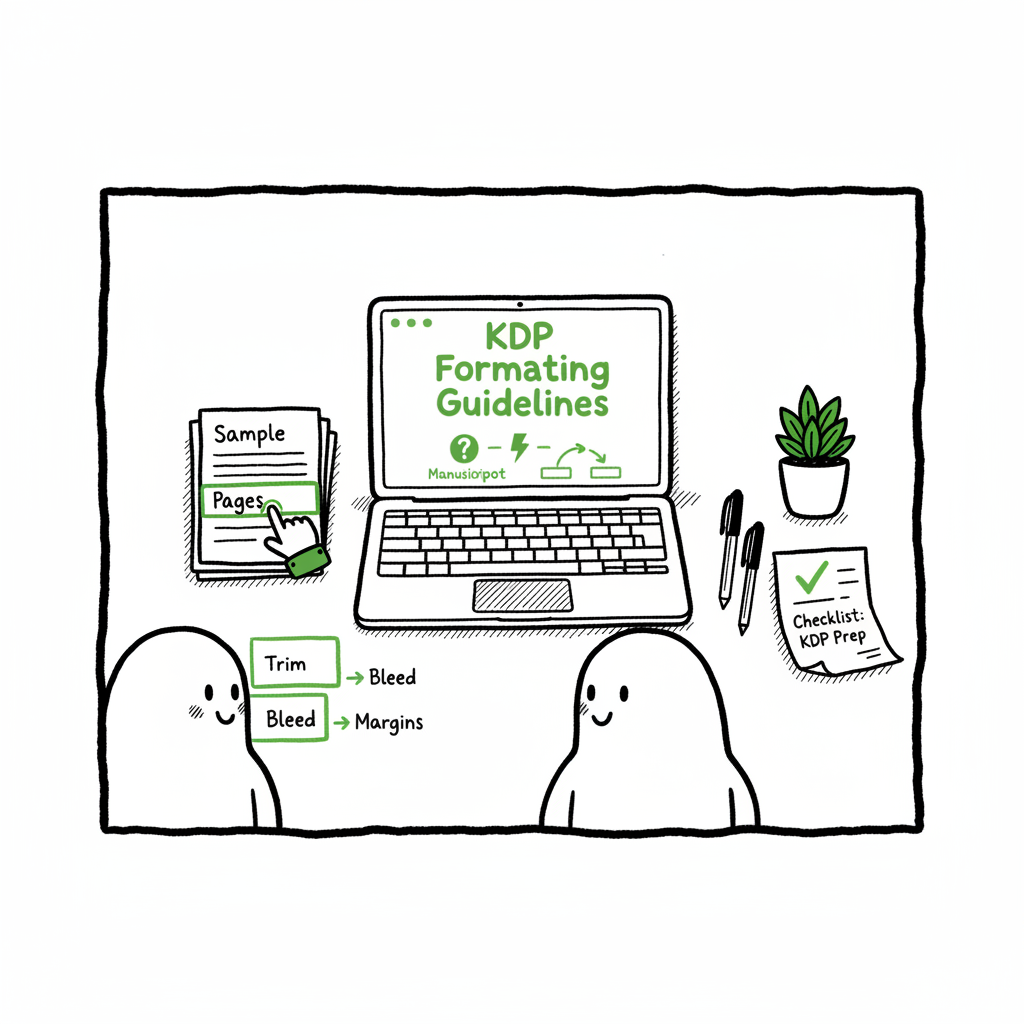
KDP Formatting Checklist for Print and eBook Interiors
KDP formatting checklist: a practical guide for print and eBook interiors
Estimated reading time: 9 minutes
Key takeaways
- A KDP formatting checklist keeps your manuscript inside Amazon’s strict trim, margin, bleed, and file rules so uploads don’t fail or print poorly.
- Focus on three zones: page setup (trim, bleed, margins), file integrity (fonts, images, PDF/export), and sequence (front matter, body, back matter, numbering).
- Use KDP’s previewer and one final review step. When you publish more than a few books, automation tools save time and cut repeated errors.
Table of Contents
- Why this kdp formatting checklist matters
- KDP formatting checklist: step-by-step
- Common formatting pitfalls and how to fix them
- FAQ
- Sources
Why this kdp formatting checklist matters
When you finish a manuscript, formatting is the gap between words and a saleable book. A focused kdp formatting checklist helps you build files that KDP will accept and that will print correctly. It reduces guesswork and forces repeatable decisions: pick a trim size, choose bleed or no‑bleed, apply the right margin table, and export correctly. If you want upload guidance tied to KDP’s rules, our Self Publish Book Amazon KDP resource explains the upload steps in plain, actionable terms. That guidance sits before the final preview step so you can catch issues early.
This checklist is practical: it assumes you already have text and covers the setup and export work that causes most rejections. It also separates what matters for print versus what matters for eBook files. Finally, once you publish seriously—multiple editions or multiple titles—automation and batch uploads become an obvious upgrade; they save time, reduce platform‑specific mistakes, and make wide distribution practical.
For a quick, scalable path, see our Self Publish Book Amazon KDP guide.
BookUploadPro packages this workflow: unified multi-platform publishing, ~90% time savings on repeated uploads, and fewer platform errors. BookUploadPro helps you automate the upload process and maintain consistency across formats.
KDP formatting checklist: step-by-step
Use the following sequence when preparing a KDP paperback or eBook. Work in one place (your source file), then export files that meet KDP’s specs.
1) Choose your trim size and binding
– Pick the exact trim size you’ll use on KDP (e.g., 6″ x 9″). Trim size determines margin and bleed needs.
– For larger page counts or different bindings, double‑check KDP’s minimum gutter recommendations. If you plan to distribute widely, build the file to the strictest platform requirement you expect.
2) Decide bleed or no‑bleed
– Bleed = content that runs to the edge of the page. If you have images or design that touch the page edge, select bleed and export a PDF with bleed applied.
– No‑bleed = body text only, safe margins all around. No crop marks or printer marks on files.
3) Set up margins and gutter
– Use a margin table that matches your trim size and page count. The inner gutter must be larger than outside margins so text isn’t lost at binding.
– Keep critical text at least 0.25″–0.5″ from the edges depending on trim and bleed. When in doubt, favor extra inside gutter space for thicker books.
4) Prepare front matter, body, and back matter
– Front matter: title page, imprint/copyright, dedication, table of contents (if printed), and any half title pages. These can use Roman numerals for page numbering.
– Body matter: chapters, consistent chapter title style, running headers (if used), and page numbers in the correct position (odd pages on the right, even on the left).
– Back matter: author bio, callouts, acknowledgments, and references. Make sure nothing important sits in the trim or bleed zone.
5) Use styles and consistent layout in your source file
– For eBooks: use paragraph styles (Normal, Heading 1) to create a linked table of contents. Avoid tabs for indents; use style indents.
– For print: set consistent paragraph spacing, avoid manual line breaks in the middle of paragraphs, and use a single base body font size throughout.
6) Images and figures
– All images should be at least 300 DPI at the final print size.
– Convert RGB to CMYK only if your tool requires it. KDP handles color conversion, but you must ensure resolution and color fidelity.
– Embed images, do not link externally at export time.
7) Fonts and typography
– Embed all fonts in your exported PDF.
– Avoid exotic or variable fonts that might not embed cleanly. If licensing prevents embedding, use a licensed substitute.
– Check hyphenation and widow/orphan control for a consistent look.
8) File assembly and technical specs
– For print with bleed: export a single, print-ready PDF. Remove crop marks and registration marks unless instructed otherwise by KDP; KDP recommends no crop marks.
– Keep final file under 650 MB.
– Flatten transparency where possible to avoid rendering errors.
– Confirm that fonts are embedded and that no comments, form fields, or hidden layers remain.
9) eBook specifics
– Use a clean, semantic source when building .mobi or .epub: headings, paragraph styles, images sized for eReaders.
– Avoid fixed layouts unless your book truly requires them (children’s picture books, complex layouts).
– Ensure the Table of Contents is linked. KDP’s conversion expects a navigable TOC.
10) Preview and validate
– Upload your files to KDP and use the online previewer. Page through every odd and even page.
– Check margins, gutters, page numbering, and image placement. For eBooks, test on devices or emulators.
– Fix any issues in the source, re-export, and re-upload.
11) Metadata and cover sizing
– Before finalizing, match your interior page count and trim size to generate the correct cover file size. A wrong page count or trim produces a mis-sized cover.
– If you need tools to produce a standard paperback or ebook file quickly, consider services that help you create a paperback or ebook template-ready assets at scale.
12) Final checks for multi-format distribution
– If you plan to distribute beyond KDP—Kobo, Apple Books, Draft2Digital, Ingram—expect slight variations in acceptable file types and trim tolerances. Batch tools that include platform-specific intelligence and CSV uploads save repeated work and cut errors.
Common formatting pitfalls and how to fix them
- Text too close to the gutter: Increase inner margin based on page count. Reflow paragraphs if needed.
- Low-resolution images: Replace with 300 DPI versions or resize images to their intended print size.
- Missing fonts at export: Embed fonts or replace with widely supported fonts that embed cleanly.
- Chapter titles spilled across pages: Force page breaks before chapter starts to ensure consistent placement.
- Incorrect cover size: Recount pages, confirm trim, and regenerate the cover PDF before upload.
- Broken eBook TOC: Apply Heading 1 to chapter titles and regenerate the TOC from those headings.
For deeper formatting coverage, explore the KDP Formatting Checklist.
Practical tips from high-volume publishers
- Build a margin and bleed template for each common trim size you use. Reuse the template.
- Keep a checklist file per title that tracks trim size, page count, fonts used, and image DPI.
- Automate repetitive uploads. When you publish multiple titles or multiple editions, CSV batch uploads and platform‑specific rules reduce manual entry and mismatched metadata.
- Use a centralized system for your final assets and versioning. That cuts mistakes like old drafts being uploaded.
How automation fits the checklist
If you publish more than a handful of titles, manual uploads become a time sink. Platforms that automate multi-platform publishing—Amazon KDP, Kobo, Apple Books, Draft2Digital, and Ingram—translate one set of prepared assets into correctly formatted outputs for each store. Automation can include CSV batch uploads, platform-specific intelligence (trim, file type, image handling), and error checking that replicates this kdp formatting checklist at scale. BookUploadPro packages this workflow: unified multi-platform publishing, ~90% time savings on repeated uploads, and fewer platform errors. Automate the upload. Own the distribution.
Practical example: from manuscript to upload
– Day 1: Finalize manuscript; choose trim size and confirm images are 300 DPI.
– Day 2: Apply margin/gutter template and style headings. Create a front/back matter plan.
– Day 3: Export print-ready PDF, export eBook file, and run local checks.
– Day 4: Upload to KDP, preview, fix any flagged margin or image issues, and finalize.
If you need to scale this for dozens of titles, consider tools that accept your formatted files and handle per-platform differences automatically. That’s the point where batch uploads and platform-aware exports turn this checklist from a single-run task into a repeatable pipeline.
FAQ
Q: What are the single most important items on a kdp formatting checklist?
A: Trim size selection, margin and gutter settings, image resolution (300 DPI), fonts embedded, and exporting a print-ready PDF without crop marks for bleed books. For eBooks, the top items are consistent paragraph styles, linked TOC, and removing manual tabs.
Q: Can I upload a Word file for a paperback?
A: KDP accepts Word for some workflows, but for bleed interiors you should export a PDF that matches trim size and includes embedded fonts. PDFs are the safest route for print-ready files.
Q: How do I check for common invisible problems?
A: Use PDF readers to inspect layers, check for comments or form fields, verify font embedding, and run image resolution checks. Always preview in KDP’s previewer after upload.
Q: Will a checklist prevent all print errors?
A: No checklist guarantees zero errors. Complex layouts, unusual typography, and heavy illustrations still need manual review. Use the checklist to cut obvious problems and the previewer to catch the rest.
Q: When should I consider automation or a batching tool?
A: When you publish multiple titles, multiple editions, or need to distribute across platforms. If you spend hours repeating the same export and upload steps, automation saves time and reduces human error.
Sources
- Paperback Submission Guidelines – Kindle Direct Publishing (official)
- eBook Manuscript Formatting Guide – Kindle Direct Publishing (official)
- Format Your Paperback – Kindle Direct Publishing (official)
- Set Trim Size, Bleed, and Margins – Kindle Direct Publishing (official)
- Book Formatting overview – Kindle Direct Publishing (official)
- Build Your Book: Format a Paperback Manuscript (Word for Windows) – KDP (official)
- Paperback and Hardcover Manuscript Templates – KDP (official)
- Self-Publish Quickly on Amazon—Includes 20-Step Checklist – AuthorImprints
Final thoughts
A kdp formatting checklist is a practical operator’s tool. It turns Amazon’s many technical rules into a short sequence you can follow before upload. For one-off projects, a careful manual pass and KDP preview will do. For growing catalogs and multi-platform distribution, consider a tool that automates the repetitive work and applies platform-specific intelligence to each upload. It’s an obvious upgrade once authors start publishing seriously.
Visit BookUploadPro for the free trial.
KDP formatting checklist: a practical guide for print and eBook interiors Estimated reading time: 9 minutes Key takeaways A KDP formatting checklist keeps your manuscript inside Amazon’s strict trim, margin, bleed, and file rules so uploads don’t fail or print poorly. Focus on three zones: page setup (trim, bleed, margins), file integrity (fonts, images, PDF/export),…