Draft2Digital Listing Setup Automation Guide for Authors
Draft2Digital Listing Setup Automation Guide
Estimated reading time: 14 minutes
Key takeaways
- Draft2Digital Listing Setup Automation Guide shows how D2D reduces manual steps for ebook and print distribution across retailers.
- Use prioritized metadata, automated end-matter, and the right upload files to avoid errors and speed publication.
- For authors publishing multiple titles, a multi-platform automation tool saves time, reduces mistakes, and makes wide distribution practical.
Table of Contents
- How D2D streamlines listing setup
- Step-by-step workflow for automated listing on D2D
- Best practices, troubleshooting, and publisher settings
- Scaling multi-platform publishing with automation
- FAQ
How D2D streamlines listing setup
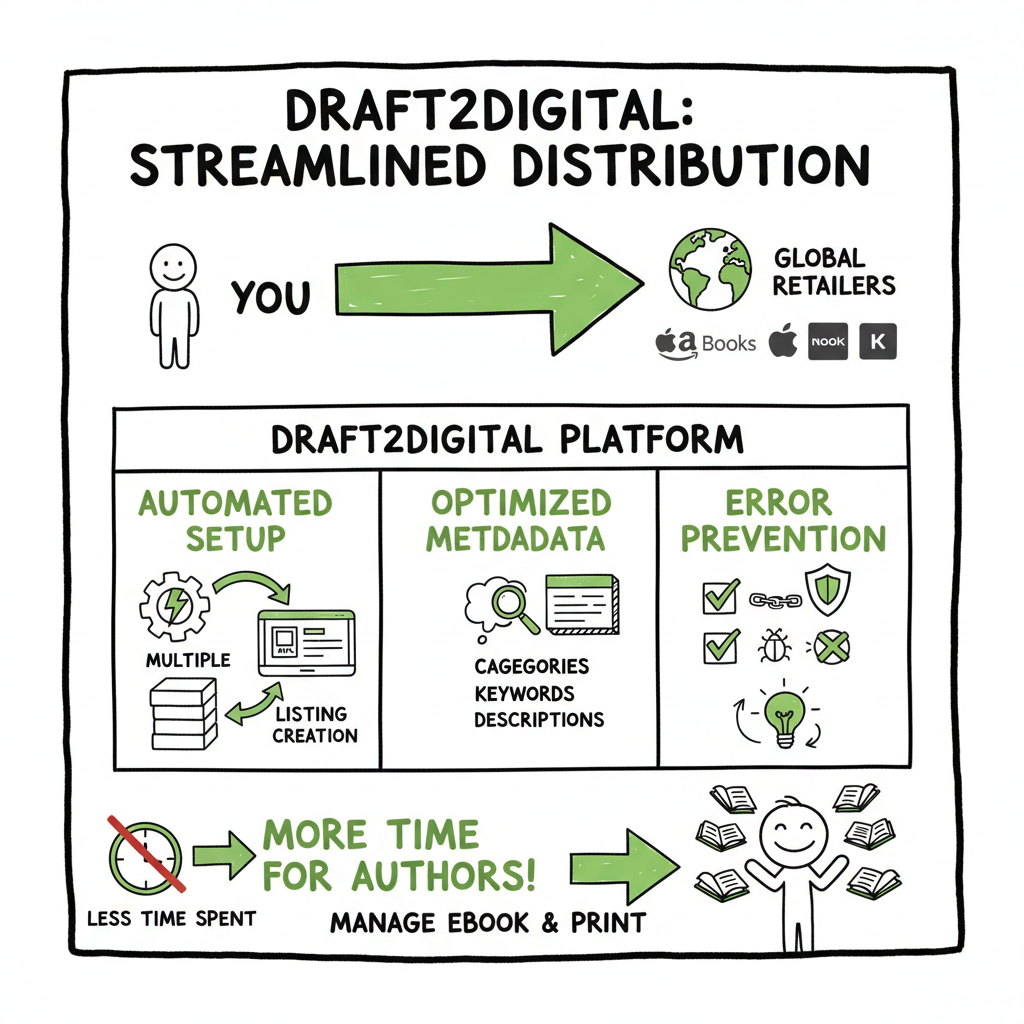
Draft2Digital Listing Setup Automation Guide starts with the basic idea: get your book files and metadata right once, and let the system propagate them to many stores. D2D acts as an aggregator. You upload the manuscript and cover, enter metadata, choose vendors, and publish. D2D handles ebook conversion, end-matter, and distribution. That one-dashboard approach cuts repetitive work compared with uploading to each store.
If you manage more than a handful of titles, also look at services that automate multi-platform uploads and batch processing. For a practical example of aggregator-focused distribution, see Draft2Digital Publishing Automation Distribution for how a single upload reaches stores without repeating the same manual steps across vendor sites.
Why this matters in plain terms: the same metadata and files that would need repeating on five retailer dashboards are entered once on D2D. That saves time and reduces typos, missing BISAC categories, and inconsistent series data. D2D’s automated features — like free ebook EPUB conversion and auto end-matter lists — make backlist promotion and formatting changes simpler.
Step-by-step workflow for automated listing on D2D
This section walks through a practical, repeatable workflow for listing books on Draft2Digital. Treat it as an operator’s checklist written as a narrative—do these actions in this order and you’ll avoid most common setup mistakes.
Prepare your files and assets
Start with clean source files. For ebooks, Draft2Digital prefers a Word .docx manuscript because its conversion tools use structured headings, front matter, and page breaks to build a clean EPUB. If you work in other formats, convert to .docx before upload to reduce conversion surprises; if you need an automated EPUB conversion step or repeatable file processing, tools like an EPUB converter can handle bulk conversions for you.
Design or finalize a cover that meets retailer specs. If you don’t have a finished cover, a book cover generator can produce print-ready art and spine layout quickly. Use high-resolution images and check text legibility at thumbnail size — most readers first see the thumbnail on store pages.
Create and optimize metadata
Enter a clear title and subtitle. Keep descriptions scannable: short first paragraph, then a few supporting lines. In D2D you can drag and order search terms; prioritize the best keywords first. Choose BISAC categories carefully — they affect discoverability on many platforms. If you have a series, use consistent series naming and numbers so D2D’s automated end-matter can list books correctly.
Upload manuscript and cover
Upload the manuscript and cover in the upload step. D2D will run its conversion and show a preview. For print books, use D2D’s print layout tools to set trim size, margins, and hyphenation. These settings will generate a print-ready PDF. If you need to create paperbacks or ebooks in various formats automatically, consider tools that streamline batch book creation.
Set contributors and publisher data
Add your name and any co-authors, contributors, and the publisher name you want displayed. D2D allows the publisher field to be prioritized over D2D branding; set that to your imprint if you prefer. Also fill contributor bios and enable auto end-matter to let D2D promote backlist titles automatically.
Choose vendors and pricing
Select which retailers and libraries will receive your book. D2D distributes to major stores including Apple, Kobo, Barnes & Noble, and libraries. For pricing, set list price and review D2D’s suggested splits for each vendor. If you want library availability, set the library pricing option to Auto unless you have a reason to customize it.
Preview, proof, and publish
Use the ebook and print previews D2D provides. For print, expect a longer timeline — printed books may take around two weeks to appear in stores and distribution networks. Ebooks typically go live much quicker. If you need to update the manuscript after publishing, D2D supports manuscript replacements and price changes without re-entering metadata.
Automation features to use
- EPUB conversion: D2D converts uploaded Word files to EPUB automatically.
- Auto end-matter: Insert “also by” lists and teasers that update from contributor profiles.
- Template and layout choices for print PDFs: choose trim sizes and control hyphenation and page breaks.
Best practices, troubleshooting, and publisher settings
The steps above will publish a title, but the difference between a book that looks amateur and one that looks professional often comes down to small, repeatable checks. This section covers practical fixes and decisions you’ll want documented in your publishing SOP.
Metadata hygiene and keyword strategy
Think of metadata as the single source of truth. Use a spreadsheet for each title with fields for title, subtitle, series name, description, BISAC categories, and ordered keywords. D2D lets you drag keywords to set priority; do that. Keep keywords consistent across platforms where possible and avoid repeating the same word multiple times.
Cover and interior checks
Check covers at small sizes and on different backgrounds. Avoid long, thin fonts for titles and small taglines that won’t read at thumbnail size. For interiors, confirm heading styles, images, and table of contents map correctly in the EPUB preview. If you need to run a batch cover process for many books, a book cover generator can produce consistent covers fast.
Common publishing errors and fixes
- Reflow or format problems in the EPUB: Re-upload a clean .docx with proper styles for headings and paragraphs.
- Missing series links in end-matter: Ensure series name and number are exact across all titles and enable auto end-matter.
- Wrong publisher display: Update publisher field before finalizing.
Print-specific tips
Print takes longer. Allow two weeks for wide distribution. Order a physical proof when you can. Use the print layout tools to set the correct trim size and gutter. If you plan multiple print formats, lock down interior settings before generating final PDFs. For repeatable paperback creation across many titles, add a step in your workflow to export consistent print templates or use a bulk production tool.
Platform-specific limitations
D2D is strong at distribution but some customizations still require manual work. For example, D2D can’t place Amazon Advertising for you. If you want an Amazon link in your book description or end-matter, handle that via a listings manager like Books2Read after the stores list your title. Keep a note in your workflow for post-publish tasks that require store-specific edits.
Scaling multi-platform publishing with automation
Once you have ten or more titles, manual uploads become a bottleneck. Automation and batch processing are not luxuries at scale — they’re necessities. This section explains options and practical steps to scale, and where a dedicated automation service becomes an obvious upgrade.
Batch uploads and CSV workflows
If you publish many titles, maintain a master CSV with your book metadata and filenames. A reliable multi-platform publishing tool will accept CSV batch uploads for metadata and file mapping. That saves time and eliminates repeated cut-and-paste errors. Batch uploads should include columns for title, subtitle, series, description, BISAC categories, keywords (ordered), contributor names, ISBNs, and file paths.
Platform-specific intelligence and error reduction
A good automation tool understands platform rules and formats metadata per retailer. For example, some stores prefer different ISBN handling or have unique category mappings. Using a unified tool with platform-specific intelligence reduces the need to learn each store’s quirks and cuts error rates.
Where BookUploadPro fits
If you’re ready to move beyond single-dashboard uploads, automation that handles Amazon KDP, Kobo, Apple Books, Draft2Digital, and Ingram from one place will save time. With CSV batch uploads and platform-specific rules baked in, you can automate the upload and let the system manage differences between stores. For many regular publishers, that’s about a 90% time savings on repetitive tasks. Automate the upload. Own the distribution.
Data, updates, and version control
Centralize source files and use versioned filenames. When a manuscript needs replacing, your automation tool should replace the file across selected platforms or create a version history. Track price changes, promotions, and proofs in the same dashboard to avoid mismatches across stores.
Where automation stops and human checks matter
Automation removes grunt work, but some tasks still need human judgment: cover choices, series branding, and marketing copy. Use automation for distribution and repetitive formatting; keep critical creative decisions in a short manual review step before final publish.
Practical examples and timelines
- Single ebook upload via D2D: live in days.
- Print book via D2D: roughly two weeks for full distribution.
- Batch of 20 backlist titles with an automation tool: initial setup takes a day or two; subsequent updates take minutes.
FAQ
Q: Can D2D publish to Amazon?
A: D2D distributes to many retailers, but Amazon’s terms can be more controlled. D2D can submit ebooks to Amazon in many cases, but some authors prefer uploading directly to Amazon KDP for specific options. Check D2D’s current vendor list for details.
Q: Do I need special ISBNs?
A: For ebooks, ISBNs are optional on many platforms. For print books, ISBNs are required. D2D can assign an ISBN for you or accept your own. If you plan wide distribution and control over publisher metadata, use your own ISBNs.
Q: How do I fix a conversion issue?
A: Re-export a clean .docx with proper style use, remove fancy page break elements, and avoid continuous section breaks. Use the EPUB preview and proof a physical copy for print. If conversion problems persist, convert externally to EPUB and upload that file instead.
Q: Can D2D handle pre-orders?
A: Yes. D2D supports pre-orders and promotion scheduling. Make sure your metadata and manuscript are final before setting a pre-order. Keep a conversion-proofed file ready.
Q: Are promotions supported via D2D?
A: D2D supports pricing changes and certain promotions but does not place Amazon Advertising. Use store-specific tools for ads and D2D for price distribution.
Final thoughts
Getting consistent, error-free listings on multiple retailers means building a repeatable workflow. Start by standardizing file formats and metadata in a spreadsheet or CSV. Use D2D’s automated EPUB conversion and auto end-matter to save time and increase backlist discovery. When your catalog grows, move to a multi-platform automation tool that accepts batch uploads, applies platform-specific rules, and replaces repetitive dashboard work with a few CSV rows.
If you work at scale, automation is an obvious upgrade. It saves time, reduces mistakes, and makes wide distribution practical. For cover generation, file conversion, and consistent book creation at scale, there are purpose-built tools: a book cover generator, an EPUB converter, and book creation and paperback/ebook generation tools that plug into larger pipelines that make batch publishing predictable.
Visit BookUploadPro.com to see how unified multi-platform publishing can fit into your process. Try the free trial to test CSV batch uploads, platform-specific intelligence, and automated distribution across Amazon KDP, Kobo, Apple Books, Draft2Digital, and Ingram. Automate the upload. Own the distribution.
Sources
- Step By Step – Draft2Digital
- Knowledge Base – Draft2Digital
- Publishing on Draft2Digital: A Step-by-Step Guide
- Draft2Digital: A Complete Guide for Independent Authors
- D2D Getting Started video
Draft2Digital Listing Setup Automation Guide Estimated reading time: 14 minutes Key takeaways Draft2Digital Listing Setup Automation Guide shows how D2D reduces manual steps for ebook and print distribution across retailers. Use prioritized metadata, automated end-matter, and the right upload files to avoid errors and speed publication. For authors publishing multiple titles, a multi-platform automation tool…