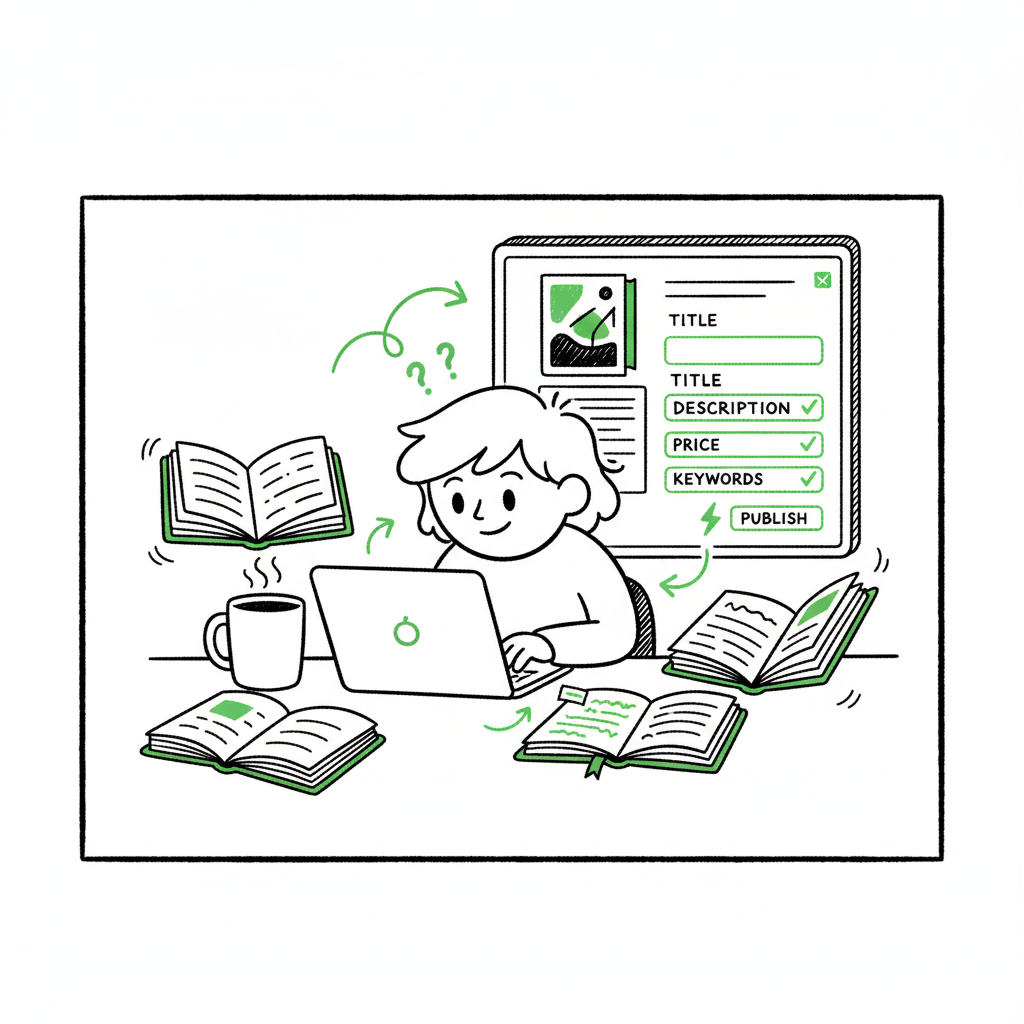
Updating Books After Publication Practical Guide for Authors
Updating Books After Publication: A Practical Guide for Self-Publishing Authors
Estimated reading time: 12 minutes
Key takeaways
- You can fix many live issues on KDP—description, price, keywords, covers, and small manuscript edits—without publishing a new edition.
- Major content changes (roughly more than 10% of the page count), title changes, or other edition-level edits usually require a new edition and, for paperbacks, sometimes a new ISBN.
- When you publish on multiple stores, use a consistent versioning approach and an automation tool to push updates reliably and save time.
Table of Contents
- Why authors update books after publication
- What you can and can’t change on KDP
- Step-by-step: update a published KDP book
- Managing updates across platforms and when to publish a new edition
- FAQ
- Sources
Why authors update books after publication
Updating books after publication is part of running a small publishing company. You will find typos, a broken table of contents link, a better cover idea, or a pricing error. You will also want to tweak metadata to improve discoverability. Knowing what you can change and how fast updates roll out keeps readers happy and avoids unnecessary new editions.
Authors update for four common reasons:
- Correct errors that affect readability (typos, broken links, formatting).
- Improve discoverability (better description, keywords, categories).
- Refresh the cover or interior design to test higher conversions.
- Adjust pricing, territories, or royalty settings.
The first step is to treat each update as a decision. Is this a cosmetic fix, or a change that alters the book’s identity? Cosmetic fixes belong on the same ISBN/ASIN. Identity changes—new title, new author name, or major new content—usually require a new edition. That distinction matters for retailers, buyers, and your back catalog.
Use a clear versioning habit. Keep a short update log with date, what changed, and why. You’ll thank yourself later when your distributor or printer asks which file they should use, or when a reader reports an old issue.
What you can and can’t change on KDP
Kindle Direct Publishing (KDP) lets authors edit certain elements after publication, and locks others to protect the record of a particular edition. Here is what to expect.
What you can change
- Description, keywords, and categories. These go through immediately to your book’s product page once KDP finishes processing the update.
- Pricing and territories. You can change list price, royalty options, and the countries where you distribute.
- Manuscript uploads for minor fixes. Small edits such as correcting typos, fixing formatting, and updating a chapter or two are allowed. KDP recommends careful judgment: if changes alter more than about 10% of the book’s content or page count, publish a new edition instead.
- Covers. You can upload a new cover file and republish the same edition. This is a common way to test different cover designs without creating a new ISBN.
- Interior formatting that doesn’t change the edition identity. For example, updating an internal image or correcting a broken TOC link is fine.
What you cannot—or should not—change on an existing edition
- Title, subtitle, and author name are effectively locked for the same edition. Changing these typically requires creating a new edition and assigning a new ISBN for paperback.
- ISBN swaps for significant changes. If you make major content changes to a paperback, some retailers and printers expect a new ISBN to prevent confusion between editions.
- Major reworks or added content that materially change the reader experience (for example, adding an entire new part, substantially rewriting chapters). These deserve a new edition.
Timing and customer updates
- KDP processes edits and usually republished files within 24–72 hours. Amazon will review content changes for quality and policy compliance.
- For meaningful eBook fixes that affect the customer experience, Amazon may push the updated file to readers automatically. That doesn’t always happen, and sometimes customers need to redownload manually.
- Keep a buffer: if you have an upcoming promotion, update early enough to let changes propagate.
Practical tip: before editing, download your current files and keep them in a versioned folder. Don’t overwrite original masters without a backup.
Step-by-step: update a published KDP book
This section walks through a safe, repeatable process to update a live KDP title. The sequence minimizes errors and surprises.
-
1) Prepare and decide
- Identify the change type. Is it metadata only (description, keywords, price), a small manuscript fix, a cover swap, or a larger content change that warrants a new edition?
- If it’s a small fix, make the change in your manuscript source file and save a new version with a clear filename like MyBook_v1.1.docx.
-
2) Backup and version
- Save the live interior and cover files in a dated folder.
- Keep a short change log: date, what changed, reason.
-
3) Edit in your native formats
- Make the least-risky edit in the original source file (Word, InDesign, Scrivener). Save as a new version.
- If you are creating a new cover, export the final file in the required dimensions and bleed settings for KDP. If you want help making or testing covers, consider a cover generator for quick iterations. (If you need an automatic cover tool, try a cover generator for processing.)
-
4) Convert and validate your ebook
- Convert to the required eBook format and validate the file. For Kindle, KDP accepts EPUB files now and handles conversion to Amazon’s format. If you convert elsewhere, use a reliable EPUB converter to check structure and images before uploading.
- Preview the converted file in a desktop or online previewer to verify formatting. Don’t skip this step. Small layout issues can ruin reading flow.
-
5) Upload and republish on KDP
- Sign in to KDP, go to your Bookshelf, find the title, and choose Edit content or Edit details depending on the change.
- For interior changes, use Edit content and upload the new manuscript file. For metadata, use Edit details and change description, keywords, or categories.
- Upload the new cover file if that’s your change.
- Use KDP’s previewer to scan pages and spot problems.
- Save and republish. KDP then enters a review state. Monitor your email and the Bookshelf status.
-
6) After republishing
- Expect processing to take 24–72 hours. Check the product page and download a copy on a device to confirm.
- For eBooks, test on several devices or reading apps. For paperbacks, order a physical proof if the change affects layout or print quality.
- If you updated description or keywords, monitor discoverability metrics over the following weeks and adjust as needed.
-
7) Communicate when needed
- If the update fixes a bug that affected readers (broken link, missing chapter), add a short author note in the description or on your author platform to explain the fix.
- If the change is cosmetic (cover refresh), announce it selectively—on author pages or newsletter—if you want to draw attention.
Quick checklist (one-sentence version)
Backup → Edit in native file → Convert and validate (EPUB) → Upload → Preview → Republish → Verify on devices → Log the change.
Note on EPUB and tools
Converting manuscripts to EPUB is a routine step. If you need a robust conversion tool, an EPUB converter helps maintain table of contents and image placement. Use it to reduce manual fixes after upload.
Why proof copies still matter
For ebooks, the previewer is good but not perfect. For paperbacks, a printed proof is the only reliable check for margins, image quality, and pagination. If you changed images, fonts, or layout, order a proof.
Why proof copies still matter
For ebooks, the previewer is good but not perfect. For paperbacks, a printed proof is the only reliable check for margins, image quality, and pagination. If you changed images, fonts, or layout, order a proof.
Managing updates across platforms and when to publish a new edition
If you publish only on KDP, the process above is enough. If you publish widely—Kobo, Apple Books, Draft2Digital, Ingram—updates become a coordination problem. Doing it manually on each platform is slow and error-prone. At scale, automation is the sensible operational move.
When to publish a new edition
- Publish a new edition when changes affect the book’s identity: new title, significant new content, major reorganization, or when the change would confuse buyers trying to choose the correct edition.
- For paperbacks, assign a new ISBN when the edition changes materially. Retailers and libraries use ISBN and metadata to distinguish editions.
- If you want to preserve reviews and page ranks on a platform, evaluate trade-offs. Keeping the same ASIN/ISBN preserves reviews; a new edition often starts fresh.
Coordinating changes across stores
Make a primary-update plan. Decide which platform you update first (many authors use KDP as the lead) and then push the same updated files to other stores.
Keep consistent metadata. Use the same title, subtitle (if unchanged), edition statements, and cover across stores so readers see the same offering.
Version control matters. Label files consistently across platforms. For example: MyBook_v1.2_epub.epub, MyBook_v1.2_print.pdf.
Why automation helps
Uploading the same assets to five stores is repetitive. A service that automates upload steps saves time and reduces human error. For serious indie authors, multi-platform publishing automation is an obvious upgrade once publishing reaches a steady cadence.
- Unified multi-platform publishing so one upload action distributes to KDP, Kobo, Apple Books, Draft2Digital, and Ingram.
- CSV batch uploads to push many titles at once.
- Platform-specific intelligence that formats files to each store’s rules.
- Error reduction through preflight checks and clear error reports.
The time savings are real: expect up to about 90% time saved on repetitive uploads, especially for series and backlist refreshes.
Practical workflow for multi-platform updates
- Prepare all updated assets and confirm version numbers.
- Use a centralized upload tool or service to push the updated ebook and paperback files.
- Check platform-specific previews or proofs. Each store may render things slightly differently.
- Confirm pricing and territories on each storefront.
- Log the update and monitor sales pages for the next 72 hours.
Paperbacks and print-on-demand
- For paperbacks, changes that affect trim size, margins, or image placement require a new print-ready PDF and, sometimes, a new ISBN.
- If you only change the cover and not the interior, you can often reuse the same ISBN, but check your print partner’s rules.
- Ordering printed proofs is the safe practice before approving distribution.
Reducing risk with staged updates
If you’re unsure about an interior change, stage it: update metadata and cover first, then update the interior in a second pass. That narrows the failure surface and keeps a working product on sale.
A note about wide distribution services
Distribution platforms like Draft2Digital and aggregator services simplify store coverage but don’t remove the need for careful versioning. They do make it easier to update across stores from a single dashboard.
BookUploadPro: why automation matters in practice
BookUploadPro automates repetitive uploads across Amazon KDP, Kobo, Apple Books, Draft2Digital, and Ingram. It uses CSV batch uploads and platform-aware intelligence to minimize formatting errors.
That automation translates to real savings on time and errors. For authors publishing multiple titles or series, BookUploadPro makes wide distribution practical by reducing the manual work that eats author time.
If you publish seriously and repeatedly, automation is not a luxury. It’s the operational upgrade that lets you focus on writing, marketing, and creating new content.
Automate the upload. Own the distribution.
When to notify readers
Notify readers only when the update affects them: a repair to missing chapters, a corrected error, or a meaningful new feature (new foreword, questions, or author note).
For minor metadata tweaks or cover refreshes, a small newsletter note or social post is enough.
Version logs and receipts
Keep an internal changelog and attachments of the exact files uploaded. If platforms ask for a proof or a file, you can supply it without hunting through folders.
Practical examples
- Example 1: Typo fix in a Kindle-only scene. Update the manuscript, upload to KDP, and expect the change to propagate within 72 hours. No new edition needed.
- Example 2: New foreword and an updated title. Create a new edition with a new ISBN for paperback and re-upload across stores. Announce it to readers as a new release.
- Example 3: Series cover redesign across five titles. Use batch uploads or an automation tool to push the new covers to all stores in one action, verify previews, and monitor conversions.
Security and backups
Store master files in a secure cloud folder and keep at least one offline backup. Label files with clear version numbers and dates.
Final thoughts
Updating books after publication becomes routine as your catalog grows. The right decisions let you fix problems quickly, improve discoverability, and keep editions clear for readers and retailers. For single-title updates, manual work is fine. For multi-title or multi-platform workflows, invest in tools that handle CSV batch uploads, platform-specific intelligence, and error checks. That preserves your time and reduces costly mistakes.
Automate the upload. Own the distribution.
Visit BookUploadPro.com and try the free trial.
FAQ
Q: Can I change my book’s title or author name on KDP after it’s published?
Title and author name changes are treated as edition-level changes. On KDP, these are not practical for an existing edition. If you need a new title or author credit, publish a new edition and follow the rules for ISBNs and metadata.
Q: How long does KDP take to process updates?
KDP typically processes updates within 24–72 hours. Exact timing varies with queue load and the nature of the change.
Q: Will Amazon push the new file to people who already bought the book?
For substantial fixes that improve the reader’s experience, Amazon may push updates to customers automatically. This is not guaranteed for every change. Encourage readers to redownload if necessary.
Q: If I update my paperback interior, do I need a new ISBN?
If changes are minor (typos, small edits), you can usually keep the same ISBN. If the content or layout changes substantially—new chapters, different trim size, major reflow—publish a new edition and assign a new ISBN.
Q: How should I track updates across multiple platforms?
Use versioned filenames, a simple change log, and consider an automation service that supports CSV batch uploads and platform-aware validations. This reduces manual steps and keeps metadata consistent.
Sources
- Update Your Book – Kindle Direct Publishing
- Update Your Manuscript – Kindle Direct Publishing
- Update your book details – Kindle Direct Publishing
- 9 Steps to Update a Kindle Book You’ve Previously Published
- KDP Community – edit KDP paperback after publication?
- KDP Community – Can my book be changed after publishing?
Updating Books After Publication: A Practical Guide for Self-Publishing Authors Estimated reading time: 12 minutes Key takeaways You can fix many live issues on KDP—description, price, keywords, covers, and small manuscript edits—without publishing a new edition. Major content changes (roughly more than 10% of the page count), title changes, or other edition-level edits usually require…