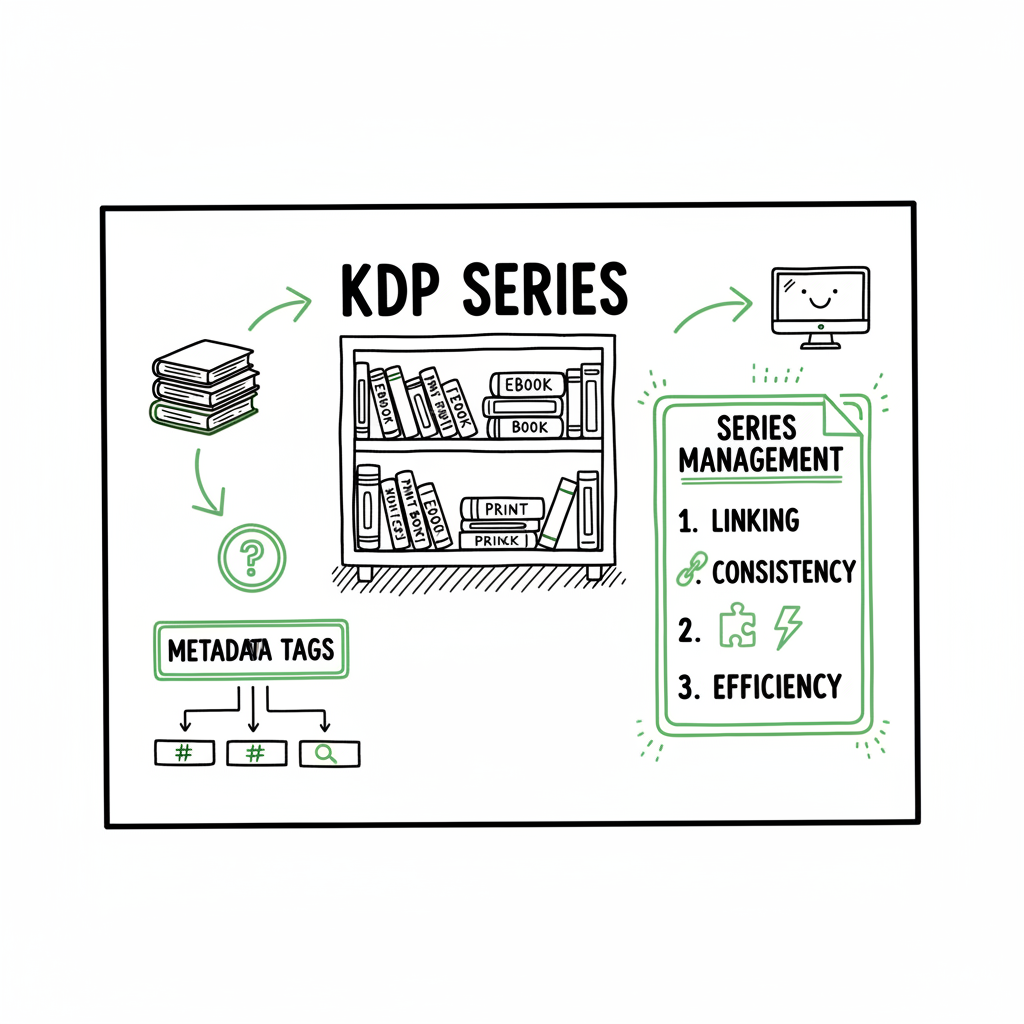
Series Publishing Helper for KDP Setup and Management
Series publishing helper: how to set up and manage KDP series efficiently
Estimated reading time: 14 minutes
Key takeaways
- A series publishing helper saves time by standardizing series metadata, linking formats, and keeping reading order consistent across KDP.
- KDP’s series pages live in the Bookshelf; properly linked ebook and print editions propagate series membership automatically.
- BookUploadPro automates multi-platform uploads and series configuration, cutting manual work with CSV batch uploads and platform-specific intelligence.
Table of Contents
- Overview — what a series publishing helper does
- How to set up and manage a KDP series step by step
- Series publishing at scale: multi-platform publishing and automation
- Common problems, fixes, and best practices
- FAQ
Overview — what a series publishing helper does
A series publishing helper is a practical tool or service that takes the routine, repetitive parts of publishing a book series and makes them reliable and fast. For authors who publish multiple books, or the same book in multiple formats, a helper reduces mistakes and preserves a clean storefront presentation.
On Amazon KDP, series pages are created and managed from the Bookshelf. The platform requires you to create a series page, add titles, and define reading order and metadata. A real series helper understands these platform rules and works within them: it prepares consistent series titles, numbers, descriptions, and ensures that ebook and print formats are linked so the series association applies to all editions.
If you’re managing many books, the benefit is predictable: a single naming convention, correct ordering, and fewer missed links between formats. To make that practical, some helpers offer CSV batch uploads and workflows that match KDP’s expectations. For authors who reach a steady publishing cadence, this kind of system is an obvious upgrade once you start publishing seriously. For example, workflows like KDP Upload Workflows Format can document how metadata and filenames should be prepared for batch actions and automated uploads early in the project.
A good series publishing helper can also act as a guardrail. KDP excludes certain book types—public domain titles and many low‑content books—from series pages, and a helper flags those restrictions so you don’t waste time trying to add ineligible books. It does not replace KDP’s control of the series page; rather, it prepares the data and performs the repetitive steps reliably, then confirms the result in the KDP Manage Series interface.
How to set up and manage a KDP series step by step
This section walks through a practical, operator-style approach to setting up and maintaining a book series on Amazon KDP. The goal is consistency and fewer manual corrections.
-
Prepare consistent metadata before you touch KDP
- Series title: pick one canonical version and use it everywhere. Avoid subtitles inside the series title.
- Volume numbering: choose a standard like “Book 1,” “Book 2,” or “Volume 1,” and apply it uniformly in both title and the series order field.
- Descriptions: write a series-level blurb that can be reused on the series page; keep it short and focused on the arc across books.
- File naming: include the ISBN (if any), the title, and format in file names so uploads are traceable.
-
Start in the Bookshelf
- Create or edit a title. KDP gives you the option to “+ Create series page” when you set up a new book, or “Add to series” on existing titles.
- If you already have multiple formats, make sure formats are linked on the Bookshelf. When formats are linked, KDP will apply series membership across linked ebook, paperback, and hardcover editions automatically.
-
Use the Manage Series interface
- From the Bookshelf, go to Manage Series to edit metadata, add existing titles, or create new titles directly into the series.
- Set reading order explicitly. Don’t rely on title sorting alone—use the reading order field KDP provides.
- Allow time for propagation. Changes to the series page can take up to 72 hours to appear on Amazon.
-
Keep editions linked
- KDP uses linked formats to propagate series membership. If an ebook and a paperback are not linked, adding the ebook to a series won’t necessarily add the paperback.
- When you upload a new edition, verify the link back to the main title on the Bookshelf. If the link breaks, re-establish it before adding the book to the series.
-
Work with boxed sets and special cases
- Boxed sets for Kindle can be added as related content, but KDP does not natively create paperback box sets. Physical box sets need to be handled differently and sometimes require contacting KDP Support if they exist outside KDP.
- Exclude ineligible titles. Public domain and many low‑content books cannot create or join series pages.
-
Scale with CSV and repeatable steps
- For multiple books, a CSV approach that standardizes title, subtitle, series name, series position, and ASIN/ISBN reduces manual entry.
- Keep a version-controlled master CSV that records which titles are already in a series and which still need linking. That reduces duplicate work and mistakes.
-
Audit regularly
- Every quarter, check the Bookshelf and the series page for missing formats, broken links, or incorrect ordering.
- Record any changes and the date they were made so you can trace issues later.
Practical notes on editions and format linking
Adding one format to a series automatically adds all linked formats. This reduces manual labor but depends entirely on proper linking on the Bookshelf.
If you change metadata on one edition, confirm the change on linked editions where appropriate. Some fields live per edition; others are shared.
Series publishing at scale: multi-platform publishing and automation
Once your KDP series is set up and stable, the next step for serious authors is multi-platform distribution and repeatable automation. Doing this by hand for each title and format is slow and error-prone. That’s where automation services like BookUploadPro become a practical choice.
Why multi-platform matters
Readers find books in different stores. Kobo, Apple Books, Draft2Digital, and Ingram each have unique storefront behaviors. If you only publish on KDP, you miss readers on other platforms and the advantages of broader distribution. But publishing across platforms introduces extra work: different file requirements, cover sizes, and metadata rules.
What automation should solve
– Unified multi-platform publishing: one source of truth for your title metadata that adapts to each platform’s rules.
– Platform-specific intelligence: the system knows which fields are required by each store and adjusts the CSV or upload package accordingly.
– CSV batch uploads: prepare many titles in one file and let the system push them out, reducing repetitive clicks.
– Error reduction: automated checks for common issues like incorrect spine sizes, missing files, or forbidden content types.
– Time savings: for most authors, automation cuts the hands-on time by around 90% once the workflow is mature.
What BookUploadPro does differently
BookUploadPro focuses on automating the repetitive parts of multi-platform publishing while preserving human oversight for creative choices. It standardizes metadata, links formats correctly for KDP, and prepares platform-specific packages so one set of inputs yields consistent outputs across Amazon KDP, Kobo, Apple Books, Draft2Digital, and Ingram. When you publish multiple volumes or editions, that consistency matters: readers see clear series ordering; stores display the same series name and description; and errors that used to slip through are caught before upload.
Practical workflow in production
– Master metadata: keep a single master file with canonical titles, series names, read order, and file locations.
– Cover and EPUB handling: let the system validate cover dimensions and convert interiors where needed. If you need a cover created or want fast EPUB conversion, third-party tools can help. For example, if you need fast ebook creation or conversions, an EPUB converter service can convert manuscripts reliably to meet each platform’s format requirements. EPUB converter.
– Batch validation: run a validation pass over your batch to catch simple problems—missing metadata, disallowed characters, or mismatched ISBNs—before the uploads start.
– Upload and confirm: the automation uploads to each platform and reports back successes and failures. For KDP series pages, it will follow KDP’s linking rules and flag any titles that cannot be added because of eligibility rules.
Cover and file preparation (practical tips)
cover generator service speeds up the process and keeps visual assets consistent. If you must produce EPUB files from a source manuscript, use a converter that preserves metadata and chapter markup. That avoids formatting regressions that confuse readers and stores. For print editions, ensure the paperback and hardcover files are linked to the same logical title so series membership propagates correctly on KDP.
If you don’t yet have a finished cover, or need thumbnails in the right sizes for each store, consider a cover generator service to maintain consistency.
When to keep doing things manually
– Creative decisions: cover design, title wording, and series branding are creative work. Automation helps apply decisions consistently but should not replace them.
– Edge cases: unusual boxed sets, collector editions, or rights splits often require manual attention.
Operational wins you can expect
– Faster onboarding for new titles: adding a new volume becomes a predictable chore rather than a creative bottleneck.
– Fewer listing errors: checklists embedded in the workflow catch the common problems that create customer confusion.
– Clean storefronts: consistent series naming and visible reading order help readers discover the sequence and buy more books.
A simple operational mindset
Treat automation as a repeatable pipeline: prepare, validate, upload, confirm. Keep the pipeline lean and defensible so the author or publishing lead can quickly spot and fix issues. For authors who reach steady output, automation is the obvious upgrade: Automate the upload. Own the distribution.
BookAutoAI tool links
– If you need a fast way to generate or process covers, consider a cover processing tool that standardizes thumbnails and print-ready files.
– For converting manuscripts to EPUB, a reliable EPUB converter reduces formatting back-and-forth.
– If you are creating paperbacks or ebooks from source files at scale, tools that support batch file generation and validation can be part of the same pipeline.
Common problems, fixes, and best practices
Even with good tools, publishing series brings a handful of recurring problems. Here are practical fixes.
Problem: Formats aren’t linked, so series membership doesn’t appear for all editions
Fix:
– On the Bookshelf, verify the paperback and hardcover editions are linked to the ebook. If they aren’t, re-link them using the KDP linking workflow.
– After linking, re-open Manage Series and confirm that the title now appears in the series. Allow up to 72 hours for the store to update.
Problem: Series ordering is wrong or inconsistent
Fix:
– Use the reading order field in Manage Series instead of relying only on title prefixes.
– Standardize numbering in your master metadata and apply it across all platforms using your CSV.
Problem: Series page won’t accept a title (public domain or low-content)
Fix:
– Confirm eligibility. KDP excludes public domain works and many low-content books from series pages. Don’t force it—those titles need separate handling.
– If a title should be eligible and KDP rejects it, check for other policy issues or contact KDP Support with the ASIN/ISBN and a short explanation.
Problem: Boxed set handling is messy
Fix:
– Kindle boxed sets can be added as related content. For physical boxed sets, you might need to handle them outside KDP or work with KDP Support to link external set products.
– Maintain clear SKU and title structures so boxed sets don’t break your series order.
Problem: Cover or file spec failures during upload
Fix:
– Validate files before upload. Automated validation should check spine size, DPI, margins, and EPUB/print specs.
– If you need a quick cover solution or automated EPUB processing, use specialist tools that create compliant files before they enter the pipeline.
Best practices summary
– One source of truth: keep canonical metadata in a single file that feeds all platforms.
– Validate early: catch problems before platform uploads.
– Standardize naming and numbering: consistent series titles and numbering remove reader confusion.
– Monitor and audit: check series pages periodically to ensure formats remain linked and ordering is intact.
FAQ
Q: What exactly is a series publishing helper?
A: It’s a set of processes, templates, and tools that streamline creating and maintaining a book series. It focuses on metadata, linking formats, and managing reading order so the storefront displays a clean series page.
Q: Does a series helper change the KDP series page directly?
A: Helpers prepare and submit the correct metadata and step through KDP workflows, but KDP’s Manage Series controls the final display. The helper operates within KDP’s rules and automates the routine steps.
Q: Can I add new books to a series after the series page is live?
A: Yes. KDP allows adding and removing titles at any time. Changes may take up to 72 hours to appear.
Q: Will automation work for paperbacks and hardcovers as well as ebooks?
A: Yes, as long as formats are linked on the Bookshelf. When linked, adding one edition to a series will add the others automatically.
Q: My series has many books. Should I use a batch CSV process?
A: Yes. A CSV pipeline that standardizes title, series name, series position, and file locations saves time and reduces errors when handling many volumes.
Sources
- https://kdp.amazon.com/help/topic/GMFKBUS43QQ5AJ5A
- https://kdp.amazon.com/en_US/help/topic/GJ3E8KQDLQ3NH3T9
- https://kdp.amazon.com/en_US/help/topic/G6PVAHKQS87GVK6A
Final thoughts
Managing a series is a repeatable operation once you standardize metadata, keep editions linked, and validate files before uploading. KDP gives you the core tools—create series pages from the Bookshelf and manage series metadata—but those tools are built for single-title workflows. When you move from one-off books to a steady publishing rhythm, a series publishing helper and a multi-platform automation tool become practical necessities.
automates the repetitive parts of multi-platform publishing and series configuration: unified multi-platform publishing, CSV batch uploads, platform-specific intelligence, and significant time savings while reducing errors. For authors with multiple books or editions, it saves the kind of time that lets you focus on writing the next volume instead of wrestling with metadata.
If you need cover processing, EPUB conversion, or batch generation of ebooks and paperbacks as part of your pipeline, integrate specialists that handle those tasks upstream so your upload workflow runs cleanly.
Visit BookUploadPro.com and try the free trial to see how automating the upload can make wide distribution practical.
Series publishing helper: how to set up and manage KDP series efficiently Estimated reading time: 14 minutes Key takeaways A series publishing helper saves time by standardizing series metadata, linking formats, and keeping reading order consistent across KDP. KDP’s series pages live in the Bookshelf; properly linked ebook and print editions propagate series membership automatically.…