How to Publish a Paperback on Amazon KDP Step by Step
How to Publish a Paperback on Amazon
Estimated reading time: 12 minutes
Key takeaways
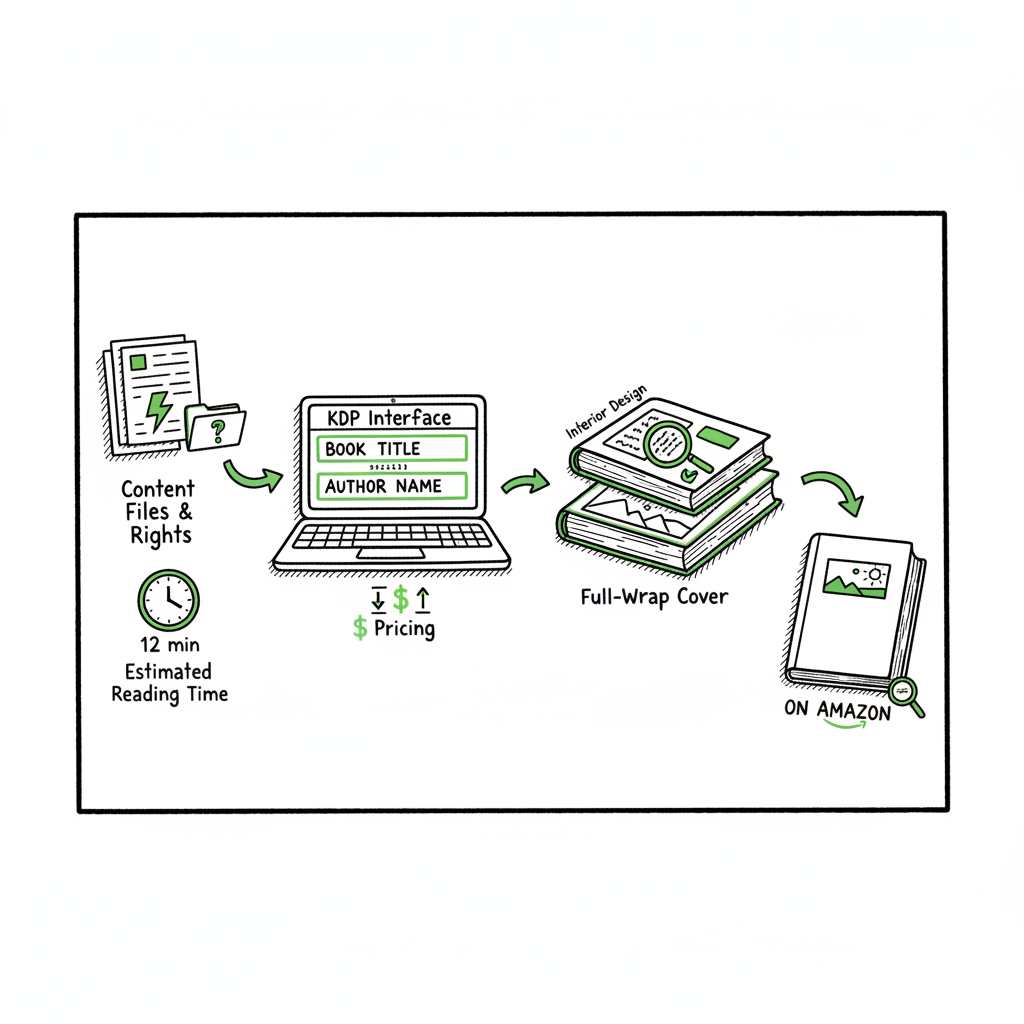
- Publishing a paperback on Amazon via KDP follows three core stages: metadata, content files, and rights & pricing.
- Prepare a print-ready interior and a full-wrap cover sized to your chosen trim before you start the KDP upload.
- Automation services like BookUploadPro remove repetitive steps, cut errors, and make multi-platform paperback distribution practical at scale.
Table of Contents
- Why KDP is a practical choice for paperbacks
- KDP paperback publishing steps
- Common quality checks and how to fix them
- How BookUploadPro fits a multi-platform publishing workflow
- FAQ
Why KDP is a practical choice for paperbacks
Publishing a paperback on Amazon is the obvious first stop for many self-publishers. KDP gives print-on-demand with no upfront inventory, broad Amazon visibility, and a straightforward royalty model. It also links different formats—paperback, Kindle eBook, and hardcover—so customers see all available editions on the same product page.
For authors focused on doing more than a single title, KDP’s predictable process is a feature, not a limitation. Once you learn the file requirements and the three-part setup flow, you can repeat it. If you want to see a full guided walkthrough aligned with KDP’s current interface, check the publisher-focused guide Self Publish Book Amazon KDP which walks through the same steps used here.
KDP is not the only print option, but it’s the easiest to launch quickly and keep updated. When you start publishing seriously and need to reach Kobo, Apple Books, Draft2Digital, and Ingram as well, unified multi-platform publishing becomes practical only when you reduce filing and upload friction across systems.
KDP paperback publishing steps
The KDP paperback upload is procedural. Treat it like a three-part checklist: Paperback Details, Paperback Content, Rights & Pricing. I’ll walk through each stage and flag the file and formatting rules that typically cause delays.
-
Prepare before you log in
Before you start the KDP form, have these ready:
- Final manuscript, fully edited and paginated to your chosen trim size.
- Print-ready interior file (PDF recommended for most print options).
- Full-wrap cover file sized for trim and spine (or a front-cover if you’ll use KDP’s Cover Creator).
- Metadata: book title, subtitle, series info, author name, description, keywords, and categories.
- Your tax and payment info in KDP (so royalties can be paid).
Good file prep saves time. For example, a clean, embedded-font PDF with images at 300 DPI avoids rejections. If you’re creating covers or interior files and want automated support for cover artwork, a book cover generator can speed that step and produce KDP-ready files quickly.
-
Paperback Details (metadata)
This section asks for language, title, subtitle, series, edition, author and contributors, and the description. Choose categories and keywords that match reader intent—not genre buzzwords.
Tip: Write a concise description (one or two short paragraphs) and select two to three relevant categories. You can update metadata later, but precise initial choices help during your book’s first week of visibility.
-
Paperback Content (files and print options)
This is the technical part:
- ISBN: You can use a free KDP ISBN (KDP becomes the publisher of record) or bring your own ISBN. If you plan wide distribution outside Amazon, use your own ISBN.
- Trim size, paper type, interior color: Choose the trim size that matches your interior layout. Decide on black & white or color printing and the paper stock.
- Bleed vs. no-bleed: If images run to the edge, choose bleed and create a PDF with the correct bleed setup.
- Upload interior file: PDF is recommended. Ensure fonts are embedded, images 300 DPI, no crop marks, and margins meet KDP’s minimums for the selected trim.
- Upload cover file: For full-wrap covers include trimmed dimensions plus spine width based on page count. If you’d rather not build a full-wrap, KDP’s Cover Creator can help, but designers usually prefer a full-wrap PDF.
If you’re producing both ebook and print, producing the interior as a print-ready PDF and using the same cover artwork (reformatted for print) is standard. For authors who need automated generation of paperback interiors and accurate spine calculations, book creation tools can automate the page-count math and file export so your PDFs match KDP’s specs.
-
Preview and proofing
KDP offers an online previewer. Use it to check margins, orphaned lines, and how images sit relative to trim. Order a printed proof if you can—on-screen previews can miss subtle issues like paper density or ink saturation.
-
Rights & Pricing
Choose territories, primary marketplace, and list price. KDP calculates a printing cost; your royalty is list price minus printing cost and Amazon’s cut. Set a sensible price that covers printing while keeping the book competitive.
After you click Publish, Amazon runs a technical and content review, usually within 72 hours. If there are issues, they’ll email specific problems to fix.
Common quality checks and how to fix them
Most KDP delays come from a small set of repeatable issues. Treat these as a pre-flight checklist.
- Margins and gutter
Problem: Text or images are too close to the spine or edge.
Fix: Increase inside gutter margin based on page count. Use KDP’s margin recommendations for your trim size. - Bleed and trim marks
Problem: Low-resolution images bleeding to the edge or crop marks appearing in the PDF.
Fix: Export PDF without crop marks and with the correct bleed area. Ensure images are at least 300 DPI at final print dimensions. - Embedded fonts
Problem: KDP rejects the interior because fonts aren’t embedded.
Fix: Export your PDF with fonts embedded. If using system or custom fonts, check licensing for embedding. - Incorrect spine width
Problem: A full-wrap cover doesn’t align because the spine width was calculated incorrectly.
Fix: Recalculate spine width using final page count and paper type. Many layout tools and services perform this calculation automatically. - Wrong file type for selected options
Problem: Uploading non-PDF files for bleed options that require PDF.
Fix: Export the interior as a print-ready PDF for bleed. For no-bleed interiors, KDP accepts other formats but PDF is still safest. - Metadata mismatches
Problem: Title or author name on files differs from metadata, or keyword stuffing in description.
Fix: Keep metadata and the text on files consistent. Use natural language in descriptions.
How BookUploadPro fits a multi-platform publishing workflow
If you publish one title, the manual KDP flow is manageable. Once you publish dozens, manually repeating these steps across KDP, Kobo, Apple Books, Draft2Digital, and Ingram becomes a bottleneck. That’s where tools that automate and batch the upload process are practical.
BookUploadPro automates repetitive uploads across Amazon KDP, Kobo, Apple Books, Draft2Digital, and Ingram. It takes a filled manuscript and turns it into KDP-compliant interiors and covers, runs platform-specific adjustments (trim size, spine math, bleed settings), and either prepares ready-to-upload files or performs the upload for you within your accounts. The result is roughly ~90% time savings for routine tasks like format export, ISBN assignment, and platform-specific checks.
Operational features that matter:
- CSV batch uploads that let you push metadata and files for multiple books in one job.
- Platform-specific intelligence that minimizes rejections, because each store has slightly different rules.
- Error reduction through automated validation of page counts, embedded fonts, and image resolution.
- Affordable pricing with a free trial so you can test the workflow before committing.
For many authors, BookUploadPro becomes an obvious upgrade once they publish several titles. Automate the upload. Own the distribution.
If you need fast cover options during bulk work, a reliable book cover generator can produce a compliant, ready-to-upload front and full-wrap cover in minutes. And when you need the interior formatted across multiple trim sizes and platforms, using streamlined book creation tools avoids manual recalculation and repeated layout work.
FAQ
Do I need my own ISBN for a KDP paperback?
No. KDP offers a free ISBN, but the publisher of record will be Amazon. If you want full control over publisher metadata or plan broader non-Amazon distribution with your own imprint, buy and use your own ISBN.
What file types does KDP accept for paperback interiors?
KDP accepts several file types, but a print-ready PDF with embedded fonts and 300 DPI images is the safest choice—especially for bleed books.
How long does it take for a paperback to go live on Amazon?
After publishing, KDP usually completes technical and content review within 72 hours. If there are issues, you’ll get an email listing corrections.
Should I order a printed proof?
Yes, if quality and layout are important to you. On-screen previews are helpful, but physical proofs reveal paper tone, ink behavior, and small layout issues.
Can BookUploadPro upload my files to multiple stores?
Yes. BookUploadPro is built to automate multi-platform publishing across KDP, Kobo, Apple Books, Draft2Digital, and Ingram, which is helpful when you want consistent print editions available in multiple channels.
Sources
- Paperback Submission Guidelines – Kindle Direct Publishing
- Format Your Paperback – Kindle Direct Publishing
- Create a Book – Kindle Direct Publishing
- Start publishing with KDP
- How to Self-Publish a Book on Amazon (KDP Publishing)
- How to Publish a Book on Amazon in 6 Simple Steps (Reedsy)
- The Complete Amazon KDP Tutorial for Beginners (2025)
- How to Upload a Book to Amazon KDP (Complete Step …)
How to Publish a Paperback on Amazon Estimated reading time: 12 minutes Key takeaways Publishing a paperback on Amazon via KDP follows three core stages: metadata, content files, and rights & pricing. Prepare a print-ready interior and a full-wrap cover sized to your chosen trim before you start the KDP upload. Automation services like BookUploadPro…