Managing Multiple Books on KDP with a Practical System
Managing Multiple Books on KDP
Estimated reading time: 14 minutes
Key takeaways
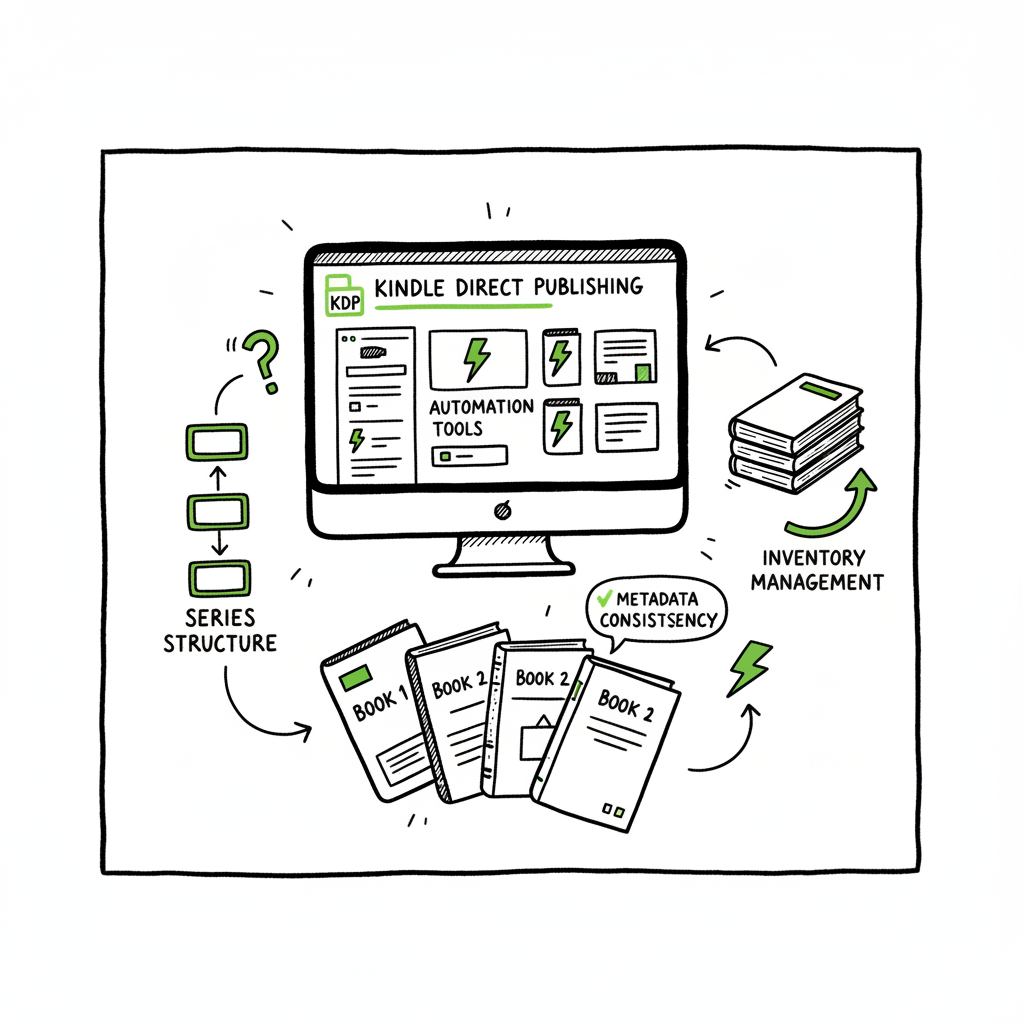
- Managing multiple books on KDP works best when you treat the catalog like inventory: consistent metadata, clear series structure, and a single account.
- KDP lacks true bulk uploads, so use automation and CSV-driven tools off-platform to save time and avoid repetitive errors.
- Multi-platform automation (Amazon, Kobo, Apple, Ingram) makes wide distribution practical and reduces manual work by up to ~90%.
- Simple operational rules—standard templates, version control, and scheduled checks—prevent small problems from multiplying across dozens of titles.
Table of Contents
- Why KDP gets messy at scale
- Practical system for managing multiple books on KDP
- Using multi-platform automation to scale publishing
- Common problems and how to avoid them
- Final thoughts
- Practical steps you can take today
- FAQ
- Sources
Why KDP gets messy at scale
Managing multiple books on KDP is straightforward when you have one or two titles. Problems start to appear once you reach a dozen or more. Metadata drifts, covers get inconsistent, formats aren’t linked, and keeping track of promotions or price changes becomes a spreadsheet headache. Amazon’s KDP Bookshelf gives you the basic tools—series, format linking, and archiving—but it does not offer a native bulk upload or true catalog manager. That gap is where process and tooling win.
Start with the facts KDP enforces:
- Amazon expects a single KDP account per author or publisher. If you have titles split across accounts, Amazon can merge them, but royalties and reports aren’t consolidated automatically.
- The Bookshelf is your control center: you can create series, link ebook and paperback formats, and archive titles to declutter your view.
- There is no built-in bulk upload for many titles at once. Every new release needs files and metadata entered on the Bookshelf unless you use a third-party process.
If you need a step-by-step reference for listing and linking formats on Amazon, see Self Publish Book Amazon KDP for the basics and how the Bookshelf ties formats and series together.
For a quick reference, you can read a concise guide on how to navigate the Bookshelf and keep formats linked. Self Publish Book Amazon KDP covers the essentials you’ll need as you scale.
Practical system for managing multiple books on KDP
When you own many titles, a rigid, simple system prevents chaos. Below is a practical, repeatable workflow you can apply to any size catalog. Keep it operational—short playbooks, consistent naming, and automation-ready files.
- 1) Single-account hygiene
Keep everything under one KDP account. Multiple accounts are disallowed and create reporting friction. If you inherited titles on another account, work with Amazon to merge them. After the merge, reconcile royalty histories offline, but keep future publishing centralized.
- 2) Single source of truth (one spreadsheet per catalog)
Create a master CSV that holds one row per SKU/title and columns for every field you care about:
Title, subtitle, and series name; ISBN and ASIN (if assigned); Formats (ebook, paperback, hardcover);
File paths for manuscript and cover; Language, territories, pricing tiers; Keywords, categories, and age/grade ranges if relevant; Status (draft, ready, published, archived).
This CSV becomes the single source of truth for uploads, reports, and automated systems. Export it from your tools, not from KDP, because KDP doesn’t expose a robust API for bulk catalog changes. - 3) Templates for metadata and files
Build templates for description copy, keyword packs, and back-matter. For covers and interiors use predictable file locations and naming conventions. That makes scripting and CSV-based uploads possible. When you create a paperback or ebook, keep the files in a predictable folder structure so automation can pick them up.
- 4) Link formats and manage series on KDP
On the Bookshelf, link ebook, paperback, and hardcover formats of the same title to keep one product page for customers. Use the series feature to group related titles—set reading order where relevant. Series pages improve discoverability and keep catalogs tidy.
- 5) Archive the noise
KDP allows you to archive titles so they don’t show in your default Bookshelf view. Archiving is useful for temporary removals or older editions. Archiving does not unpublish the book; it only hides it from the default dashboard. Use the “archived” flag in your CSV for traceability.
- 6) Version control and backups
Keep every significant upload as a versioned folder. Name them with dates and brief notes. If something goes wrong on a platform, you can re-upload a known-good package quickly.
- 7) Scheduled catalog audits
Every month, run a short audit:
Spot-check metadata on five random titles; Verify links between formats; Confirm pricing across marketplaces; Check conversion compatibility for EPUB and PDF. A short, frequent audit catches drift before it becomes a bigger cleanup job. - 8) Error logs and rollback plans
Track upload errors and common validation issues (file not accepted, cover bleed issues, metadata rejected). Keep a short playbook that lists the common fixes. A rollback plan could be as simple as reverting to the last archived version and re-uploading clean files.
- 9) Delegation and permissions
If you work with freelancers or employees, give them a copy of the CSV and a limited KDP role. Avoid sharing the main login broadly. Use process documents for common tasks like “how to upload a paperback” so new team members follow the same steps.
- 10) Pricing and promotions calendar
Keep a calendar for price changes and free promotions. Apply price changes to the CSV first, then perform uploads. This reduces pricing mistakes across formats and regions.
Using multi-platform automation to scale publishing
KDP is one marketplace. Serious publishing means reaching readers wherever they buy. That’s where multi-platform automation becomes an operational force multiplier.
Why expand beyond KDP
- Audiobooks, Apple Books, Kobo, and Ingram reach different readers.
- Handling each platform manually multiplies repetitive tasks: metadata entry, cover uploads, pricing, and territorial settings.
- Platform-specific rules differ: Apple prefers EPUBs with particular metadata fields; Ingram needs precise print specifications.
What automation buys you
- CSV batch uploads: push one structured CSV and a folder of assets to multiple stores without typing the same metadata over and over.
- Platform-specific intelligence: tools that know Apple’s EPUB requirements or Ingram’s trim-size rules reduce rejections.
- Error reduction: consistent files and validated metadata mean fewer platform rejections and fewer manual fixes.
- Time savings: for publishers with many titles, automation commonly yields ~90% time savings on upload tasks.
How to structure an automated workflow
- Keep the master CSV as the orchestration file.
- Store validated files in a consistent folder structure: Manuscripts/, Covers/, Metadata/.
- Use scripts or a publishing platform to map CSV fields to each store’s required fields.
- Validate files before upload: EPUB checks, cover bleed and trim checks, and manuscript formatting checks.
- Run a dry-run or staging upload where supported to catch mapping errors.
When you publish multiple formats, automate EPUB conversion too. A reliable EPUB converter smooths the process and ensures compatibility with Apple Books and Kobo. If you need a straightforward conversion tool, consider using a dedicated EPUB converter that automates validation and reduces back-and-forth.
BookUploadPro’s approach is focused on practical automation: unified multi-platform publishing, CSV batch uploads, platform-specific intelligence, and measurable time savings that make wide distribution practical and affordable.
Making wide distribution practical
Automation makes wide distribution a practical business strategy. When you can push a new title to Amazon, Apple, Kobo, and Ingram with the same CSV and predictable assets, releasing series or backlist updates becomes a regular operation instead of a marathon. That consistency also improves discoverability and reporting.
Tools and integrations that matter
- CSV-driven batch upload
- Platform-specific validations (EPUB, print specs)
- Error reporting and retry logic
- Centralized pricing and territory controls
- Linkage between formats (ebook + paperback + hardcover)
- Scheduling for releases and price changes
BookUploadPro’s approach is focused on practical automation: unified multi-platform publishing, CSV batch uploads, platform-specific intelligence, and measurable time savings that make wide distribution practical and affordable.
Operational examples
Example 1 — Quarterly backlist refresh
- Goal: Re-release 20 backlist titles with updated covers and revised blurbs.
- Steps:
- Update master CSV with new cover file paths and revised descriptions.
- Run a batch EPUB conversion for the ebooks.
- Validate each file and fix the top three validation errors.
- Push CSV and assets to each platform via an automation tool.
- Result: 20 titles updated in hours instead of weeks. Fewer mistakes and consistent presentation across stores.
Example 2 — New series rollout
- Goal: Launch a three-book series simultaneously across platforms.
- Steps:
- Create series metadata in the CSV with reading order fields.
- Prepare linked formats and ensure format linking fields are populated.
- Set promotional pricing and schedule it in the CSV.
- Use automation to push to all platforms and confirm series pages are linked.
- Result: Series pages are created, formats are linked, and a coordinated launch happens without manual entry on five separate websites.
Common problems and how to avoid them
Problem: Metadata drift
Symptoms: Title variants, inconsistent subtitles, mismatched keywords.
Fix: Normalize metadata in the master CSV. Lock fields that don’t change and version changes clearly. Use find-and-replace scripts to apply global updates safely.
Problem: Unlinked formats
Symptoms: Ebook and paperback appear as separate product pages.
Fix: Link formats on the Bookshelf during upload and ensure the ISBN/ASIN mapping is consistent in the CSV. If formats don’t link automatically, KDP provides manual linking options—keep notes in your CSV to track manual fixes.
Problem: Rejection due to EPUB or cover formatting
Symptoms: Upload errors that block release in Apple Books or Kobo.
Fix: Use a tested EPUB conversion process and preflight covers for trim, bleed, and image resolution. An EPUB converter that validates against platform rules reduces repetitive fixes.
Problem: Pricing errors across regions
Symptoms: Wrong currency or unexpected royalties.
Fix: Manage pricing centrally in the CSV and use automation to push prices. Keep a pricing master that includes regional price equivalents and rules for rounding or minimum prices.
Problem: Duplicate or multiple accounts
Symptoms: Titles sit on different KDP accounts; royalties split; reporting confusion.
Fix: Merge accounts through KDP support and consolidate. Maintain a policy to publish only under the main account going forward.
Operational checklist (short)
- Keep a single-account publishing policy.
- Maintain a master CSV and versioned asset folders.
- Use templates for metadata and covers.
- Run preflight checks for EPUB and covers.
- Archive old editions and keep a clean Bookshelf.
- Schedule monthly audits and a quarterly backlist refresh.
Final thoughts
Managing multiple books on KDP grows less stressful when you replace repeated clicking with consistent files and simple automation. KDP gives basic tools—series, format linking, and archiving—but it does not solve the bulk-upload problem on its own. That’s where workflow design and automation come in.
Practical steps you can take today:
- Build your master CSV and standardize file naming.
- Version your manuscript and cover files.
- Add a monthly catalog audit to your calendar.
- Test a dedicated EPUB conversion process and preflight covers.
- Consider a CSV-driven batch upload tool to push to multiple platforms at once.
If you publish more than a handful of books, centralized multi-platform publishing becomes an obvious upgrade. Automating uploads, enforcing templates, and using platform-aware converters reduce errors and free time for writing and marketing. BookUploadPro focuses on those operational gains: unified multi-platform publishing, CSV batch uploads, platform-specific intelligence, and measurable time savings that make wide distribution practical and affordable.
FAQ
Question?
Q: Can I bulk upload to KDP directly?
A: No. KDP does not provide a native bulk upload for multiple new titles at once. You must either enter each title on the Bookshelf or use an external CSV-driven process and a tool that maps to the KDP interface. Use a master CSV and an automation tool to reduce manual entry.
Question?
Q: How do I link ebook and paperback formats?
A: Link formats on the KDP Bookshelf by matching metadata and selecting the option to add related formats. If automatic linking fails, you can use the manual linking process within KDP. Track any manual actions in your CSV for future audits.
Question?
Q: Is it safe to archive titles on KDP?
A: Yes. Archiving removes titles from your default Bookshelf view but does not unpublish them. Use archiving to declutter your dashboard while maintaining availability on Amazon.
Question?
Q: Should I convert my manuscript to EPUB myself?
A: You can, but a reliable EPUB converter that validates platform rules saves time and reduces rework. Automated EPUB conversion and validation are especially useful when distributing to Apple Books, Kobo, and other stores.
Question?
Q: What’s the quickest way to standardize covers and interiors?
A: Create templates and a simple naming convention. Preflight covers for trim and bleed and maintain a versioned folder. If you need automated cover processing, look for a tool that validates and crops to specifications.
Sources
- https://kdp.amazon.com/help/topic/G200634350
- https://kdp.amazon.com/en_US/help/topic/G29L44KLZ6RDYGDP
- https://www.youtube.com/watch?v=YepogSYTZzo
- https://kdp.amazon.com/help/topic/G200652220
- https://kdp.amazon.com/en_US/help/topic/GJ3E8KQDLQ3NH3T9
- https://kdp.amazon.com/en_US/help/topic/G6PVAHKQS87GVK6A
- https://kdp.amazon.com/help/topic/G200672810
Managing Multiple Books on KDP Estimated reading time: 14 minutes Key takeaways Managing multiple books on KDP works best when you treat the catalog like inventory: consistent metadata, clear series structure, and a single account. KDP lacks true bulk uploads, so use automation and CSV-driven tools off-platform to save time and avoid repetitive errors. Multi-platform…