Managing Dozens of KDP Titles with Catalog Workflows
Managing Dozens of KDP Titles
Estimated reading time: 10 minutes
Key takeaways
- Organizing dozens of KDP titles is an operational problem, not a mystery: consistent metadata, series grouping, and standard filenames matter more than another checklist.
- KDP has no true bulk editor; scale depends on repeatable workflows, CSV-driven batches, and tools that automate uploads and platform-specific checks.
- When you outgrow manual edits, unified multi-platform publishing tools cut error rates and save time — a clear upgrade for serious authors.
Table of Contents
- Overview: why managing dozens of KDP titles is different
- Organize and maintain a large KDP catalog
- Practical batch workflows and tools for efficiency
- Scaling operations and where automation fits
- FAQ
Overview: why managing dozens of KDP titles is different
Managing dozens of KDP titles starts to look nothing like uploading a single book. Early on, Amazon’s Bookshelf and a steady routine are enough. Past 20–30 titles, manual edits get painfully slow. By the time you’re handling 50 or more books, you need processes to prevent small errors from multiplying.
KDP gives you basic tools: the Bookshelf for per-title changes, and series pages to group related works. It does not provide a true bulk editor that changes many titles at once. That gap means most authors either spend hours repeating the same clicks or adopt tooling that applies consistent changes across a catalog.
If you want to move from clicking through dozens of screens to an organized, repeatable process, take time early to standardize titles, metadata, and file names. When you’re ready to stop doing repetitive uploads manually, Publish Books At Scale to automate the heavy lifting and reduce mistakes — it’s the obvious next step when you publish seriously.
Organize and maintain a large KDP catalog
Why structure matters
When your list has ten books, you can remember details about each title. At 50+, memory fails. Organization reduces cognitive load and makes routine updates fast and reliable. The key elements to standardize are:
- Metadata templates: A set of fields you reuse—subtitle formats, series naming patterns, contributor credits, BISAC categories, and short descriptions. Make a master spreadsheet with one row per title.
- File naming: Use a strict, predictable pattern for manuscript, cover, and interior files. Example: AuthorLast_Title_Format_Version.pdf. That makes it easy to find and reference the right assets.
- Series conventions: Use consistent series names and numbering—match exactly across eBook and paperback formats to avoid linking issues on Amazon.
- Version control: Keep a single source of truth for the latest cover and interior files. Archive old versions with a date stamp so you can roll back if needed.
How to use KDP’s basic tools sensibly
KDP’s Bookshelf is where you’ll edit each title. It’s reliable but per-title, so focus edits there for content that truly differs between books. For catalog-wide changes, prepare yourself to work outside KDP.
Series pages are useful for discoverability. They’re created and edited inside your KDP dashboard and can link formats and reading order. Series pages generally appear on Amazon within a few days, so they help readers find related work. But series management is per-title: you add or remove books by editing each title’s series field. That’s fine for a few books, but slow when you manage dozens.
Avoid mistakes that break links or reader experience
- Match titles and author names across formats exactly. Small differences stop KDP from grouping formats.
- Keep ASINs and ISBNs recorded in your master sheet so you can track where each format lives.
- Don’t reuse ISBNs across different content (new edition vs. same edition). Track edition history in metadata.
Practical batch workflows and tools for efficiency
The reality: no native bulk editor
Amazon does not provide a built-in way to change the same field across many Bookshelf entries at once. That limits what you can do inside KDP. The operational response is to prepare everything offline in spreadsheets and batch-upload where possible, or use third-party services that know each platform’s quirks.
What you can batch outside KDP
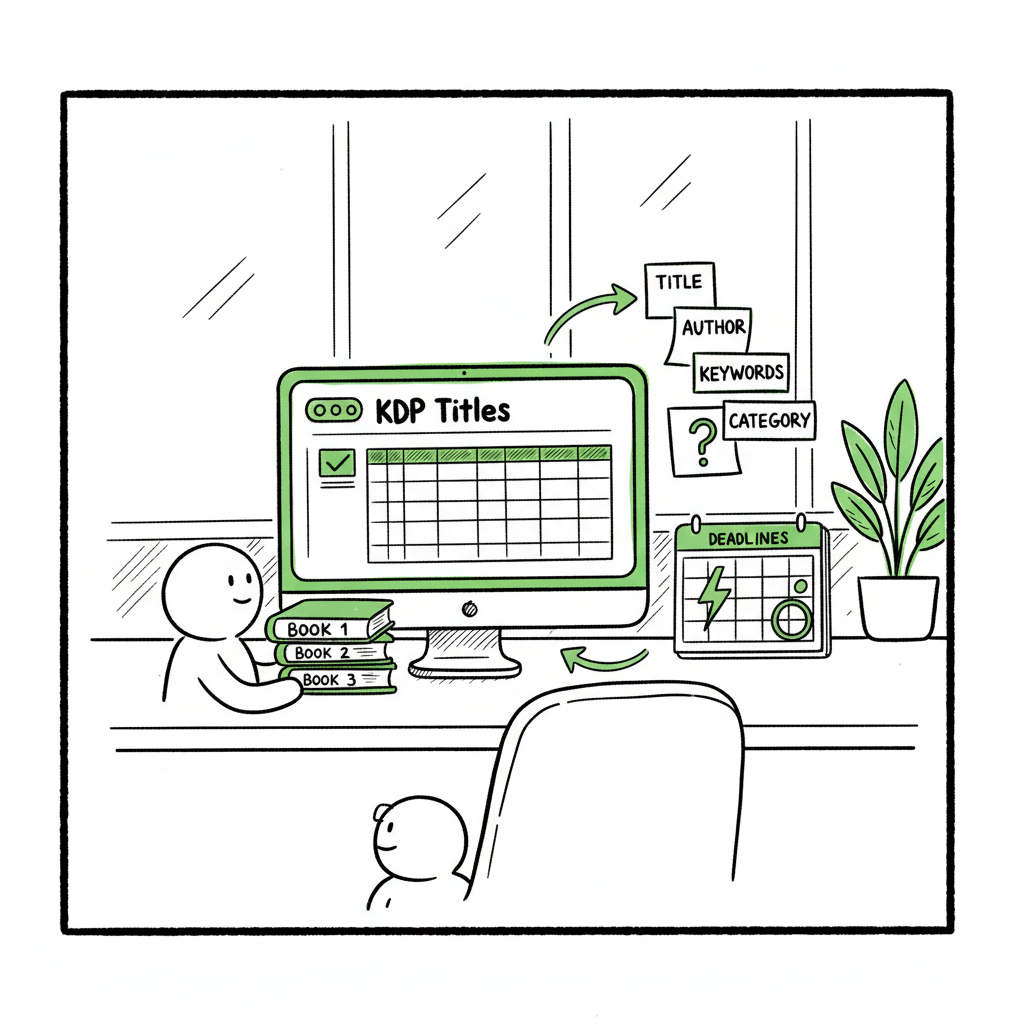
- Metadata master sheet: Store title, subtitle, authors, series, BISAC, keywords, price, and territories in a single CSV. This is the single most powerful tool when you manage dozens of KDP titles.
- Asset packages: Group manuscript, cover, and metadata files for each title in a single folder. Give folders predictable names; you’ll thank yourself when updates are needed.
- Production checklist: For each title, track whether eBook, paperback, and audiobook files are uploaded and live.
Tools and patterns that scale
- CSV-first workflow: Prepare a CSV that has one row per title and columns for every KDP field you care about. Use scripts or upload tools that can map CSV columns to platform fields. That reduces manual typing and prevents small inconsistencies.
- Local validation: Before uploading, validate filenames, EPUB structure, and cover dimensions. Small format errors are the most common reason for rejected uploads.
- Automated previews: Generate a proof file for each format so you can check pagination and cover bleed before pushing live.
When to bring in an uploader
If you’re publishing multiple titles on several platforms (KDP, Apple Books, Kobo, Draft2Digital, Ingram), it becomes a coordination problem. A dedicated upload tool that supports CSV batch uploads, platform-specific intelligence, and error checks will typically yield about 90% time savings compared with manual uploads. It also cuts errors: the fewer times a file is re-uploaded or fields retyped, the fewer opportunities for mistakes.
If your process includes cover generation, EPUB conversion, or turning a single manuscript into both paperback and eBook, look for tools that link those steps into one flow. For example, explore the Book Cover Generator Processing to speed cover creation. If you need automated EPUB conversion, an EPUB converter service can remove a big bottleneck in formatting. When you need a cover, a cover generator can speed production while keeping specs correct.
A simple operational sequence to reduce rework
- Finalize manuscript and interior style in a single master file.
- Generate eBook and paperback files from that master (and use an EPUB converter when needed).
- Create or export cover files sized correctly for each format (use a cover generator if you want repeatable results).
- Populate the CSV master with correct metadata and asset paths.
- Use a batch uploader to push the files and metadata to each platform, then validate live listings.
Scaling operations and where automation fits
What automation fixes
Automation is not a magic marketing tool; it’s an operational lever. It takes the repetitive work—file uploads, metadata mapping, format checks—and runs it without mistakes. Key gains include:
- Unified multi-platform publishing: A single upload that targets KDP, Kobo, Apple Books, Ingram, and others saves time and ensures metadata matches everywhere.
- CSV batch uploads: Map one row to a title and publish multiple titles in a single session.
- Platform-specific intelligence: Good tools know each store’s requirements and apply them automatically (cover sizes, EPUB quirks, price setup).
- Error reduction: Automation eliminates manual typos in titles, keywords, and series names—those tiny differences are the source of many catalog problems.
Where automation does not help
- Editorial quality: Proofreading, content edits, and cover concept choices need human decisions.
- Marketing decisions: Choosing keywords and category strategy should be intentional; automation should execute the strategy, not make it.
- Complex product changes: If a book requires a major redesign or new edition strategy, you’ll still want hands-on review.
Operational checklist for moving to automation
- Inventory: Create a single CSV that lists every title with required fields and file paths.
- Standardize: Ensure all filenames and metadata follow your chosen conventions.
- Validate: Run local checks on EPUBs, PDFs, and cover files.
- Pilot: Upload a small batch to confirm mappings and platform behavior.
- Scale: Move the rest of the catalog through the same process.
Why BookUploadPro is the obvious upgrade once you publish seriously
When you hit a point where manual uploads take too long, tools that automate repetitive uploads change the game. BookUploadPro automates repetitive uploads across KDP, Kobo, Apple Books, Draft2Digital, and Ingram. It supports CSV batch uploads, platform-specific intelligence, and error checking to make wide distribution practical.
Practical benefits you’ll notice quickly:
- SAVE TIME: Routine tasks that once took hours can be reduced dramatically—many teams see roughly 90% time savings on upload work.
- REDUCE ERRORS: Automated mapping cuts the simple typos and mismatches that break series linking or cross-format consistency.
- MAINTAIN A SINGLE SOURCE OF TRUTH: A CSV-driven workflow means you update once, deploy everywhere.
- AFFORDABLE AND LOW FRICTION: Pricing is practical for authors publishing at scale, and a free trial lets you test the flow.
If you produce covers automatically in volume, use a reliable cover generator that produces files meeting platform specs; this keeps upload failures low. If you need to convert manuscripts into EPUB, an EPUB converter removes a frequent technical bottleneck. And if your workflow creates both paperback and ebook formats from the same source, a consistent book creation workflow keeps editions aligned and saves revision time.
Tools and links that match the workflow
- For automated EPUB conversion, use a reliable EPUB converter to turn your manuscript into a validated eBook format quickly.
- For cover work, a book cover generator can automate processing and produce platform-ready images.
- For combined paperback and eBook production, adopt a book creation workflow that outputs both formats from the same source files.
These elements fit together: strong source files, automated conversion, consistent cover generation, and a batch uploader that pushes to multiple retailers. That stack turns dozens of manual steps into a single, repeatable pipeline.
Final thoughts
Managing a large KDP catalog is about operational discipline. Standardize metadata, control file naming, and build a CSV-first process. Use series pages sensibly, but accept that KDP won’t do bulk edits for you. When your catalog grows, adopt tools that automate uploads, validate formats, and manage distribution across stores. Automation doesn’t replace editorial judgment; it removes the busy work so you can focus on the parts that matter.
FAQ
Q: Is there a bulk editor in KDP?
A: No. KDP does not offer a true bulk edit tool for changing many titles at once. Changes are made per title or by editing series pages individually.
Q: How do I keep metadata consistent across 50+ books?
A: Keep a master CSV with one row per title. Standardize fields and file names, validate formats before upload, and use batch upload tools to apply changes uniformly.
Q: Will series pages link books automatically?
A: Series pages link formats when titles and metadata match correctly. You must add or remove titles from a series through each title’s settings in KDP; this action is per-book.
Q: What’s the minimum automation I should use?
A: Start with a CSV-based workflow and local file validation. Add batch uploading and platform intelligence when you want to reduce manual uploads and errors.
Q: My catalog includes paperbacks and eBooks — how can I keep formats matched?
A: Use the same metadata templates for both formats and produce both files from the same master manuscript. Confirm ISBN/ASIN mapping and exact title matching to ensure formats group correctly.
Sources
- Edit your Series – Kindle Direct Publishing
- Update Your Series – Kindle Direct Publishing
- Start a Book Series – Kindle Direct Publishing
- Books Titles & Editions – Kindle Direct Publishing
- Creating a series for books published under different KDP accounts (forum)
- How to Create and Manage a Book Series on Amazon KDP (video)
- How to Create a Branded Book Series Page on KDP for Amazon (video)
Managing Dozens of KDP Titles Estimated reading time: 10 minutes Key takeaways Organizing dozens of KDP titles is an operational problem, not a mystery: consistent metadata, series grouping, and standard filenames matter more than another checklist. KDP has no true bulk editor; scale depends on repeatable workflows, CSV-driven batches, and tools that automate uploads and…