KDP Paperback Trim Size Rules Explained for Authors
KDP Paperback Trim Size Rules
Estimated reading time: 11 minutes
Key takeaways
- KDP paperback trim size rules set fixed width/height limits, different costs for large sizes, and strict margin/bleed requirements that must match your selected trim.
- Choose trim size based on genre norms, page count, and cost; 6″ x 9″ works for many trade titles, but children’s books or workbooks need different thinking.
- Prepare interior and cover files that match the chosen trim (or trim-plus-bleed), set the correct gutter margins, and run a proof before publishing.
- When publishing multiple titles, automation that handles trim rules, cover dimensions, and batch uploads makes wide distribution practical.
Table of Contents
- What kdp paperback trim size rules cover
- How to choose trim size for KDP
- Preparing files: bleed, margins, and spine
- Publish faster with multi-platform automation
- FAQ
- Sources
KDP Paperback Trim Size Rules: What They Cover
KDP paperback trim size rules determine the physical page dimensions you choose when you publish a paperback. These rules matter because the trim size affects layout, printing cost, and whether your files pass KDP checks. At a practical level the platform enforces:
- Allowed width and height ranges (you can use preset sizes or enter a custom size within limits).
- Different classes (regular vs large sizes) that affect printing cost.
- Page-count limits and required gutter margins that grow with page count.
- Exact cover and interior file sizes depending on whether you use bleed or no bleed.
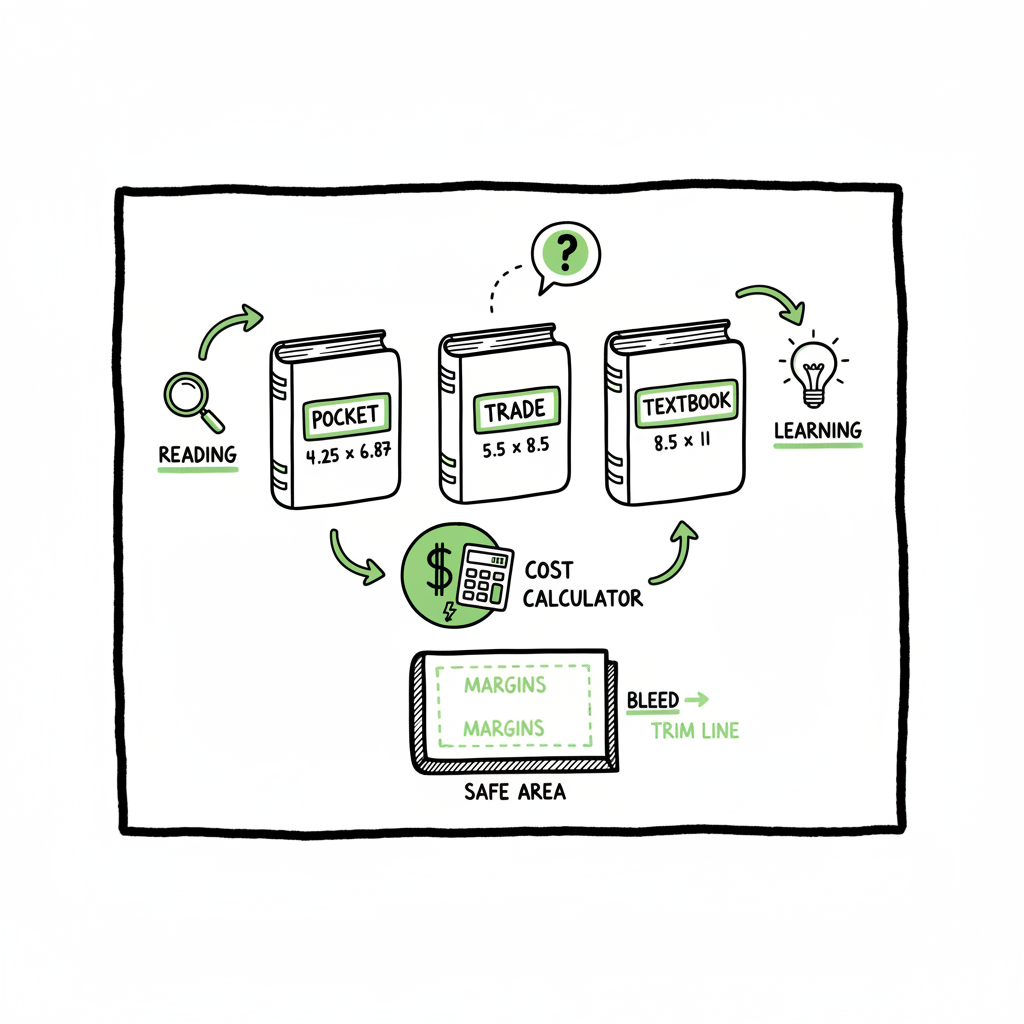
Put simply: pick a trim first, then format the interior and cover to match it. KDP accepts custom trim sizes as long as the width is between 4″ and 8.5″ and the height between 6″ and 11.69″. The most common US trade choice is 6″ x 9″, which is a safe default for many fiction and nonfiction books.
Common technical points to remember
- Regular vs large trim sizes: widths over 6.12″ or heights over 9″ are treated as large and often cost more to print.
- Page count limits vary by trim and paper/ink choice (many common sizes allow 24–828 pages for black-and-white interiors).
- For full-bleed printing your interior PDF must be slightly larger than the trim so images can extend into the bleed area.
Keep these mandates in mind before you design spreads or the cover. If you plan to publish multiple books, these choices should become a repeatable part of your production checklist.
How to Choose Trim Size for KDP
Choosing a trim size is a practical decision that balances reader expectations, page count, and printing cost. Use the following steps.
- Check genre norms
Look at successful books in your category. Novels and many trade nonfiction books tend to be 5″ x 8″ or 6″ x 9″. Workbooks, cookbooks, and children’s picture books usually use wider or taller trims. Matching reader expectations helps perceived quality. - Estimate page count
Trim size influences how many pages your manuscript produces at a given font and margin set. A larger trim reduces page count, which can lower printing costs but may change reader experience. Also check KDP’s minimum and maximum page counts for your chosen trim and paper type before finalizing. - Consider pricing and cost
Large trim sizes or color interiors often raise the per-unit printing cost. If you need a low list price, favor standard regular trims like 6″ x 9″. - Think distribution and shelving
Physical size affects shelving and how books look in retail environments. A book that looks right in images and thumbnails usually performs better. - Make trim selection early
Decide trim before you format the manuscript or design the cover. The interior layout and the cover’s spine calculation depend on the chosen trim and final page count.
When you’re ready to move from one book to many, consider Self Publish Book Amazon Kdp to streamline uploads and reduce repetitive work across KDP accounts and listings.
Preparing Files: Bleed, Margins, and Spine
After you pick a trim, prepare two files that match KDP’s expectations: the interior PDF and the cover PDF or image. Small mismatches cause rejections or poor print results, so get dimensions right.
Interior file rules
- No bleed books: set the PDF page size to the trim size exactly.
- Full-bleed books: set the PDF page size larger than the trim. KDP typically requires about 0.125″ extra on left/right and 0.25″ extra on height for bleed. Images intended to touch the edge must extend into the bleed area by about 0.125″.
- Margins and gutter: KDP publishes a table of minimum outside margins and a gutter margin that increases with page count. For example, shorter books need smaller gutters; long books need a larger gutter so text doesn’t disappear into the binding.
- Fonts and line breaks: switching trim sizes can change pagination. Finalize trim before you lock typography to avoid reflow.
Cover file rules
- Use the KDP Cover Calculator to compute total cover width: front + back + spine + cut-and-bleed allowances. The spine width depends on page count and paper type.
- For full bleed covers, follow KDP’s bleed allowances so the cover extends past the trim on all edges.
- Export the cover as a single PDF or high-resolution JPG depending on KDP’s current requirements.
Tools and quick wins
- Use the cover calculator to generate exact dimensions after you know the final page count.
- Export PDFs at 300 dpi for images and CMYK where required for color interiors.
- Run a local print proof PDF and check margins physically or in a print previewer.
If your workflow includes creating paperbacks and ebooks across platforms, consider a single place that handles file generation consistently. BookAutoAI can generate proofs and help convert a manuscript into production-ready PDFs, while a dedicated EPUB converter simplifies ebook output. These tools do not replace proofing; they reduce manual steps and common errors so you spend time reviewing rather than resizing pixels.
For broader workflow, explore the book creation workflow to streamline production.
Book creation workflow is all about preparing a manuscript for consistent production across formats and platforms.
BookAutoAI is designed to help with printing and conversion tasks; use the tools to speed up proofs and file generation while maintaining quality.
Publish faster with multi-platform automation
Once you publish more than one book, manual uploads to KDP and other stores become the bottleneck. That’s where multi-platform automation adds real value. A focused automation tool handles repeating the same trim decisions, file sizes, metadata, and platform quirks across Amazon KDP, Kobo, Apple Books, Draft2 Digital, and Ingram.
What automation solves
- Batch CSV uploads for metadata and pricing instead of manual form filling.
- Platform-specific intelligence that adjusts files or flags issues before upload.
- Consistent application of trim rules and cover dimensions across multiple stores.
- Large time savings — for many teams, automating uploads is roughly a 90% reduction in time spent on distribution tasks.
- Reduced errors like mismatched cover size, wrong spine calculation, or incorrect metadata that cause delays.
How it fits into production
- Lock your trim size and final page count in your spreadsheet or CMS.
- Let the upload tool apply templates and generate the right cover and interior files for each store.
- Review auto-generated proofs and publish.
BookUploadPro is designed to make wide distribution practical: it aligns files to KDP’s trim and margin rules, generates production-ready PDFs, and automates uploads to multiple platforms. Automate the upload. Own the distribution. Once authors publish seriously, services that handle CSV batch uploads and platform-specific packaging become an obvious upgrade.
When to still do things manually
- Complex interiors like picture books with special spreads.
- Design-heavy covers or artwork that needs precise manual placement.
- First-time releases where you want to iterate manually with proofs.
Even then, semi-automated workflows reduce setup time and limit the manual steps to genuine creative decisions.
Final thoughts
Final thoughts
KDP’s trim size rules are straightforward once you break them down: choose the right trim for genre and page count, prepare interior and cover files to exact dimensions, and respect bleed and gutter requirements. For authors who publish repeatedly, automation that enforces these rules, generates correctly sized files, and uploads to multiple platforms is a practical upgrade that saves time and reduces errors.
If you want a solution that automates file sizing, aligns interiors to KDP limits, and streamlines multi-platform uploads, visit BookUploadPro and try the free trial.
FAQ
Q: What trim sizes does KDP allow?
A: KDP offers preset sizes and allows custom sizes within limits. Width must fall between 4″ and 8.5″; height between 6″ and 11.69″. Many authors choose 6″ x 9″ as a default.
Q: How do I handle full-bleed images?
A: For full bleed set your interior PDF dimensions slightly larger than the trim (images should extend into the extra bleed area by about 0.125″). Then export a PDF that includes the bleed so trimmed books have no white borders.
Q: What if my pages exceed KDP’s page-count limits?
A: If your final page count falls outside KDP’s limits for the chosen trim and paper type, choose a different trim or split content. Some trims allow more pages; reducing font size or margins is another technical option but affects readability.
Q: Do I need a separate file for each retailer?
A: Mostly no — many retailers accept the same interior and cover files if formatted to their specs. However, cover sizing and spine calculations can differ, so automation that adapts files per retailer is useful.
Q: Can a service automate cover and interior generation?
A: Yes. For example, a cover generator can produce print-ready artwork, and specialized converters handle EPUB creation for ebooks. These tools speed production but you should always proof the final files.
Sources
- Set Trim Size, Bleed, and Margins – KDP Help
- Print Options – KDP Help
- Paperback Submission Guidelines – KDP Help
- KDP Cover Calculator
- A Quick Guide to Trim Sizes in Amazon KDP
- How to Choose the Best KDP Book Size for Hardcovers, Paperbacks and eBooks
- BookAutoAI
- EPUB converter
- cover generator processing
KDP Paperback Trim Size Rules Estimated reading time: 11 minutes Key takeaways KDP paperback trim size rules set fixed width/height limits, different costs for large sizes, and strict margin/bleed requirements that must match your selected trim. Choose trim size based on genre norms, page count, and cost; 6″ x 9″ works for many trade titles,…