KDP Keywords and Categories Guide for Self-Publishers
KDP Keywords and Categories Guide
Estimated reading time: 11 minutes
Key takeaways
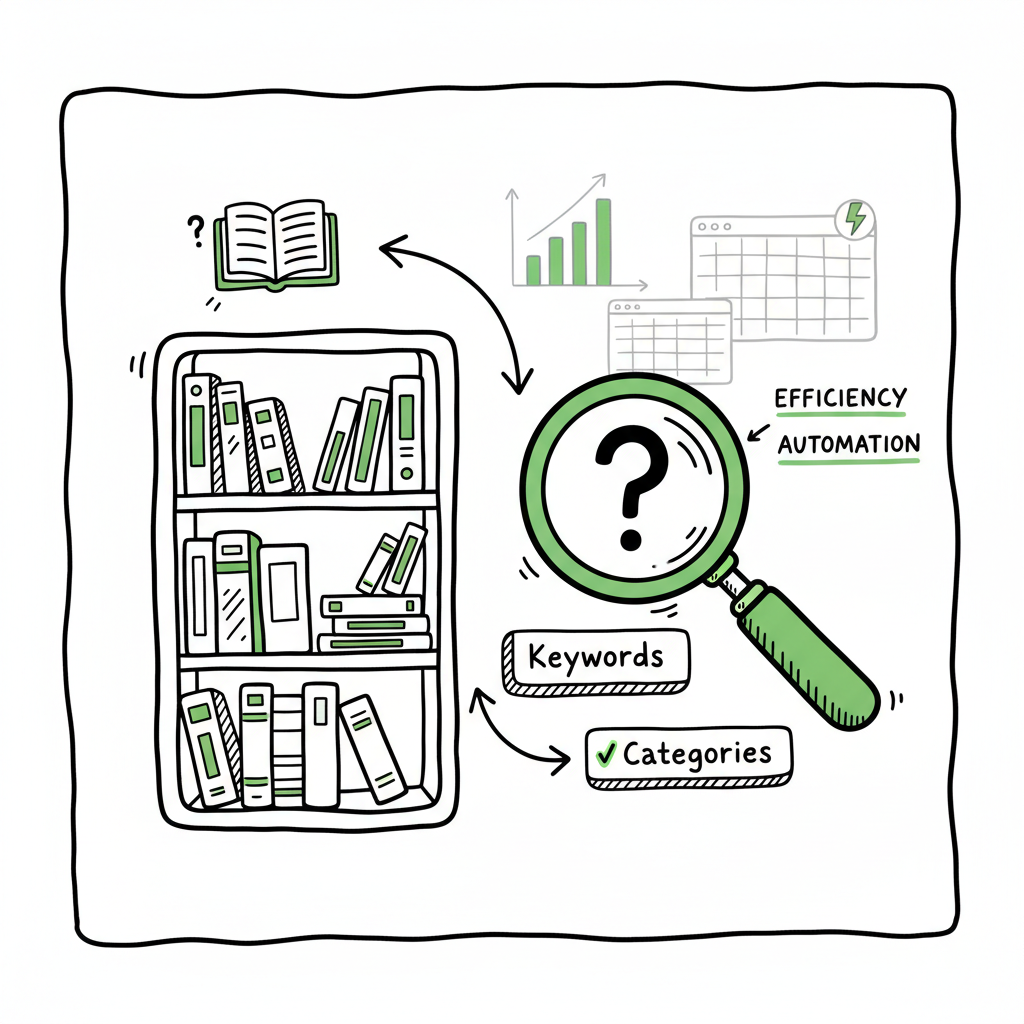
- Categories are virtual shelves; keywords are search signals. Use both deliberately to reach niche readers.
- Start with category research, then build seven keyword phrases that mirror real reader searches.
- Scale metadata with spreadsheets and batch uploads to save time and reduce errors—automation becomes obvious at volume.
Table of Contents
- How KDP keywords and categories work
- Practical steps for choosing categories and keywords
- Filling the seven keyword boxes
- Scaling metadata and automation
- FAQ
- Sources
How KDP keywords and categories work
Amazon’s KDP allows each book to list up to three categories and up to seven keyword phrases (50 characters each). Putting the primary keyword phrase for your topic in the title or subtitle helps, but the dedicated keyword boxes and category choices tell Amazon two different things: categories act like virtual shelves where shoppers browse, while keywords are search signals used by Amazon’s algorithm to match queries and sometimes to place books in extra categories. This kdp keywords and categories guide helps you think of categories as placement and keywords as reach.
When you start publishing multiple books, you quickly hit the point where manual entry becomes a bottleneck. If you intend to scale, learn how the platform expects metadata and plan a repeatable process. For a straightforward start, see the guidance on Self Publish Book Amazon KDP for a practical, step-by-step approach to getting files and metadata live faster.
Why both matter
- Categories limit visible competition and influence bestseller rankings inside a niche.
- Keywords expand discoverability across search queries and can trigger Amazon to assign additional relevant categories.
- Both need to reflect reader intent—what your reader types into search or expects to find on the virtual shelf.
Practical steps for choosing categories and keywords
This section walks through research, selection, and testing. Follow these steps for one title; repeat with small changes across a series.
1) Start with reader intent, not ranking tools
Open Amazon and type phrases real readers would use. Read autosuggest options, click into category pages, and scan bestsellers. Note the category combinations assigned to books similar to yours—authors who target the right niche often choose categories that look narrow but have consistent sales volume.
2) Pick categories first
Categories are foundational. KDP offers three category selections during setup, but Amazon may add or change categories later based on keywords and sales behavior. Choose categories that:
– Match your book’s primary subject.
– Have less competition (look for categories with top sellers at realistic ranks).
– Fit the searchers’ mental model (where a reader would expect to find your book).
3) Build keyword strategy from categories
Use 1–3 keyword phrases to reinforce category placement: these are exact-match or near-match phrases readers might use (e.g., “mountain biking guide” if your category is sports guides). Use the remaining 4–6 phrases for niche long-tail queries and alternative phrasings readers might try.
4) Use competitive intelligence—sparingly
Look at similar books: which keywords and categories do they show? Tools can help, but you don’t need paid tools to start. The combination of autosuggest, competitor pages, and manual exploration gives solid signals for niche targeting.
5) Avoid traps
Steer away from single, highly generic keywords (e.g., “romance”). Don’t use misspellings or platform terms like “KDP” as keywords. Keep all phrases reader-focused.
Filling the seven keyword boxes
Think of the seven keyword slots as seven search phrases, not a list of words. Each slot accepts up to 50 characters, and Amazon reads them as phrases. Below is a pragmatic layout for those boxes, with examples.
Slot 1 — Primary phrase
Put your strongest reader-focused phrase here. It should match a common search and reflect the book’s main promise.
Example: “plant-based slow cooking for beginners”
Slot 2 — Category reinforcement
Use a phrase that directly reinforces the category you selected.
Example: “vegetarian slow cooker recipes”
Slot 3 — Long-tail niche
Target a specific problem or subgroup of readers.
Example: “meal prep slow cooker recipes for one”
Slot 4 — Series or author + topic
If you publish multiple titles with the same author name or series, include a phrase that helps Amazon associate them.
Example: “Jane Doe cookbook series”
Slot 5 — Alternate phrasing
Include common synonyms or alternate phrasing that readers use.
Example: “slow cooker vegan meals”
Slot 6 — Occasion or format
Target how readers search by occasion or format (e.g., “holiday side dishes” or “instant download recipes”).
Example: “weeknight dinners slow cooker”
Slot 7 — Experimental phrase
Reserve the last slot for a hypothesis you want to test—trending terms or a niche angle.
Example: “budget slow cooker meals under $5”
Practical tips while filling boxes
- Don’t repeat the same words in every slot—use variety to widen reach.
- Keep phrases natural. Amazon favors what real readers type.
- Update periodically. Watch sales signals and swap experimental phrases every few weeks.
Technical steps on KDP
- From your KDP Bookshelf, open Edit Details. Paste your phrases into the keyword boxes.
- Categories are chosen separately; use the provided dropdown and category picker carefully to match your earlier research.
Scaling metadata and automation
When you publish more than a handful of titles, spreadsheets and batch processes change the game. Build a metadata template per series and replicate with CSV or through an upload tool. At scale, repeatable steps reduce errors and free time for writing and promotion.
Why automation matters
- Time savings: A focused process saves roughly 90% of the time when you publish many books.
- Consistency: Solid templates prevent missing fields and mismatched author metadata.
- Reduced errors: Automated validation flags formatting problems before upload.
Automation essentials
1) Metadata spreadsheet
Create columns for title, subtitle, author, series, BISAC/category codes, three KDP category selections, seven keyword phrases, price, and publication date. Lock fields that should be consistent across a series.
2) CSV batch upload
Many platforms accept CSV or API-driven uploads. For authors using multiple distribution channels, a CSV lets you push the same metadata repeatedly without manual copy-paste.
3) Platform intelligence
Account for platform-specific fields—Amazon’s keyword boxes are different from Kobo’s metadata fields, for example. Use platform-specific intelligence in your batch process to map fields correctly.
4) Use automated tools when ready
When you reach scale, a dedicated service that supports multi-platform publishing and CSV batch uploads becomes an obvious upgrade. Automation helps coordinate Amazon KDP, Kobo, Apple Books, Draft2Digital, and Ingram with fewer manual steps. It reduces repetitive entry and errors while keeping platform-specific intelligence in the pipeline.
How to handle covers, EPUB, and book creation at scale
Covers and ebook files are repeatable too. If you’re creating paperback and ebook versions, standardize cover templates and file export settings. For cover processing, consider an automated cover generation pipeline that accepts a template and produces print-ready files. If you need an automated tool for cover creation, try the cover generator for consistent, production-ready art.
EPUB conversion is another repeatable step. Convert manuscripts to validated EPUB files using a reliable converter before uploading. For automated EPUB conversion use a dedicated EPUB converter designed for consistent results. For producing paperback and ebook files across platforms, standardize on a single book creation workflow to avoid rework.
Analytics and iterative testing
Treat metadata like ad copy: test, measure, and iterate. Run A/B tests of descriptions where possible, swap a keyword phrase to test traffic differences, and track rank and sales over time. Small changes to keywords can reveal meaningful lifts if a phrase matches buyer behavior.
Final checklist before publish
- Categories: three selected and aligned with reader intent.
- Keywords: seven phrases, each up to 50 characters, varied and testable.
- Title/subtitle: includes high-impact phrase where natural.
- Description: clear, benefit-led, with keywords placed naturally.
- Files: validated EPUB and print-ready cover with correct dimensions.
- Spreadsheet: updated for upload and backups.
FAQ
Q: How often should I update keywords and categories?
A: Update keywords every 4–12 weeks based on trends and sales performance. Categories usually stay static unless you find a better niche placement.
Q: Can keywords put my book into additional categories?
A: Yes. Amazon’s algorithm can add categories based on keywords and sales behavior, which is why keyword choice can reinforce category signals.
Q: Should I put series or author name in keywords?
A: Yes—use 1–2 keyword slots for series or author-specific phrases to help Amazon associate books across a series.
Q: Do I need a different set of keywords for paperback and ebook?
A: No. Use the same keyword strategy across formats, but ensure each platform’s metadata fields are mapped correctly when using batch uploads or distribution services.
Q: Can I use tools to generate keyword suggestions?
A: Tools and AI can speed up research and suggest phrases, but always vet suggestions against real Amazon autosuggest results and competitor pages.
Sources
- How to Choose Keywords for Amazon KDP
- How to Fill in Your 7 KDP Keyword Boxes: Secret Tactic (2025)
- Choosing Keywords and Categories on KDP
- How to Choose Amazon KDP Keywords for Books
- How to Choose Keywords for Your Amazon KDP Book
- KDP Categories – Amazon.com
KDP Keywords and Categories Guide Estimated reading time: 11 minutes Key takeaways Categories are virtual shelves; keywords are search signals. Use both deliberately to reach niche readers. Start with category research, then build seven keyword phrases that mirror real reader searches. Scale metadata with spreadsheets and batch uploads to save time and reduce errors—automation becomes…