KDP hardcover publishing guide, setup, files, ISBNs
kdp hardcover publishing guide
Estimated reading time: 12 minutes
Key takeaways
- KDP hardcovers are a separate product type: they need their own ISBN, a print-ready interior PDF, and a single full-wrap cover PDF with correct spine and bleed.
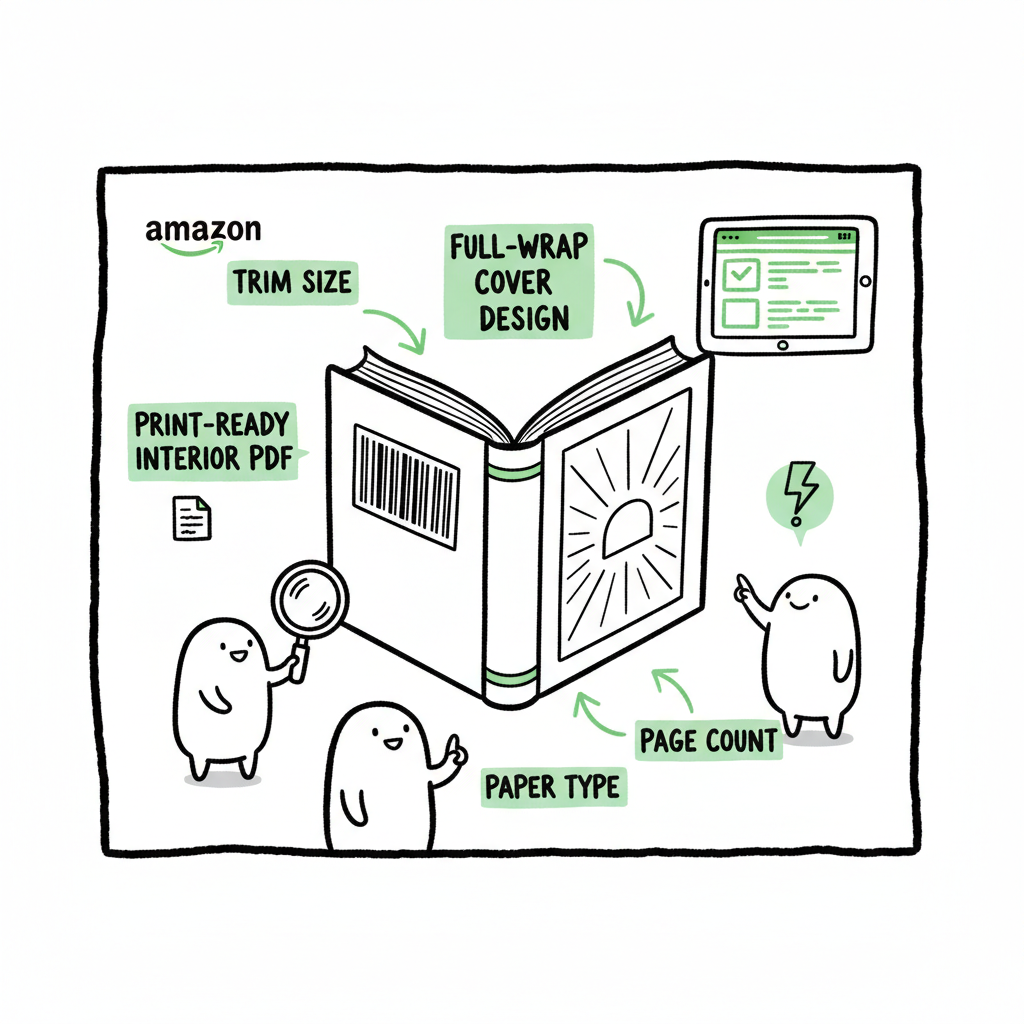
- Technical details matter: trim size, page count, paper type and accurate spine width determine whether Amazon accepts a hardcover file.
- Automating uploads across KDP and other retailers saves time and reduces rejection risk; a batch tool makes wide distribution practical once you publish seriously.
Table of Contents
- Overview of KDP hardcovers
- Preparing the interior and full-wrap cover
- KDP bookshelf setup: ISBNs, pricing, proofing
- Scaling and automation: why BookUploadPro helps
- FAQ
- Sources
Overview of KDP hardcovers
Hardcovers on KDP are not just “paperbacks with a tougher cover.” The hardcover format uses a different setup flow in the KDP Bookshelf and creates a separate product record on Amazon. This kdp hardcover publishing guide focuses on the practical steps you’ll need: what files to prepare, how ISBNs work, the common technical traps, and how to make the process repeatable across platforms.
If you already publish multiple formats or expect to produce several titles, a batch workflow pays off quickly. For a practical walkthrough of publishing a book through Amazon’s interface, Self Publish Book Amazon KDP — it’s a useful companion when you’re moving from manuscript to live listing.
Hardcover specifics worth noting right away
- Separate ISBN: KDP treats hardcovers as a distinct edition. If you want each binding to appear as a distinct product, give the hardcover its own ISBN.
- Two required uploads: a print-ready interior file (usually PDF) and a single full-wrap cover PDF that combines front, spine, and back in one file.
- Trim size and page limits: KDP supports specific trim sizes and enforces minimum and maximum page counts depending on the chosen size and paper.
The rest of this guide breaks these points into hands-on steps you can follow without guessing.
Preparing the interior and full-wrap cover
The most common reasons KDP rejects a hardcover upload are technical problems in the interior PDF or the cover PDF. Fix those up front.
Interior file checklist
- Use a PDF formatted to the exact final trim size with correct margins and gutters. KDP provides manuscript templates you can match to avoid surprises.
- Confirm font sizes and line spacing; very small text or tight layouts increase the chance of printing issues.
- Make sure images are high enough resolution (300 DPI recommended) and embedded in the PDF.
- Check page count early. Spine width and cover template are determined by final page count and paper type.
Cover file checklist
- A hardcover on KDP requires a single, full-wrap PDF that contains the back cover, spine, and front cover as a single image.
- Calculate spine width precisely using KDP’s formula that accounts for page count and paper type; incorrect spine width will cause automated rejections.
- Flatten transparencies and embed all fonts and images. KDP asks for flattened files to avoid layout changes during processing.
- Keep the final PDF size reasonable — KDP suggests keeping under common limits (40 MB recommended; larger files can still upload but may slow processing).
Tools that help
- If you need a quick way to produce or process a full-wrap cover, a cover generator can automate the measurements and flattening steps for you; many authors use such a tool to avoid manual template errors. (See the full-wrap cover generator for processing.)
- If your production chain includes an ebook, converting the manuscript to epub is a separate step; you can convert and then export to print-ready PDF formats when needed. For clean EPUB output, consider an EPUB converter that keeps layout consistent.
Practical tips
- Always produce a print-ready PDF from a layout program (InDesign, Affinity Publisher) rather than exporting from word processors when possible.
- Create a final, numbered file set (interior_v1.pdf and cover_v1.pdf) and keep version notes. That makes it easier to track fixes if KDP requests changes.
- Order a physical proof before wide distribution. Softproofs and previews help, but a real printed proof shows spine alignment and cover color accurately.
Tools that help also include references to a full-wrap cover generator and EPUB converters to maintain a clean pipeline across formats. BookAutoAI cover generator processing can help with full-wrap layouts, while EPUB converter can streamline digital-to-print transitions. For broader book creation workflows, consider the BookAutoAI platform.
KDP bookshelf setup: ISBNs, pricing, proofing, and distribution
Once your files are ready, the KDP Bookshelf flow walks you through metadata, rights, pricing, and the actual file uploads. Treat the bookshelf as a checklist you must complete with precision.
Metadata and ISBNs
- Choose “+ Hardcover” when you add a new title. KDP treats this as a distinct product so it asks for its own ISBN if you want your hardcover to have one.
- You can use a KDP-provided ISBN or supply your own. If you plan to distribute through other channels or want consistent bibliographic records, use your own ISBN assigned to the hardcover edition.
- Keep metadata consistent across editions but clearly denote edition differences when they matter (e.g., “Revised edition,” “Hardcover edition”).
Uploading and proofing
- Upload the interior PDF and the full-wrap cover PDF in the hardcover workflow. KDP will run validation checks and often provides specific error messages if something fails.
- Use KDP’s online preview to scan for cut-off text, incorrect margins, and image problems. The preview isn’t perfect — ordering a printed proof is the only way to see final results clearly.
- If the cover or interior fails checks, revise the source files and re-upload. Common fixes are adjusting spine width, flattening transparency layers, changing color profiles, or correcting trim dimensions.
Pricing and distribution
- Hardcovers cost more to print; set list prices that cover print cost plus your margin. KDP calculates printing cost based on page count, ink type, paper, and trim size.
- You can set different list prices for each Amazon marketplace independently. That flexibility helps you adjust for currency differences and local market expectations.
- Note distribution differences: hardcover availability varies by marketplace and may not be available everywhere. Hardcover listings may not participate in the same expanded distribution channels as paperbacks.
Common issues and how to avoid them
- Mismatched trim size: re-export your interior to the exact trim and do not rely on automatic resizing.
- Spine-misalignment: confirm the spine width math after your final page count; minor rounding differences can shift printed text.
- Rejections for transparency: flatten PDFs and embed fonts before exporting.
Scaling and automation: why BookUploadPro helps
If you plan to publish multiple titles, or to release the same book in hardcover, paperback, ebook, and to other retailers, manual uploads become a bottleneck. That’s where automation and batch tools change the game.
What automation saves you
- Time: batching uploads and using CSV import for metadata reduces repetitive clicks by roughly 90% for multi-title workflows.
- Consistency: a standard template for metadata, pricing, and file naming minimizes human error that causes rejections.
- Distribution: a single interface that understands platform-specific rules (trim sizes, file formats, ISBN assignment) makes it practical to list widely without memorizing each retailer’s quirks.
How BookUploadPro approaches hardcover publishing
- Production-ready files: BookUploadPro handles interior layout and full-wrap cover generation to KDP’s specs so you don’t wrestle with spine math or bleed errors.
- Platform-aware uploads: the system knows Hardcover versus Paperback flows and assigns ISBNs and pricing correctly per platform.
- Batch CSV uploads: if you’re releasing several titles, you can push a CSV and have the service create each bookshelf entry with correct metadata.
- Error reduction: platform-specific intelligence flags problems before upload so your listings get accepted faster.
- Affordable, scalable: for authors who publish seriously, BookUploadPro is an obvious upgrade to manual uploads. Automate the upload. Own the distribution.
Multi-format considerations
- When you publish paperback and ebook versions alongside a hardcover, consider consistent identifiers and cross-links in metadata so readers can find all formats.
- If you produce an ebook that you later convert for print, use a clean EPUB-to-print workflow and check layout changes during conversion. An EPUB converter can help keep your source organized for both print and digital outputs.
- If you need to generate both paperback and hardcover covers, make sure the cover creation tool you use supports full-wrap layouts for hardcovers and flat wrap for paperbacks; that avoids rework when switching formats. BookUploadPro integrates these steps into the upload pipeline and can accept assets from a cover generator if you use one.
When automation isn’t appropriate
- Single, experimental releases: if you’re testing one title and want full control, manual setup is still fine.
- Heavy design customization: if a book has complex binding, foil stamping, or specialty finishes outside KDP’s standard case laminate hardcovers, you’ll need a print partner that supports those options.
Final production reminders
- Always order at least one physical proof before approving distribution.
- Keep source files and exported PDFs in organized folders with version notes.
- Record which ISBN maps to which format and marketplace so you can manage future reprints and rights cleanly.
FAQ
Q: Do hardcovers on KDP require a new ISBN?
A: Yes. KDP treats hardcovers as a separate edition and you should assign a distinct ISBN for the hardcover if you want a unique bibliographic record.
Q: What files do I have to upload for a hardcover?
A: Two files: a print-ready interior PDF and a single, full-wrap cover PDF containing back, spine, and front as one file.
Q: How do I calculate spine width?
A: Spine width depends on final page count and paper type. Use KDP’s spine calculator or export a template from your layout program with the correct dimensions and test in a proof.
Q: Can I use the same cover artwork from the paperback for a hardcover?
A: You can reuse artwork, but you must create a full-wrap cover PDF sized for the hardcover’s trim and spine width. That usually requires creating a new PDF from layout files.
Q: What if I want to distribute to other retailers besides Amazon?
A: For wide distribution, use a system that supports multiple platforms and their unique format requirements. BookUploadPro automates uploads to Amazon KDP, Kobo, Apple Books, Draft2Digital, and Ingram so you don’t duplicate effort.
Q: Where can I get a quick cover if I don’t want to design one manually?
A: A reliable cover generator can produce full-wrap covers that meet KDP’s requirements; many authors use such tools to speed the process. (See the full-wrap cover generator for processing.)
Q: What about ebooks and EPUB files?
A: If you’re producing an ebook, keep a clean EPUB as your digital master. When you need a print-ready version, convert the manuscript appropriately. For a clean conversion pipeline, consider using a dedicated EPUB converter.
Sources
- Hardcover – Kindle Direct Publishing (official KDP help)
- Format Your Hardcover – KDP (official KDP help)
- Create a Hardcover Cover – KDP (official KDP help)
- Hardcover – Interior Formatting – KDP (official KDP help)
- Paperback and Hardcover Manuscript Templates – KDP (official KDP help)
- Start publishing with KDP – Overview
- How to choose the best KDP book size for hardcovers, paperbacks and ebooks
- How to Publish Paperback & Hardcover Books on KDP (YouTube tutorial)
kdp hardcover publishing guide Estimated reading time: 12 minutes Key takeaways KDP hardcovers are a separate product type: they need their own ISBN, a print-ready interior PDF, and a single full-wrap cover PDF with correct spine and bleed. Technical details matter: trim size, page count, paper type and accurate spine width determine whether Amazon accepts…