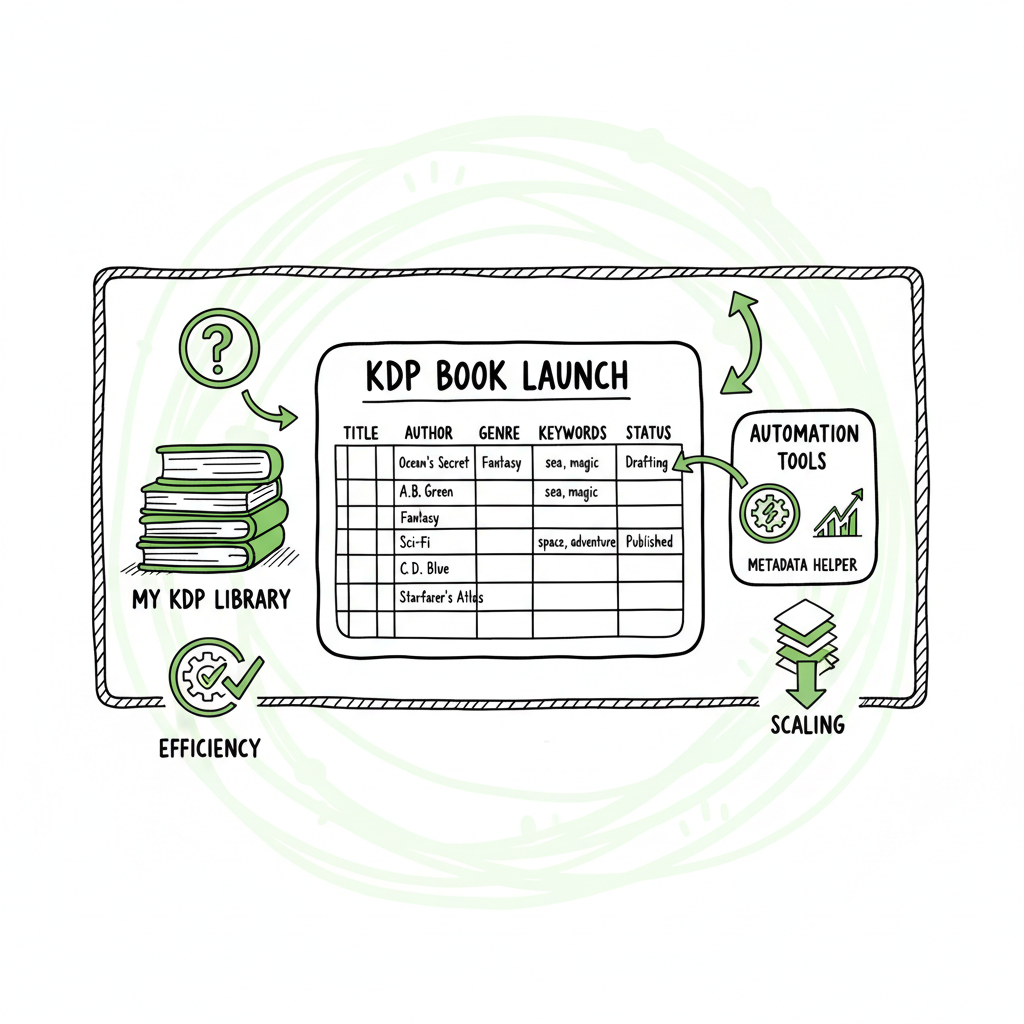
KDP Catalog Management to Organize, Scale and Automate
kdp catalog management: Organize, Scale, and Automate Your KDP Library
Estimated reading time: 14 minutes
Key takeaways
- kdp catalog management matters once you publish more than a handful of books — manual work becomes a time sink and a risk.
- A practical workflow uses a central spreadsheet, consistent metadata, periodic audits, and automation to handle bulk kdp title organization.
- Covers remain the single biggest visual decision that affects clicks; templates help with branding, and BookUploadPro ties those pieces together for multi-platform distribution.
Table of Contents
- Why kdp catalog management matters
- A practical workflow for scaled catalogs
- Tools and automation for bulk KDP title organization
- Common problems, audits, and fixes
- Frequently asked questions
- Sources
Why kdp catalog management matters
Good kdp catalog management makes your work repeatable and reliable. Authors who treat publishing like a one-off task can manage a single book by hand. Once you have dozens or hundreds of titles, the same manual steps become a daily drag. Metadata drifts, pricing mismatches, duplicated descriptions, and inconsistent categories erode discoverability and waste time.
Amazon’s KDP Bookshelf gives you a place to view and edit titles. It works for single updates, archiving, and unarchiving linked formats. But it does not support bulk title organization or batch uploads. That gap is why authors build spreadsheets, checklists, and small tools to track everything.
If you are new to KDP’s interface, our internal resource Amazon KDP for Authors covers the basics of the Bookshelf and how individual title pages behave. Use that as your reference, then layer scale practices on top when your catalog grows.
Good catalog management reduces mistakes, speeds updates, and protects royalties. When you publish seriously, repeatable processes matter more than clever one-off hacks.
A practical workflow for scaled catalogs
This section gives a simple, repeatable workflow you can use today. It assumes you manage more than a handful of titles and want to keep things organized without duplicating effort.
1) Standardize your metadata
- Create a single master spreadsheet or database. One row per ISBN or ASIN pair that links ebook and paperback formats.
- Use consistent naming rules for series, subtitles, and edition notes. Decide on one style for author name variants (e.g., “Jane M. Doe” vs. “Jane Doe”) and apply it everywhere.
- Track fields you will update often: price, territories, series position, keywords, BISAC category, ASIN, ISBN, paperback SKU, and publishing status.
Why this helps: Consistent fields let you filter, export, and run updates in bulk. They also make it easier to spot missing assets like a missing cover or broken interior file.
2) Build a release and audit calendar
- Schedule periodic audits: price checks monthly, category and keyword reviews quarterly, and full metadata audits twice a year.
- Tie audits to reporting windows: look at rankings, KDP reports, or ad performance during the audit. This connects catalog changes to results.
Why this helps: Regular checks prevent long-dormant errors from compounding. If a price got changed accidentally, a monthly check finds it before the entire backlist ships under the wrong price.
3) Keep master assets in folders with clear naming
- Store manuscripts, interiors, covers, and marketing assets in a folder structure that mirrors your catalog spreadsheet.
- Use clear filenames: TITLE_format_version_date.ext (e.g., “Blue River_paperback_v2_2025-05-01.pdf”).
Why this helps: When you need to reupload a paperback file or update a cover, you won’t guess which file is current.
4) Use templates for descriptions and page copy
- Have a short and long book description template. Note where to insert keywords and where to avoid keyword repetition.
- Store A+ content notes separately so enhanced pages remain consistent across titles in the same series or niche.
Why this helps: Templates reduce the chance of missing promo hooks and make updates faster when you do a bulk refresh.
5) Archive strategically
- Archive titles you don’t want cluttering the Bookshelf but still sell. Archiving hides a title from default view without affecting sales.
- Keep an “archived list” in your master spreadsheet with reasons and dates.
Why this helps: Archiving is an organizational tool, not a deletion. It makes the Bookshelf manageable and preserves records.
6) Automate repetitive changes where possible
- For high-volume edits like price adjustments or keyword swaps, move the task into an automated or semi-automated process. This removes human error and saves time.
- If you distribute wide, use multi-platform tools to update the same metadata across stores at once.
Why this helps: Small, repeated edits add up to hours. Automation creates consistency and frees time for marketing and writing.
These steps form a lightweight operating system for a growing catalog. They work for authors who still prefer manual control and for teams that need to run batch updates.
Tools and automation for bulk KDP title organization
The market has three useful tool types for scaled publishing work: file builders and converters, asset creators, and bulk publishing/distribution systems. Each plays a specific role.
File builders and EPUB conversion
- Proper ebook format matters for delivery and review speed. Good EPUBs reduce conversion errors and rejections on stores like Apple Books and Kobo.
- Convert manuscripts to EPUB using tested tools. A clean EPUB lets you push files to multiple stores with fewer fixes.
If you need a reliable converter, consider an EPUB converter that keeps styles, images, and metadata intact. A solid EPUB removes one common source of support tickets after upload.
For topics like EPUB converter, you’ll want a process that preserves structure across stores.
Covers and creative assets
- Covers remain the single biggest visual decision that affects clicks. Use a consistent set of templates for series to keep branding tight.
- book cover generator tools speed up versioning when you test different thumbnails for ads or keywords.
If you create dozens of covers, a dedicated book cover generator helps you output variants quickly while keeping safe margins and print spine math.
Bulk publishing and platform intelligence
- The most important automation for authors is multi-platform, batch upload and management. That is where you move from manual to efficient.
- A good system takes your spreadsheet, maps fields to store-specific settings, converts files when needed, and uploads titles to Amazon KDP, Kobo, Apple Books, Draft2Digital, and Ingram. It should also handle linking formats and set distribution options.
BookUploadPro is built for this stage. It automates repetitive book uploads across major stores, uses CSV batch uploads, and applies platform-specific intelligence so you don’t have to learn five different dashboards. That means up to ~90% time savings for authors who publish seriously. Automate the upload. Own the distribution.
Where each tool fits
- Use an EPUB converter for clean ebook files and to reduce store rejections.
- Use a book cover generator when you need consistent templates and many variants.
- Use a multi-platform publishing tool to push consistent metadata and files to every store at once.
Links to specific tools (internal and product-related)
- When you need a reliable EPUB converter to standardize files for distribution, an EPUB converter streamlines that step.
- For cover work, a book cover generator speeds up versioning and keeps print math correct.
- If you are building or exporting paperback and ebook files at scale, centralized book creation tools reduce errors and speed up production. For a streamlined approach, see the book creation workflow.
Practical notes on compliance and differences
- Each store has quirks. KDP handles paperbacks and ebooks on Amazon, but categories, metadata limits, and A+ content rules differ on Kindle vs. Apple Books vs. Kobo.
- A platform-aware automation tool maps your master metadata fields to the store-specific fields and flags conflicts before upload. That prevents accidental miscategorization or promotional text being truncated.
Balancing automation and control
- Automation should let you preview and approve batches. Don’t hand every decision to a blind process. The best systems let you run a dry run, review errors, fix a few rows in the spreadsheet, and re-run the upload.
- Keep a change log. When you do bulk updates, record what changed and why so you can roll back if needed.
Common problems, audits, and fixes
Problem: Metadata drift and duplicated keywords
- How it shows: Multiple editions of the same title have slightly different subtitles or keywords that confuse search.
- Quick fix: Run a metadata audit. Filter your master spreadsheet for titles with similar names and standardize subtitles and series entries. Use one canonical keyword list per series.
Problem: Mismatched prices across platforms
- How it shows: Prices differ between Kindle, Apple, and Kobo because one platform used the wrong currency or royalty option.
- Quick fix: Use a price matrix in your spreadsheet that lists target net and gross prices per territory. When updating prices, apply the matrix rather than retyping. Automation tools can apply those matrices across stores.
Problem: Broken covers or low-res thumbnails
- How it shows: A cover looks fine in your folder but appears cropped or low quality on the store page.
- Quick fix: Check export settings in your cover tool and test the final thumbnail size. Keep a folder of exported thumbnails sized for store listing previews and for ads.
Problem: Multiple ASINs or ISBN confusion
- How it shows: Different formats and editions have separate ISBNs that weren’t linked properly; the public page shows multiple entries.
- Quick fix: Reconcile formats in your master sheet, note the relationships (ebook vs. paperback vs. paperback edition), and use the Bookshelf to confirm linked formats in KDP. For wide distribution, map ISBNs to the store records.
Problem: Repeated manual uploads
- How it shows: Every new title requires the same dozen steps across five stores.
- Quick fix: Move to a CSV-driven process. Populate your master spreadsheet with required fields and let a batch tool import and upload files. That cuts repetitive work and reduces errors.
Audit checklist (every 6 months)
- Verify prices and territories
- Confirm ASIN/ISBN links and format mapping
- Review bestseller/category placements and update BISAC codes
- Check active promotions and KDP Select status
- Replace or re-export covers and interior files if needed
When to call a system “an upgrade”
- When you spend more time uploading and fixing than creating or marketing.
- When a single metadata error has repeated across several titles and took hours to fix.
- When you need to set the same price or series field across dozens of books.
If you find yourself in that situation, multi-platform automation is an obvious upgrade. BookUploadPro was designed for authors at that point: CSV batch uploads, platform-specific handling, and error reduction. It’s the obvious next step when manual processes no longer scale.
Final thoughts
Managing a growing KDP library need not be a slog. Standardize metadata, use clear file naming, schedule audits, and lean on tools where they save time. Convert clean EPUBs, automate cover versions, and move repetitive uploads into a batch process. The work you do up front—templates, a master spreadsheet, and predictable file storage—pays off every time you release or update a title.
When you tie these pieces together with an automation tool that understands each store’s quirks, the gains are practical and immediate: fewer errors, faster updates, and more time to write. For authors serious about publishing at scale, automation is not flashy — it’s the operational upgrade that makes wide distribution practical and affordable.
Automate the upload. Own the distribution.
Frequently asked questions
Q: What is kdp catalog management?
A: kdp catalog management is the practice of organizing, updating, and auditing your KDP titles and their metadata. It covers everything from file management to pricing, categories, and format linking.
Q: Can I do bulk kdp title organization inside KDP?
A: No. KDP’s Bookshelf supports per-title edits, archiving, and format linking, but it does not offer native bulk organization or batch uploads. For bulk work you need spreadsheets and third-party tools.
Q: How do I manage conversions to multiple ebook formats?
A: Start with a clean EPUB and test it in several readers. Use a reliable EPUB converter for cross-store compatibility and validate everything before batch uploads.
Q: Should I use automation for cover variants?
A: Yes, if you need many variants. A book cover generator speeds up output and keeps print math and thumbnail sizes correct.
Q: How do I keep paperback and ebook files consistent?
A: Keep a single source of truth in your master folder and use explicit versioning in filenames. Track which interior file goes with which ISBN, and use automation to map interior files to stores during upload.
Sources
- KDP Bookshelf – Amazon.com
- Best Amazon Catalog Management Software 2025 – AMZ Prep
- A+ Content – Kindle Direct Publishing – Amazon.com
- KDP Tools and Resources – Amazon.com
- Best KDP Softwares: Top Tools for Self-Publishing Success
kdp catalog management: Organize, Scale, and Automate Your KDP Library Estimated reading time: 14 minutes Key takeaways kdp catalog management matters once you publish more than a handful of books — manual work becomes a time sink and a risk. A practical workflow uses a central spreadsheet, consistent metadata, periodic audits, and automation to handle…