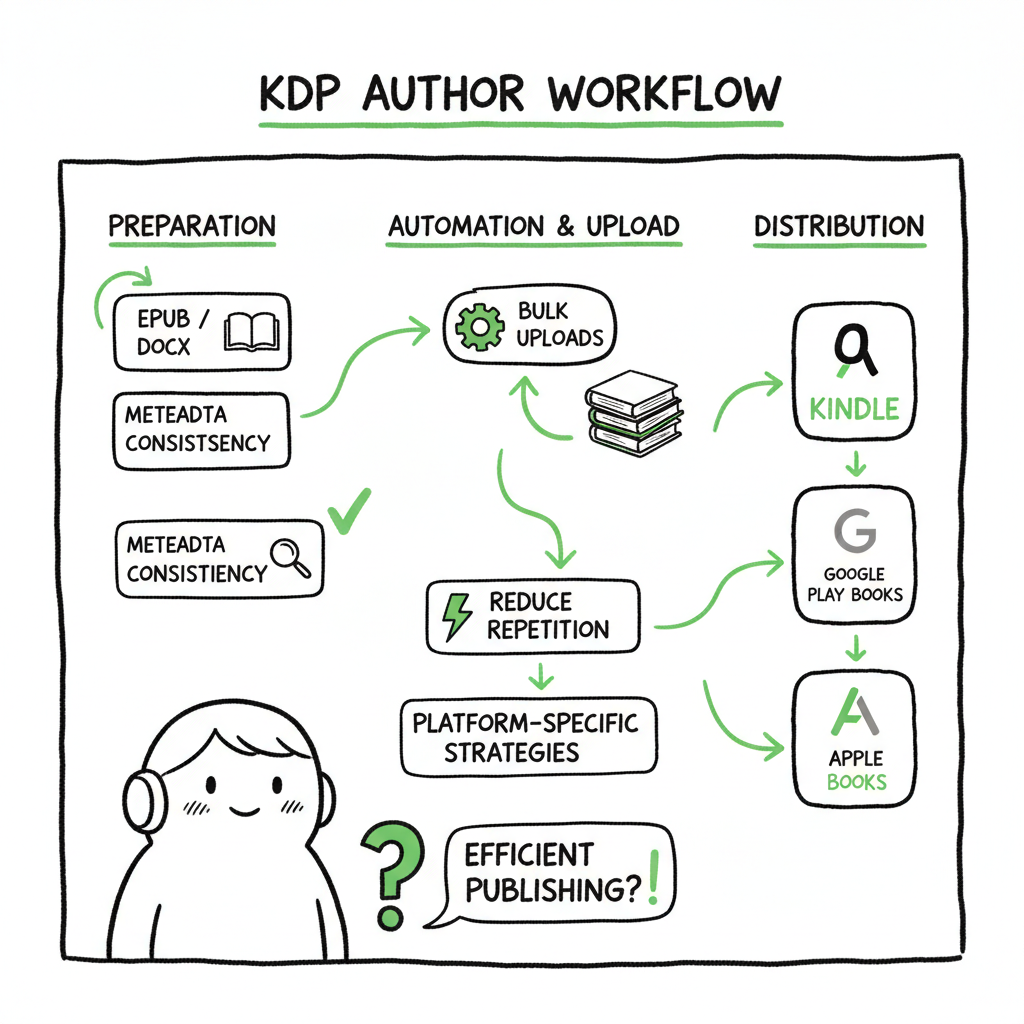
KDP Author Workflow for Efficient, Accurate Publishing
kdp author workflow
Estimated reading time: 9 minutes
Key takeaways
- A clear kdp author workflow cuts repetitive tasks and prevents errors in manuscript details, covers, and metadata.
- Focus on reliable formatting (EPUB/DOCX), consistent metadata, and platform-aware uploads to avoid rejections and edition mismatches.
- Automating bulk uploads and using multi-platform distribution saves time; services that handle CSV batch uploads and platform-specific intelligence make wide distribution practical.
Table of Contents
- Why streamline your kdp author workflow?
- Practical steps to build an efficient kdp author workflow
- Automating uploads and multi-platform distribution
- Common mistakes and how to avoid them
Why streamline your kdp author workflow?
A kdp author workflow is the sequence of tasks you do to move a manuscript from draft to live book on Amazon. Authors who publish more than one book a year quickly feel the drag of repeating the same manual steps: format files, create a cover, enter metadata, upload files, preview, set pricing, and repeat for paperback, ebook, and other stores. Streamlining that flow reduces mistakes, cuts time, and keeps cadence steady.
A tidy workflow does four things well:
– Keeps manuscript files and metadata synchronized so Amazon links editions automatically.
– Uses consistent formatting to avoid upload rejections or preview errors.
– Reduces manual typing and copy/paste by batching repeated entries.
– Makes multi-platform distribution practical rather than optional.
If you want an official step-by-step reference for KDP itself, see the Amazon Kdp for Authors for the platform details every publisher needs. That guide shows the dashboard steps and the required fields you must match exactly to avoid edition-linking problems.
Practical steps to build an efficient KDP author workflow
This section runs the practical, repeatable steps I use when preparing a title. Treat them as an operational sequence you can put into a checklist or a CSV import later.
-
1) Start with a single source of truth
Use one master manuscript file and one metadata spreadsheet. The manuscript is the living copy you edit and format. The spreadsheet holds title, author name, subtitle, series name, description, keywords, categories, ISBN (if any), BISAC codes, territories, and pricing. Keeping metadata in a table prevents mismatches that break auto-linking of editions on Amazon.
-
2) Format once, export correctly
Ebook: Export to EPUB and validate it. EPUB is the accepted format for KDP ebooks and reduces conversion errors. If you need a quick conversion or a reliable check, an EPUB converter can save several manual steps and catch structure problems before upload.
-
3) Build covers that match specs
Covers must meet exact pixel or inch dimensions for each format. A single cover template that generates both a front-only ebook cover and a full wrap for paperback saves time. If you don’t have in-house design, a good cover generator will produce production-ready files that follow spine width and bleed rules.
-
4) Keep metadata copies where uploads can read them
When you start an upload, copy fields from your spreadsheet rather than typing freehand. This prevents small typos that break searchability or edition matching. For series, exact string matches are crucial; Amazon links editions into a series only if title, author, and series strings match precisely.
-
5) Preview every format before publish
Use the KDP previewer for ebooks and the print preview for paperbacks. The preview catches common layout issues such as orphaned lines, incorrect margins, missing TOC links, and misplaced images. Previewing is faster than publishing and correcting later.
-
6) Use template descriptions and keywords
Prepare two or three description templates suited to different buyer intents (short blurb, long blurb, technical) and reuse them. Keep a keyword library per genre. This reduces the time you spend on marketing fields and improves consistency across titles.
-
7) Plan pricing and royalties in one place
Record pricing strategies in your spreadsheet, including royalty calculations and price ladders for different markets. That makes simultaneous price changes across platforms easier when a promotion launches.
-
8) Prepare assets for multi-format uploads
Create a folder per title with:
- Master manuscript (DOCX/EPUB)
- Final ebook EPUB
- Final paperback PDF or DOCX
- High-res cover files (ebook and full-wrap)
- Metadata CSV row for the title
- ISBN information and proof-of-rights files if needed
Automating uploads and multi-platform distribution
When you publish more than a handful of titles, manual dashboard work is the biggest time sink. Automation is not a magic trick — it’s disciplined repetition turned into a program that fills fields and checks values. The value comes from two practical gains: time saved and fewer errors.
Why multi-platform automation matters
Most authors want distribution beyond Amazon. Uploading the same metadata and files to Kobo, Apple Books, Draft2Digital, and Ingram is repetitive and error-prone. A unified publishing workflow that handles platform-specific quirks makes wide distribution practical.
What automation should do
- Read your metadata CSV and populate fields that each store requires.
- Convert or validate files to each store’s preferred format (EPUB for most ebooks, specific PDFs for some print).
- Apply platform-specific intelligence: examples are file naming, image dimensions, and category mappings that vary per store.
- Batch-submit multiple titles using CSV rows or a single ZIP with a manifest.
How this saves time
A reliable system reduces the per-title upload time from hours to minutes. For authors publishing at scale, that translates into roughly 80–90% time savings on the upload step alone. It also means you can publish promotions or roll back editions consistently across channels.
What to expect from a service
- CSV batch uploads so you can push dozens of titles with one file.
- Platform-specific validations that catch errors before submission.
- A dashboard showing per-platform status and error logs so you can fix only the failed items.
When you reach the point of publishing seriously, a tool that automates uploads and keeps a single source of truth becomes an obvious upgrade. Automate the upload. Own the distribution.
Practical tools and file notes
- If you’re converting manuscripts, a solid EPUB converter will help check structure and page breaks before upload.
- For covers, a production-ready cover generator reduces rework between ebook and paperback.
- If you create both ebook and paperback files in-house, test the paperback upload with your printed PDF to verify margins and spine settings, and explore book creation tools for clean multi-format output.
Book creation tools and integrations
If your workflow includes creating the ebook and paperback files from a single source, you should test tools that export both formats cleanly. A good set of book creation tools will let you go from manuscript to final output without juggling multiple file versions.
Common mistakes and how to avoid them
These are recurring issues I see when authors manage uploads manually. The fixes are simple and operational.
-
1) Metadata mismatches that break edition linking
Problem: Author name spelled two ways, series title varies, or subtitle missing in one file.
Fix: Use the spreadsheet as the single source of truth. Before upload, run a quick script or visual check that the title and author strings in the manuscript match the spreadsheet exactly.
-
2) Incorrect formatted files
Problem: EPUB with a broken table of contents, wrong margins on a paperback, or images placed outside bleeds.
Fix: Validate EPUB files and test in multiple readers. For print, generate a print-ready PDF and open it at actual size to inspect margins and spine calculations.
-
3) Using different ISBNs inconsistently
Problem: Entering an ISBN in the dashboard that doesn’t match the interior files or spine.
Fix: Keep ISBNs in the metadata spreadsheet and always insert them into the filename and metadata fields during upload. If you don’t plan to use ISBNs (some low-content books don’t need them), be consistent across platforms.
-
4) Skipping platform rules
Problem: Uploading the same file and cover to every store without checking size or filename rules, leading to rejections.
Fix: Maintain a short per-platform checklist that notes accepted file formats and cover dimensions. Automation can handle this, but if you do it manually, keep the checklist handy.
-
5) Not previewing each format
Problem: Publishing quickly and discovering layout problems in the live version.
Fix: Always use previews. For print books, order a proof copy when possible before wide release.
-
6) Missing rights and distribution settings
Problem: Selecting wrong territories or forgetting DRM choices and later needing to change them.
Fix: Record rights and territory choices in the spreadsheet. Apply them consistently across platforms.
Operational habits that help
- Do one final metadata check for each title using a printed checklist.
- Keep an upload log: date, platforms submitted, and any errors found. This log matters when support queries arise.
- Use a naming convention for assets: Title_Author_Format_Version (e.g., “RedRivers_JaneDoe_EPUB_v1.epub”).
Wrap-up
A clean, repeatable kdp author workflow is both a productivity gain and a quality-control system. It starts with a single source of truth for manuscript and metadata, favors validated file exports (EPUB for ebooks and production-ready PDF or DOCX for print), and treats uploads as data-entry operations you can batch or automate. When authors scale to multiple titles, choosing automation that understands platform nuances and supports CSV batch uploads makes publishing reliable. Services that provide platform-specific intelligence and error reduction convert publishing from a daily grind into a predictable pipeline.
FAQ
Q: How do I prepare a manuscript for KDP ebook upload?
A: Finalize the manuscript in a single source file, check styles and headings, and export to EPUB. Validate the EPUB in a reader and check internal links and the table of contents.
Q: Do I need different covers for ebook and paperback?
A: Yes. Ebook covers are front-only with specific pixel dimensions; paperbacks require a full wrap covering front, spine, and back with bleed. Use a cover generator or a template to create both from the same design to reduce mistakes.
Q: Can I publish the same book on Amazon and other stores?
A: Yes. You can publish wide to Kobo, Apple Books, Draft2Digital, and Ingram in addition to Amazon. When you go wide, maintain consistent metadata and file formats for each platform.
Q: What is the fastest way to publish multiple titles?
A: Use a CSV-driven batch upload process that reads a metadata spreadsheet and submits multiple titles in one operation. This works best when your files are validated and follow naming conventions.
Q: How do I avoid paperback upload errors?
A: Match the page count and trim size in your print file to the settings in the dashboard. Check margins and bleeds, and preview a print proof before approving the book for sale.
Sources
- How To Publish A Book On Amazon – 2025 KDP Guide – LivingWriter
- Create a Book – Kindle Direct Publishing – Amazon.com
- A 101 Guide to Kindle Direct Publishing Basics: Insider Secrets
- Start publishing with KDP – Amazon.com
- Getting Started with Kindle Create
kdp author workflow Estimated reading time: 9 minutes Key takeaways A clear kdp author workflow cuts repetitive tasks and prevents errors in manuscript details, covers, and metadata. Focus on reliable formatting (EPUB/DOCX), consistent metadata, and platform-aware uploads to avoid rejections and edition mismatches. Automating bulk uploads and using multi-platform distribution saves time; services that handle…