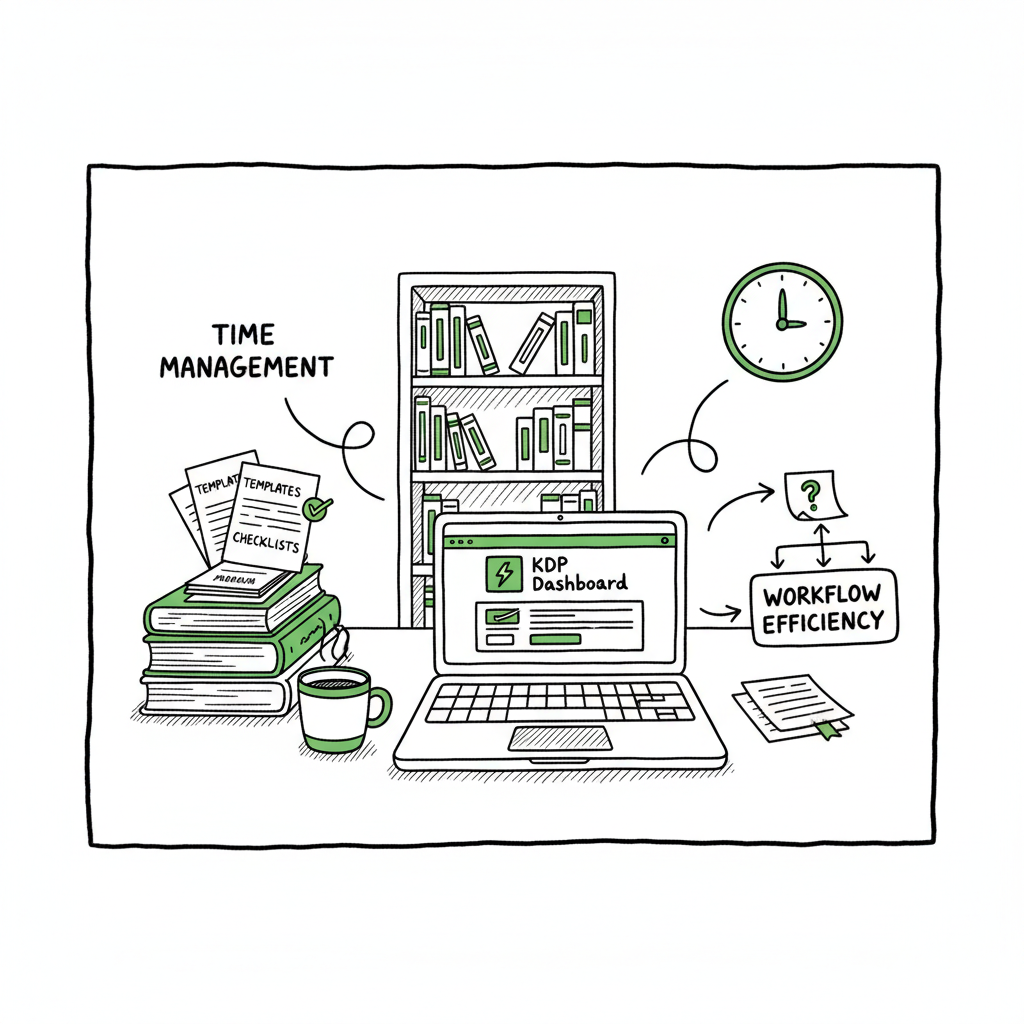
KDP Author Workflow for Faster, Scalable Publishing
kdp author workflow: How to publish faster and at scale
Estimated reading time: 12 minutes
Key takeaways
- A repeatable kdp author workflow saves time, reduces errors, and makes wide distribution practical.
- Format, cover, and metadata checks done once and baked into templates let you publish multiple titles reliably.
- BookUploadPro automates CSV batch uploads and platform-specific steps across Amazon KDP and other stores, cutting upload time by ~90%.
Table of Contents
- Why the kdp author workflow matters
- Core stages of an efficient kdp author workflow
- Automating and scaling multi-platform publishing
- FAQ
- Sources
Why the kdp author workflow matters
If you publish a single book every few years, ad hoc uploads can work. The moment you publish more than a handful, inconsistency and avoidable rework start to eat your time. A clear kdp author workflow turns publishing into a routine operation: same checks, same file formats, the same metadata rules, predictable results.
For a broader reference, Amazon KDP for Authors provides guidance.
A practical workflow reduces these common problems:
– Metadata mismatches between manuscript and store listing
– Cover file issues that fail a store’s checks
– Wrong EPUB or paperback formatting that creates preview problems
– Repeated manual entry across platforms that multiplies human error
When you standardize the steps that actually matter, publishing becomes repeatable. That’s the difference between scrambling for each launch and running a small production line: time saved, fewer corrections, and a better reader experience.
Core stages of an efficient kdp author workflow
A compact kdp author workflow focuses on a few repeatable stages. Each step has a narrow checklist so work can be batched and delegated.
1. Manuscript preparation and version control
Start with a clean master file. Keep one source document (DOCX or a manuscript in your editor) and export from that for all formats. Use simple styles for chapters, headings, and body text. Track versions with clear names like Title_v1, Title_v2, Title_FINAL.
Why it matters: version drift is the #1 cause of publishing errors — wrong chapter order, missing sections, or old front matter.
2. Formatting for ebook and print
Format with the store in mind. For ebooks, use a validated EPUB; for Amazon paperback, a print-ready PDF or well-styled DOCX may be required. Convert once and validate the output with preview tools.
If you need a reliable EPUB conversion step in your workflow, a dedicated EPUB converter can remove guesswork and save time. Use tools that enforce minimum font embedding, correct TOC generation, and validated CSS so your ebook previews cleanly in store tools.
3. Cover design and sizing
Covers need to meet different specs: a single-file jacket for Kindle ebooks, and separate PDF or image specs for paperback wraps. Decide on templates for spine and back-cover layout based on page-count based spine widths.
If you generate or batch-create covers, a cover processing tool can ensure consistent dimensions and export settings across paperback and ebook versions. That avoids common rejection reasons like low resolution or incorrect bleed.
4. Metadata, ISBN, and rights delivery
Metadata is small but unforgiving. Title, subtitle, author name, series metadata, BISAC categories, and keywords must be consistent across your files and store entries. If you use ISBNs, keep a master spreadsheet mapping ISBN to format, SKU, and distribution channels.
5. Quality check and previews
Run a short preflight:
– Open the EPUB in at least one reader and the Kindle Previewer.
– Run the paperback PDF through a print preview tool to check margins and gutters.
– Confirm metadata in a staging checklist that lists the final title, author, price, and territories.
6. Upload and distribution settings
Different stores have different required fields. If you publish beyond Amazon, prepare a single CSV or set of files that contains all store-specific values, and then map those fields during upload. A good multi-platform process documents which fields change per store.
7. Post-publish checks
After the book goes live, verify:
– The listing shows correct cover and metadata
– Sample downloads and previews work
– Pricing and territories are as set
If you publish to Amazon frequently, it helps to have a short reference that outlines KDP’s quirks — what file types they prefer, thumbnail rules, and common fix patterns. For a clear explanation of those platform specifics, consult a focused resource like Amazon KDP for Authors which walks through the most common KDP tasks and checks.
Automating and scaling multi-platform publishing
Once the core stages are locked down, automation is the practical next step. Automation isn’t a buzzword here — it’s a method to remove repetitive clicks and keep your outputs consistent across Amazon KDP, Kobo, Apple Books, Draft2Digital, and Ingram.
Where automation helps most
- CSV batch uploads: Populate metadata, prices, and rights for dozens of titles in a single import.
- Platform-specific intelligence: Systems that know each store’s field names and limits prevent rejections.
- Reusable templates: Single source templates for paperback trim sizes, ebook CSS, and cover layers speed production.
- Error reporting: Automated uploads that validate file types and flag missing elements save manual troubleshooting.
What to automate first
- Metadata export/import between your publishing spreadsheet and store fields.
- File conversions that are identical across titles (DOCX → EPUB, cover exports).
- Batch uploads for backlists or series releases.
BookUploadPro fits At scale, manual uploads are the bottleneck.
BookUploadPro automates the repetitive parts of multi-platform publishing:
– CSV batch uploads to multiple stores at once
– Platform-specific intelligence that adapts to KDP, Kobo, Apple Books, Draft2Digital, and Ingram
– Error reduction through automated validation
– ~90% time savings on routine uploads
Think of BookUploadPro as the production line that replaces repetitive store entry. When authors start publishing seriously, it becomes an obvious upgrade: automate the upload. Own the distribution.
Practical tips for scaling safely
- Keep a master spreadsheet with an audit trail. Include columns for status (draft, in formatting, uploaded, live).
- Use file naming conventions everyone on the team understands.
- Batch small groups rather than the entire backlist — this reduces blast-risk and lets you monitor early results.
- Maintain a short rollback plan (how to unpublish or update a title on each platform).
Cover, format, and creation tools to include in your workflow
Cover creation, EPUB conversion, and the actual generation of paperback or ebook files are core production tasks. Use reliable tools for these to keep your workflow tight:
– For consistent cover outputs and sizing, integrate a cover processing tool that applies templates and fixes resolution automatically.
– For clean EPUB files, a robust EPUB converter removes manual cleanup and ensures you meet store validators.
– For creating paperbacks and ebooks from your master files, use a tool that can produce both outputs from the same source. A book creation workflow can streamline this.
These specialized tools remove small, repetitive fixes that otherwise add up into hours per title. If you manage multiple formats, building those tools into your process is time well spent.
Troubleshooting and common pitfalls (embedded guidance)
- Mismatched metadata: The title and author on your cover must match the store metadata. Use your spreadsheet as single source of truth.
- Failures in previewers: If an EPUB fails validation, check images and TOC links first. Many errors come from unlinked anchors or unsupported image formats.
- Pricing errors: Currency and territory settings are platform-specific. Map currencies and check minimum price rules before bulk-accepting defaults.
- Cover bleed and spine issues: For print, always verify the page count used to compute spine width. Even a small calculation error results in a misaligned spine.
FAQ
Q: How does a kdp author workflow differ from a general publishing checklist?
A: A kdp author workflow focuses on repeatability and batching for Amazon KDP and the other stores you use. It standardizes file formats, metadata, and the order of operations so the same steps can be applied consistently across many books.
Q: Which formats should I keep as master files?
A: Keep your edited manuscript in a single DOCX or your preferred source document. From that single source, export to EPUB and print-ready formats as needed. Maintain a separate high-resolution cover master (PSD or layered file), plus flattened export versions for stores.
Q: Can I automate uploads to multiple stores at once?
A: Yes. Automation tools can map your master spreadsheet to each store’s fields and perform batch uploads. This saves hours per title and reduces repeated manual entry.
Q: What are the most common causes of rejections on KDP?
A: Failures usually stem from cover file specs (low resolution, wrong dimensions), unvalidated EPUBs, and metadata inconsistencies. Running a short preflight check catches most issues before upload.
Q: Do I need separate covers for ebook and paperback?
A: Yes. Ebook covers are single images with a safe area for thumbnails. Paperback covers require a full wrap depending on trim size and page count. If you generate both automatically from your design master, you avoid resizing errors.
Q: How do I maintain consistency across multiple books?
A: Use templates for metadata, styles for manuscript files, and a versioned file structure. Automating parts of the process (like exports and uploads) enforces consistency.
Final thoughts
A practical kdp author workflow turns publishing from a series of one-off tasks into a predictable, repeatable production process. That predictability scales: the fixed work you do once becomes the foundation for batch uploads and reliable distribution. If you publish several titles per year, even small time savings compound quickly.
When you’re ready to move from manual uploads to automated distribution across Amazon KDP and other stores,
BookUploadPro removes the repetitive parts. It handles CSV batch uploads, platform-specific logic, and file validation so you can keep producing books instead of chasing form fields.
Visit BookUploadPro.com to try the free trial and see how automation fits your publishing flow.
Sources
- How to publish a book on Amazon (LivingWriter)
- Amazon KDP Help
- Amazon KDP Help (metadata)
- Book cover processing tool
- EPUB converter
- Book creation workflow tools
kdp author workflow: How to publish faster and at scale Estimated reading time: 12 minutes Key takeaways A repeatable kdp author workflow saves time, reduces errors, and makes wide distribution practical. Format, cover, and metadata checks done once and baked into templates let you publish multiple titles reliably. BookUploadPro automates CSV batch uploads and platform-specific…