KDP Author Dashboard Navigation and Reports Explained
How to navigate the hub for your self-published books
Estimated reading time: 12 minutes
Key takeaways
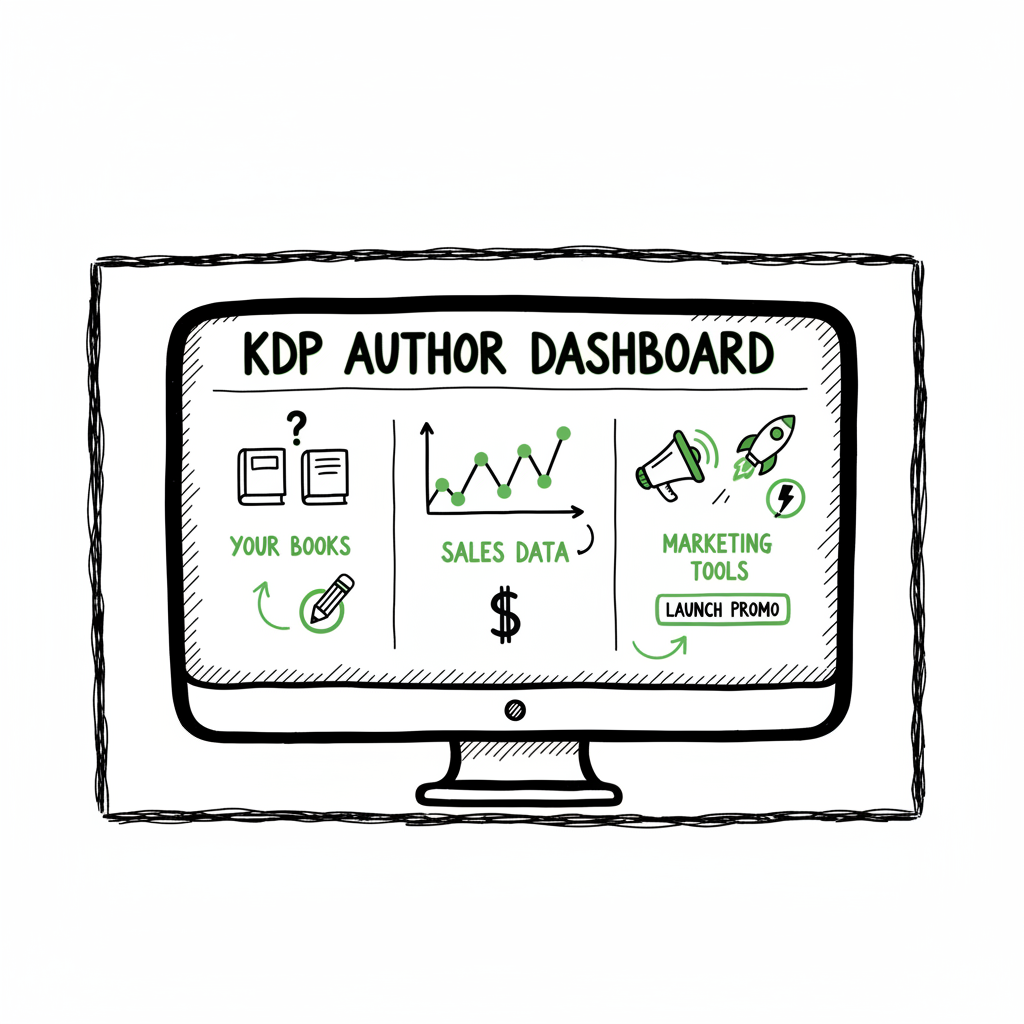
- The kdp author dashboard is your single-screen view of books, sales, and marketing tools—learn where to make edits, check royalties, and launch promos.
- Bookshelf tasks (edits, enrollments, pre-orders) and Reports tasks (daily sales, KENP, payout estimates) are distinct; treat them separately in your workflow.
- Use automation to scale: batch CSV uploads and platform-aware files make wide distribution practical and reduce manual errors.
- Preparing files (covers, EPUBs, print PDFs) correctly before upload saves hours; leverage tested tools for cover and epub conversion to avoid re-uploads.
Table of Contents
- Overview — What the KDP Author Dashboard shows
- Bookshelf — Manage titles, metadata, and distribution
- Reports — Read sales, royalties, and KENP data
- Scale publishing — Multi-platform workflows and what to automate
- FAQ
Overview — What the KDP Author Dashboard shows
The kdp author dashboard is the starting point for any Kindle Direct Publishing author. Log in at kdp.amazon.com and you’ll land on a compact hub with two practical functions: manage what’s live or in draft, and see how your titles perform. Early on, focus on two places: the Bookshelf for title management and Reports for sales and payout visibility. If you’re trying to quickly navigate kdp dashboard tasks, think of the dashboard like the cockpit—controls for content on one side, instruments for performance on the other. Amazon KDP for Authors.
If you’re new to Amazon publishing, read the official help pages and then move fast to practice: add a low-risk sample title, get comfortable with the Bookshelf options, and watch Reports update after a few sales. For a practical guide aimed at authors who want to go beyond single-title publishing, see our primer for Amazon KDP for Authors, which breaks down basic steps and common pitfalls in plain language.
How the dashboard is laid out
- Top-level view: Today’s snapshot shows recent activity and quick links.
- Bookshelf: All your published books, pre-orders, and drafts. From here you edit content, pricing, and distribution.
- Reports: Sales by marketplace, royalty estimates, and KENP (pages read) for Kindle Unlimited.
- Marketing: Links to enrollments like KDP Select and tools that point to Author Central and ads.
- Community and help: Author resources and support links.
Why the dashboard matters for daily operations
Use the dashboard to triage: fixes in metadata, price changes, or urgent promotions all start on the Bookshelf. Reports tell whether those changes moved the needle. When you build a repeatable publishing routine—format, cover, upload, check status, and monitor sales—the dashboard becomes the control panel that confirms your work, not your bottleneck.
Bookshelf — Manage titles, metadata, and distribution
Bookshelf management is where you spend most of your time in KDP. It’s the practical center for publishing tasks: uploading files, updating descriptions, and adjusting price and distribution.
What you can do on the Bookshelf
- Add a new title: Start a new ebook or paperback entry, set primary metadata (title, subtitle, contributors), and upload manuscript files.
- Edit live listings: Click the “…” or the title to change descriptions, keywords, categories, or pricing.
- Enrollment and promotions: Enroll in KDP Select, set up pre-orders, or start limited-time deals.
- Status and options: Each book shows status (live, draft, pre-order), territories, and royalty choices.
Practical tips for kdp bookshelf management
- Keep a checklist before you click Publish. Confirm manuscript format, cover, title metadata, ISBN or ASIN decisions, and distribution territories.
- Use clear role separation. One person formats and uploads files; another handles product page copy and keywords. That reduces repeated edits that confuse catalog updates.
- Watch for processing delays. Amazon shows status as it processes files—don’t republish immediately if the status is still “processing.”
- Use CSVs for bulk tasks when possible. If you’re changing prices or expanding distribution across many titles, CSV batch tools save time and keep consistent settings.
Files to prepare before uploading
- Final interior: Properly formatted EPUB for ebooks or print-ready PDF for paperbacks.
- Cover: Correct spec for ebook and wrap for print. A problem-free cover avoids repeated uploads.
- Metadata doc: Title, subtitle, author name, series info, keywords, BISAC categories, and pricing plan in one place so you can paste consistently.
If you’re handling many titles, manual upload is the wrong scale. Tools that handle CSV batch uploads and platform-specific intelligence remove repetitive clicking and reduce errors—automating uploads across platforms keeps your product pages consistent and avoids mismatched metadata that costs visibility.
Prepare files the right way (fast wins)
- For ebook files, validate an EPUB before upload. That prevents formatting errors that block publication.
- For print interiors, check bleed, margins, and spine text if you include it.
- For covers, confirm final dimensions and image resolution so small issues don’t force multiple re-uploads. If you need an automated solution for covers, use a tested book cover generator that batches processing and adheres to platform specs.
Reports — Read sales, royalties, and KENP data
Reports are the practical analytics side of the dashboard. They answer simple operational questions: which books earned what, where sales happened, and whether promos moved units.
What you’ll see in Reports
- Sales and royalties: Daily updates of orders and estimated royalties.
- KENP: Kindle Edition Normalized Pages read for Kindle Unlimited titles.
- Marketplace breakdowns: Sales by country and marketplace.
- Print order status: Print orders and author copies usually update within 24 hours.
How to read the numbers (practical interpretation)
- Today’s snapshot is not a final accounting. Use the Reports view to see trends over time and confirm payouts.
- Focus on SKU-level performance. Which title, which format, and which marketplace drove the change?
- Use exportable CSVs. Download raw reports for your accounting system or to feed a broader revenue dashboard.
Common report pitfalls and how to avoid them
- Mixing currencies and territories confuses totals. Normalize currency for cross-market comparisons.
- Mismatched title naming in downloads makes merging files harder. Keep consistent internal identifiers for each title.
- Don’t chase daily noise. Look at week-over-week trends for promotion impact and true movement.
kdp reports overview for scaling
When you’re publishing at scale, reports are the control signal for decisions—what to advertise, what to enroll in KDP Select, and what to update on product pages. Extract the top-earning books, monitor KENP reads for KU strategies, and export detailed sales data to your bookkeeping system regularly.
Scale publishing — Multi-platform workflows and what to automate
Once you publish more than a handful of titles, manual work becomes a limiting factor. The dashboard is designed for single-book management; scaling requires automation and platform-aware exports.
What to automate first
- Batch metadata updates: Price changes, territory toggles, and category adjustments should be handled with CSV pushes or a tool that writes to each platform’s API.
- File conversions: Create one source file and derive EPUB, MOBI (if needed), and print PDF automatically.
- Error-checking: Automate validation for EPUB structure, cover dimensions, and print bleed to avoid re-uploads.
Why multi-platform matters
Amazon is the largest marketplace, but readers live across Apple Books, Kobo, Draft2Digital, and Ingram. Managing each platform by hand multiplies errors and time spent. True scale means unified distribution: one master record, platform-specific packaging, and a single publish command that reaches all stores.
How platform-specific intelligence saves time
Each retailer has quirks—different EPUB tolerances, cover wrap calculations, and metadata fields. A platform-aware system applies those rules automatically, ensuring the right file formats and metadata per store. That reduces manual rework and prevents common listing rejections.
Tools and steps that save ~90% of manual effort
- Use a tool to generate a validated EPUB from your master manuscript, with a rollback if validation fails.
- Use a cover processing tool to produce correct ebook and print variants without separate design steps.
- Use CSV batch imports for metadata and enrollments; avoid clicking through each Bookshelf entry for repetitive changes.
File preparation and third-party helpers
- If you need a reliable cover pipeline, consider a book cover generator that processes files to platform specs and batches outputs for all stores.
- If you must convert manuscripts to EPUB, a dedicated EPUB converter reduces rework and validation errors.
- For creating paperbacks and ebooks simultaneously, a unified book-creation tool that outputs all required formats will save hours per title.
Practical workflow for a new title at scale
- Finalize manuscript in a single master source document.
- Generate a validated EPUB and print-ready PDF using a conversion tool.
- Produce ebook and print covers through an automated cover processor.
- Create a metadata CSV that maps title identifiers to all fields required across platforms.
- Use batch upload to publish to Amazon, Apple Books, Kobo, Draft2Digital, and Ingram in a single campaign.
- Monitor the KDP author dashboard and each platform’s reports for initial processing issues and sales signals.
Why automation is an obvious upgrade
Once you reach a publishing cadence where you release multiple titles per quarter, the time saved is dramatic. Batch uploads and platform-aware processing reduce repetitive errors and free you to focus on writing, marketing, and strategic series management. For authors serious about publishing volume, automation is not a luxury—it’s how you make wide distribution practical.
FAQ
Q: Where exactly is the Bookshelf and how do I edit a live book?
A: Bookshelf is the main tab on the KDP dashboard. Click the title or the “…” options next to a book to edit metadata, upload new files, or change pricing. After edits, publish changes and watch processing status for completion.
Q: How quickly do Reports update?
A: Sales and print order data generally update daily. KENP reads and some royalty estimates can lag. Use exported reports for precise accounting periods.
Q: How do I navigate KDP dashboard promotions and enroll in KDP Select?
A: On the Bookshelf, open the title and find enrollment options for KDP Select in the distribution or promotions area. Read the terms carefully: enrollment has exclusivity requirements for digital distribution.
Q: What’s the easiest way to do kdp bookshelf management for many titles?
A: Use CSV batch tools or a publishing platform that supports CSV imports for metadata and batch file uploads. That avoids clicking into each title and entering data manually.
Q: When should I convert to EPUB vs. upload a PDF for ebooks?
A: EPUB is the standard for ebooks and the preferred format for KDP ebook conversions. Use a validated EPUB to reduce formatting issues. If you use a master manuscript, convert it to EPUB via a converter that validates against retailer rules.
Q: My cover keeps rejecting for print—what do I check?
A: Confirm spine width, bleed settings, and resolution. Use a cover processor that outputs a print-ready wrap file to avoid margin or bleed rejections.
Sources
- 5 Things To Know About Your Kindle Direct Publishing (KDP) Dashboard
- Author Central – Kindle Direct Publishing
- Dashboard – Kindle Direct Publishing
- KDP Reports – Amazon.com
- AMAZON KDP DASHBOARD OVERVIEW TUTORIAL (YouTube)
How to navigate the hub for your self-published books Estimated reading time: 12 minutes Key takeaways The kdp author dashboard is your single-screen view of books, sales, and marketing tools—learn where to make edits, check royalties, and launch promos. Bookshelf tasks (edits, enrollments, pre-orders) and Reports tasks (daily sales, KENP, payout estimates) are distinct; treat…