KDP Author Dashboard Manage Titles and Reports Effectively
kdp author dashboard
Estimated reading time: 14 minutes
Key takeaways
- The kdp author dashboard is the control center for managing titles, sales data, and rights across Kindle Direct Publishing; learn to read it, act on it, and avoid common errors.
- Use the Bookshelf for clean kdp bookshelf management, and use Reports to spot trends, royalties, and tax issues fast.
- When you publish at scale, move from manual uploads to a unified, multi-platform workflow to save time and cut errors — BookUploadPro automates that step.
- Small, consistent dashboard checks prevent big distribution problems: metadata, pricing, territories, and files are where most issues start.
- Automate repetitive uploads once you publish seriously. Automate the upload. Own the distribution.
Table of Contents
- Dashboard overview
- Navigate the Bookshelf and Reports
- Scaling beyond KDP: automation and multi-platform publishing
Dashboard overview
What the dashboard shows and why it matters
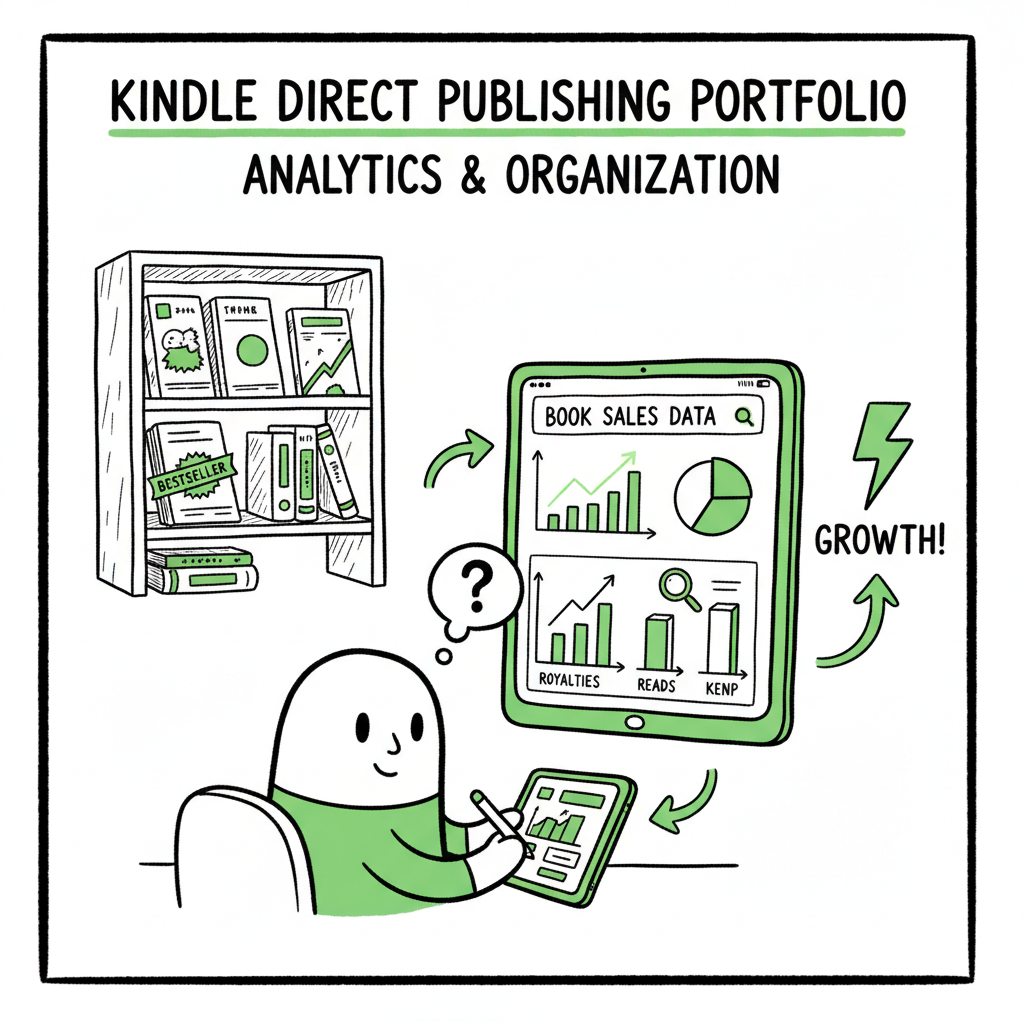
If you’re here, you already know the words kdp author dashboard. It’s the first page you see after signing in to Kindle Direct Publishing, and it’s where information about every live or draft title starts to collect. For a single book, the dashboard is mostly a place to check status and sales. For an author with many titles, it becomes a quick health check: are royalties coming in, are there delivery or file errors, which territories need attention?
The dashboard breaks into simple parts that matter to operational authors:
– Quick status: live, in review, or unpublished.
– Recent sales and royalty snapshots.
– Notices from Amazon about content, tax, or rights.
– Shortcuts to Bookshelf entries for each title.
Reading the dashboard is less about clicking everything and more about scanning for exceptions. A title that shows “in review” for longer than normal, a royalties drop, or an FAQ-style notice from Amazon are signals you should investigate. If you publish more than a few titles a year, these signals compound. That’s when you’ll feel the value of a system designed to reduce repetitive work, produce consistent files, and track metadata across platforms — an obvious upgrade once authors start publishing seriously. If you want a practical next step after learning the dashboard basics, see Amazon KDP for Authors for a focused guide on each screen and setting.
Why the dashboard is not your distribution tool
The KDP author dashboard reports on Kindle sales and settings. It is not a channel manager. Uploads, territory mappings, and wide distribution need repeated files and platform-specific settings. Relying on manual clicks across KDP, Kobo, Apple Books, Draft2Digital, and Ingram creates errors and wastes time. That’s why many authors move to a unified publishing workflow once they scale beyond a handful of titles.
How to navigate the Bookshelf and KDP reports overview
Bookshelf overview
Where the dashboard gives a snapshot, the Bookshelf is your working table. Good kdp bookshelf management saves time and prevents mistakes that cause delays in review or poor discoverability.
Bookshelf basics
– Each entry on the Bookshelf is a combination of metadata, files, and distribution controls. Metadata is the title, subtitle, series data, contributors, and description.
– Book files include manuscript files and cover files. KDP accepts PDF for print and MOBI or EPUB for ebook uploads (EPUB is standard now).
– Rights and pricing sections control where the title sells and how much readers pay in each marketplace.
Practical steps when you open a Bookshelf entry
– Verify the ISBN and print settings for paperbacks. ISBN mismatches cause long support waits.
– Open the previewer for both ebook and paperback. The previewer catches layout and cover issues before publication.
– Check the territories section. Many authors assume global distribution is automatic; it is not always the case for paperbacks or expanded distribution.
– Confirm your royalty settings. KDP splits formats and territories in ways that affect net income.
Reading KDP reports
The reports area is where you turn activity into decisions. The kdp reports overview organizes information across time and titles:
– Sales report: units sold by marketplace and format.
– Earnings report: royalty amounts, adjusted for returns and tax deductions.
– Historical performance: time-series data for launches, promotions, and price changes.
What to watch for in reports
– Sudden shifts: a drop in ebook units but a rise in paperback might indicate a format display issue or pricing error.
– Geography: sales by territory show where to focus marketing or translations.
– Return rates: high return rates on print editions sometimes point to cover trim or print quality problems.
Use reports to drive simple cycles:
– Weekly: scan for errors, spikes, or notices.
– Monthly: reconcile royalties and look for formatting or distribution trends.
– Quarterly: plan batch uploads, price testing, or translation projects.
If you need to convert manuscript files or standardize ebooks before upload, a reliable tool helps. For example, automated EPUB conversion removes a repetitive bottleneck in the workflow and keeps your files consistent across platforms: try an EPUB converter to standardize files before upload. EPUB converter
Common bookshelf mistakes and how to avoid them
– Missing metadata fields. A missing subtitle, series link, or contributor credit can hurt search and cataloging.
– Wrong ISBN workflow. Assigning an ISBN to the wrong format ruins distribution and takes time to fix.
– Incorrect file types. Uploading an unflattened PDF or incorrect EPUB can lead to print glitches or ebook reflows.
– Not previewing across devices. The KDP previewer is only one view — check sample files on devices if possible.
File and cover preparation
Covers and interior files are not interchangeable between platforms. A cover built for paperback might need a different spine measurement or color profile for another vendor. If you’re building many covers, use a generator that batches cover production and export settings for each retailer. When we talk about cover processing at scale, a cover workflow like the cover generator processing helps create consistent art and correct technical specs.
Scaling from one dashboard to unified publishing: why automation matters
What unified publishing does, practically
You can manage one title by clicking through the KDP author dashboard. At ten or fifty titles, the cost of clicks, mistakes, and fixes becomes real. The operational answer is to adopt multi-platform publishing that unifies uploads, validates platform-specific settings, and keeps records.
What unified publishing does, practically
– One source of truth: a CSV or spreadsheet that lists metadata, pricing, territories, and file links for every title.
– Platform-specific intelligence: the system maps fields to each retailer’s requirements and warns about mismatches.
– Batch uploads: push dozens or hundreds of titles with one process, instead of repeating four or five manual uploads per title.
– Error reduction: automated checks catch missing ISBNs, incompatible covers, or wrong trim sizes before they reach platform review queues.
How much time does it save?
In practice, automation can reduce repetitive upload time by about 90% for authors who publish seriously. That’s not marketing hyperbole — it’s the difference between manual field entry and CSV-driven automation combined with file validation. For authors who publish multiple titles per year, or who have backlists to distribute, that time saving translates to publishing more titles, faster, and with fewer mistakes.
What automation won’t do (and what it does)
Automation will not write your book or market it for you. It will:
– Validate files and metadata.
– Populate platform forms accurately for KDP, Kobo, Apple Books, Draft2Digital, and Ingram.
– Generate consistent exports for each store’s requirements.
A practical workflow for a publisher
– Prepare a single master folder per title with manuscript, interior PDF or EPUB, and cover files.
– Maintain a CSV with one row per SKU that defines pricing, territories, ISBNs, and series metadata.
– Run a validation pass to catch file errors: trim size, spine width, embedded fonts, and EPUB standards.
– Push uploads to platforms through a tool that understands each store’s API and form mapping.
If you publish both paperbacks and ebooks, you’ll also want a place to generate and check both file types from the same source. For authors who need a simple, reliable place to create a print-ready file and an ebook, a central book creation workflow makes repeated tasks manageable and less error-prone. BookAutoAI
Why platform-specific intelligence matters
Retailers differ in small but critical ways: image color profiles, maximum file sizes, and metadata fields. A single system that knows these differences prevents otherwise hidden errors. For example, a paperback uploaded to Ingram may need a different PDF spec than the KDP paperback previewer expects. Automation that is aware of platform details reduces rejections and speeds time to sale.
From workflow to distribution
Automation is not simply about speed. It also enables strategies:
– Wide distribution: sell in as many stores as you can manage without manual duplication.
– Price experimentation: change prices across retailers in a controlled, auditable way.
– Backlist refresh: fix and re-upload older files in bulk instead of one title at a time.
Operational benefits BookUploadPro brings
If you reach the point where manual uploads cost you time and create errors, BookUploadPro automates the upload and mapping process across KDP, Kobo, Apple Books, Draft2Digital, and Ingram. The operational advantages are clear:
– Unified multi-platform publishing from one CSV.
– Platform-specific intelligence to reduce rejections.
– CSV batch uploads and batch updates.
– ~90% time savings on repetitive work.
– Lower error rates and more consistent distribution.
– Affordable pricing with a free trial — an obvious upgrade when you publish seriously.
Common workflows to automate
– New title launch: one CSV row, validated files, push to all channels.
– Backlist distribution: map existing titles and push standardized files wide.
– Quarterly metadata refresh: update prices, descriptions, and categories across platforms from one place.
Practical tips for using automation safely
– Keep a human in the loop for final checks. Automation reduces errors but does not replace judgment.
– Use versioned CSVs so you can roll back changes if a mapping mistake happens.
– Keep original master files outside the tool; the automation system should reference but not overwrite masters.
– Test with a small batch before a large push.
Common mistakes when scaling
– Overreliance on defaults. Platforms change, and automation must be monitored.
– Poor master file housekeeping. If your master files are messy, automation amplifies the problems.
– Skipping proofing steps. Always run a final proof or physical sample for print titles.
Integrations and file prep
Automated workflows often need two supportive tools: a reliable EPUB conversion tool and a cover processing tool. Convert manuscripts to a validated EPUB before pushing to retail channels, and generate cover files in the right dimensions and color profile for each retailer. For EPUB conversion, consider using an automated EPUB converter that standardizes output across multiple titles and platforms. EPUB converter For cover processing at scale, a cover generator and processor can create platform-specific cover files to avoid manual rework. cover generator processing
When automation is the wrong fit
Small, single-book projects that need one-off attention may not benefit from automation. If you prefer to hand-craft every page and every field, the manual path is fine. The tipping point is when the cost of the manual steps (time, errors, or missed opportunities) exceeds the cost of an automated workflow.
Practical checklist before you automate
– Consolidate a clean master folder per title.
– Decide on ISBN strategy and who holds ISBN ownership.
– Create a single metadata CSV with consistent field naming.
– Run file validation and resolve all warnings.
– Do a small batch test and confirm platform acceptance.
Final operational note
Automation changes the job from repetitive clicking to exception handling. Your work shifts to oversight: design the CSV, review exceptions, and act where the system asks for judgment. That’s a workflow that scales.
FAQ
Q: What is the kdp author dashboard used for?
A: It’s the central place to view status, sales snapshots, and notices for Kindle Direct Publishing titles. It links into the Bookshelf where you manage metadata, files, and distribution.
Q: How often should I check the dashboard and reports?
A: Scan the dashboard weekly for exceptions and check reports monthly to reconcile royalties and spot trends. If you publish many titles, allocate time for quick daily checks only for flagged issues.
Q: Can I upload the same book to multiple platforms from KDP?
A: No. KDP handles Kindle and KDP print distribution. To publish wide, you must upload to other retailers or use a multi-platform workflow that automates uploads for you.
Q: What common errors show up on the Bookshelf?
A: Common problems include wrong ISBN assignment, incompatible file types, missing metadata, and territory or pricing mistakes.
Q: Should I convert manuscripts to EPUB before uploading?
A: Yes. A validated EPUB reduces errors across platforms. Automated EPUB conversion tools standardize output for multiple uploads. EPUB converter
Q: How does automation work with covers and print files?
A: Automation tools can process covers to the correct spine width and export the right color profile and dimensions for each retailer, saving repeated manual edits. Cover processing
Sources
kdp author dashboard Estimated reading time: 14 minutes Key takeaways The kdp author dashboard is the control center for managing titles, sales data, and rights across Kindle Direct Publishing; learn to read it, act on it, and avoid common errors. Use the Bookshelf for clean kdp bookshelf management, and use Reports to spot trends, royalties,…