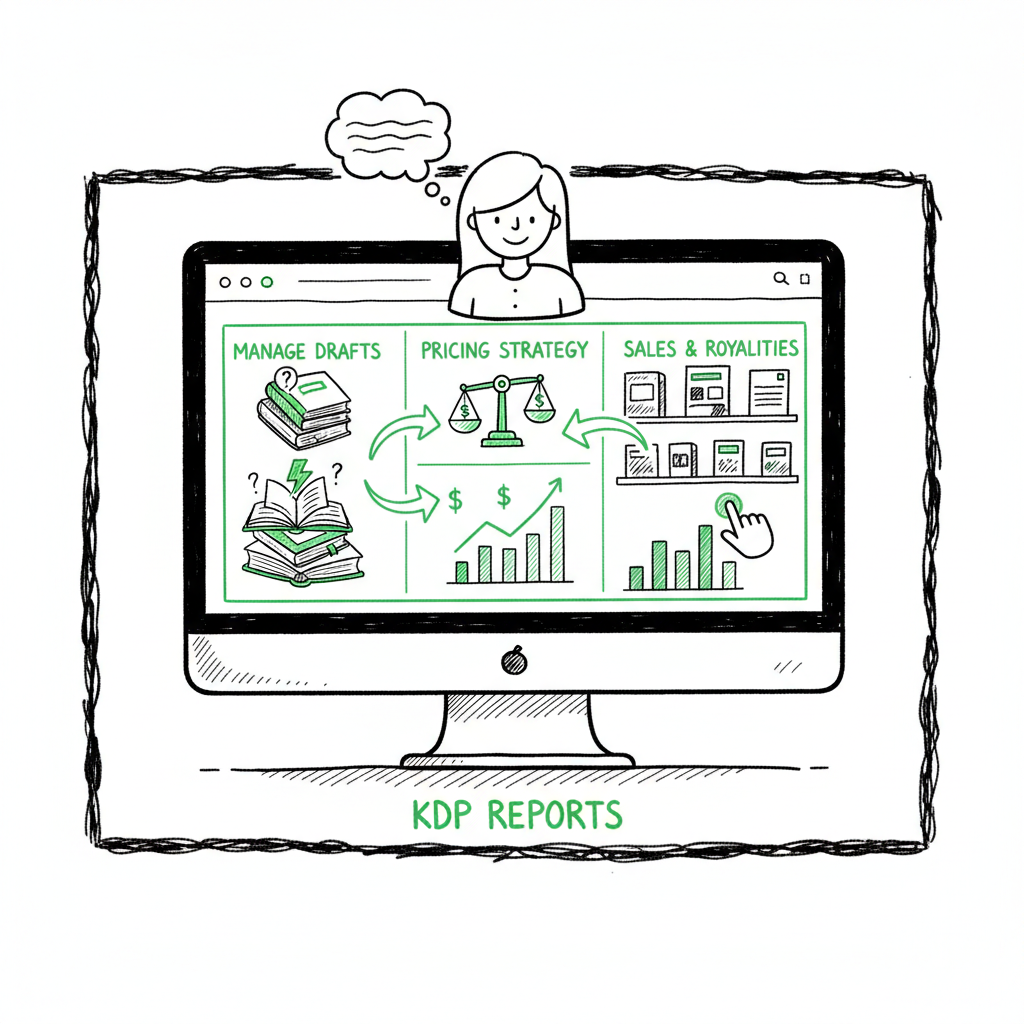
KDP Author Dashboard Navigation for Bookshelf and Reports
kdp author dashboard
Estimated reading time: 10 minutes
Key takeaways
- The KDP author dashboard is the control center for your books: manage drafts, pricing, and sales without leaving the page.
- Learn how to navigate the Bookshelf, interpret KDP reports overview, and keep your catalog tidy with smart bookshelf management.
- Once you publish regularly, unified multi-platform publishing tools like BookUploadPro make scaling practical and save time.
Table of Contents
- Overview of the KDP author dashboard
- Navigate the KDP dashboard: Bookshelf and management
- KDP reports overview: what to watch and why
- Publishing at scale: integrate automation and distribution
- Final thoughts
- FAQ
- Sources
Overview of the KDP author dashboard
The kdp author dashboard is Amazon’s web interface for managing every part of self-published books on Kindle Direct Publishing. It’s where you upload files, set prices, enroll in programs, and check basic performance. For a first-time user it can feel like a collection of menus; for a regular publisher it becomes a routine workstation.
At its core the dashboard splits into a few consistent areas: the Bookshelf (your list of titles and entry points to edit them), Reports (sales, royalties, and readership data), and account settings that control tax, payment, and author pages. If you want a deep dive into account setup and the initial publishing steps, see our companion guide Amazon KDP For Authors for a step-by-step overview that complements this operational guide. The rest of this article focuses on practical ways to use the dashboard day to day and how to combine it with multi-platform automation when publishing more than a handful of titles.
This article assumes you already have an account and one or two books live. If you’re brand new, start by confirming your tax and payment details in account settings before uploading a file. That prevents surprises when royalties post.
Navigate the KDP dashboard: Bookshelf and management
The Bookshelf is where most of your time will be spent. Think of it as both a catalog and a quick-edit console. Learning the Bookshelf well saves time and prevents accidental versioning problems.
What you see on the Bookshelf
- Title list: All your published books and drafts appear in a single list. Each entry shows the book’s title, format (Kindle ebook, paperback), and a small status label (Live, Draft, In Review).
- Quick actions: Buttons or a three-dot menu let you edit book details, upload new files, change pricing, or view sales details.
- Filtering and sorting: Use filters to show live books only, drafts only, or items with errors. Sorting by date or title helps when you have many entries.
Common bookshelf management tasks
- Edit book content: Click the ellipsis or Edit link. You can replace a manuscript, update metadata, or upload a corrected cover. When making content edits, remember to keep a versioned backup of your manuscript and cover files locally.
- Duplicate and reuse: For series or translated editions, duplicate a listing to reuse metadata fields and speed up new entries. This reduces repetitive typing and helps maintain consistent keywords and descriptions.
- Remove or unpublish: Unpublishing removes a title from sale. It keeps your record in KDP but stops new purchases. Use this when you’re revising a problematic edition.
Practical tips for smooth management
- Use consistent metadata: Titles, subtitles, clean blurbs, and standardized series fields make bookshelf management predictable and make it easier to find the right record when editing.
- Keep a master CSV: Track every ISBN, ASIN, publication date, and pricing rule in a single spreadsheet. This becomes critical when you scale beyond a few books.
- Watch for flagged items: KDP sometimes shows flags for content or cover issues. Address these promptly to avoid delays in publishing.
Where bookshelf management meets multi-platform publishing
If you publish only to Amazon, the Bookshelf is sufficient. But most authors benefit from having their book available everywhere: Apple Books, Kobo, Draft2Digital, Ingram. Manually repeating uploads across platforms multiplies small errors. That’s why tools that support CSV batch uploads and platform-specific intelligence matter. When you’re publishing seriously, an obvious upgrade is a service that automates the upload and handles each store’s quirks, saving time and reducing errors by applying platform-specific rules consistently. Automate the upload. Own the distribution.
KDP reports overview: what to watch and why
KDP’s reporting section is basic but useful. You’ll not get the deep attribution models of an ad platform, but you will get clear numbers on sales, royalties, and Kindle Unlimited reads.
Key report sections
- Sales Dashboard: Shows units sold by marketplace and format. Good for a quick snapshot.
- Prior Months Royalties & Payments: Breaks down royalties by marketplace and month. Essential for cash flow planning.
- Orders and Refunds: Lists orders and optional returns, which matter if you track promotions or free price-matching.
- KENP (Kindle Edition Normalized Pages) Reads: If your book is enrolled in KDP Select, this is where you see how many pages readers consumed in Kindle Unlimited.
How to interpret the reports
- Units vs. revenue: Units sold are useful for trend spotting. Match units to revenue to avoid being surprised by currency conversion or marketplace fees.
- Time lag: KDP reporting is not real-time. Royalties and detailed breakdowns often appear with a delay. Use month-to-month trends instead of daily swings.
- KENP nuances: KENP pays differently than outright sales. A steady KENP read count can be better than a low number of outright sales, depending on your goals and volume.
Practical reporting habits
- Check weekly, but plan monthly: Look weekly to catch obvious problems. Do strategic review monthly to identify trends, pricing opportunities, or underperforming titles.
- Export CSVs: Always export raw CSV files for bookkeeping and deeper analysis in spreadsheets. CSVs let you combine KDP data with data from other stores and ad platforms.
- Monitor marketplace splits: If one marketplace suddenly drops or rises, investigate. Currency issues, storefront outages, or listing problems can cause big swings.
Knowing what to track depends on your goals. If you’re testing pricing, closely watch units and revenue per marketplace. If you use KDP Select, track KENP closely. If you rely on paperback sales, separate reports by format to see where margins sit after printing costs.
Publishing at scale: integrate automation and distribution
Once you publish more than a handful of books, manual upload becomes a time sink and error risk. That’s where a unified multi-platform publishing approach pays off.
Why automation matters in practice
- Repetition adds risk: You’ll copy metadata, upload covers, and fill forms dozens of times. Manual repetition creates simple errors: wrong ISBN, mistyped price, missing keywords.
- Platform quirks: Each store wants specific EPUB/cover specs and metadata fields. Handling these differences manually is slow.
- Time vs. value: The more titles you publish, the less time you should spend on uploads and the more on writing, marketing, and sustained catalog growth.
What automation should do
- CSV batch uploads: Push a single CSV to create or update dozens of titles across multiple stores. This keeps metadata consistent and makes bulk pricing changes simple.
- Platform-specific intelligence: Automation needs to tweak files for each store — different EPUB validation, cover bleed for print, or metadata field mapping. Tools that understand each storefront reduce rejections.
- Error reduction and validation: Preflight checks catch common problems before a file reaches the store. That reduces review cycles and rework.
How BookAutoAI fits
BookAutoAI automates repetitive uploads across Amazon KDP, Kobo, Apple Books, Draft2Digital and Ingram. It’s built around practical features:
- Unified multi-platform publishing so the same source files and metadata propagate consistently.
- CSV batch uploads to create or update many books at once.
- Platform-specific intelligence that adapts files to each store, reducing rejections.
- Error reduction through validation checks and clearer logs.
- Time savings: authors report up to ~90% faster publishing once they switch to automated workflows.
- Affordable pricing and a free trial make the tool an obvious upgrade for anyone publishing seriously.
File preparation, once and for all
Good automation starts with good files. That means:
- Clean interior files: Finalized manuscript in DOCX or EPUB. If you need format conversion, tools that convert to EPUB can save hours rather than wrestling with validation errors. Consider an EPUB converter to standardize files before upload.
- Proper covers: Covers must match platform specs for size, bleed, spine thickness, and file type. Using a reliable book cover generator speeds production and reduces rework.
- Variant outputs: Automation should create both ebook and print-ready files from the same source, or at least manage both outputs logically. For print editions, ensure you generate a correctly sized PDF with proper spine measurements.
Additional tools
- For cover creation, cover generator can produce consistent, store-ready art that fits print and ebook specs.
- If you are converting manuscripts to EPUB, use a trusted EPUB converter to avoid common validation problems that cause rejections.
Variant outputs
Automation should create both ebook and print-ready files from the same source, or at least manage both outputs logically. For print editions, ensure you generate a correctly sized PDF with proper spine measurements.
Streamlined publishing workflow example
- Prepare source files: final DOCX and high-resolution cover assets. Keep a versioned master folder.
- Convert interior to validated EPUB and create print-ready PDF if required.
- Build a single metadata CSV: one row per edition with title, subtitle, series name, contributors, ISBN (if you use your own), pricing, and territory rules.
- Run preflight checks: automated validation should flag EPUB errors, cover sizing issues, ISBN conflicts, and missing metadata.
- Upload via automation tool: create or update listings across chosen stores.
- Review logs and handle exceptions: most books will upload clean; a few will need manual tweaks—automation reduces the number of exceptions dramatically.
- Monitor reports across stores: use exported CSVs from each store to reconcile sales and plan promotions.
If you’re releasing a six-book series, you can plan a master CSV that sets series order, pricing tiers, and release dates, batch upload all six books, and schedule staggered releases to maintain momentum. BookAutoAI can help enforce consistency across stores with automated preflight checks and per-store adjustments.
For those who prefer manual control, there are times when you still want hands-on optimization, such as complex promotions or customized product pages. A repeatable automated baseline keeps errors small and speeds up recovery when changes are needed.
Quality control and versioning
- Keep a single source of truth: a master folder or repository for manuscript and cover source files prevents accidental uploads of older drafts.
- Archive every upload: keep the exact files you sent to stores and the date. This helps if you need to roll back or explain differences.
- Use clear naming conventions: include edition, date, and format in filenames.
A note on pricing and territories
- Price consistently: If you list the same book on multiple stores, set a pricing matrix that accounts for VAT, local currency, and regional pricing strategies.
- Territory management: For exclusive programs like KDP Select, plan which stores you’ll keep exclusive and which you’ll distribute widely. Automation tools should respect these choices.
Final thoughts
The kdp author dashboard is a solid control center for individual books. Learning its Bookshelf and Reports sections is essential for everyday management. But the dashboard is only one part of a modern publishing workflow. When you scale, repeatable processes and automation matter more than a few extra clicks.
BookUploadPro’s approach—unified multi-platform publishing, CSV batch uploads, and platform-specific intelligence—makes wide distribution practical. It’s an obvious upgrade once authors start publishing seriously because it reduces error, saves time, and enforces consistency across stores. Affordable pricing and a free trial make it low risk to test.
Next steps
- If you’re new: get comfortable with the Bookshelf and basic reports. Keep a master CSV and versioned files.
- If you plan to scale: evaluate automation that supports batch uploads, preflight checks, and per-store adjustments.
- Prepare clean source files: validated EPUBs, print-ready PDFs, and covers sized to store specs.
FAQ
Q: What is the difference between the Bookshelf and Reports on KDP?
A: The Bookshelf is where you manage listings: upload files, edit metadata, and change pricing. Reports show sales, royalties, and KENP reads. One is operational; the other is analytical.
Q: How often should I check KDP reports?
A: Weekly checks catch issues early. Monthly reviews are better for strategic decisions and trend analysis.
Q: Can I use the same files for ebook and paperback?
A: You use the same manuscript source, but output different files: an EPUB for ebook and a print-ready PDF with correct dimensions for paperback. Covers are also different: ebook cover is a single image; paperback covers must include spine and bleed.
Q: Is a publishing automation tool worth the cost?
A: If you publish more than a handful of titles or want consistent, repeatable uploads across stores, automation typically pays for itself in time saved and reduced errors.
Q: What is KDP Select?
A: KDP Select is an optional program that offers exclusive distribution and access to Kindle Unlimited. If you participate, plan which stores you’ll keep exclusive and which you’ll distribute widely.
Q: What should I do if a listing has errors?
A: Address flagged issues promptly, run preflight checks, and keep backups. Automation can help catch and fix errors before they reach stores.
Q: What is the best approach to automation for multiple stores?
A: Use CSV batch uploads with per-store adjustments and preflight validation to reduce rejections and keep metadata consistent across all platforms.
Sources
- https://help.selfpublishing.com/en/5-things-to-know-about-your-kindle-direct-publishing-kdp-dashboard
- https://kdp.amazon.com/help/topic/GVTTXHKHVPAPBEDQ
- https://rubenstomdesign.com/blogs/news/getting-started-with-self-publishing-a-comprehensive-guide-to-kindle-direct-publishing-kdp
Call to action
Visit BookUploadPro to see how automation can simplify multi-platform publishing and try the free trial.
kdp author dashboard Estimated reading time: 10 minutes Key takeaways The KDP author dashboard is the control center for your books: manage drafts, pricing, and sales without leaving the page. Learn how to navigate the Bookshelf, interpret KDP reports overview, and keep your catalog tidy with smart bookshelf management. Once you publish regularly, unified multi-platform…