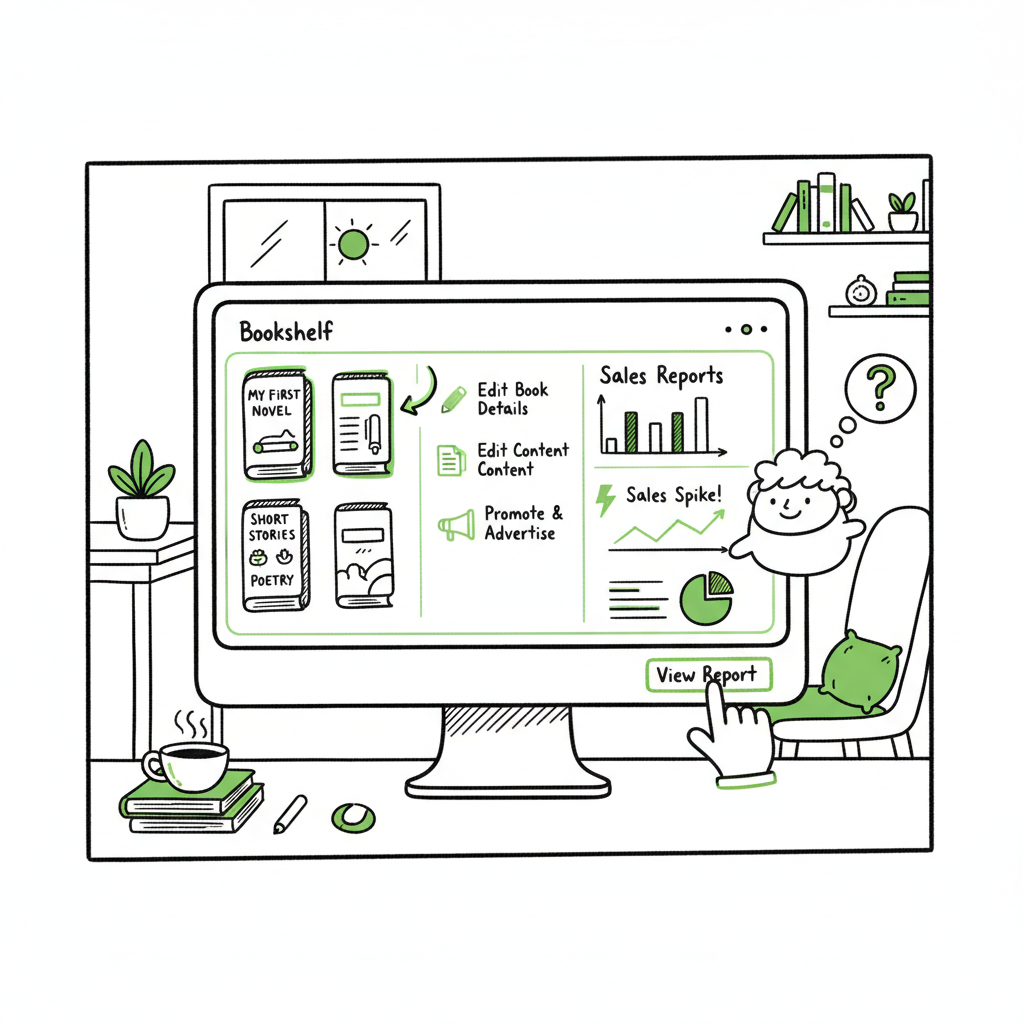
KDP Author Dashboard Navigate Bookshelf and Reports
KDP author dashboard: How to navigate the Bookshelf, read reports, and scale publishing
Estimated reading time: 14 minutes
The KDP author dashboard is Amazon’s web control panel for Kindle Direct Publishing. For deeper setup guidance, see Amazon KDP for Authors.
Key takeaways
- The KDP author dashboard is your control center: use the Bookshelf to set up and change titles, and the Reports area to track sales, royalties, and KENP reads.
- Regular, simple checks—price, categories, and a quick reports review—keep books healthy; use CSV and automation when you scale beyond a few titles.
- When authors publish seriously, unified multi-platform tools like BookUploadPro save time, reduce errors, and make wide distribution practical.
Table of Contents
- Overview: What the KDP author dashboard does
- Navigate the Bookshelf and manage titles
- Understand KDP reports and dashboard metrics
- Scale multi-platform publishing with automation
- FAQ
- Final thoughts
- Sources
Overview: What the KDP author dashboard does
The KDP author dashboard is Amazon’s web control panel for Kindle Direct Publishing. When you log in, it shows account-level information and gives quick links to the main working areas: Bookshelf, Reports, Marketing, and Community. For most authors, the three practical functions are clear: create and edit books on the Bookshelf, check performance in Reports, and use Marketing tools as needed.
Think of the dashboard like the cockpit of a small plane. It does not fly the plane for you, but it gathers the necessary instruments and controls in one place. The large tiles and menus are designed so you can move from adding a new title to checking yesterday’s sales in a few clicks.
If you want a step-by-step upload walkthrough, see our Amazon KDP for Authors guide for a detailed tour of each upload screen. Early familiarity saves time later: once you can move quickly between Bookshelf and Reports, small fixes—like updating a price or swapping a cover—take minutes instead of hours.
What the interface shows at a glance
- Estimated royalties and recent orders
- Recent KENP (Kindle Edition Normalized Pages) reads
- Quick links to start a new book, create a paperback or ebook, and review drafts
- Direct access to the Bookshelf for title-level actions
Why authors should learn the dashboard
- You control metadata, pricing, and distribution—these affect discoverability and earnings.
- Some fixes are urgent (typos in the description, incorrect price), and you’ll want to make them without delay.
- Performance monitoring helps you spot trends—steady sales, spikes after promo work, or a fall after a price change.
This article teaches practical navigation and bookshelf management. It also explains the Reports area in a way that helps you turn numbers into decisions. Later we’ll look at how to scale beyond one or two titles without spending all your time on repetitive uploads.
Navigate the Bookshelf and manage titles
The Bookshelf is the operational heart of KDP. It lists every draft and live title in your account. For each book you’ll see the title, type (Kindle ebook, paperback, hardcover), status (Draft, Live, or Pending), and an ellipsis or action menu with options like Edit Book Details, Upload Paperback Manuscript, and Order Author Copies.
Basic workflow for editing a title
- Click the book row, then pick the relevant action from the ellipsis menu.
- Edit the book details page for metadata: title, subtitle, series, author name, and description.
- Upload or replace your manuscript and cover files in the Content section.
- Set price and royalty options in Pricing and Distribution.
- Save and Publish (or save as draft if you’re not ready).
Common bookshelf tasks and how to do them well
- Update descriptions: Keep the first paragraph tight and lead with the hook. Small wording changes can affect conversions.
- Change price: Use the Pricing page. Remember promotions and KDP Select enrollments have rules—double-check before you change.
- Edit keywords and categories: These live in Book Details. Small, accurate tweaks help the right readers find your work.
- Replace files: Upload new interiors or covers when you improve the book. KDP keeps the ASIN/ISBN link the same when files are swapped, so links don’t break.
Formatting and cover work
Prepare files that match KDP’s requirements for trim size, margins, and color. For ebooks, clean HTML or a well-formatted EPUB avoids layout errors. If you need an EPUB conversion, use a reliable conversion tool that preserves chapters and images—tools like an EPUB converter can save time and avoid common formatting problems. For covers, a good image that reads at thumbnail size matters most; many authors use a dedicated cover generator to produce print-ready files.
Creating paperback and ebook entries
When you create a title you choose ebook and/or paperback. Each format has separate content and pricing panels. Paperback setup asks for interior PDF, cover (spread or wrap), and trim size. For authors who want to produce both formats quickly, a book creation workflow that outputs cover and interior files for each format minimizes errors and rework.
Order author copies and proofing
Always order a proof for paperbacks and hardcovers before wide distribution. The on-screen previews are helpful, but physical proofs reveal layout or color issues you might miss. Author copies are priced at cost plus shipping—use them to check the final product.
Bookshelf management tips for multiple titles
- Keep a naming convention: Title – Edition – Year helps when you have many editions.
- Use consistent metadata across formats: same description, same series entry, matching cover images.
- Track changes in a spreadsheet so you know when you last updated price, cover, or description.
- For bulk edits, consider CSV workflows or automation tools once you have several titles.
Practical example: quick price change
If a price change is time-sensitive, use the Bookshelf to open Pricing and change the list price. KDP will show estimated royalty differences. After publishing the change, allow 24–72 hours for global marketplaces to update.
If you regularly need help preparing formatted files or covers, automated tools that produce finished EPUBs and print-ready covers reduce friction. For example, you can pass a manuscript through a book creation tool to get interior files and use a cover generator for consistent brand-ready art. Those steps leave the Bookshelf work to simple file uploads and metadata entry.
Understand KDP reports and dashboard metrics
The Reports area is where numbers become decisions. KDP’s dashboard gives a snapshot—estimated royalties, recent orders, and KENP reads—while the Reports section offers drill-downs by date range, marketplace, and format.
Key reports at a glance
- Sales Dashboard: Shows units sold per marketplace and format across time ranges.
- Royalty Reports: Break down earnings by title, marketplace, and currency.
- KENP Reads: For KDP Select pages read, measured in Kindle Edition Normalized Pages.
- Payments: Shows earned royalties and scheduled payment dates.
How to use reports productively
- Check yesterday’s sales regularly but focus on rolling 7- or 30-day trends for decisions.
- Compare formats: see if ebook sales or print sales drive most revenue for a title.
- Use KENP reads to evaluate the performance of Kindle Unlimited promotions and serialized content.
- Monitor territories: if a book sells well in a specific marketplace, consider targeted promotions or localized metadata.
Simple analysis that helps
- Trend detection: rising daily sales over a week often signals a successful marketing push or a favorable algorithm change.
- Drop detection: a sudden drop after a price or metadata change is a cue to revert and investigate.
- A/B style testing: try a new cover or blurb for a short period and compare the reports before and after.
Reports export and spreadsheet work
KDP allows CSV exports for many reports. If you manage several titles, export weekly and keep a master spreadsheet that tracks price, cover, and promotional activity beside sales history. Spreadsheets make it straightforward to calculate ROI on ad spends and promotional efforts.
Common report pitfalls
- Relying on a single day: one day spikes or dips are noisy. Look at moving averages.
- Ignoring format split: an ebook may sell well while print lags, or vice versa. Treat each format separately in analysis.
- Overreacting to KENP: pages read are useful for subscription strategies, but page counts vary by genre and reader behavior.
When the numbers imply action
- Low conversion from page views to sales: test blurb, cover, and price.
- Seasonal shifts: adjust marketing for predictable dips (e.g., holidays for certain nonfiction topics).
- Genre-specific patterns: some categories have consistent long tails—keep titles live and refreshed.
Reports tools and automation
Manual reporting is fine for a few titles. When you have dozens, export and tie reports into a simple dashboard or use batch-processing tools to avoid repetitive data pulls. CSV-based workflows connect well with automation: you can push pricing updates or metadata changes in bulk using structured files instead of clicking each Bookshelf entry one by one.
Scale multi-platform publishing with automation
Once you publish more than a handful of titles, the time spent repeating the same upload steps across platforms becomes a real cost. That’s where unified multi-platform publishing and batch workflows make sense. BookUploadPro automates repetitive uploads across Amazon KDP, Kobo, Apple Books, Draft2Digital, and Ingram—delivering roughly 90% time savings on repeat tasks.
Why scale needs a different process
- Platform quirks: each store asks for slightly different file types, metadata fields, and cover sizes.
- Error risk: manual repetition increases the chance of typos, mis-sized covers, or incorrect ISBN entries.
- Opportunity cost: time spent on uploads is time not spent writing, building series, or running targeted promotions.
What automation does for publishers
- CSV batch uploads: update or publish many titles from a single spreadsheet.
- Platform-specific intelligence: the system applies the right file packaging and metadata rules for each store.
- Error reduction: automated checks flag missing fields, wrong trim sizes, or incorrect metadata before upload.
- Centralized tracking: one dashboard shows which platform has which version, and what’s live where.
How BookUploadPro fits in
BookUploadPro handles the repetitive, detail-heavy work of formatting, preparing files, and uploading across stores. The service bundles interior and cover generation, metadata optimization, and platform-specific packaging so authors get a ready-to-publish package placed into each store’s dashboard. For authors who publish seriously, this is an obvious upgrade: it minimizes mistakes, cuts turnaround time, and makes wide distribution practical.
Practical benefits you’ll notice
- Faster releases: what used to take a day per platform becomes hours for a batch.
- Consistent listings: identical metadata and images across stores protect branding.
- Fewer rejects: platform-specific checks reduce rejections that delay launches.
Files and cover generation in a scalable workflow
When you scale, you want a reliable way to produce the necessary files: interior files for paperbacks and ebooks, print-ready covers, and a valid EPUB for Apple Books and Kobo. Use a book creation tool that packages both paperback and ebook formats consistently. If you need a dedicated cover, a cover generator will produce consistent, correctly-sized art for each platform’s requirements.
- For paperback and ebook production, a single book creation process that outputs both formats avoids mismatches and speeds uploads.
- For EPUB needs, a trusted EPUB converter ensures your table of contents, images, and chapter breaks hold up across readers.
- For covers, a cover generator produces print-wrap and thumbnail versions that meet each store’s specs.
When to use a done-for-you service
If you’d rather spend time writing than solving format errors and filling forms, a service that handles uploads and quality checks becomes cost-effective once you publish several titles a year. BookUploadPro combines human oversight with repeatable processes: humans check metadata and descriptions while automated systems ensure platform compatibility and bulk upload accuracy. The result is fast, repeatable releases with fewer mistakes.
What to expect operationally
- Project-based pricing tied to depth of work: full KDP setup per title rather than a quick upload.
- Human review: natural, reader-focused metadata rather than raw machine output.
- CSV and batch flows: scale without extra clicks.
- Retained control: authors review final settings in their own accounts before going live.
Automate the upload. Own the distribution. When you reach the point that uploads are the bottleneck, automation and focused services free you to write and promote your catalog.
FAQ
Q: What is the difference between the Dashboard and the Bookshelf?
A: The Dashboard gives an account-level snapshot—estimated royalties, recent orders, and quick metrics. The Bookshelf lists every title and is where you create or edit the files and metadata for each book.
Q: Where do I change price and enroll in KDP Select?
A: Price changes and KDP Select enrollment happen on the Bookshelf within each title’s Pricing and Distribution settings.
Q: How often does KDP update reports?
A: The KDP dashboard updates daily for many figures, but marketplace visibility sometimes lags up to 24–72 hours, especially for international stores.
Q: What is KENP and where do I find it?
A: KENP (Kindle Edition Normalized Pages) measures pages read in Kindle Unlimited. You can find KENP reads in the Reports area under the appropriate metric.
Q: Do I need a separate file for paperback and ebook?
A: Yes. Paperbacks need print-ready PDF interiors and a wrap cover, while ebooks typically use an EPUB or well-formatted file suitable for Kindle.
Q: I have many titles—should I do this myself or use a service?
A: For a few titles, manual work is fine. Once repetition costs time or causes errors, a service like BookUploadPro that automates uploads and applies platform-specific rules becomes an efficient, affordable upgrade.
Final thoughts
The KDP author dashboard is straightforward once you know where the core tasks live: setup and changes on the Bookshelf, monitoring on Reports, and occasional use of Marketing and Author Central. Learning a few reliable habits—consistent metadata, regular reports checks, and a proof-first approach for paperbacks—keeps titles healthy.
When your list grows, shift from click-by-click updates to structured CSV and automation-based workflows. That is where the real time savings begin: fewer mistakes, faster releases, and consistent distribution across stores. BookUploadPro is built to be that operational upgrade—combining human review with automation to handle uploads across KDP, Kobo, Apple Books, Draft2Digital, and Ingram. For authors publishing seriously, it is an obvious step: automate the upload, own the distribution.
If you want to try a faster way to publish more books with fewer headaches, visit BookUploadPro.com and start the free trial.
Sources
- https://help.selfpublishing.com/en/5-things-to-know-about-your-kindle-direct-publishing-kdp-dashboard
- https://rubenstomdesign.com/blogs/news/getting-started-with-self-publishing-a-comprehensive-guide-to-kindle-direct-publishing-kdp
- https://kdp.amazon.com/help/topic/GX7EGDFGS9CZCA2F
- https://kdp.amazon.com/help/topic/GVTTXHKHVPAPBEDQ
- https://kdp.amazon.com
- https://www.writtenwordmedia.com/what-is-kdp-amazon-kindle-direct-publishing-explained/
- https://www.youtube.com/watch?v=N7d8Dci_KVs
(External product tools referenced in the article)
Internal resource
KDP author dashboard: How to navigate the Bookshelf, read reports, and scale publishing Estimated reading time: 14 minutes The KDP author dashboard is Amazon’s web control panel for Kindle Direct Publishing. For deeper setup guidance, see Amazon KDP for Authors. Key takeaways The KDP author dashboard is your control center: use the Bookshelf to set…