KDP Author Dashboard Practical Guide for Self-Publishing
KDP Author Dashboard: A Practical Guide for Self-Publishing Authors
Estimated reading time: 14 minutes
Key takeaways
- The kdp author dashboard is your single control panel on Amazon for uploads, pricing, and performance tracking.
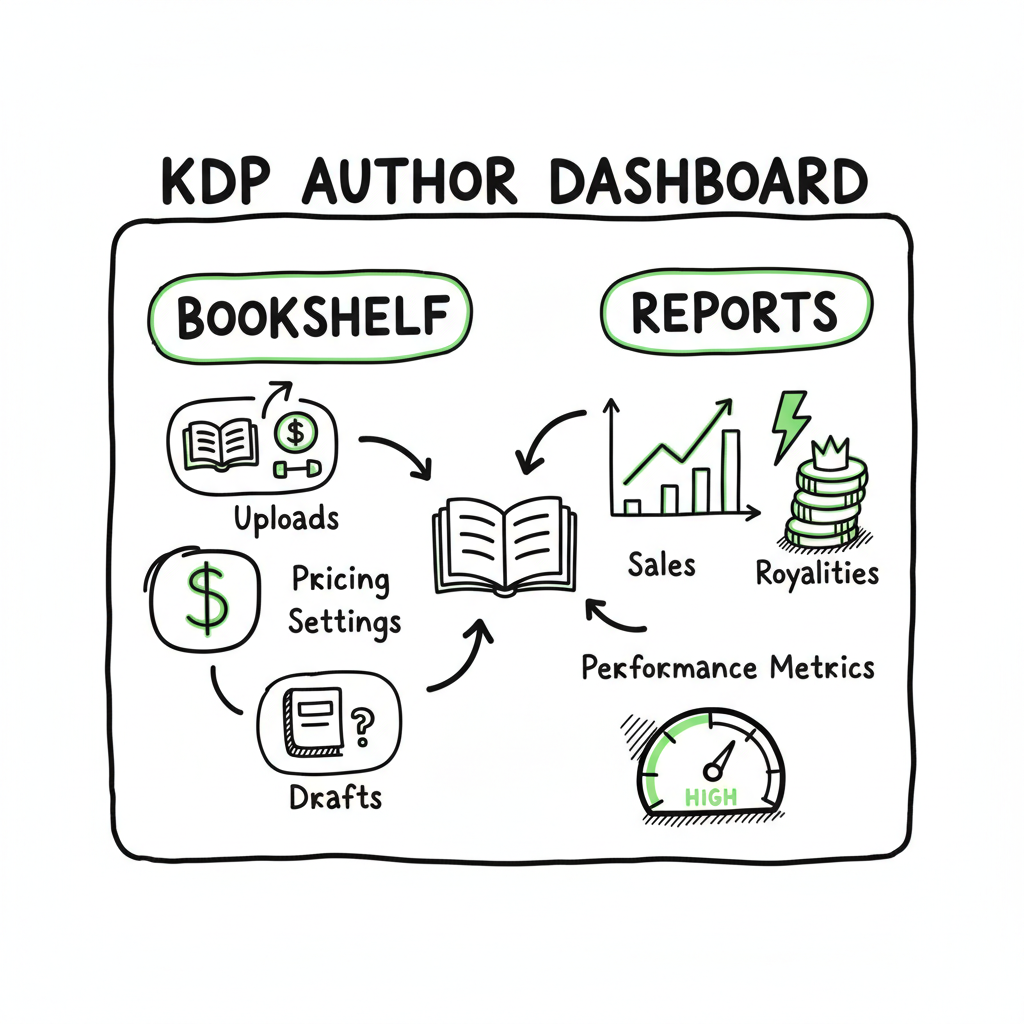
- Bookshelf and Reports are the two core areas: use Bookshelf for edits and pricing, Reports for sales, royalties, and KENP reads.
- When you publish multiple titles, a streamlined process and cross‑platform uploads save time and reduce errors—BookUploadPro makes that practical.
Table of Contents
- What the kdp author dashboard is and how to log in
- Bookshelf: manage editions, pricing, and updates
- Reports: kdp reports overview and what to track
- Scaling publishing: multi-platform automation and workflow
- Final thoughts
- FAQ
- Sources
What the kdp author dashboard is and how to log in
The kdp author dashboard is the Amazon hub where authors manage everything for Kindle eBooks, paperbacks, and hardcovers. Log in at the Kindle Direct Publishing site with your Amazon account. Once inside, the main navigation focuses on two tools you’ll use every day: Bookshelf and the Reports area. The dashboard is intentionally simple—Amazon hides complexity behind a few menus so you can move quickly between titles, pricing, and metrics.
If you’re new and want a guided walkthrough of KDP basics, this short guide on Amazon KDP For Authors covers the essentials and helps you get started without fumbling through menus. Use the dashboard to keep a single source of truth for each book: manuscript and cover files, metadata like title and description, pricing, and enrollment choices such as KDP Select.
A few quick terms to know when you first arrive
- Bookshelf: where drafts and published books live.
- Reports: your sales, royalties, and KENP reads.
- KDP Select: an enrollment option with promotions and Kindle Unlimited visibility.
- Author Central: where you build your author page (external to KDP but linked from the dashboard).
Navigate KDP dashboard with a small checklist in mind
- Confirm any scheduled changes (price updates, promotions).
- Check recent sales in Reports.
- Verify that publication status is “Live” for titles you expect to sell.
Bookshelf: manage editions, pricing, and updates
The Bookshelf is where you control every detail of a title. Think of it as your book’s command center.
How to find and open a title
Each title on the Bookshelf shows its current status: Draft, Live, or Unpublished. Click the ellipsis (…) next to a title to see actions like Edit eBook Content, Edit Paperback Content, View on Amazon, or Promote and Advertise. That ellipsis houses most of the day-to-day actions you’ll take.
Edit metadata and content without re-uploading everything
You can update descriptions, keywords, and categories from the Edit flow without re-uploading your manuscript. If you need to change the interior file or cover, choose Edit eBook Content or Edit Paperback Content and follow the prompts. Amazon re-processes files and shows warnings if something rejects.
Pricing, royalties, and author copies
To change pricing, return to the Bookshelf, choose the title, and select Pricing from the menu. Amazon displays royalty options and the per-country price table. For paperbacks and hardcovers, you can also order author copies from the same menu—useful for review copies or events.
KDP bookshelf management tips that save time
- Keep a naming convention for your files (title_version_date) so you can see which file is live at a glance.
- Use the “Save and Continue” approach: update metadata first, then upload files. That reduces accidental live updates.
- When you need to roll back a change, the Bookshelf makes it simple: re-upload the previous file and resubmit.
Creating books at scale
If you create multiple editions—ebook, paperback, hardback—aim to standardize steps and files. A consistent process reduces errors and speeds repeatable tasks. For authors moving beyond one-off publishing, consider a centralized book creation process that handles conversions and format checks so each upload is clean. Tools that centralize file generation make batch uploads far less painful.
Reports: kdp reports overview and what to track
The Reports area is where raw activity becomes actionable. The Reports dashboard gives a snapshot of estimated royalties, top-earning books, units sold, and KENP reads. Use it to find trends, not to obsess over daily noise.
What the Reports page shows
- Estimated royalties: a running total you can filter by date.
- Sales by title and marketplace: see which formats or territories are performing.
- KENP (Kindle Edition Normalized Pages): reads from Kindle Unlimited and Kindle Owner’s Lending Library.
- Orders and returns: physical orders appear and update quickly, typically within 24 hours.
How to use kdp reports overview to improve decisions
- Which book is selling best this month? Look at units and revenue by title.
- Are promotions working? Compare sales spikes to promotion dates.
- Are certain territories underperforming? Use marketplace filters to see country-level data.
Downloading and sharing data
Amazon allows CSV exports from the Reports area. Export raw sales and royalty data to combine with other platforms or to keep an offline ledger. Exports are the bridge between KDP and your accounting or ad tracking systems.
Common pitfalls when you read reports
- Don’t confuse estimated royalties with payments; there is a delay before funds are posted to your account.
- KENP reads are specific to Kindle Unlimited and are measured differently than unit sales.
- Promotions and free days can inflate rank temporarily; focus on sustained changes.
Scaling publishing: multi-platform automation and workflow
Once you get comfortable with the kdp author dashboard, the next limiting factor is how you publish and maintain multiple titles across platforms. The same book often needs to live on Amazon, Kobo, Apple Books, Draft2Digital, and Ingram. Doing that manually is repetitive and risky.
Why multi-platform publishing matters
Distribution beyond Amazon increases readership and revenue. Each platform has its own pricing rules, file requirements, and metadata fields. Managing these by hand multiplies workload and increases the chance of mismatched metadata or missed updates.
How automation changes the equation
Automation tools take the repetitive work—file uploads, metadata mapping, and price synchronization—and run it reliably. For example, CSV batch uploads let you change pricing for dozens of books and push those changes across platforms with a single job. Platform-specific intelligence adapts files and settings to meet each retailer’s rules, reducing rejections.
BookUploadPro: where automation helps most
BookUploadPro automates repetitive uploads across Amazon KDP, Kobo, Apple Books, Draft2Digital, and Ingram. It saves roughly 90% of the time spent on manual uploads, reduces errors, and makes wide distribution practical. If you’re publishing a handful of titles, the dashboard is fine. At scale, automation cuts weeks of work into hours.
Practical steps to move from single-platform to multi-platform
- Standardize files: one master EPUB and one print-ready PDF for each title.
- Build a CSV that contains titles, ISBNs, prices, and platform-specific flags.
- Run a test batch with one title to confirm mappings and adjustments.
- Schedule a regular sync to propagate metadata updates.
A note about book creation tools
If you need help generating consistent ebook and paperback files, use a dedicated book creation service to produce error-free outputs that upload cleanly across platforms. For many authors, linking a reliable file-generation step into the publishing process is the difference between smooth batch uploads and repeated rejections. One reliable resource for generating files and handling the conversion step is a trusted book creation workflow.
Final thoughts
The kdp author dashboard is the place you start and often the place you return. It gives you direct control over publication status, pricing, and metrics for Amazon. As you publish more titles, the work shifts from single clicks to process management: updating many editions, tracking sales across channels, and maintaining clean files. That’s where automation and multi-platform publishing matter. They keep your catalog consistent, reduce errors, and free you to focus on writing and promotion.
FAQ
Q: Where do I log in to access the kdp author dashboard?
A: Go to the Kindle Direct Publishing site and sign in with your Amazon account. The dashboard opens to the Bookshelf and top-level navigation.
Q: How do I edit an existing book’s description or price?
A: On the Bookshelf, click the ellipsis next to the title, choose the appropriate Edit option (eBook or Paperback Content), and update the metadata or pricing fields. Save and publish changes when ready.
Q: What does KENP mean in reports?
A: KENP stands for Kindle Edition Normalized Pages. It measures the number of pages read in Kindle Unlimited and related programs and appears on the Reports dashboard.
Q: Can I export sales and royalty data from Reports?
A: Yes. The Reports area supports CSV exports so you can analyze data offline or combine it with other platforms.
Q: When should I move to automated, multi-platform publishing?
A: If you publish more than a few titles or you update metadata frequently, automation delivers time savings and fewer errors. It becomes essential when maintaining distribution across multiple retailers.
Sources
- https://help.selfpublishing.com/en/5-things-to-know-about-your-kindle-direct-publishing-kdp-dashboard
- https://kdp.amazon.com/help/topic/GX7EGDFGS9CZCA2F
- https://kdp.amazon.com/help/topic/GVTTXHKHVPAPBEDQ
- https://rubenstomdesign.com/blogs/news/getting-started-with-self-publishing-a-comprehensive-guide-to-kindle-direct-publishing-kdp
- https://www.writtenwordmedia.com/what-is-kdp-amazon-kindle-direct-publishing-explained/
- https://reedsy.com/blog/guide/kdp/how-to-publish-a-book-on-amazon/
KDP Author Dashboard: A Practical Guide for Self-Publishing Authors Estimated reading time: 14 minutes Key takeaways The kdp author dashboard is your single control panel on Amazon for uploads, pricing, and performance tracking. Bookshelf and Reports are the two core areas: use Bookshelf for edits and pricing, Reports for sales, royalties, and KENP reads. When…