KDP Author Dashboard Guide to Bookshelf and Reports
kdp author dashboard
Estimated reading time: 13 minutes
Key takeaways
- The kdp author dashboard is your control center for publishing, managing, and tracking books on Amazon. Learn where Bookshelf and Reports live and what to check daily.
- Good bookshelf habits and regular use of KDP reports reduce errors, speed up updates, and make scaling practical when combined with a multi-platform upload tool.
- When authors publish multiple titles, automation that supports CSV batch uploads and platform-specific intelligence becomes an obvious upgrade.
Table of Contents
- How the KDP Author Dashboard works
- Bookshelf management and daily tasks
- Using reports and scaling distribution with automation
- FAQ
How the KDP Author Dashboard works
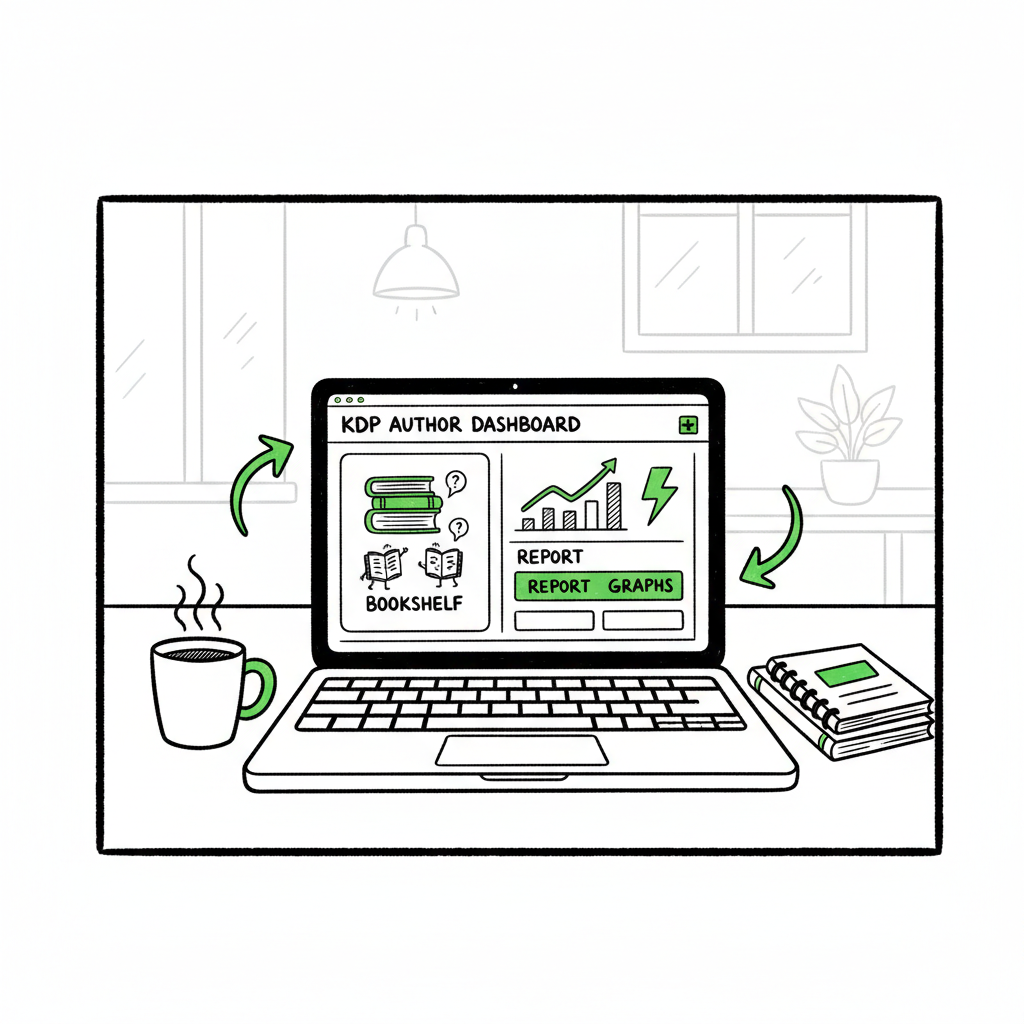
The kdp author dashboard is the single web page where authors manage their Kindle Direct Publishing business. Log in at kdp.amazon.com and you’ll see the Bookshelf, Reports, and links to marketing tools. For a solo author or a small team, the dashboard is where you upload a manuscript, set metadata, price a book, and check sales. For publishers with many titles, it’s the hub that still controls every book — but it was built for single-title workflows, not bulk uploads.
At a glance, the dashboard has three practical areas you’ll use most:
- Bookshelf: where drafts and live titles appear and where you click “…” to edit content or settings.
- Reports: a snapshot of estimated royalties, orders, and KENP (Kindle Edition Normalized Pages) reads.
- Marketing and resources: links to KDP Select enrollment, promos, and help pages.
If you’re just getting started, Amazon’s interface is straightforward. But when you start publishing at scale the repetitive parts — entering metadata, uploading files, or re-pricing — consume time and invite mistakes. That’s where a multi-platform workflow becomes valuable. For context on publishing to Amazon specifically, see Amazon KDP for Authors — it’s a good companion to practical dashboard work and clarifies how Amazon expects metadata and files to be submitted.
Why the dashboard matters
The dashboard isn’t just a place to click “publish.” It’s a record keeper. The status flags — Draft, In Review, Live — tell you what stage each book is at. The Bookshelf stores each title’s ISBN or ASIN, edition type, and marketplace details. If something goes wrong (upload failure, incorrect interior file), the Bookshelf record is where you see errors and next steps. The Reports section then tells you whether those changes are translating into sales.
Common sections explained simply
- Bookshelf: Add new title, edit content, upload files, set price, order author copies.
- Reports: Daily royalty snapshots, top-selling books, KENP reads, and order details.
- Community & Help: Author forums and documentation for troubleshooting and changes in policy.
Bookshelf management and daily tasks
If the dashboard is the control center, Bookshelf is the cockpit. You’ll spend most of your early dashboard time here — uploading manuscripts, attaching covers, filling in descriptions, setting pricing and territories, and saving drafts. For authors managing a handful of books, a disciplined Bookshelf routine keeps errors low and turnarounds fast.
Start with a checklist (mental, not posted here)
- Title and subtitle spelling match your cover and metadata.
- Author name and contributors are correct.
- Book description is formatted and free of stray HTML.
- Keywords and categories reflect discoverability goals.
- Manuscript and cover files meet Amazon’s technical specs.
Practical Bookshelf navigation
When you need to update a title, click the three-dot menu next to the book entry on the Bookshelf and choose the appropriate Edit option (eBook or Paperback). This is how you change the description, switch pricing, or upload a corrected interior file. Print orders and author copies are managed from the same record. Use the status indicator to know if a change is queued or completed.
kdp bookshelf management at scale
Managing a single title is straightforward. Managing dozens is where the dashboard becomes slow and error-prone. Copy-paste metadata across many titles invites mistakes: mismatched keywords, wrong prices, bad categories. If you regularly publish series, novellas, or bundled editions, a CSV-driven workflow that pushes consistent metadata to multiple platforms saves hours each week.
File types and format notes
For ebooks, Amazon accepts EPUB or MOBI-formatted content, but EPUB is the modern standard. Converting manuscripts cleanly to EPUB is essential for reliable layout and table of contents. If you convert frequently, use a tool or service that handles EPUB conversion consistently to avoid reflow problems. When you need a predictable conversion process, consider an automated converter that can standardize settings across titles.
Cover and paperback specifics
Covers must match the interior trim size and include appropriate spine width for print. If you’re making covers in bulk, use a consistent process for template sizes and spine calculation. For authors producing paperbacks and ebooks, the workflow includes creating both interior and cover files and uploading them to their respective edit pages in the Bookshelf.
Note on book creation tools
If you generate ebooks or paperbacks programmatically, or if you need a place to create consistent covers and interiors, automated services can produce files ready for upload and reduce manual errors. For example, when you need a standardized place to convert manuscripts to EPUB, use a reliable EPUB converter service that preserves structure and styles.
Cover generation, EPUB conversion, and book creation tools
Creating consistent covers and reliable EPUBs speeds publishing. If you need to generate covers or batch-convert manuscripts to EPUB, use tools built for book publishing rather than generic design apps. For automated cover processing, a cover generator processing tool can apply templates and spine calculations across a series.
When you need batch EPUB conversion, a converter designed for book interiors EPUB converter helps preserve structure and styles.
For authors and publishers creating ebooks or paperbacks programmatically, a reliable book creation platform helps produce files ready for upload.
FAQ
Q: How do I find my books on the KDP dashboard?
A: After logging into kdp.amazon.com, the Bookshelf lists your titles. Use the search field or sort by status to find drafts, in-review, or live books.
Q: How often do sales appear in KDP reports?
A: Sales and print orders typically update daily. Royalties are shown as estimates until finalized at Amazon’s payment schedule.
Q: Can I edit a book that’s already live?
A: Yes. Click the “…” next to a title on the Bookshelf and choose the appropriate edit option. Some changes trigger a review period before updates go live.
Q: What file formats does KDP accept for ebooks?
A: Amazon accepts EPUB and some older formats. EPUB is the current standard for consistent results.
Q: What should I do if I need to republish many titles with new covers or corrected metadata?
A: Use a batch process: prepare a master CSV with the corrected metadata and files and push updates through an automated uploader that maps fields to each platform’s requirements. This is faster and reduces the chance of manual errors.
Q: How does KDP show Kindle Unlimited reads?
A: KENP reads appear in the Reports section and measure pages read from Kindle Unlimited / Kindle Owners’ Lending Library titles enrolled in KDP Select.
Final thoughts
The kdp author dashboard is designed to be the straightforward home base for an author’s Amazon presence. It handles a wide array of tasks: uploading files, editing metadata, and tracking sales. For authors publishing a few titles, the Bookshelf and Reports provide everything needed. For authors publishing at scale, the dashboard is still essential, but it’s not where you want to do repetitive, high-volume work.
When publishing becomes a business, automate the boring parts: CSV-driven updates, platform-specific conversions, and batch uploads. That’s how you protect metadata consistency, reduce errors, and save time — often up to ~90% on repetitive tasks. A service that automates uploads to Amazon, Kobo, Apple Books, Draft2Digital, and Ingram makes wide distribution realistic and manageable. Automate the upload. Own the distribution.
Visit BookUploadPro.com and try the free trial.
Sources
- https://help.selfpublishing.com/en/5-things-to-know-about-your-kindle-direct-publishing-kdp-dashboard
- https://rubenstomdesign.com/blogs/news/getting-started-with-self-publishing-a-comprehensive-guide-to-kindle-direct-publishing-kdp
- https://www.writtenwordmedia.com/what-is-kdp-amazon-kindle-direct-publishing-explained/
- https://reedsy.com/blog/guide/kdp/how-to-publish-a-book-on-amazon/
- https://www.bookautoai.com/epub-converter
- https://www.bookautoai.com/book-cover-generator-processing
- https://www.bookautoai.com
kdp author dashboard Estimated reading time: 13 minutes Key takeaways The kdp author dashboard is your control center for publishing, managing, and tracking books on Amazon. Learn where Bookshelf and Reports live and what to check daily. Good bookshelf habits and regular use of KDP reports reduce errors, speed up updates, and make scaling practical…