KDP Author Dashboard Manage Books, Reports and Royalties
How to Use the KDP Author Dashboard to Manage Books, Reports, and Distribution
Estimated reading time: 9 minutes
Key takeaways
- The kdp author dashboard is the hub for listing, editing, and tracking your Kindle books and paperbacks—learn what each area does and when to act.
- Manage your Bookshelf to update metadata, pricing, and author copies; use Reports to understand royalties, sales, and reads so you can make informed decisions.
- When you publish seriously, unified multi-platform publishing and CSV batch uploads save time—BookUploadPro automates uploads across major stores and reduces repetitive errors.
Table of Contents
- What the KDP Author Dashboard Shows at a Glance
- Manage Your Bookshelf: Practical Steps for Edits, Pricing, and Author Copies
- Use Reports and Scale: Royalties, Sales, and Multi-platform Publishing
- FAQ
What the KDP Author Dashboard Shows at a Glance
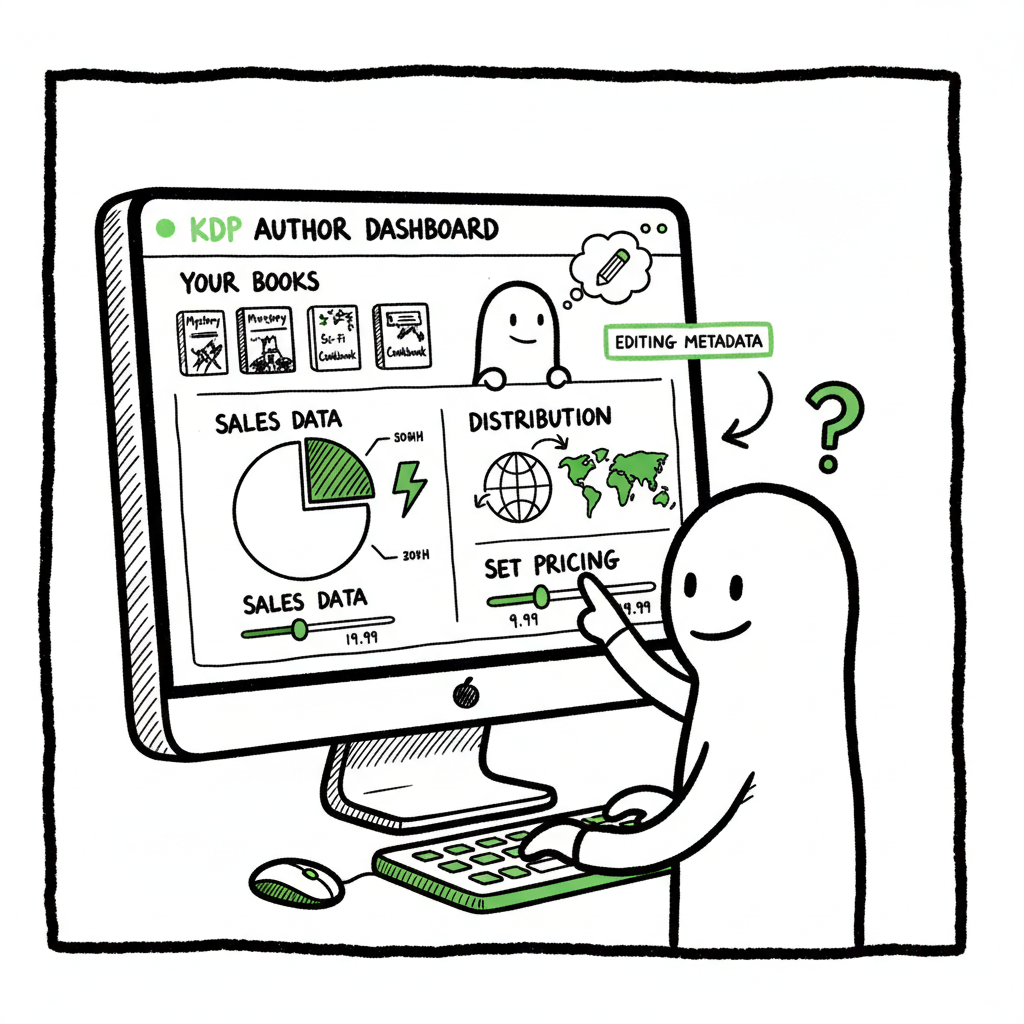
If you log in to kdp.amazon.com, the first page you see is the kdp author dashboard. It’s the central place Amazon gives authors to list titles, upload files, and monitor performance. For a broader primer on publishing on Amazon, see Amazon Kdp For Authors. The dashboard is not glamorous, but it’s practical: a snapshot of what’s live, what’s in draft, and where money and activity are moving for your books.
The dashboard breaks down into a few predictable areas:
- Bookshelf: your live books and drafts, with quick access to edit metadata, upload new files, or take a title down.
- Reports: sales, estimated royalties, KENP reads, and breakdowns by marketplace and date.
- Create a New Title: step-through pages for eBook and paperback/hardcover setup.
- Promotions and Enrollment: options for KDP Select, Kindle Countdown Deals, or free days when eligible.
Keep in mind the interface is intentionally simple. The trick for a busy author is not just knowing what each area is, but building a repeatable routine: where to check daily, weekly, and monthly. In the next sections we’ll break that routine down and show how to avoid common mistakes when you navigate kdp dashboard and manage multiple titles.
Manage Your Bookshelf: Practical Steps for Edits, Pricing, and Author Copies
The Bookshelf is where you will spend most of your operational time. It lists each title with status, format, and a small menu of actions. Good bookshelf management keeps metadata accurate, avoids lost sales from bad files, and makes it easier to run promotions.
Daily and weekly checks
- Daily: glance at the Bookshelf for any unexpected status changes (processing, removal, or content issues). Fixing a broken upload within 24 hours prevents lost sales.
- Weekly: review metadata fields—book description, series information, and keywords. Small tweaks to descriptions and keywords can affect discoverability.
- Monthly: confirm pricing and territories. If you run promotions across platforms, ensure Amazon’s price matches your other stores where required.
Common Bookshelf tasks and how to do them
- Edit book details: Use the ellipsis menu (…) next to a title to access options like “Edit eBook Content” or “Edit Paperback Content.” Update descriptions, change categories, or correct contributor credits here.
- Change price or royalty options: Select the book, go to the Pricing section, and update list price or royalty settings. If you publish a paperback and an eBook, check the paperback’s production costs before changing the price.
- Upload new files safely: Replace files using the dedicated content upload screens. Keep versioned source files on your computer and confirm proof copies or digital proofs before publishing updates.
- Order author copies or proofs: For paperbacks and hardcovers, the Bookshelf links to author copy ordering. Use this for quality checks and to keep inventory for events.
Practical tips to reduce friction
- Use consistent file names and a short change log for each upload so you can track versions.
- Keep a single spreadsheet that lists each ISBN/ASIN, publication date, list price, territories, and whether the book is enrolled in KDP Select.
- If you work with a team, record who made which update and when. That simple practice prevents accidental overwrites.
When you create covers or format files, think of those as reusable assets. For covers, many teams use a cover builder or a generator to produce the final image in the correct dimensions, and then keep the source for future editions. For example, cover processing tools can standardize sizes and export options. cover processing helps streamline this step.
If you convert manuscripts for the eBook versions, you should make sure EPUB files are validated before upload. A reliable EPUB converter helps prevent rejections and display problems on devices. If you plan to publish an EPUB-ready file and want a fast, repeatable conversion process, see EPUB converter.
Use these tips to stay organized: and when you publish, consider a service that can handle both formats and the book creation workflow across distribution channels. book creation workflow.
BookUploadPro is designed to help with this next step. It automates repetitive uploads across Amazon KDP, Kobo, Apple Books, Draft2Digital, and Ingram with CSV batch uploads, platform-specific intelligence, and strong validation checks. Authors report major time savings, fewer errors, and predictable distribution—an obvious upgrade once you start publishing seriously.
Use Reports and Scale: Royalties, Sales, and Multi-platform Publishing
Reports are the operational control center for authors who want to track performance. The KDP Reports area gives you sales units, KENP reads, and estimated royalties. It’s not a full accounting tool, but it’s the quickest way to spot changes in sales trends.
Key reports to watch
- Sales dashboard: shows units sold by date and marketplace. Use it to see short-term effects from promotions or price changes.
- Royalties (estimated): a running total of your expected payout. Note that payments can lag and adjustments appear later.
- Orders and returns: track orders and refunds to ensure there are no anomalies.
- KENP reads and Kindle Unlimited metrics: essential if your book is in KDP Select.
How to use reports for decisions
- Pricing tests: run a short price change and watch the sales dashboard for a week. If sales volume increases enough to offset price reduction, it’s a win.
- Promotion monitoring: when you run free days or countdown deals, check reports daily. Promotions often spike downloads that convert to paid sales later.
- Long-term trends: compile monthly snapshots in your own spreadsheet. The KDP dashboard gives you the data, but historical records let you see seasonality and growth.
Scaling beyond a few titles
At a certain volume, clicking through every single Bookshelf entry becomes a bottleneck. That’s when automation and multi-platform publishing make an obvious difference. If you publish multiple titles or editions, a tool that supports unified multi-platform publishing—sending uploads to Amazon KDP, Kobo, Apple Books, Draft2Digital, and Ingram—turns a full day of uploads into a short batch process. Batch CSV uploads and platform-specific intelligence reduce repetitive work and errors, delivering near 90% time savings for many users.
Practical automation features to look for
- CSV batch uploads that map fields across stores so you can push many titles at once.
- Platform-specific intelligence that adapts files and metadata to each store’s rules automatically.
- Error reduction through validation checks before submission.
- Affordable pricing and a free trial so you can test on a small set of titles.
When you start publishing seriously, automation is an obvious upgrade. BookUploadPro is designed to automate the upload. Own the distribution.
FAQ
Q: Where is the kdp author dashboard?
A: The dashboard is at kdp.amazon.com. Log in with your Amazon account and you’ll land on a page listing your Bookshelf and the main navigation for Reports, KDP Select, and account settings.
Q: How often should I check the Bookshelf?
A: Quick daily checks for status issues and weekly reviews for metadata and pricing are enough for most authors. Increase frequency when you’re running promotions or releasing new editions.
Q: What does the Reports section show?
A: Reports provide sales units, estimated royalties, KENP reads, and marketplace breakdowns. Use them for short-term monitoring and compile monthly snapshots for long-term planning.
Q: Can I use one file to publish to multiple stores?
A: Not directly. Each store has format and metadata requirements. Use automation tools that produce platform-specific files and map metadata across stores, or create format variants manually for each store.
Q: What should I do if my upload fails?
A: Read the error message carefully; common problems include bad EPUB validation, incorrect cover dimensions, or missing metadata. Fix the file locally, validate it, then re-upload. If you can’t find the issue, roll back to the prior working version and compare.
Q: Any tips for long-term planning?
A: Keep a running spreadsheet of titles, editions, and promotions. Review metadata and pricing quarterly, and run small tests to refine pricing and visibility over time.
Final thoughts
If you publish more than a handful of books, the kdp author dashboard handles the basics well. The next step is thinking about scale: standardized covers and EPUBs, a simple spreadsheet or CSV workflow, and a platform that automates uploads across stores. That reduces manual clicks, cuts mistakes, and frees you to focus on writing and marketing.
When you need cover processing or bulk file preparation, dedicated tools can help. For example, cover processing services take a raw design and create store-ready images for eBook and print, saving time on resizing and color checks. Similarly, an EPUB converter will turn a manuscript into a validated EPUB so you don’t get unexpected layout problems in stores. And if you create paperbacks and ebooks, consider a service that can handle both formats and the metadata mapping across distribution channels. book creation workflow.
BookUploadPro is designed for that next step. It automates repetitive uploads across Amazon KDP, Kobo, Apple Books, Draft2Digital, and Ingram with CSV batch uploads, platform-specific intelligence, and strong validation checks. Authors report major time savings, fewer errors, and predictable distribution—an obvious upgrade once you start publishing seriously. BookUploadPro.
Sources
- https://help.selfpublishing.com/en/5-things-to-know-about-your-kindle-direct-publishing-kdp-dashboard
- https://rubenstomdesign.com/blogs/news/getting-started-with-self-publishing-a-comprehensive-guide-to-kindle-direct-publishing-kdp
- https://kdp.amazon.com/help/topic/G200644310
- https://kdp.amazon.com/en_US/help/topic/G2BWJN2BY98T5PV2
- https://www.writtenwordmedia.com/what-is-kdp-amazon-kindle-direct-publishing-explained/
- https://kdp.amazon.com/help/topic/GX7EGDFGS9CZCA2F
- https://kdp.amazon.com/help/topic/GVTTXHKHVPAPBEDQ
How to Use the KDP Author Dashboard to Manage Books, Reports, and Distribution Estimated reading time: 9 minutes Key takeaways The kdp author dashboard is the hub for listing, editing, and tracking your Kindle books and paperbacks—learn what each area does and when to act. Manage your Bookshelf to update metadata, pricing, and author copies;…