KDP Author Dashboard Practical Guide for Self-Publishers
kdp author dashboard: A practical guide for self-publishers
Estimated reading time: 9 minutes
Key takeaways
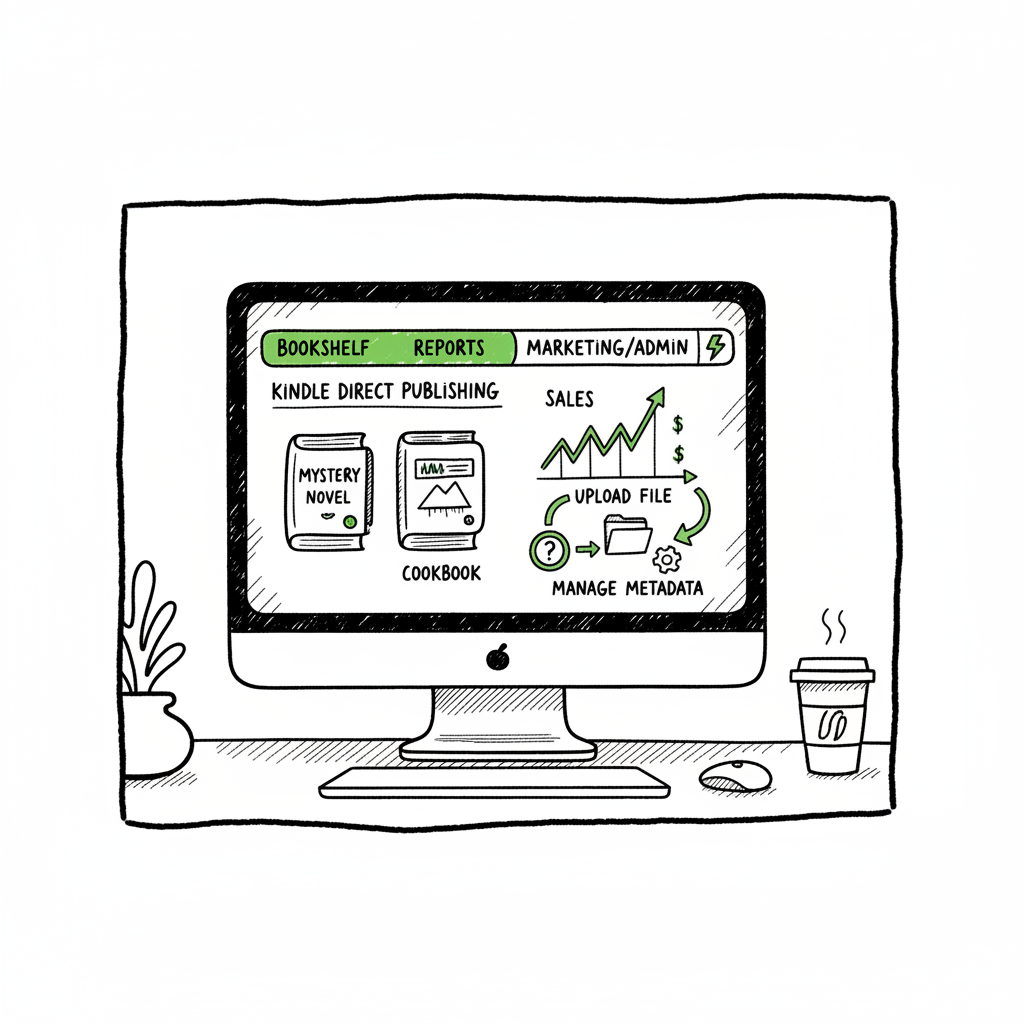
- The kdp author dashboard is your operational hub: use Bookshelf for catalog control, Reports to read sales, and Marketing/Admin tools for discoverability.
- Learn to navigate KDP dashboard actions that matter most: upload files, update metadata, set pricing, and order print copies.
- When you publish at scale, batch uploads, platform-specific rules, and file conversion save time by roughly 90%.
Table of Contents
- Overview: What the kdp author dashboard does
- Bookshelf and metadata: Manage titles efficiently
- Reports and royalties: Reading your KDP numbers
- Work processes, scaling, and multi-platform publishing
- Frequently asked questions
Overview: What the kdp author dashboard does
The kdp author dashboard is where a self-publishing author runs the business side of a book. From a single interface you create and edit titles, check estimated royalties, launch promotions, and handle print orders. If you are learning how to navigate KDP dashboard, start with two ideas: Bookshelf (your catalog control panel) and Reports (your performance snapshot).
If you want a focused primer on the steps inside Amazon’s interface, see Amazon KDP for Authors — it walks through the exact pages and options you’ll use when publishing or updating a title. That guide is handy when you need visual, step-by-step help beyond this operational overview.
Most authors treat the dashboard as a control center, not a reporting accountant. Data in KDP is estimated and often lags, so your aim is to use it for quick decisions: fixing a description, checking if a price change rolled out, or spotting which title is earning the most right now. The dashboard points you to the tools you’ll use daily: Bookshelf for catalog management, the Dashboard report for a consolidated snapshot, and the Reports pages for more granular sales and KENP reads.
Why learn the dashboard well? Because when you publish seriously you’ll stop treating uploads as one-offs. You’ll need consistent metadata, repeatable pricing rules, clean files, and a process to push the same title across Amazon, Apple, Kobo, and Ingram. At that scale, a unified publishing workflow and CSV batch uploads become obvious time-savers.
Bookshelf and metadata: Manage titles efficiently
Bookshelf is the operational core of the kdp author dashboard. It lists your live titles and drafts, and it’s where you add new books, edit details, upload files, and set distribution options.
Key Bookshelf tasks
- Create new title: Choose Kindle ebook or paperback, then complete the metadata and upload manuscript and cover.
- Edit details: Change the description, keywords, categories, and contributors.
- Upload files: Replace a manuscript or cover if you find issues after publishing.
- Pricing and rights: Set territories and list price, and enroll in KDP Select if desired.
- Order author copies: For print books you can order proof copies or author copies.
Practical tips for smoother Bookshelf work
- Prepare a single clean source file. For ebooks, start from a well-formatted Word DOCX or EPUB. If you need an EPUB conversion, use a trusted tool rather than exporting raw HTML—this reduces formatting errors. For quick, reliable conversion, an EPUB converter can save time and eliminate upload rejections.
- Keep your metadata in a spreadsheet. Track ISBNs, titles, subtitles, descriptions, keywords, and category choices for each book. This is essential when you have multiple titles and need consistent updates.
- Use a proper cover file. A good cover reduces returns and increases click-through. If you need a fast, production-ready option, a cover generator can create properly sized cover files and produce print-ready PDFs for paperbacks.
- Test proof copies before wide distribution. Author copies and proofs let you verify trim, margins, and color before committing to large print runs.
Bookshelf is where you perform book creation and maintenance. If you plan to publish both ebooks and paperbacks, consider tools that automate generating print files and metadata exports. These tools make wide distribution practical when you want the same title available across multiple retailers.
Note on print books and ebooks
Publishing a paperback requires correct interior sizing and a print-ready PDF. Publishing an ebook requires a clean, reflowable EPUB or a well-structured DOCX. If you create both formats, many authors use a small toolchain to handle conversion and cover layout automatically. For many teams, linking file creation and upload steps to an automated pipeline is an obvious upgrade once publishing becomes routine.
Reports and royalties: Reading your KDP numbers
Understanding kdp reports overview helps you turn data into decisions. KDP provides a Dashboard report for at-a-glance figures and separate Reports pages with daily estimated royalties, units sold, and Kindle Edition Normalized Pages (KENP) read for enrolled titles.
What the Dashboard shows
- Estimated royalties: A quick total for recent activity.
- Top-earning books: Your current best sellers at a glance.
- Orders and KENP: Consolidated views that include print orders fulfilled by Amazon.
What the Reports pages show
- Daily breakdown: Estimated royalties and units sold by ASIN and marketplace.
- KENP reads: If you use Kindle Unlimited, this indicates pages read per title.
- Payment reports: A historical view to reconcile with your payments.
Practical reading of the numbers
- Treat KDP numbers as estimates. They’re useful for trend spotting and quickly checking whether a promotion worked, but they are not audited financials.
- Look for patterns, not single-day spikes. A sudden jump can be a reporting quirk or a short promotion; sustained movement over days or weeks is actionable.
- Pair reports with external tracking. If you distribute broadly, track royalties and sales across platforms. This is where unified reporting tools save time and reduce errors.
Tips for bookkeeping
- Export reports monthly. KDP lets you download CSVs with sales and royalties. Import them into your accounting system or a spreadsheet for clean records.
- Reconcile with bank deposits. Payments from Amazon may lag the sales period—keep a margin for timing differences.
- Watch KENP and KU performance if you use KDP Select. Reads translate differently than sales, so evaluate the unit economics before enrolling or running promotions.
Work processes, scaling, and multi-platform publishing
Once you understand the kdp author dashboard’s sections, the next step is building a repeatable process. Manual uploading works for one or two titles. When you own a catalog of dozens, you need systems that reduce repetitive actions and enforce quality.
Core process elements
- Single-source files: Store master manuscript and cover files with clear versioning.
- Metadata spreadsheet: Keep a canonical CSV of titles, descriptions, categories, keywords, ISBNs, and pricing by marketplace.
- Validation step: Check file formatting, cover spine and dimensions, and metadata consistency before upload.
- Upload tools to push titles to platforms with platform-specific intelligence.
Why such methods matter
- Time savings: Such tools can cut repetitive upload time dramatically—teams report savings of roughly 90% when moving from manual uploads to CSV batch workflows across retailers.
- Error reduction: Platform-specific rules (file size limits, trim sizes, or metadata length) are handled by the system, reducing the number of rejected uploads.
- Wide distribution: When you want the same title on Amazon, Apple Books, Kobo, and Ingram, these practices keep versions synchronized.
Where to apply batch uploads
- Batch uploads: Use CSV-driven imports to create or update multiple titles at once.
- Format conversion: Automate EPUB creation for ebook stores and generate print-ready PDFs for paperbacks.
- Metadata propagation: Make a single change in your master CSV and push it to all retailers.
- Reporting aggregation: Consolidate sales and royalty reports across platforms.
How BookUploadPro fits
BookUploadPro simplifies repetitive uploads across Amazon KDP, Kobo, Apple Books, Draft2Digital, and Ingram. It uses CSV batch uploads and platform-specific intelligence to reduce errors and save time—making wide distribution practical and affordable. For many authors, it becomes an obvious upgrade once they start publishing seriously: automate the upload. Own the distribution.
Cover, format, and file tools
When you publish at volume, you don’t want to redo cover sizing or re-export EPUBs for each store manually. Tools that generate print-ready covers and reliable EPUBs are valuable. If you need a production-ready cover quickly, a cover generator will produce files that meet retailer specs and save you time. If you need to convert manuscripts cleanly to EPUB, an EPUB converter removes a common friction point and minimizes upload errors. And when you publish both ebook and paperback versions, using a consolidated book creation tool simplifies the workflow and keeps files consistent across formats.
Practical checklist
- Build a master CSV for all titles and keep it updated.
- Integrate conversion tools into your pipeline so EPUBs and print PDFs are generated automatically.
- Validate every title with automated checks before the upload step.
- Use a platform-aware uploader that maps fields and handles different retailer requirements.
The goal is a predictable publishing pipeline. When a new title is ready, you run your pipeline once and it pushes the book to the retailers that matter. That approach reduces friction and keeps your catalog consistent.
Final steps before you press publish
- Run a proof for print and a preview for ebook on each target platform.
- Verify metadata and categories align with your marketing plan.
- Schedule promotions and check KDP Select or other exclusivity constraints if you plan enrollments.
Frequently asked questions
Q: What is the difference between the Dashboard and Reports in KDP?
A: The Dashboard gives a consolidated snapshot of estimated royalties, top-earning books, and orders. Reports provide detailed, downloadable CSVs with daily estimated royalties, units sold, and KENP reads.
Q: How do I navigate KDP dashboard to update a book’s price or description?
A: From the Bookshelf, find the title and click “Edit book details” to change the description or pricing. For pricing changes, allow a short propagation window for stores to reflect the new price.
Q: Can I publish the same book as an ebook and paperback from KDP?
A: Yes. Bookshelf supports both formats. You’ll upload a manuscript and cover for each format. For paperbacks, supply a print-ready PDF sized to the chosen trim. If you need help generating print files, book creation tools can automate the process.
Q: How reliable are KDP’s sales and royalties figures?
A: KDP reports are estimated and may lag. Use them for trends and quick checks, but reconcile with your payment statements for accounting.
Q: I’m publishing to multiple retailers—should I use KDP exclusively?
A: KDP is needed for Amazon distribution, but for broader reach you should distribute to Kobo, Apple Books, and Ingram as well. Practical publishing tools make multi-platform publishing realistic and efficient.
Q: Where can I find help converting to EPUB or generating covers?
A: Professional conversion and cover tools remove common friction points. A reliable EPUB converter handles internal formatting, and a cover generator produces print-ready covers sized correctly for your trim choice.
Wrap-up
This guide outlines practical steps to manage titles, track performance, and scale distribution across retailers. By organizing files, metadata, and publishing tasks, you can maintain consistency and speed as your catalog grows.
Sources
- https://help.selfpublishing.com/en/5-things-to-know-about-your-kindle-direct-publishing-kdp-dashboard
- https://rubenstomdesign.com/blogs/news/getting-started-with-self-publishing-a-comprehensive-guide-to-kindle-direct-publishing-kdp
- https://kdp.amazon.com/help/topic/GX7EGDFGS9CZCA2F
- https://kdp.amazon.com/help/topic/GVTTXHKHVPAPBEDQ
- https://kdp.amazon.com
- https://www.writtenwordmedia.com/what-is-kdp-amazon-kindle-direct-publishing-explained/
- https://kdp.amazon.com/help/topic/G200644310
- https://reedsy.com/blog/guide/kdp/how-to-publish-a-book-on-amazon/
- https://www.youtube.com/watch?v=N7d8Dci_KVs
kdp author dashboard: A practical guide for self-publishers Estimated reading time: 9 minutes Key takeaways The kdp author dashboard is your operational hub: use Bookshelf for catalog control, Reports to read sales, and Marketing/Admin tools for discoverability. Learn to navigate KDP dashboard actions that matter most: upload files, update metadata, set pricing, and order print…