KDP Author Dashboard Guide for Self-Publishing Authors
kdp author dashboard: a practical guide for self-publishing authors
Estimated reading time: 12 minutes
Key takeaways
- The kdp author dashboard centralizes your Bookshelf, Reports, and Marketing tools so you can manage titles and revenue without hunting through menus.
- Use the Bookshelf for day-to-day edits, metadata fixes, and enrollment decisions; use Reports for clean, time-based sales and royalty analysis.
- When you start publishing multiple titles, automating uploads and distribution saves time and reduces errors — a natural next step for serious authors.
Table of Contents
- How the kdp author dashboard is organized
- Bookshelf: day-to-day management and best practices
- Reports and performance tracking: what to look for
- Scaling publishing: multi-platform distribution and automation
- FAQ
- Final thoughts
- Sources
How the kdp author dashboard is organized
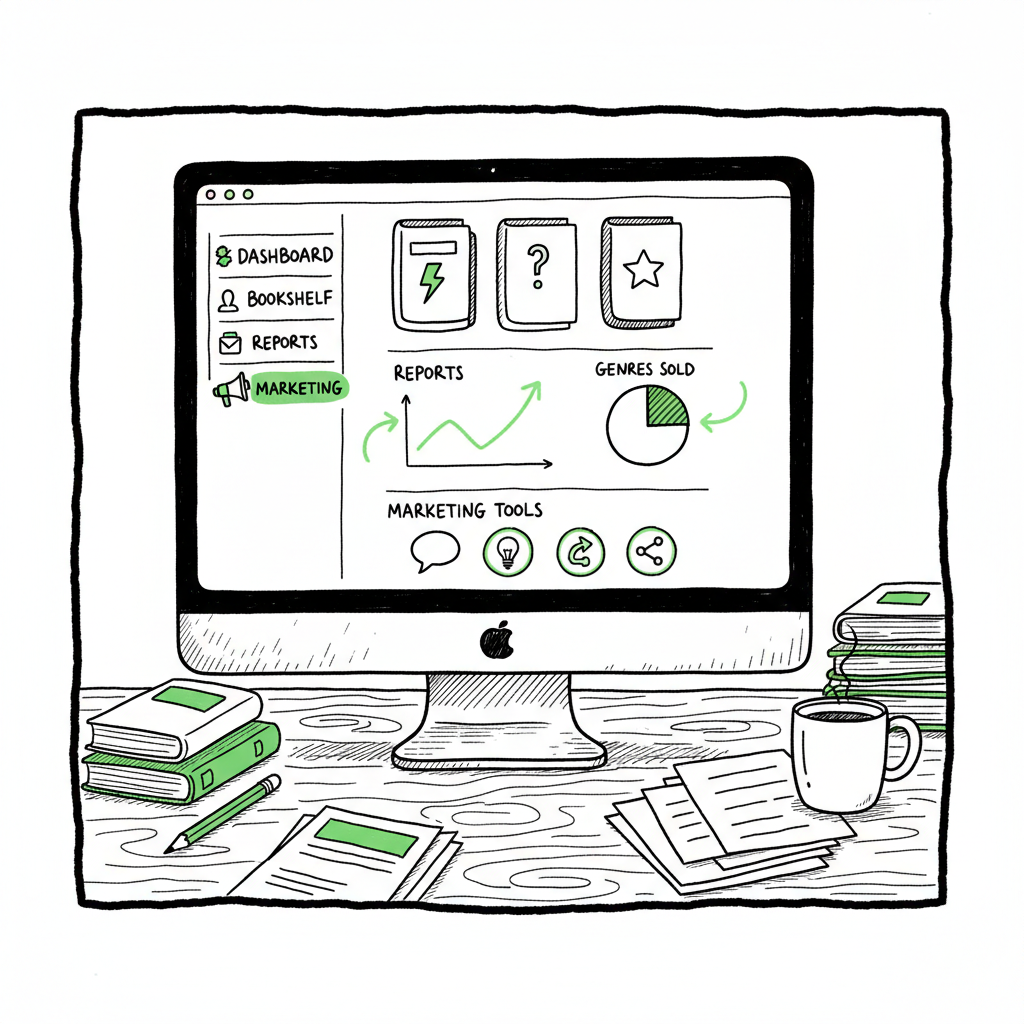
The kdp author dashboard is the control panel at kdp.amazon.com where self-publishing authors manage books, sales, and marketing. When you log in, the layout is intentionally simple: a Bookshelf area to see your titles, a Reports section for sales and royalties, and additional tabs for Community and Marketing tools. The interface is made for quick actions — edit a description, change a price, or enroll in programs without hunting through multiple pages.
For new authors, the dashboard feels like a compact office. For authors with several titles, it becomes a scoreboard. If you want deeper reading about account setup and KDP features, see Amazon KDP for Authors; that resource goes into account setup and deeper feature descriptions that complement this operational guide.
Think of the dashboard in three practical zones:
- – Bookshelf: authoring, uploading, and metadata edits.
- – Reports: sales, royalties, and KENP reads.
- – Marketing and Community: promotions, ads, and author profile work.
This article walks each zone from a user-operator view: what you’ll do every week, what to check monthly, and what to automate as you scale.
Amazon KDP for Authors provides deeper context and examples outside this operational guide.
Bookshelf: day-to-day management and best practices
The Bookshelf is where you’ll spend the most time. It lists live titles and drafts, and it’s the place to change metadata, upload files, set prices, and manage distribution options.
Key items on the Bookshelf
- Title status: live, draft, or under review.
- Edit buttons: update description, keywords, categories, and upload new file versions.
- Marketplace selector: choose which Amazon marketplaces the book is distributed to.
- Enrollment controls: opt into KDP Select or remove enrollment.
- Ordering and author copies: order proof or paid author copies for paperbacks.
Practical routines for bookshelf management
- Weekly: check for alerts and processing errors. If a delivery failed, the Bookshelf flags the title.
- Monthly: review current metadata for relevance — a small tweak to description, price, or keywords can affect discoverability.
- Before promotions: confirm the file and metadata are final, and allow time for Amazon to process changes.
Common issues and simple fixes
- Cover or interior upload failed: re-export your files and try again. If your manuscript needs EPUB conversion, using a reliable converter saves time and prevents repeated failures; consider an EPUB converter to standardize files.
- Price not applying in all stores: confirm marketplace pricing and royalty settings. Amazon sometimes needs a refresh after price changes.
- Conflicting metadata: only the Bookshelf controls your KDP metadata. If your author page or other stores show different information, reconcile them in the Bookshelf first.
Paperback and ebook creation workflow
When you create a paperback or ebook from the dashboard, you’ll upload cover and interior files, choose trim and paper (paperbacks), and preview before publishing. If you regularly produce both ebook and paperback formats, use a single source manuscript and export platform-specific files to keep versions consistent. For one-click creation tools and batch file generation, tools that help with book creation workflow can speed production and reduce manual errors.
Covers and files
A clean, KDP-ready cover and a validated EPUB or print-ready PDF are the two most common gating factors for a smooth Bookshelf upload. If you don’t have a cover or want a fast version for multiple titles, cover generator can produce consistent, marketplace-ready files. Use simple naming conventions and a version control note in the title field to track uploads.
Reports and performance tracking: what to look for
Reports are where you translate activity into decisions. The Reports section shows royalties by marketplace, orders, KENP pages read for Kindle Unlimited, and historical performance by title.
Understanding the common reports
- Sales Dashboard: quick snapshot of recent sales and revenue.
- Royalty Reports: breakdown by marketplace, format, and timeframe.
- KENP Reports: pages read through Kindle Unlimited and how that contributes to your monthly KU pool earnings.
- Payments: track payment cycles and reconcile with bank deposits.
A practical monthly review
- Top-line: total royalties and month-over-month change.
- Title-level: which titles moved and why. Did a price change or promotion influence sales?
- Channel mix: how much came from Kindle Unlimited vs. paid purchases?
- Trends: identify seasonality or category shifts, such as increased demand around events or book launches.
Using reports to prioritize action
- If one title drives most revenue, focus marketing and new content to support it.
- If KU reads are high but royalties are low, consider page length, KU strategy, and enrollment timing.
- Use country-level data to decide where to run ads or adjust pricing.
KDP reports overview for quick drills
- Revenue by title for the past 30 days.
- Units sold vs. KENP reads to see format impact.
- Royalty payment history to confirm bank deposits match expected amounts.
Scaling publishing: multi-platform distribution and automation
Once you publish more than a few titles, manual uploads become a time sink. That’s where unified multi-platform publishing and automation make the difference. The work you do in the kdp author dashboard remains central for Amazon, but you’ll also want to manage Kobo, Apple Books, Draft2Digital, and Ingram with the same metadata and files.
Why automation matters
- Time savings: automating repetitive uploads and metadata entry can save roughly 90% of the time you’d spend manually delivering files to each store.
- Consistency: same cover, same description, and matching metadata across stores reduces customer confusion and distribution errors.
- Error reduction: automated checks and platform-specific intelligence catch common issues before delivery.
What automation does well
- CSV batch uploads for dozens or hundreds of titles.
- Platform-specific intelligence that adjusts file formatting, metadata, and cover sizing automatically.
- Centralized dashboards that show which titles are live on each platform.
Operational checklist when moving to multi-platform publishing
- Standardize your source files: keep a single master manuscript, a single master cover, and a versioned export process.
- Create a CSV-driven metadata sheet: include titles, subtitles, ISBNs, descriptions, keywords, categories, and pricing per territory.
- Validate format per platform: EPUB for Apple/Kobo, print-ready PDF for Ingram and KDP (paperback).
- Track distribution status: use a central status field to indicate “live,” “pending,” or “errors.”
Tools that complement the kdp author dashboard
- Batch upload tools let you deliver a single set of files to multiple retailers and keep a single source of truth for metadata.
- If you need to convert formats at scale, a reliable converter can export consistent EPUBs for multiple channels.
- For covers, a cover generator speeds up production while keeping design elements consistent across formats.
Integrating automation with KDP
Automation does not replace the kdp author dashboard. Instead, it feeds the dashboard the same standards you use for other stores and manages the broader distribution tasks outside of Amazon. You still use the Bookshelf for Amazon-specific functions like Kindle Select enrollment, promotional pricing on Amazon, and finalized file uploads when required.
Practical example: launching a series
- Prepare the manuscript and cover from your master files.
- Create export files: EPUB for ebook stores, PDF for print.
- Populate a CSV with all metadata and pricing per territory.
- Use automation to batch-deliver to Kobo, Apple, Draft2Digital, and Ingram.
- Upload to KDP for Amazon-specific options and final checks.
- Monitor Reports across platforms and adjust promotion plans.
When you start to publish seriously
Automation is an obvious upgrade. It makes wide distribution practical and affordable, and it lets you focus on writing and marketing rather than on repetitive uploads. Automate the upload. Own the distribution.
Operational notes on file types and preprocessing
- EPUB conversion: export a clean EPUB from your master manuscript and validate it with a tool or service to catch common errors before upload. If you need to convert manuscripts to EPUB reliably at scale, a dedicated EPUB converter can save hours of manual fixes.
- Cover sizing: different platforms have different cover bleed and spine requirements; generate platform-specific versions where required.
- ISBN and metadata: decide which retailer gets your ISBN, register appropriately, and track identifiers in your central CSV.
Using platform intelligence to avoid rejections
Good multi-platform tools include platform-specific intelligence — they know the quirks of KDP, Apple, Kobo, and Ingram and adjust exports accordingly. That reduces rejection rates and keeps your queue moving.
FAQ
Q: What is the kdp author dashboard?
A: The kdp author dashboard is Amazon’s central hub for self-publishing authors. It provides the Bookshelf for managing titles and drafts, a Reports area for sales and royalties, plus marketing and community tools for promotions and author pages.
Q: How do I navigate the kdp dashboard to update a book?
A: From the Bookshelf, select the title and choose “Edit” for the element you want to change — description, price, files, or distribution. Save changes and allow processing time for the update to go live.
Q: How often do reports update?
A: Sales and KENP reports update frequently, but final royalty statements and payment reconciliations follow Amazon’s payment schedule. Use the Reports area for near-real-time trends and monthly royalty statements for bookkeeping.
Q: Can I use the kdp author dashboard for print books?
A: Yes. The Bookshelf supports paperback uploads. You’ll upload interior PDFs and cover files, choose trim and paper options, order proofs, and publish print-on-demand paperbacks.
Q: How do I handle multiple platforms while using KDP?
A: Use the kdp author dashboard for Amazon-specific tasks and a multi-platform workflow for the rest. Prepare platform-ready files and use batch upload tools to deliver consistent metadata and files across retailers.
Final thoughts
The kdp author dashboard is straightforward at first glance, but it becomes powerful as you build a catalog. Use the Bookshelf for precise, title-level control. Use Reports to make data-based decisions. And when you move beyond a few titles, adopt multi-platform automation to save time, reduce errors, and keep distribution consistent across stores.
If you want to scale without multiplying manual work, consider automating the repetitive parts of publishing: CSV batch uploads, platform-aware file conversions, and centralized status tracking. For EPUB conversions, cover generation, and batch creation workflows, use purpose-built tools to keep files consistent and clean — converting to EPUB with a reliable converter and using a cover generator for consistent art and sizing will cut rework and rejections.
Visit BookUploadPro.com to explore automation options and try the free trial today.
Sources
- 5 Things To Know About Your Kindle Direct Publishing (KDP) Dashboard
- Getting Started with Self-Publishing: A Comprehensive Guide to Kindle Direct Publishing (KDP)
- What is KDP?: Amazon Kindle Direct Publishing Explained
- How to Publish a Book on Amazon in 6 Simple Steps
kdp author dashboard: a practical guide for self-publishing authors Estimated reading time: 12 minutes Key takeaways The kdp author dashboard centralizes your Bookshelf, Reports, and Marketing tools so you can manage titles and revenue without hunting through menus. Use the Bookshelf for day-to-day edits, metadata fixes, and enrollment decisions; use Reports for clean, time-based sales…