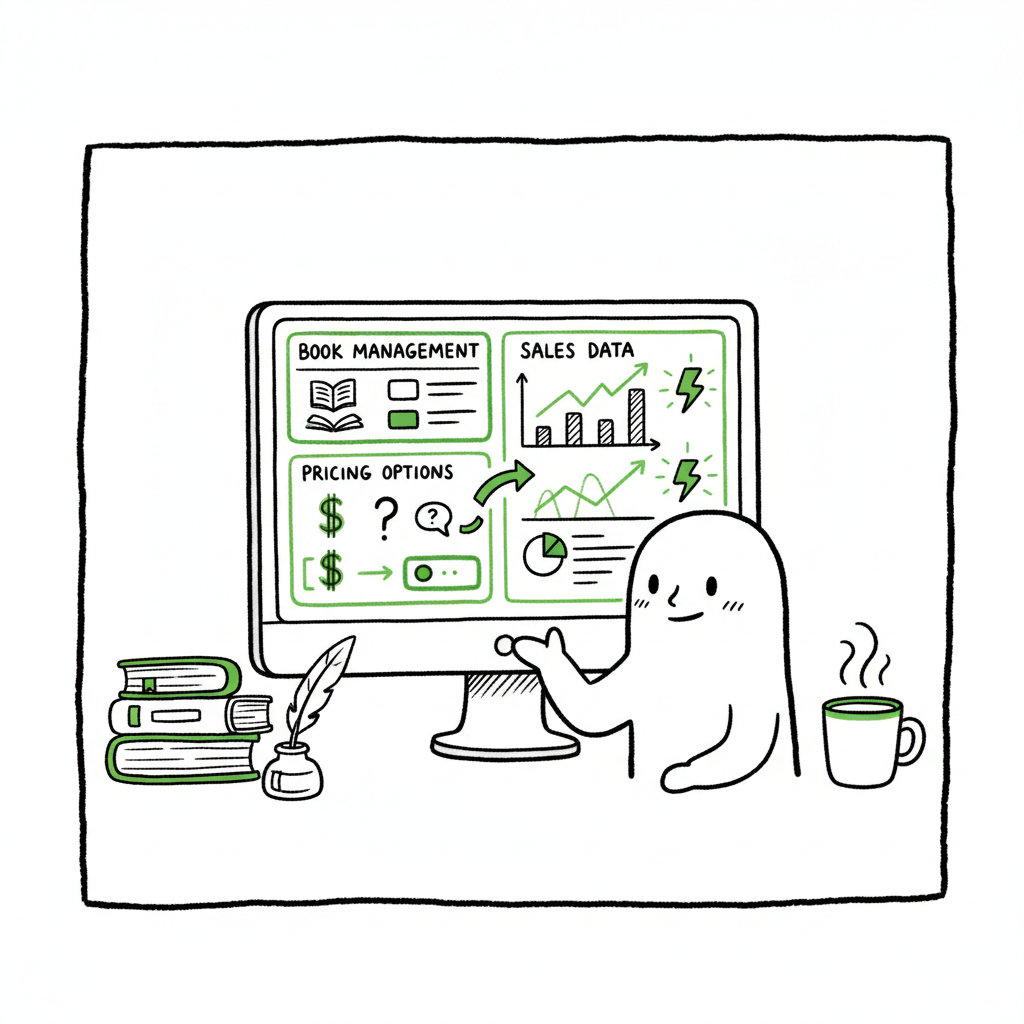
KDP Author Dashboard Navigate Bookshelf and Reports
kdp author dashboard: A practical operator’s guide for self-publishing authors
Estimated reading time: 16 minutes
Key takeaways
- The kdp author dashboard is where you manage books, pricing, and core sales data—learn how to use it without getting lost in reports.
- Good bookshelf management and regular checks of KDP reports keep royalties accurate and problems small.
- When you publish multiple titles, automated multi‑platform tools cut repetitive work by about 90% and reduce upload errors.
- Create clean EPUBs, covers, and consistent metadata before you upload; those steps save more time than any dashboard trick.
- Once you publish seriously, multi‑platform tools provide a clear upgrade: Upload once. Own the distribution.
Table of Contents
- How to navigate the kdp author dashboard
- KDP reports overview and bookshelf management
- Scaling beyond KDP: automated multi-platform publishing
- Frequently asked questions
- Sources
How to navigate the kdp author dashboard
The kdp author dashboard is the control center for every author who sells on Amazon. In the first visit you’ll see your Bookshelf and a high‑level view of recent sales and account notices. The dashboard is simple by design, but the details matter: a missed setting on a single title can change pricing, distribution, or tax treatment.
Start by treating the dashboard as three operational areas:
- Bookshelf (your working area for every title),
- Reports (sales, royalties, and reads),
- Account and help (payments, tax, and policy notices).
A short, practical routine works best: after any new upload, open the Bookshelf, confirm metadata and territories, and then check Reports the next day for activity. If you want a focused walkthrough of Amazon‑specific features, see Amazon KDP for Authors — it explains the Amazon UI and key choices every author faces.
Bookshelf basics
The Bookshelf lists all your titles, with actions behind the three‑dot menu next to each entry. Use Bookshelf to:
- Upload or update manuscript files and covers,
- Edit book details: title, subtitle, description, contributors,
- Choose territories and rights,
- Set pricing and select KDP Select when relevant,
- Order proof or author copies for paperbacks.
Keep a consistent naming pattern in your file uploads and descriptions. Consistent metadata reduces mistakes when you upload updates later or distribute the same files to other retailers.
Manuscript and file checks before upload
Before you click Publish: validate three things every time.
- Files: EPUB or print PDFs are final, with fonts embedded and correct margins. If you need an EPUB converter to produce clean reflowable files, use a reliable tool like the EPUB converter to avoid layout errors.
- Images and covers: Cover image must meet Amazon’s size and bleed requirements. If you generate covers, use a professional cover generator so the spine and back are correct for print.
- Metadata: Title, series, author name, and BISAC categories must be consistent across platforms. Fix metadata in your source files — not only on KDP — so updates propagate when you use multi‑platform tooling.
Small fixes in the dashboard are easy; bad source files or mismatched metadata create followup problems (wrong ISBNs, duplicate listings, disrupted promotions). Treat the dashboard as an orchestrator, not a fixer of last resort.
KDP reports overview and bookshelf management
Understanding the KDP reports is less about dashboards and more about interpreting the signals. Reports tell you what readers are doing and whether your distribution is working.
What the main reports show
- Sales Dashboard: real‑time‑ish view of units sold and royalties. This is where you spot large swings.
- Orders and Sales Reports: detailed lists you can filter and export to CSV for bookkeeping.
- KENP and Kindle Select reads: pages read for KU/Kindle Unlimited enrolled books.
- Prior payments and royalty statements: used for tax and bookkeeping.
A basic monthly process
- Weekly scan: check the Sales Dashboard for unexpected spikes or drops.
- Monthly export: pull the Orders and Sales CSV and reconcile with your bookkeeping software.
- Quarterly review: analyze KENP trends, pricing changes, and promotions for each title.
KDP bookshelf management in practice
Bookshelf management is an ongoing task. Treat each title like a small product line:
- Keep a changelog: brief notes of every metadata change and file upload.
- Use drafts for staged changes: if you plan a price change or new edition, save it as a draft and publish at a scheduled time.
- Track enrollments: KDP Select enrollment is per title and affects exclusivity; mark titles and make enrollment decisions at the title level.
Common bookshelf problems and fixes
- Duplicate titles: often caused by inconsistent ISBN or title metadata. Fix at the source and request removal of the stray listing if needed.
- Wrong territories: double‑check territory settings before publishing. If a territory is wrong, unpublish and correct it rather than patching later.
- Pricing issues: Amazon can round or apply minimums. Verify final price after publishing and keep a small pricing buffer to remain within your intended royalty bracket.
Reports and royalties: practical notes
Don’t assume a single report gives the whole picture. Export the raw CSVs, then:
- Compare units sold to payments received,
- Separate KU reads from sales to understand reader behavior,
- Use the data to prioritize marketing spend and new cover tests.
When you begin publishing several titles a year, manual reconciliation becomes a time sink. At that point, batching uploads and multi‑store distribution cut the workload and reduce the chance of human error.
Scaling beyond KDP: automated multi‑platform publishing
Publishing to Amazon is necessary, but most authors who want steady income publish beyond one store. Managing multiple platforms by hand multiplies repetitive work: metadata entry, file uploads, territory settings, and price updates. That’s why automation is practical and not just convenient.
Why multi‑platform matters
- Reader access: different readers prefer different stores.
- Income diversification: cover policy changes or algorithm shifts at one retailer won’t stop all sales.
- Professional distribution: wide availability increases the chance of bookstore and library pickup.
Where authors waste time
- Re‑entering metadata across six platforms,
- Reformatting and re‑uploading cover and manuscript files for each store,
- Tracking different ISBN and distribution settings,
- Manually checking each store’s dashboard for errors.
What the tools should do
- Unified uploading: one place to submit files and metadata that then push to all selected stores.
- Platform‑specific intelligence: smart defaults and checks per retailer so each file meets their rules.
- Batch operations: CSV batch uploads that let you publish or update tens or hundreds of titles at once.
BookUploadPro as an operational upgrade
BookUploadPro becomes an obvious upgrade. It automates repetitive uploads across Amazon KDP, Kobo, Apple Books, Draft2Digital, and Ingram. The practical results are:
- About 90% time savings on repeated uploads,
- CSV batch uploads for title libraries,
- Platform‑specific intelligence to reduce rejections,
- Fewer file errors and metadata mismatches.
Use cases that make the decision simple
- Series releases: update metadata and re‑publish across every store with one CSV.
- Wide distribution from a single source: keep one canonical set of files and push updates everywhere.
- Bulk price changes: change pricing across platforms without visiting each dashboard.
Files and tooling you still need
BookUploadPro doesn’t remove the need for correct source files. Good EPUBs, print‑ready PDFs, and covers cut back on downstream fixes. If you need a reliable EPUB converter, use a tested tool like the EPUB converter so your ebook is clean before you upload to multiple stores. For covers, a dependable cover generator reduces iteration time and ensures spine dimensions are correct for print. And when you start creating paperback and ebook variants, standard book creation tools help you keep templates consistent.
Workflows that save time
Adopt a repeatable approach:
- Prepare clean source files: final EPUBs and print PDFs, plus a final cover file.
- Validate locally: check formatting and run a quick proof on a physical or PDF proof.
- Push via multi‑store tools: distribute across platforms to reach readers everywhere.
- Monitor reports: confirm receipts and fix any store‑specific rejections.
Typical time savings are concrete. Tasks that previously took hours per book — manual file conversions and six separate uploads — become minutes with batch uploads and platform rules prechecked. That difference scales: publish ten titles, and the time savings add up quickly.
Practical examples
- Releasing a box set: turn three e‑books into one package, update metadata once, and distribute the set to all stores with a single CSV.
- Territory changes: global price or territory update across your catalog completed in one run.
- Metadata cleanups: correct an author name or series title across 50 files without touching each storefront.
Risk reduction
Tools also reduce risk. When one human repeats a task dozens of times, mistakes happen. The right tools enforce consistent field entry, validate file types, and flag platform mismatches before they reach the retailer. That reduces rejections and the follow‑up administrative work that eats hours.
Operational notes on rollout
- Start with a pilot: pick two or three backlist titles and test the batch process.
- Keep an audit trail: logs for each upload make troubleshooting quick.
- Schedule quiet windows: mass updates are best done during low‑traffic periods in your marketing calendar.
Final practical checklist before any mass upload
- Confirm final EPUB and PDF files (use a converter if needed).
- Create and validate covers (use a cover generator for print precision).
- Double‑check metadata and ISBN assignments.
- Test one title end‑to‑end before batch pushing the whole catalog.
Frequently asked questions
Q: Will automation change my Amazon KDP settings?
A: Tools push files and metadata to KDP using the same fields you would set manually. They do not change account‑wide settings like tax info or payment accounts. Always confirm payments and tax settings directly in your KDP account.
Q: How do I handle KDP Select and exclusivity when distributing wide?
A: KDP Select requires exclusivity for enrolled titles. If you plan to go wide, do not enroll that title in KDP Select. If you’re moving a title out of Select, check Amazon’s timing rules so you don’t accidentally violate the enrollment term.
Q: What file types should I prepare for multi‑platform publishing?
A: At minimum, produce a properly formatted EPUB for ebook stores and a print‑ready PDF for paperbacks. Keep a high‑resolution cover file for print. If you need a tool to convert or validate EPUBs, use the EPUB converter. For covers, you can rely on a quality cover generator for print‑specific dimensions.
Q: How often should I check the KDP reports?
A: Weekly scans catch major issues; monthly exports support bookkeeping. If you run promotions or wide releases, increase the frequency during those campaigns.
Q: Does BookUploadPro change ISBNs or metadata for me?
A: A multi‑platform tool typically uses the ISBNs you supply and allows you to manage metadata centrally. It doesn’t alter assigned ISBNs unless you explicitly update them.
Q: What happens if a store rejects my upload?
A: Good tools flag likely issues before submission. If a store still rejects a file, check the error log, fix the source file (often formatting or metadata), then resubmit. The audit trail in a tooling system speeds this process.
Final thoughts
Managing the kdp author dashboard well is part craft and part discipline. The dashboard is where you make edits and confirm live settings; the right tools are how you scale that work without repeating the same manual steps. Clean source files, consistent metadata, and a small repeatable routine will keep things stable. When you begin publishing at scale, unified multi‑store publishing tools make the workflow practical and reliable. They save time, reduce errors, and let you focus on writing and promotion rather than repeated uploads.
Sources
- https://help.selfpublishing.com/en/5-things-to-know-about-your-kindle-direct-publishing-kdp-dashboard
- https://rubenstomdesign.com/blogs/news/getting-started-with-self-publishing-a-comprehensive-guide-to-kindle-direct-publishing-kdp
- https://kdp.amazon.com/help/topic/GVTTXHKHVPAPBEDQ
- https://www.writtenwordmedia.com/what-is-kdp-amazon-kindle-direct-publishing-explained/
- https://www.youtube.com/watch?v=N7d8Dci_KVs
kdp author dashboard: A practical operator’s guide for self-publishing authors Estimated reading time: 16 minutes Key takeaways The kdp author dashboard is where you manage books, pricing, and core sales data—learn how to use it without getting lost in reports. Good bookshelf management and regular checks of KDP reports keep royalties accurate and problems small.…