KDP Author Dashboard Practical Guide and Reports Overview
kdp author dashboard: A practical guide for self-published authors
Estimated reading time: 18 minutes
Key takeaways
- The kdp author dashboard is the control center for publishing, tracking sales, and running promotions on Amazon.
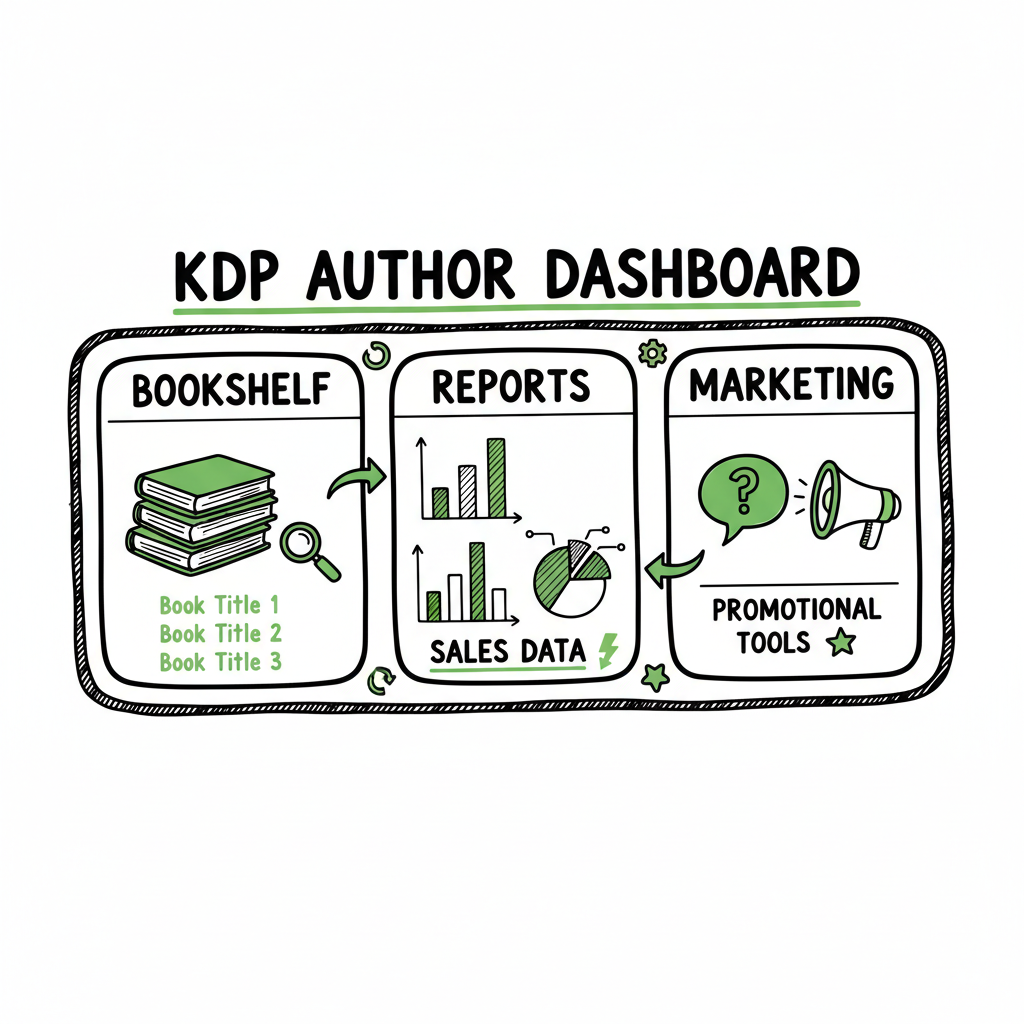
- Use the Bookshelf to manage titles, the Reports tab to read sales and KENP data, and Marketing tools for author pages and promotions.
- When you publish at scale, automatic publishing tools like BookUploadPro make multi-platform distribution practical and cut repetitive work by ~90%.
Table of Contents
- Overview of the kdp author dashboard
- Navigate the Bookshelf and manage titles
- Reports overview: read the numbers and act
- Scale publishing with automation and BookUploadPro
- FAQ
- Sources
Overview of the kdp author dashboard
The kdp author dashboard is where you run your Kindle Direct Publishing business. Log in at kdp.amazon.com and you’ll see a simple top-level menu: Bookshelf, Reports, Community, and Marketing. That layout doesn’t sound glamorous, but it covers everything you need to publish, update, promote, and check earnings.
If you’re new, start by learning the Bookshelf flow and the Reports basics. If you publish multiple books, use automatic publishing tools to reduce repetitive uploads and platform-specific adjustments. For an author-focused primer, see Amazon KDP For Authors — it collects the basic steps and vocabulary you’ll use on the dashboard.
Why this matters
The dashboard combines content management (Bookshelf), data (Reports), and promotional links (Marketing). If you treat the dashboard like a task manager, you can move from idea to live listing in predictable steps. If you plan to publish several titles, that predictability becomes the difference between a hobby and a small business.
Navigate the Bookshelf and manage titles
What you find on Bookshelf
Bookshelf is where every draft and published book lives. Each line shows title, format (eBook or paperback), publication status (live, draft, or pre-order), and a quick menu for edits. From here you can:
- Start a new book or paperback
- Edit metadata, content, and pricing
- Upload new files (manuscript, cover)
- Order author copies for print books
Practical steps for common tasks
Open the book detail row and use the three-dot menu or the “Edit eBook Content” and “Edit Paperback Content” links. That opens the same three tasks you’ll repeat for every title: content files, book details, and pricing.
Edit metadata: change a description, adjust categories, or add keywords. These edits affect discoverability. Keep descriptions clear and focused on what readers will get.
Replace files: when you re-upload a new manuscript or cover, keep a version log on your computer. The dashboard does let you update files, but it does not track versions for you.
Pricing updates: decide which marketplaces and price points you want. The dashboard lets you set prices per marketplace. Test one price at a time and watch Reports to see the effect.
Bookshelf tips for efficiency
- Use a consistent folder and file naming system on your computer. That avoids guessing which version you uploaded last.
- Keep a short publish checklist: final proofed file, final cover, front matter, metadata, categories, price.
- If you create covers, use a reliable tool. A book cover generator will speed design and ensure export settings match KDP requirements.
Manage both ebook and paperback in one place
KDP supports both eBook and print on demand. You’ll handle interiors differently: ebooks need EPUB or MOBI-style formatting, while paperbacks need print-ready PDF interiors and a spine-aware cover. If you convert manuscripts yourself, a good EPUB converter will reduce formatting errors and preview surprises.
Proofing and review
Always use the previewer KDP provides before hitting publish. The previewer catches many layout and image problems. For paperbacks, order a proof copy before wide distribution, especially if your book has complex layout or images.
Reports overview: read the numbers and act
What Reports shows
Reports gives you sales numbers, royalty estimates, units ordered, and KENP reads for Kindle Unlimited. It’s not a finance system, but it shows what sells and where you should focus. The main views you’ll use are:
- Dashboard snapshot: quick look at top-earning books and recent performance
- Prior month and running totals: compare across time
- KENP reads: tells you how many pages customers read in KU
- Print orders: these update quickly, usually within 24 hours
Use Reports to solve questions
- Which titles are earning consistently? Use that to decide where to invest marketing.
- Is a price change affecting sales? Compare a week before and after the change.
- Are KU reads growing? If KU makes up most of your income, that affects your publication strategy.
A simple process for reports
- Pick a cadence: weekly checks for active promotions, monthly deep-dives for trends.
- Export CSVs for longer-term tracking if you want to combine data off-platform.
- Look for outliers: a sudden spike can mean a promotional win; a drop may mean a listing problem.
Reading KENP correctly
KENP reads measure pages read for enrolled titles. They’re helpful but noisy—page counts vary, and KU behavior differs from retail purchases. Use KENP as a directional signal rather than an exact income forecast.
Why clean metadata matters to reports
If your book shows up in the wrong categories or lacks keywords, fewer readers will find it. Better metadata often increases the signal in Reports—more organic traffic, more consistent sales.
Scale publishing with automatic publishing tools and BookUploadPro
What automatic publishing tools do
Automatic publishing tools handle the repetitive pieces of publishing: file uploads, metadata entry, pricing across marketplaces, and basic reporting. A good system understands platform specifics—file types for KDP, ISBN handling for Ingram, and distribution options for Apple and Kobo.
How BookUploadPro fits
BookUploadPro enables multi-platform publishing so you can push a title to Amazon KDP, Kobo, Apple Books, Draft2Digital, and Ingram with a single process. The benefits are concrete:
- Unified multi-platform publishing from one interface
- CSV batch uploads to publish titles in bulk
- Platform-specific intelligence so files and metadata match each store
- Error reduction by validating files before upload
- ~90% time savings on routine tasks
A practical example
Say you have ten titles to upload with three formats each (ebook, paperback, audiobook metadata). Doing this manually means logging into several portals, re-entering metadata, and checking each previewer. With BookUploadPro you prepare one CSV and a folder of files; the system maps fields to each store and runs uploads automatically. You still review final listings, but you skip the repetitive typing.
When scaling requires more than manual work
When you publish more than a few titles per year, many tasks become repetitive. Relying on automatic publishing tools becomes essential. It reduces human errors (wrong ISBNs, misapplied prices), speeds turnaround, and makes wide distribution practical. For authors serious about scale, automate the upload. Own the distribution.
Integration with the KDP dashboard
Integration does not replace the KDP dashboard. Instead, it complements it. Use automatic publishing tools for bulk uploads and KDP for fine-tuning, proofs, and targeted edits. You’ll still use Reports and Marketing in KDP, but BookUploadPro helps reduce the time you spend on the repetitive parts.
Files and formats: a short checklist
- Manuscripts: keep a clean final manuscript. For ebooks, use an EPUB that follows common standards. If you need fast conversion, a reliable EPUB converter will save time and reduce preview errors.
- Covers: export covers at the correct pixel size and color profile. If you don’t design covers in-house, a book cover generator can provide consistent, store-ready images.
- Paperbacks: use a print-ready PDF and confirm spine dimensions. For automated paperback creation, tools that support print-on-demand workflows simplify the output. If you build many print editions, consider using a dedicated ebook and paperback creation tool to generate interiors and covers that match specific printers.
Quality control and automation
- Check the KDP previewer for layout issues
- Validate pricing and territories
- Confirm paperback trim size and bleed
- Verify ISBNs and imprint settings
Common problems automation prevents
- Mismatched titles or author names
- Wrong file formats uploaded to the wrong store
- Incorrect price settings per marketplace
Publishing processes that scale
As your catalog grows, standardize metadata fields: subtitle usage, audience, BISAC categories, and author name consistency. Create a CSV template that includes required fields for each store and stick to it. That template becomes your single source of truth for uploads.
How BookUploadPro reduces errors
BookUploadPro applies platform rules automatically—file type checks, SKU mapping, and pricing conversions. When an issue appears on KDP, it’s often because a file or metadata field didn’t match Amazon’s requirements. Fix it once in the template, then let automation propagate the correct version across platforms.
Pricing strategy at scale
Automatic price management tools can set prices across stores and convert currencies. Use automatic tools to keep consistency: run periodic global price changes or test price points on a subset of titles, then scale winners quickly.
FAQ
Q:
Where do I log in to access the kdp author dashboard?
A: Go to kdp.amazon.com and sign in with your Amazon account. If you don’t have an account, you’ll create one as part of the sign-up process.
Q:
How do I update a book description or price?
A: From the Bookshelf, find the title and choose the edit link for the format you want to change (Edit eBook Content or Edit Paperback Content). Update the description or pricing section and follow the prompts to save and republish.
Q:
How often do Reports update?
A: Sales and KENP reads update regularly. Print orders often show within 24 hours. For precise timing and royalty schedules, consult the KDP help pages within the Marketing and Reports areas.
Q:
Can I publish the same book to other stores?
A: Yes. You can publish elsewhere; if you enroll in KDP Select, the ebook must be exclusive to Kindle during enrollment. For multi-platform distribution without manual re-entry, use automatic publishing tools to upload to Kobo, Apple Books, Ingram, and Draft2Digital.
Q:
How does BookUploadPro help with the KDP dashboard?
A: BookUploadPro enables multi-platform publishing, validates platform-specific rules, and supports CSV batch uploads to reduce repetitive entry. It’s an efficient companion to the KDP dashboard when you publish multiple titles or formats.
Sources
- https://help.selfpublishing.com/en/5-things-to-know-about-your-kindle-direct-publishing-kdp-dashboard
- https://rubenstomdesign.com/blogs/news/getting-started-with-self-publishing-a-comprehensive-guide-to-kindle-direct-publishing-kdp
- https://kdp.amazon.com/help/topic/G200644310
- https://kdp.amazon.com/help/topic/GX7EGDFGS9CZCA2F
- https://www.youtube.com/watch?v=N7d8Dci_KVs
- https://kdp.amazon.com/help/topic/GVTTXHKHVPAPBEDQ
kdp author dashboard: A practical guide for self-published authors Estimated reading time: 18 minutes Key takeaways The kdp author dashboard is the control center for publishing, tracking sales, and running promotions on Amazon. Use the Bookshelf to manage titles, the Reports tab to read sales and KENP data, and Marketing tools for author pages and…