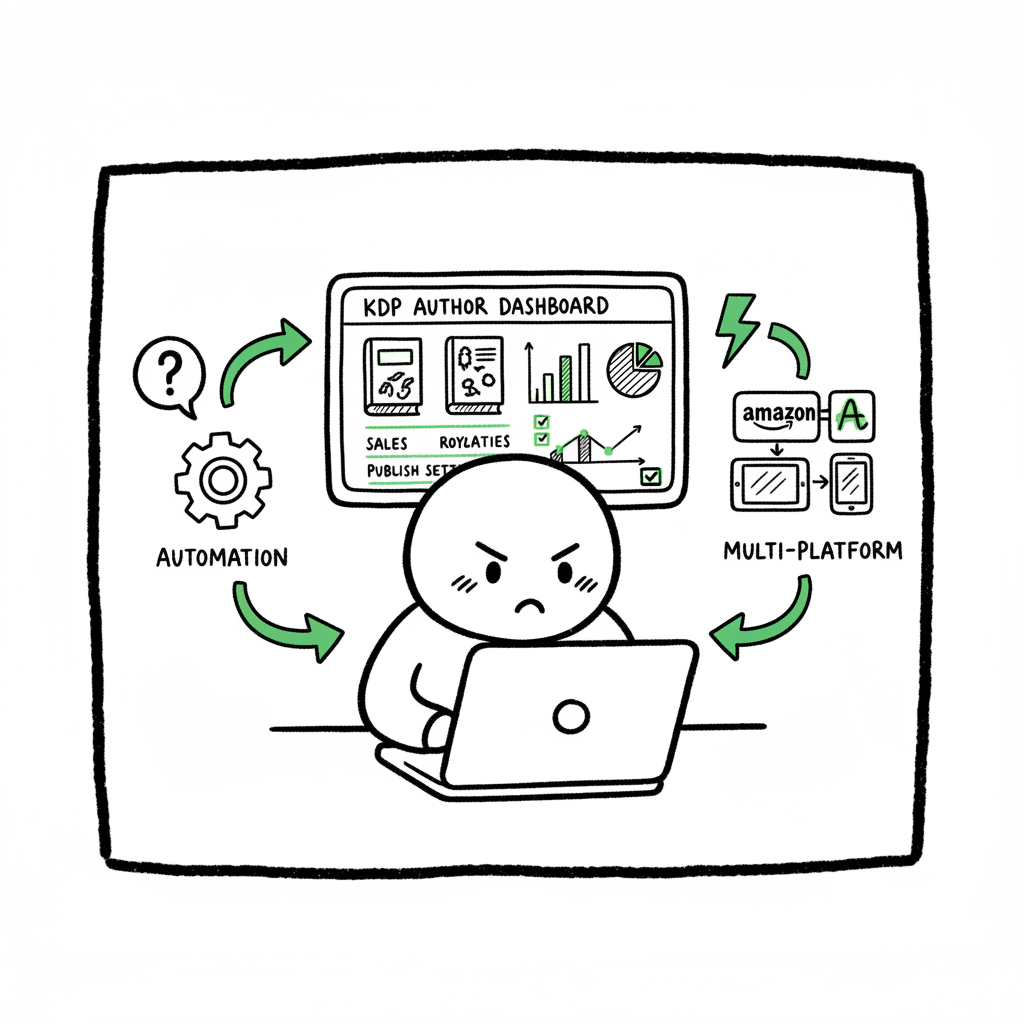
KDP Author Dashboard Practical Guide for Self-Publishing
kdp author dashboard: Practical guide for self-publishing authors
Estimated reading time: 6 minutes
Key takeaways
- The kdp author dashboard is your control center: Bookshelf, publishing settings, and basic sales data live here.
- Use the dashboard for day-to-day book management, and pair it with multi-platform automation when you want to scale.
- Automating uploads and exports saves time, reduces errors, and makes wide distribution practical once you publish regularly.
Table of Contents
- What the kdp author dashboard shows
- Why this matters for regular publishers
- Bookshelf management and the publishing workflow
- Reports, royalties, and data-driven publishing
- FAQ
- Final thoughts
- Sources
What the kdp author dashboard shows
The kdp author dashboard is the entry point for everything you do on Amazon KDP. In plain terms, it displays your Bookshelf, recent activity, royalty estimates, and links to key tools like promotions and advertising. For an author who releases books consistently, the dashboard is where you check status, fix issues, and confirm that each title is live and priced correctly.
The top-level view is simple by design: new titles, drafts, and live books appear in the Bookshelf. Buttons and links take you to editing, pricing, and marketing features. The dashboard won’t replace your reporting tools, but it’s where you start and where many small fixes get made.
If you want a rounded reference focused on KDP operations, see Amazon Kdp For Authors for a practical walkthrough of the platform’s author features. That internal guide pairs well with this article when you need procedural detail.
Why this matters for regular publishers A single book can live in the dashboard happily, but a growing catalog puts new demands on workflow. When you publish five or fifty titles, manual uploads and one-off fixes create friction. That’s where you treat the dashboard as one node in a system: use Bookshelf actions for individual edits and export data regularly to drive decisions. Later sections explain how to combine dashboard work with multi-platform automation so the KDP dashboard becomes one reliable channel among many.
Bookshelf management and the publishing workflow
Bookshelf basics
The Bookshelf is literally a shelf: each title shows metadata, availability, and quick actions (edit book, promote, enroll in KDP Select). Use the Bookshelf to:
- Confirm whether a title is in draft or live.
- Update metadata (title, subtitle, keywords, categories).
- Upload new files (manuscript, cover) or revise existing ones.
- Manage print options like trim size and interior files for paperbacks and hardcovers.
When you edit metadata, remember that changes can take 24–72 hours to reflect in Amazon storefronts. Small errors—wrong ISBN format, missing keywords, or mismatched trim size—are common causes of delays. Treat the Bookshelf as the QA step before distribution.
Formatting and file types
KDP accepts manuscript files and converted ebooks. If you’re converting a manuscript to EPUB for better compatibility across retailers, use a reliable converter rather than hand-editing code. For straightforward EPUB conversion, this kind of automated conversion tool speeds the job and reduces formatting surprises.
Covers and print files
Covers require attention to resolution, spine sizing, and bleed for print books. If you create covers in-house or with a generator, export high-resolution files and double-check spine calculations against the selected trim size. If you use a cover processing service that produces print-ready files, you reduce rejections and save time.
Creating paperbacks and ebooks at scale
Publishing single ebooks or paperbacks is one thing; producing multiple formats across dozens of titles is another. When you need to produce both paperback and ebook files, automated workflows and batch tools cut repetitive steps. Services that handle book creation and bulk output make it realistic to keep stores synchronized across formats without repeating the same uploads manually.
How BookUploadPro fits here
When you’re ready to publish seriously—more than a handful of titles—BookUploadPro becomes an operational upgrade. It lets you prepare a CSV with metadata, attach manuscript files, and push that set to multiple retailers. The system applies platform-specific intelligence to each upload, reducing errors that show up in the Bookshelf and saving roughly 90% of the manual work. Automate the upload. Own the distribution.
Practical publishing checklist (workflow, not a prescriptive list)
- Draft and finalize your manuscript. Produce both a clean manuscript file and an EPUB if you plan to distribute beyond KDP.
- Generate covers that meet print and ebook specs. Use a cover tool that outputs print-ready files if you publish paperbacks.
- Create or export metadata into a CSV for batch operations when you plan to upload multiple titles.
- Start in the Bookshelf for single-title edits, or trigger automated uploads when you have batches.
- Verify live listings and pricing across stores after uploads. Small differences in categories and keyword interpretation happen.
Notes on tooling mentioned above
- If you need an automated EPUB conversion, use a dedicated EPUB converter to avoid layout problems and maintain consistent metadata across platforms.
- If you rely on a cover generator or processing pipeline, confirm the output matches trim size and spine width for every paperback.
- For batch book creation and multi-format output, a consolidated tool that handles both ebooks and print can be worth the investment.
Reports, royalties, and data-driven publishing
Reports overview
The built-in KDP reports show royalty estimates, units sold, and marketplace breakdowns. The dashboard provides a quick view, but the reports area is where you download monthly statements, look for sales trends, and troubleshoot payment issues. The main report types you’ll use are:
- Sales reports (units sold, returns).
- Royalty reports (earnings by title and marketplace).
- Historical reports (to examine trends over time).
Use native reports to answer questions like: Which titles earned most this month? Which marketplace outperformed others? Are returns affecting royalties for a particular format?
Best practices for reading KDP reports
- Export monthly data into CSV and keep a running spreadsheet. The dashboard is transient; an off-site record helps track performance trends.
- Reconcile royalties with bank deposits. KDP delays payments for new accounts or changed tax information; reconcile to spot issues early.
- Segment by format. Ebooks and paperbacks often follow different sales patterns; treat them separately in analysis.
Connecting KDP data to cross-platform reporting
If you distribute beyond Amazon, you’ll get separate dashboards and reports from other retailers. Consolidating these into a single view helps you understand total reach and where marketing should focus. Export KDP reports and merge with data from other retailers to get an accurate picture of total volume and revenue.
When to trust the dashboard numbers, and when to dig deeper
Dashboard totals are fast and useful for daily checks, but don’t treat on-screen figures as your legal accounting. Always use downloaded reports for reconciliation and tax records. Minor differences can appear between the dashboard estimates and the detailed royalty reports.
Scaling distribution with multi-platform automation
Why automation matters
Uploading one title manually works. Uploading 20 titles across five retailers every quarter does not. Automation addresses three operational pain points:
- Repetitive data entry: CSV batch uploads replace manual edits with consistent metadata.
- Platform variance: Each retailer asks for slightly different fields; platform-aware automation maps your master metadata to each store’s requirements.
- Error rates: Manual uploads cause typos, wrong file types, and mismatched categories. Automation validates and flags errors before submission.
BookUploadPro’s approach
BookUploadPro automates repetitive uploads across Amazon KDP, Kobo, Apple Books, Draft2Digital, and Ingram. It accepts CSVs and attached files, applies platform-specific intelligence, and submits titles to multiple stores in one run. The system targets a ~90% reduction in upload time versus manual work. That’s the difference between occasional publishing and a sustainable publishing program.
What to expect from a multi-platform upload tool
- CSV batch uploads that let you manage hundreds of titles in a structured file.
- Platform-specific validation that reduces rejections from stores.
- Error reduction through preflight checks on file types, ISBNs, and trim sizes.
- A single dashboard that shows status across retailers rather than toggling between multiple portals.
Practical scenario: From manuscript to multiple storefronts
- Prepare your master metadata and files (manuscript, cover, EPUB, print-ready PDF) and validate locally.
- Build a CSV that includes title, authors, contributors, ISBNs, keywords, categories, and pricing tiers.
- Use an automation tool to map fields to each retailer and run a preflight check.
- Push the batch to stores. The automation engine tracks submissions and reports back any issues.
- Confirm live listings and reconcile the first reports from each store.
Extra handling: ebooks vs. paperbacks and conversion tools
When creating formats, you may convert manuscript files into EPUB for ebook distribution and generate print-ready interior files for paperbacks. If you need an automated EPUB converter, consider a dedicated conversion service that keeps layout integrity and metadata consistent across exports. If creating covers and print-ready PDFs is part of your flow, use a cover processing service to ensure correct spine and bleed.
Practical benefits of this design
- Time savings: Automation turns hours of manual work into minutes.
- Consistency: One master CSV reduces platform-to-platform discrepancies.
- Scale: You can publish regularly without expanding staff linearly.
A note on cost and commitment
Automation tools are an investment. For authors who publish sporadically, manual uploads are fine. But once you hit a rhythm—several releases per year—automation becomes an operational requirement. BookUploadPro offers affordable pricing and a free trial, making it an obvious upgrade for authors who want predictable, repeatable distribution.
FAQ
Q: What does the kdp author dashboard show first when I log in?
A: The top-of-page view highlights your Bookshelf, recent activities, and quick links to create a new title, check promotions, and view payments. It’s designed for quick checks and single-title edits.
Q: How do I fix a failed file upload on KDP?
A: KDP usually returns an error message with the reason. Common fixes include re-exporting the manuscript in the required format, fixing image resolutions in the cover, or adjusting trim size. If you have multiple titles, consider running file checks before upload to prevent repeat failures.
Q: Should I convert my manuscript to EPUB before uploading to KDP?
A: KDP accepts several formats, but EPUB is widely compatible across retailers. Converting to EPUB is recommended when you plan to distribute beyond Amazon. Use a reliable converter to keep layout and metadata intact.
Q: How often should I download KDP reports?
A: Download monthly reports for accounting and reconciliation. If you run promotions or frequent releases, export weekly during high-activity periods to monitor immediate changes.
Q: Can I automate uploads to Amazon and other stores at once?
A: Yes. Multi-platform systems let you prepare a single batch and submit to multiple retailers. That reduces manual entry and platform-specific errors and speeds up time to live across stores.
Q: Does automating uploads change the way KDP works?
A: No — automation submits the same files and metadata KDP requires. It simply handles repetitive actions at scale and applies platform-aware validation to reduce human error.
Final thoughts
The kdp author dashboard is an essential tool for day-to-day publishing on Amazon. It’s where you make quick edits, confirm live status, and download reports. But it’s not the whole system. When you publish repeatedly or across formats and retailers, you need a workflow that treats KDP as one channel in a multi-platform distribution process.
Tools that accept CSV batch uploads, apply platform-specific rules, and manage files will not replace the dashboard, but they will let you publish smarter and faster. When your catalog grows, automation reduces errors and frees you to focus on writing, marketing, and strategy rather than repetitive uploads.
If you manage covers, EPUB conversion, or print files as part of your publishing pipeline, use dedicated tools to keep those assets clean and store-ready. Proper EPUB conversion, cover processing, and consistent file output are the foundation of painless uploads.
Visit BookUploadPro.com to start a free trial and see how automation can simplify multi-platform publishing.
Sources
- https://blog.bookuploadpro.com/amazon-kdp-for-authors
- https://www.bookautoai.com/book-cover-generator-processing
- https://www.bookautoai.com/epub-converter
- https://www.bookautoai.com
kdp author dashboard: Practical guide for self-publishing authors Estimated reading time: 6 minutes Key takeaways The kdp author dashboard is your control center: Bookshelf, publishing settings, and basic sales data live here. Use the dashboard for day-to-day book management, and pair it with multi-platform automation when you want to scale. Automating uploads and exports saves…