KDP Author Dashboard Practical Guide for Self-Publishers
kdp author dashboard: A practical guide for self-publishers
Estimated reading time: 8 minutes
Key takeaways
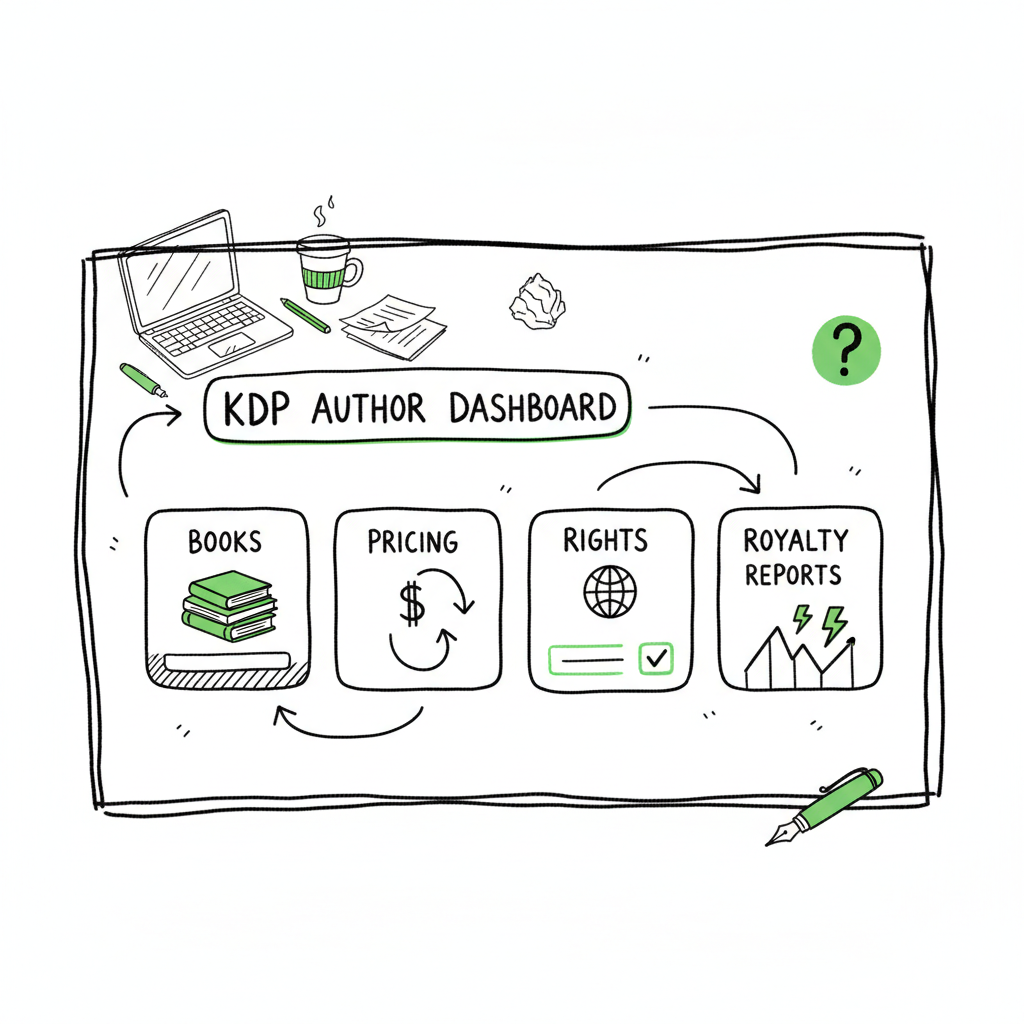
- The kdp author dashboard is the control center for each title: books, pricing, rights, and royalty reports live here.
- Learn to navigate the dashboard quickly so you can manage kdp bookshelf management and interpret kdp reports overview without guessing.
- Once you publish more than a few titles, automation with multi-platform tools saves time, reduces upload errors, and makes wide distribution practical.
Table of Contents
- What the KDP author dashboard shows
- How to navigate the KDP author dashboard
- Using multi-platform automation to scale uploads
- FAQ
What the KDP author dashboard shows
The kdp author dashboard is Amazon’s web interface for managing your Kindle books and paperbacks. From one screen you can add new titles, edit files and metadata, check royalty balances, and track sales. For a self-publisher the dashboard is both an operational hub and an early warning system—use it to spot issues in your kdp bookshelf management and to run basic reports.
Inside the dashboard you’ll see a Bookshelf view that lists each title and its status—draft, published, or in review. You’ll also find pages for Pricing, Content Rights, and KDP Select enrollment. The Reports area gives you a kdp reports overview with royalties by marketplace, sales units, and historical trends. Use these areas together: metadata and cover updates happen on the Bookshelf, pricing and promotions are in the Pricing panel, and finance details live in Reports.
If you want practical, step-by-step help for working within Amazon’s system, see Amazon Kdp For Authors for a focused walkthrough of the core screens and terminology.
How to navigate the KDP author dashboard
Approach the dashboard like a small operations console. You should be able to complete five common tasks quickly: add a book, update content, change pricing, enroll in programs, and read a report. Below are practical steps and tips for each.
Add or upload a new title
- Start on the Bookshelf and click “Create a new title.” Choose Kindle eBook or paperback.
- Fill Title, Subtitle, Series, and Edition fields exactly as you want them to appear in stores. Small variations create duplicate listings.
- Upload your manuscript and cover files. For ebooks, KDP accepts MOBI or EPUB; for paperbacks you’ll supply a print-ready PDF and a cover image sized to trim and bleed.
- Select publishing rights and territories carefully—“Worldwide” is common, but pick what you own.
- Set pricing and royalties last. KDP shows estimated royalty changes when you change price.
Tip: Keep a standard metadata template (title case, consistent author name, standardized subtitle syntax). That speeds repeated uploads and reduces errors in kdp bookshelf management.
Edit an existing book
- From the Bookshelf, click the three-dot menu and choose “Edit.” Use the tabs—Content, Pricing, and Rights—to make focused updates.
- If you replace a manuscript file, double-check the TOC and front matter after upload.
- When you update a cover or interior, KDP runs a file check. If it reports an error, read the message and re-upload rather than guessing.
Common pitfalls: changing ISBNs, removing territory rights, or switching royalty plans without verifying sales tax impacts. Always document the change and the date — simple version control prevents confusion later.
Manage pricing and promotions
- Pricing is per marketplace. Use the Pricing page to set list prices for US, UK, EU, and other markets.
- The 70% royalty option requires a specific price range in some markets; KDP shows when a price disqualifies you.
- Promotions (free days, countdown deals) are configured on the Bookshelf under “Promotions.” These can take time to propagate—schedule them in advance.
Reading kdp reports overview
- Reports break down royalties by marketplace and provide units sold, pages read (if enrolled in Kindle Unlimited), and sales date ranges.
- Use the “Historical” and “Territory” filters to spot trends and anomalies. If a title shows a sudden drop or spike, cross-check with the Bookshelf for recent edits or pricing changes.
- For tax and payout reconciliation, pull the monthly royalty statement and compare it to bank deposits. Payouts are delayed; reports can show earnings before they clear.
kdp bookshelf management best practices
- Treat the Bookshelf as your single source of truth. Before changing metadata or files, export a small record (title, ASIN, ISBN, list price) to a spreadsheet.
- Use consistent series names and contributor roles (author, editor, illustrator). Small differences fragment searchability in stores.
- If you publish many titles, automate parts of this workflow. Consistency reduces manual edits and helps when you need to bulk-correct metadata.
Using multi-platform automation to scale uploads
When you publish more than a handful of books, the dashboard workflow that works for one title becomes a bottleneck. Multi-platform automation removes repetitive tasks and centralizes distribution. A tool built around CSV batch uploads and platform-specific intelligence lets you prepare one canonical dataset and push it to Amazon KDP, Apple Books, Kobo, Draft2Digital, and Ingram without rekeying the same fields.
Why automation matters
- Time savings: Automation cuts repetitive steps. At scale, expect roughly ~90% time savings on uploads and metadata corrections compared with manual entry.
- Error reduction: Validation rules and platform-specific checks catch format issues before you submit a file to a store.
- Wide distribution: A single workflow makes it practical to list on multiple stores consistently—pricing, metadata, and territories remain synchronized.
Operational features to look for
- CSV batch uploads so you can prepare hundreds of titles in a spreadsheet and validate them in bulk.
- Platform-specific intelligence that adapts fields to each store’s requirements (file type, cover trim settings, pricing rules).
- Automated file conversion and preflight checks that catch EPUB errors, cover dimension mismatches, or missing fonts before upload.
The practical steps for an automated workflow
- Prepare a canonical CSV with one row per title: title, subtitle, author name, contributors, language, ISBN, rights, list price, categories, keywords, and file paths for manuscript and cover.
- Use a batch tool to validate each row. Fix validation flags (missing metadata, cover too small).
- Convert manuscripts if needed—an automatic EPUB conversion step removes a common friction point when moving from Word or manuscript formats.
- Push validated rows to target platforms. The system adapts fields (for example, trim size for a paperback on Ingram vs. Amazon).
- Track results and errors in a single dashboard. Retry failed uploads after addressing specific issues.
Supporting file work: covers and EPUBs
- Create or resize covers to match each platform’s required dimensions. A consistent process saves time on re-uploads.
- Convert to EPUB with a dedicated converter to ensure proper navigation, fonts, and image handling.
If you need a straightforward way to generate covers, try a book cover generator to produce print-ready files quickly. For manuscript conversion, an EPUB converter handles the technical steps so files meet store requirements. If you prefer a broader creation tool that supports both paperbacks and ebooks, use a platform built for ebook creation that streamlines file output and prepares formats for each distributor.
How automation changes the role of the dashboard
Automation doesn’t replace the KDP author dashboard. Instead it minimizes the time you spend in it. After an automated upload, use KDP’s dashboard to:
- Confirm the title appears on the Bookshelf and the ASIN/ISBN is correct.
- Verify pricing and marketplace allocation.
- Check early reports to ensure sales and page-reads are tracking properly.
When to move to automation
You should strongly consider automation once you plan to publish more than 4–5 titles per year, or when you need a consistent publishing calendar across multiple stores. Automation is an obvious upgrade once authors start publishing seriously: it frees you to focus on writing, marketing, and editorial improvements rather than repetitive uploads.
FAQ
Q: What’s the difference between the Bookshelf and Reports in the dashboard?
A: The Bookshelf is where you create and edit titles—manuscript, cover, metadata, and pricing live there. Reports show sales and royalty data. Think of Bookshelf as the publishing control panel and Reports as the financial ledger.
Q: How do I fix a rejected file on KDP?
A: Read the error message KDP provides, then fix the specific issue—font embedding, image resolution, or file type. Re-export and re-upload. If conversion is a recurring problem, use a dedicated EPUB converter before uploading.
Q: Can I change a title’s price after publication?
A: Yes. Use the Pricing tab on the Bookshelf to update prices by marketplace. Expect a short delay before the new price propagates to storefronts. Note that changing price can affect royalties and promotional eligibility.
Q: How often should I check kdp reports overview?
A: Check weekly for active campaigns or when you’ve made recent updates. For routine monitoring, monthly reports plus quarterly reconciliations are enough for most authors.
Q: Do I need separate files for ebook and paperback?
A: Yes. Ebook files are usually EPUB or MOBI; paperbacks require print-ready PDFs with correct trim size and bleed. Covers are different: an ebook cover is a simple image; a paperback cover is a full wrap PDF with spine width calculated from page count.
Q: What metadata fields really matter?
A: Title, author name, subtitle, series, description, keywords, and categories. These affect discoverability. Keep them consistent across platforms.
Q: Is KDP Select worth it?
A: KDP Select gives promotional tools and inclusion in Kindle Unlimited in exchange for Amazon exclusivity for the ebook. Decide based on your audience and whether Amazon is your primary sales channel.
Final thoughts
The kdp author dashboard is straightforward once you treat it like an operations tool rather than a marketing page. Learn the Bookshelf, use Reports to spot trends, and standardize your metadata so you can move quickly. When your list grows, automation becomes essential: CSV batch uploads, platform-specific intelligence, and automated file checks let you publish reliably across multiple stores without re-entering the same information.
Automate the upload. Own the distribution.
Visit BookUploadPro.com to try a free trial and see how CSV batch uploads, platform adaptation, and centralized error checks streamline multi-platform publishing.
Sources
- https://help.selfpublishing.com/en/5-things-to-know-about-your-kindle-direct-publishing-kdp-dashboard
- https://kdp.amazon.com/en_US/help/topic/G200672810
- https://kdp.amazon.com/help/topic/GX7EGDFGS9CZCA2F
- https://kdp.amazon.com/help/topic/GVTTXHKHVPAPBEDQ
- https://kdp.amazon.com/en_US/help/topic/G2BWJN2BY98T5PV2
- https://www.bookautoai.com/book-cover-generator-processing
- https://www.bookautoai.com/epub-converter
- https://www.bookautoai.com
kdp author dashboard: A practical guide for self-publishers Estimated reading time: 8 minutes Key takeaways The kdp author dashboard is the control center for each title: books, pricing, rights, and royalty reports live here. Learn to navigate the dashboard quickly so you can manage kdp bookshelf management and interpret kdp reports overview without guessing. Once…