How to Use Amazon KDP for eBook and Paperback Publishing
How to Use Amazon KDP
Estimated reading time: 7 minutes
Key takeaways
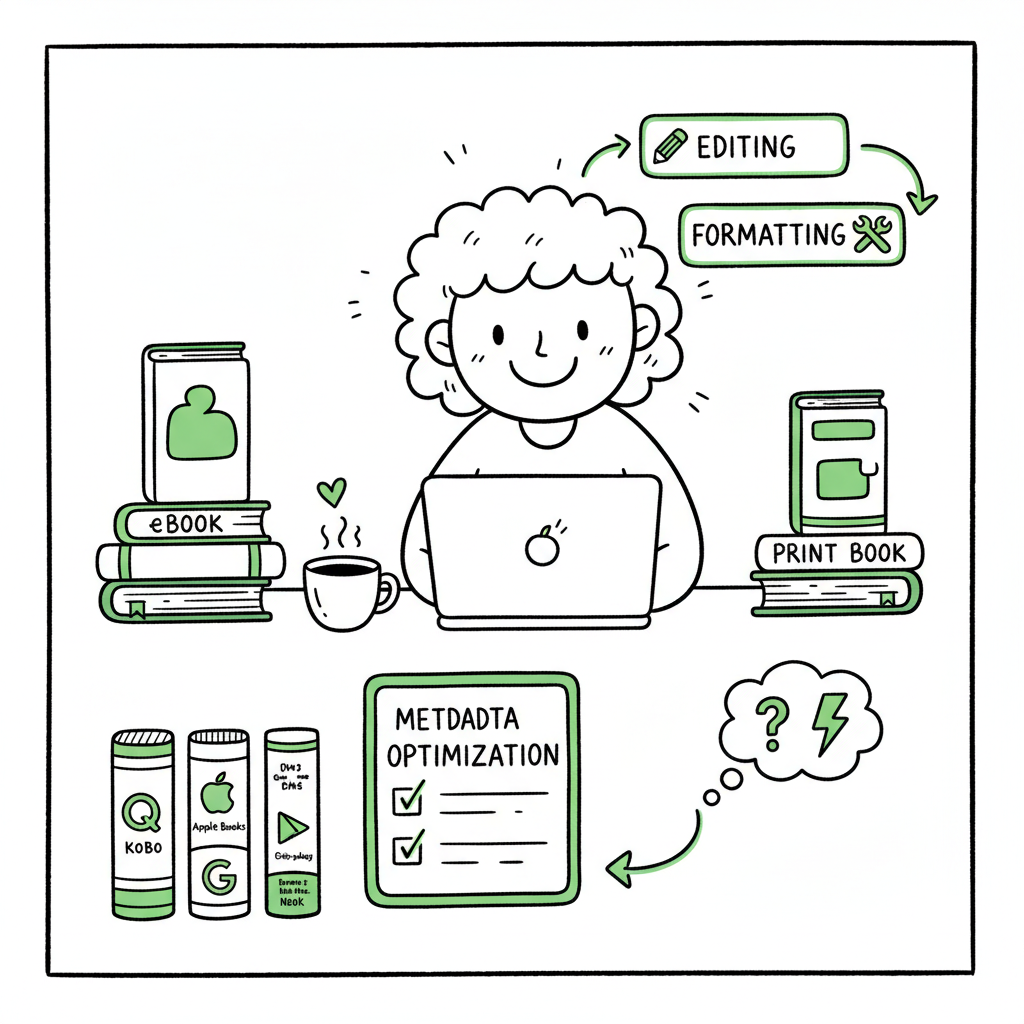
- Amazon KDP lets you publish eBooks and print books for free, but preparation (editing, formatting, cover) determines success.
- Optimize metadata—title, description, keywords, categories—and preview files before hitting publish.
- When you’re ready to scale beyond Amazon, automating uploads across platforms saves time and reduces errors.
Table of Contents
- Prepare your book for upload
- Upload, set metadata, and publish
- Distribute and scale without extra hours
- FAQ
Prepare your book for upload
If you’re learning how to use Amazon KDP, start with the basics: a clean, edited manuscript, a correctly formatted file, and a professional cover. KDP will accept several file types, but an error-free manuscript and a matched cover are the fastest path to a clean approval. For ideas on faster publishing workflows, see Amazon KDP AI Writing.
Edit and format first
Polish the manuscript before you think about publishing. Copyedits, a consistent style, and basic layout fixes stop rework later. For eBooks, use a simple page flow and a linked table of contents. For print, set correct trim size and margins and embed fonts.
Convert to the right file type
KDP accepts DOC/DOCX and EPUB for eBooks and PDF for print interiors. If you need reliable conversion, use a dedicated tool to create clean EPUBs instead of relying on ad-hoc exports—an EPUB converter can save time and avoid repro steps. Good EPUB files reduce preview issues and speed publishing. For EPUB conversion, see BookAutoAI’s EPUB converter.
Design a professional cover
A cover must work at thumbnail size and meet KDP dimensions for print. If you don’t have a designer, use a dependable cover tool to generate print-ready files and spine measurements that match your trim choice — a book cover generator can handle ISBN and barcode placement automatically. For automated cover generation, see BookAutoAI’s cover generator processing.
Prepare paperback and ebook files
Create separate files for ebook and paperback early. The interior formatting rules differ, and printing adds cost calculations that affect pricing. If you plan both formats, build the paperback PDF from the same source but adapt margins, headers, and page numbers. For a complete book creation workflow, visit book creation workflow.
Upload, set metadata, and publish
With files ready, the KDP dashboard guides the rest. This is where attention to detail converts preparation into a live book.
Set up the basics
Create a KDP title entry and choose ebook, paperback, or both. Add the book title, subtitle, series information, and author name exactly as you want them to appear. Upload your manuscript and cover files, and use the online previewer to check every page.
Write a discoverable description and pick keywords
The description and keywords are search signals. Write a clear, benefit-led description and choose keywords that match how readers search—specific phrases work better than single words. KDP allows seven keyword slots; use them to target niches and reader intent.
Choose categories and pricing
Pick two appropriate categories and use Amazon’s browse structure to place your book where readers will find it. Set pricing with royalties in mind: most indie authors aim for $2.99–$9.99 on eBooks for the 70% royalty band. For paperbacks, remember printing costs reduce royalties.
Preview and publish
Use KDP’s previewer for both ebook and print. Check for orphaned lines, blank pages, and image placement. Once you’re satisfied, publish. Amazon typically lists the book within 24–72 hours; monitor the listing and fix any issues quickly.
Distribute and scale without extra hours
KDP handles Amazon distribution well, but wide availability matters when you publish often or across formats. If you plan multiple books, scaling your workflow is practical and cost-effective.
Why multi-platform matters
Readers use many stores—Apple Books, Kobo, Ingram, and more. Uploading to each portal manually is repetitive and error-prone. That’s where multi-platform publishing automation becomes an obvious upgrade: CSV batch uploads, platform-specific intelligence, and error reduction cut the busywork and free time for writing.
Use automation to save time and reduce mistakes
Services that batch upload your ISBNs, descriptions, formats, and pricing can reduce upload time by roughly 90%. They also apply platform rules (file sizes, metadata fields, categories) so you don’t test each store’s quirks. When you publish seriously, unified multi-platform publishing is no longer optional; it’s efficient.
A practical note on tools
If you want to keep content creation and distribution separate, look for a workflow that handles ebook and print creation and distribution together—think of it as a book creation workflow that produces store-ready files and handles distribution steps. Automating the upload and global distribution streamlines repeats and minimizes manual errors. Automate the upload. Own the distribution.
How BookUploadPro fits
For authors ready to scale, BookUploadPro automates repetitive uploads across Amazon KDP, Kobo, Apple Books, Draft2Digital, and Ingram. It supports CSV batch uploads, applies platform-specific rules, reduces errors, and makes wide distribution practical at an affordable price with a free trial. For authors publishing multiple titles, it’s an obvious upgrade once you start publishing seriously.
FAQ
Q: Do I need an ISBN to publish on KDP?
A: For eBooks on KDP you don’t need an ISBN—Amazon provides ASINs. For paperbacks, KDP can provide a free ISBN, or you can supply your own.
Q: Can I be exclusive to KDP and still sell elsewhere?
A: Not with KDP Select. KDP Select requires Amazon exclusivity for the eBook in exchange for promotional tools. If you want wide distribution, avoid Select.
Q: What’s the quickest way to fix a cover or interior issue after publishing?
A: Update the file in your KDP dashboard and republish. Changes propagate when Amazon reprocesses the files; check the live listing and previewer to confirm.
Q: How do I price print and ebook differently?
A: Consider printing cost, perceived value, and royalties. Test pricing for launches and adjust after initial sales and reviews.
Q: Can I update metadata after publishing?
A: Yes. You can update book metadata such as title, subtitle, description, keywords, and categories in the KDP dashboard and republish. Changes propagate after reprocessing by Amazon.
Q: How long does it take for changes to appear?
A: Most updates are reprocessed within hours, but sometimes it can take up to 24–72 hours to reflect on live listings.
Final thoughts
Visit BookUploadPro.com to learn more and try the free trial.
Sources
- The Complete Guide to Self Publishing on Amazon KDP in 2026
- What is the process to self-publish a book on Amazon KDP in 2026
- Start publishing with KDP – Amazon.com
- Kindle Publishing Guidelines
- Book Formatting – Kindle Direct Publishing
- COMPLETE Beginner’s Guide to Amazon KDP in 2026
- How to Start Amazon KDP in 2026
- Full Amazon KDP Tutorial For Beginners (2026)
How to Use Amazon KDP Estimated reading time: 7 minutes Key takeaways Amazon KDP lets you publish eBooks and print books for free, but preparation (editing, formatting, cover) determines success. Optimize metadata—title, description, keywords, categories—and preview files before hitting publish. When you’re ready to scale beyond Amazon, automating uploads across platforms saves time and reduces…