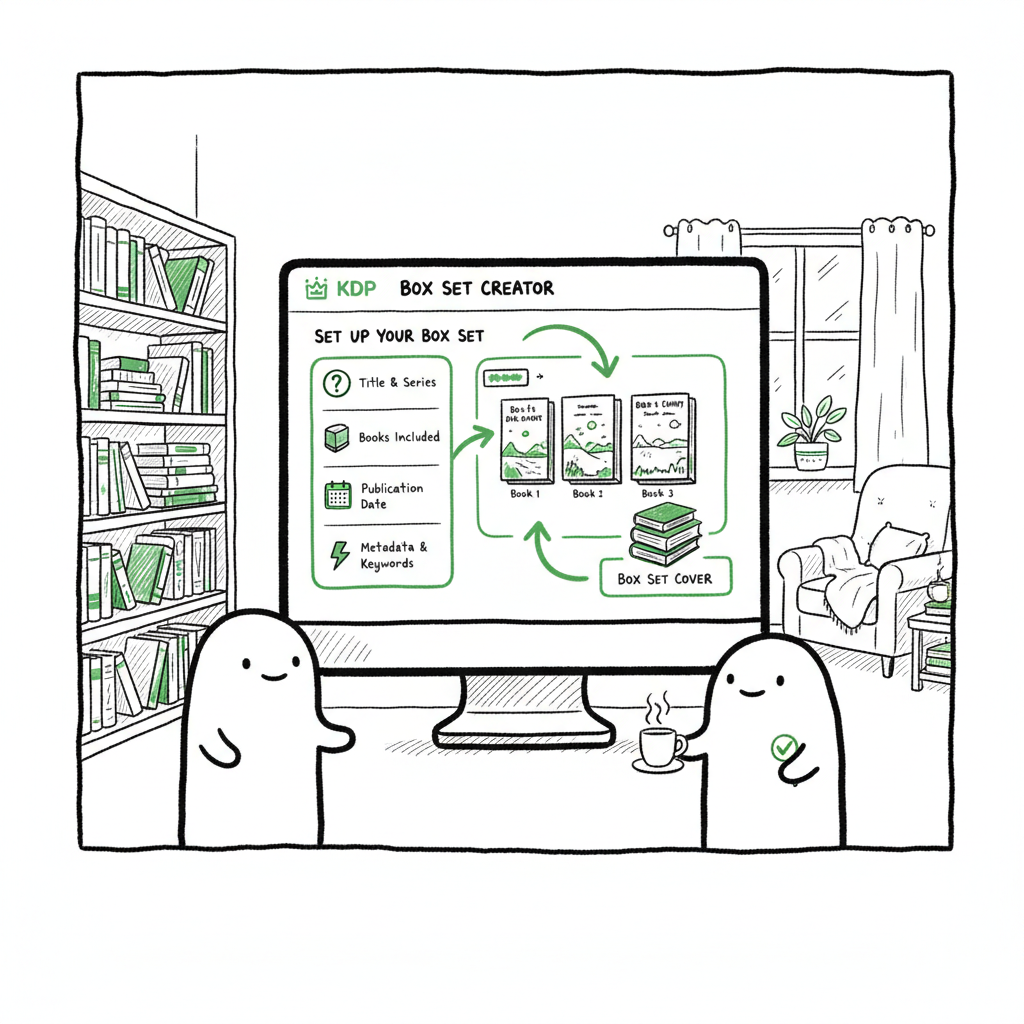
Box Set Listing Setup Helper for KDP Box Set Creation
Box Set Listing Setup Helper: Practical Guide to KDP Box Sets and Bundles
Estimated reading time: 9 minutes
Key takeaways
- A box set listing setup helper saves hours by standardizing the repetitive metadata and upload steps for KDP box sets.
- Successful KDP box sets combine a single, well-formatted interior file, a clear table of contents, consistent series metadata, and value-based pricing.
- Automating listing creation and batch uploads makes wide distribution practical; BookUploadPro focuses on CSV batch uploads, platform-specific logic, and error reduction.
Table of Contents
- Why box sets matter for serious publishers
- Practical workflow for KDP box set creation
- Metadata, pricing and cover tips for box set listings
- Automating box set listings at scale with BookUploadPro
- FAQ
- Sources
Why box sets matter for serious publishers
Box sets aren’t just a marketing stunt. For authors who publish multiple books in a series or a theme, a box set turns separate titles into one strong purchase decision. Readers see a clear value: multiple books in a single download or package. For authors and small publishers, box sets help increase per‑sale revenue, boost discoverability for backlist titles, and simplify promotions.
That said, the technical and listing work is different from uploading a single book. You still use KDP’s standard title setup process, but you’re uploading one interior that contains all the component books. That interior must read like a single product: one front matter area, one clear table of contents at the front, and clean internal breaks between books. The listing metadata needs to be consistent with series fields and pricing should reflect perceived value.
If you publish seriously and often, a box set listing setup helper becomes obvious. It standardizes titles, descriptions, categories, and pricing, and it cuts clerical errors that cause delays or rejects. For the actual upload steps and example templates you might use when preparing files and metadata, see KDP Upload Workflows Format — those examples explain how to map your files and fields to KDP’s interface in a repeatable way.
Practical workflow for KDP box set creation
Start here when you have a set of finished books and want to publish a box set. The steps are ordered to reduce rework and catch common errors early.
1) Decide the format and product type
- Ebook box set: Combine all titles into a single ebook file (EPUB or properly formatted DOCX). This is the most common approach for KDP ebook bundles.
- Paperback box set (single physical book): If you want a paperback that contains multiple titles, you create one larger interior file and a cover sized for the combined page count.
- Both: You can publish both an ebook box set and a paperback; treat them as separate KDP titles with matching metadata.
If you need to convert to EPUB or prepare files for multiple platforms, use an EPUB converter before upload to avoid format errors and to keep a single master file for distribution. If you plan to produce both ebook and paperback files, consider a reliable book creation tool to manage interiors and front/back matter consistently.
2) Create a clean combined interior
- Combine the manuscripts in order. Add a single front matter section that includes a box set title, author name, and a brief introduction or reading order.
- Add a front-loaded table of contents that links to each book and to each book’s chapters if possible. For ebooks, a well-structured front TOC improves navigation and the user experience on devices.
- Insert clear separators between books. Use consistent page breaks and headers so each book feels like a complete unit inside the set.
- Check page count and margins for paperback: KDP will insist on exact trim size and interior margins. If you’re creating a paperback, format the interior according to the chosen trim size and generate a print-ready PDF.
If you need to convert manuscripts to EPUB or prepare files for multiple platforms, use an EPUB converter before upload to avoid format errors and to keep a single master file for distribution. If you plan to produce both ebook and paperback files, consider a reliable book creation tool to manage interiors and front/back matter consistently.
3) Make a cover that works at both thumbnail and print sizes
- Design a cover that signals a box set: series look, strong title treatment, and a clear indication it contains multiple books. But be careful about claims or phrasing KDP restricts on print covers.
- For quick cover generation or automated processing, a book cover generator can speed drafts and produce sizes compatible with KDP print specs.
For quick cover generation or automated processing, a book cover generator can speed drafts and produce sizes compatible with KDP print specs.
4) Prepare metadata and listing fields
- Title and subtitle: Use a clear box set title. Some authors include the series name and “Complete Box Set” or “Books 1–3” in the subtitle to signal content.
- Series fields: If the set contains a series, use the exact series name and consistent author name across individual titles and the set. Inconsistent series data is a common cause of linking problems.
- Description: Front-load benefits—what’s included, how many words/pages, and why the reader should buy the set. Keep the description scannable with short paragraphs.
- Keywords and categories: Pick keyword phrases and categories that match the series and the bundle intent. Think like a buyer searching for a series omnibus or starter pack.
To avoid getting stuck, see the referenced format for mapping fields across platforms: KDP Upload Workflows Format for guidance on structuring your metadata for a repeatable upload process.
5) Upload to KDP and check previews
- Create a new KDP title. Choose paperback or Kindle eBook as appropriate.
- Fill in Book Details, Content, and Paperback Rights & Pricing as you would for a normal title.
- Upload the combined interior and the cover files.
- Use KDP’s preview tools on different formats (Kindle previewer and the paperback previewer) and test links in the ebook TOC.
- If anything looks off, fix the source file and re-upload. Test on at least one real device when possible.
If you need to convert manuscripts to EPUB or prepare files for multiple platforms, use an EPUB converter before upload to avoid format errors and to keep a single master file for distribution. If you plan to produce both ebook and paperback files, consider a reliable book creation tool to manage interiors and front/back matter consistently.
6) Pricing and launch logistics
- Price the box set at a perceived discount versus buying individual titles. Many publishers aim for sub‑$10 price points for multi‑book packs, depending on genre and page count.
- Consider territory rights and KDP’s royalty structures. Paperback pricing is constrained by printing costs; ebook pricing is more flexible but must align with royalty brackets.
- If you have a series page on Amazon, request KDP linking if titles don’t automatically appear together. Keep records of ISBNs and ASINs so you can manage promotions and reporting later.
To avoid getting stuck, see the referenced format for mapping fields across platforms: KDP Upload Workflows Format for guidance on structuring your metadata for a repeatable upload process.
7) Formatting and file conversion notes
- If you need to convert manuscripts to EPUB, use a dedicated EPUB converter that preserves TOC links and chapter breaks.
- For paperbacks, export a high-quality PDF with embedded fonts and correct page size. Triple-check margins and gutter settings for large page counts.
- If you used a cover generator or automated cover processing earlier, export final print-ready covers in the required resolution and dimensions.
Metadata, pricing and cover tips for box set listings
Metadata is the part most authors rush and most readers use to decide. Treat it like the product sheet in a store.
Titles and series
- Keep title formats simple and consistent. If your individual books already include series numbers or subtitles, decide whether the set needs them. Too many repeats can look messy.
- Use the series field where appropriate. For a box set of an entire series, you can use a series title with a number that reflects the bundle (for example, “Series Name — Box Set” or leave number blank if it doesn’t apply).
- If Amazon doesn’t automatically create a series page for your set, be prepared to contact KDP support and request linking or manual adjustments.
Description writing
- Lead with what’s inside: number of books, genres, and what readers will get.
- Mention approximate word count or number of pages; this sets expectations for value.
- Avoid long blocks of text. Short paragraphs and bullet‑style lines (in the retail description) work well.
Keywords and categories
- Keywords for a box set should reflect both the series and bundle format. Include phrases like “complete series box set,” “series omnibus,” or genre-specific combos.
- Categories determine visibility. Use KDP category selection wisely and consider subcategories where a bundle can stand out.
- Consider A/B testing different keyword sets over time to find which drives discoverability.
Pricing strategy
- Box sets are often impulse buys when priced to show a clear saving. Price too high and you lose that impulse; price too low and you undercut perceived value.
- Think about discounts relative to list prices of individual titles. A common practical approach: set a box set price that feels like a 40–60% saving versus buying titles separately.
- Remember royalty math: KDP will apply standard royalty rules. For large page counts in paperbacks, printing costs will push minimum prices up.
Covers and branding
- Your box set cover must read at thumbnail size first and show more detail on larger displays.
- Use the same visual voice across individual book covers and the box set so readers immediately recognize the brand.
- If you are experimenting with automated covers, a book cover generator can speed iterations. For print covers, ensure spine text and back cover elements are handled correctly for the combined page count.
Automating box set listings at scale with BookUploadPro
When you move from one or two box sets to dozens, manual uploads become a drag. That’s where a listing setup helper and batch upload tools change the game.
What BookUploadPro does
- Unified multi-platform publishing: BookUploadPro centralizes uploads for Amazon KDP, Kobo, Apple Books, Draft2Digital, and Ingram. You prepare a single project and push to multiple retailers.
- CSV batch uploads: Instead of filling KDP fields one at a time, define your metadata in a CSV template and upload hundreds of listings in a single operation.
- Platform-specific intelligence: Each store has its quirks. BookUploadPro handles platform differences so you don’t have to memorize every dropdown or checkbox.
- Error reduction: Built-in checks and validation reduce the risk of rejected files and “missing required field” errors that waste time.
- Time savings: Publishers report major time savings—up to ~90%—once their workflows are stable. That makes wide distribution practical.
BookUploadPro centralizes uploads for multiple retailers, while you focus on your catalog.
How a publisher uses it in practice
- Prepare your combined interior files and final covers. BookUploadPro does not replace interior formatting; it focuses on listing setup and uploads. If you need conversion to EPUB first, use a converter to produce a clean source file.
- Populate the CSV with titles, series data, descriptions, keywords, categories, pricing, and file paths for interiors and covers.
- Upload the CSV to BookUploadPro and run a validation pass. Fix any flagged issues and reprocess.
- Choose target platforms and launch.
When to keep manual steps
- Complex interior formatting, unique content features, or special print packaging still benefit from manual checks. BookUploadPro accelerates the repetitive metadata and upload steps, but you should preview every title on each platform before finalizing.
- Price testing and promotional plans may require manual adjustments or staged launches. Use automation for the heavy lifting, and retain manual control over strategy.
Risks and recommended safeguards
- Don’t over-template descriptions or keywords across many products. Reused copy can harm discoverability or trigger platform policy flags.
- Maintain a single source-of-truth for series names and author metadata. Small inconsistencies cause big linking problems.
- Always test one or two live listings before doing a massive batch release. This confirms that platform previews and retail pages look as expected.
Final thoughts
Box sets are a powerful tool for serious authors and small publishers, but they require careful attention to formatting, series metadata, and pricing strategy. A box set listing setup helper—combined with robust file preparation—turns a tedious, error‑prone job into a repeatable workflow. When you add multi‑platform batch uploads, you free time for writing, marketing, and growing your catalog.
FAQ
Q: Can I combine books written by different authors in one box set?
A: Amazon’s series rules and KDP policies typically favor consistent author metadata. If books are by different authors, make sure you have rights and clear display language. Often, collaborative anthologies use editor credits rather than inconsistent series fields.
Q: Do I need a separate ISBN for a paperback box set?
A: Yes. A paperback box set is treated as its own physical product and will require a unique ISBN if you want one. KDP can provide a free ISBN, or you can supply your own.
Q: Will bundling affect my royalties?
A: Bundling affects royalty math because pricing and costs differ between ebook and paperback. Ebook royalties depend on list price and Amazon’s royalty brackets. For paperbacks, printing costs affect minimum price and net revenue. Always calculate royalties at your planned price point for each format.
Q: How do I handle back matter in a box set?
A: Keep back matter consistent across the set. You can add a “More from the author” section with links to individual books, but avoid confusing the reader with duplicated navigational elements. The front TOC should remain the primary navigation aid.
Q: Is it safe to automate uploads to multiple platforms at once?
A: Automation speeds work but requires good validation. Use a system that checks required fields per platform and previews files. Automation is safest when you preview a few live titles before scaling up.
Sources
- How to Create & Publish a Box Set Bundle on Amazon
- How To Create A Bundle For Your Book Series On Amazon KDP
- Tangent Templates – List books fast on KDP
- Start a Book Series – Kindle Direct Publishing Help
- Create a Book – Kindle Direct Publishing Help
- Title Setup: Book Details, Content, & Pricing – KDP Help
Box Set Listing Setup Helper: Practical Guide to KDP Box Sets and Bundles Estimated reading time: 9 minutes Key takeaways A box set listing setup helper saves hours by standardizing the repetitive metadata and upload steps for KDP box sets. Successful KDP box sets combine a single, well-formatted interior file, a clear table of contents,…