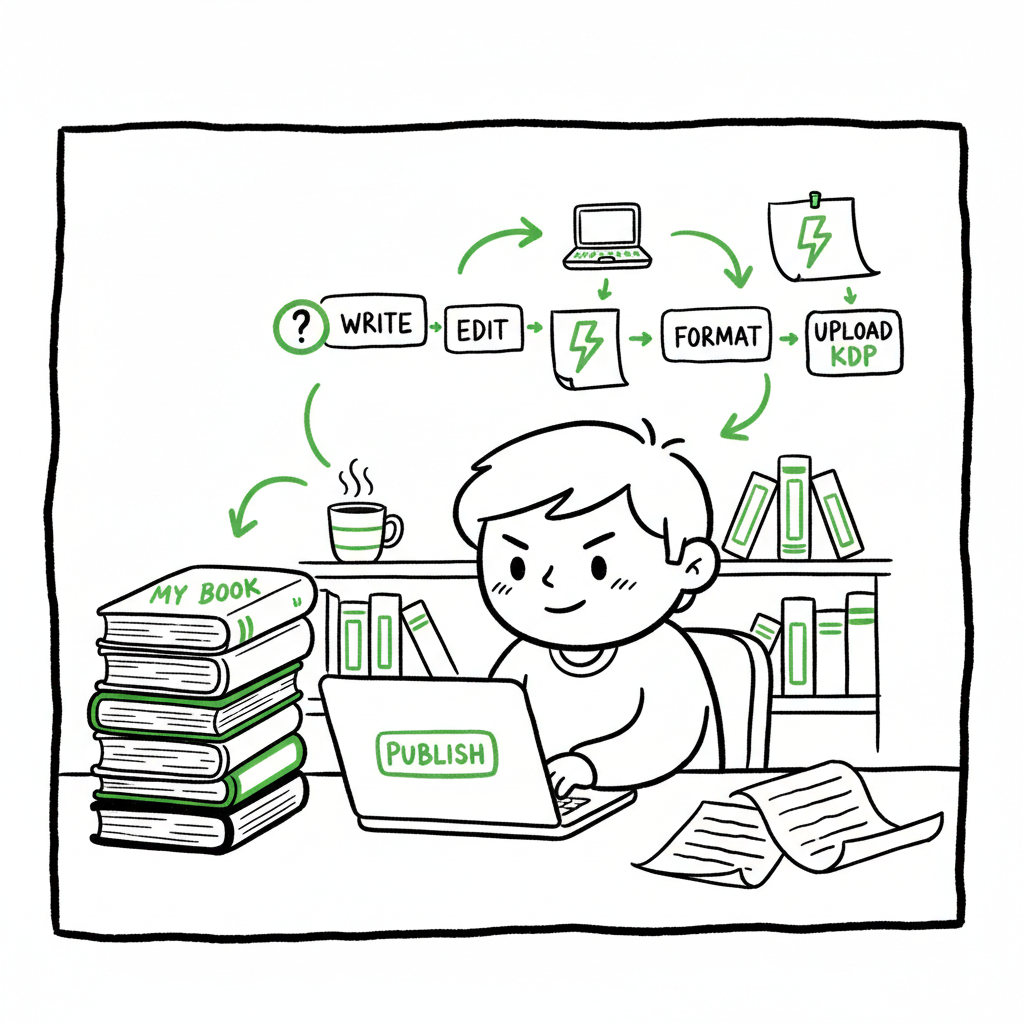
Beginner KDP Author Practical Guide to Your First Book
Beginner KDP Author: A Practical Guide to Your First Book
Estimated reading time: 17 minutes
Key takeaways
- Publishing a first book on Amazon KDP is a step-by-step process: prepare your files, enter accurate metadata, upload and preview, then set pricing and distribution.
- Good formatting, a proper cover, and correct metadata prevent delays and improve discoverability for a beginner KDP author.
- When you decide to publish more than one title, use multi-platform automation to save time, reduce errors, and scale publishing without extra headaches.
Table of Contents
- How a beginner KDP author publishes a first book
- Formatting, covers, and file prep for KDP
- Uploading, metadata, pricing, and launch on KDP
- Scaling beyond KDP: multi-platform publishing and automation
- FAQ
How a beginner KDP author publishes a first book
If you are a beginner KDP author, the process looks bigger than it is. Start small: a ready manuscript, a cover, and clear metadata. The platform asks for a few key items and walks you through eBook, paperback, or hardcover options. For a step-by-step companion that covers account setup and the basics, see Amazon KDP for Authors — it’s a useful reference if you want a straightforward walkthrough while you follow this guide.
For a straightforward walkthrough while you follow this guide, Amazon KDP for Authors — it’s a useful reference if you want a straightforward walkthrough while you follow this guide.
This section walks through the plain steps you will take for your first title. I’ll assume you plan to publish an eBook and a paperback, which is common for new authors. The same steps apply across formats with small variations.
- Create or log in to your KDP account
- Use your existing Amazon login or sign up at kdp.amazon.com.
- Add payment and tax info so royalties can be delivered.
- Keep the account under your legal name or your publishing imprint.
- Choose what you are publishing
- New title: eBook, paperback, or hardcover.
- If you plan both eBook and paperback, create one title entry for each format in the KDP dashboard. They link automatically if metadata matches.
- Enter book details first
- Title, subtitle, author name, and series info must match what’s inside your manuscript and cover.
- Write a short description that explains who the book is for and what problem it solves.
- Choose your primary category and up to seven keywords; these directly affect discoverability.
- Upload manuscript and cover
- KDP accepts Word, PDF, and EPUB for eBooks; print-ready PDFs for paperback interiors work best.
- Use the previewer to catch formatting errors before you publish.
- Choose pricing and distribution
- Select royalty option (35% or 70% for eBooks where eligible).
- Decide where to sell: Amazon marketplaces and expanded distribution for print.
- Set the price for each marketplace and format.
- Publish and monitor
- Amazon usually approves eBooks and paperbacks within 24–72 hours.
- Monitor the KDP dashboard, fix any flagged issues, and adjust metadata if needed.
That’s the practical path. Next sections dive into the areas where beginners most often get stuck: formatting, covers, and the upload process.
Formatting, covers, and file prep for KDP
Formatting and cover choices make the difference between a book that looks amateur and one that reads like a professional product. Focus on clear, consistent formatting and a cover that reads at thumbnail size.
Manuscript formatting basics
– Use simple styles in Word: consistent heading styles, page breaks between chapters, and no hidden section breaks.
– Set the correct trim size before you format a paperback. For fiction, 5”x8” or 6”x9” are common. For non-fiction, choose a size that suits graphs and layout.
– For eBooks, convert clean Word docs to EPUB or upload a well-structured EPUB. If you prefer a conversion tool, an EPUB converter can make the process predictable and fast.
Note: When you create both eBook and paperback, make sure the title and author text match exactly across files. KDP uses metadata to link formats.
Covers: what to design and where to avoid traps
– eBook covers are single images. Design them so the title and author are readable at small sizes.
– Paperback covers require a wrap-around PDF that includes spine width. Spine width depends on page count and paper type.
– If you do not have a designer, a good cover generator removes guesswork and gives print-ready files. For a fast automated option, try a reliable book cover generator to produce print-ready and eBook covers.
Images and fonts
– Embed all fonts when exporting PDFs. Use 300 dpi images for print. Lower resolution is acceptable for eBooks but keep images clear.
– Avoid using copyrighted images without permission.
ISBNs and identifiers
– KDP offers free ISBNs for paperbacks. That’s fine for first-time authors but remember a KDP-assigned ISBN lists KDP as the publisher.
– If you want to own your imprint, buy your own ISBN.
Low-content books
– For journals, planners, and other low-content titles, KDP is flexible. Still, align margins, bleed settings, and interior page size precisely to avoid print errors.
File checks before you upload
– Run the KDP previewer on both eBook and paperback. Fix widows, orphans, and poor hyphenation manually.
– For print, check margins against the spine and gutter. For long manuscripts, confirm chapter starts on right-hand pages if your layout requires it.
Uploading, metadata, pricing, and launch on KDP
Uploading feels like the final gate. Stay methodical and you’ll avoid common mistakes that cost time.
Metadata: the part that affects sales
– Title and subtitle: be concise and clear. Avoid stuffing keywords into the title.
– Description: lead with the hook. Keep the first two lines strong — that snippet often appears in search results.
– Author name and contributors: use the name consistency that appears on your cover and manuscript.
– Keywords: use all seven keyword slots but stay honest. Think like a reader searching for a solution or story.
Manuscript and cover upload
– Upload your manuscript in the format KDP recommends. If you used an external EPUB tool, validate the EPUB before upload.
– Upload the cover file, or use KDP’s Cover Creator for a simple template-based approach.
Preview and proof
– Always use the online previewer. For paperback, order a physical proof copy when possible. A real proof changes how you view margins, paper color, and binding.
– KDP may flag font embedding issues or bleed problems. Resolve these before you hit publish.
Pricing and royalty choices
– eBook royalties: 35% or 70% depending on price and distribution. Understand delivery costs for large files.
– Paperback royalties: calculated per unit minus printing costs.
– Test prices if you’re unsure. You can change prices after publishing, but each change affects sales rank and promotions.
Launch checklist for first-time authors
– Confirm all metadata matches across formats.
– Check distribution options. If you want wide distribution outside Amazon, plan a separate workflow for other retailers.
– Set up an author page on Amazon Author Central to control your bio and link to your book.
– Use a launch plan: pre-orders, email lists, social posts, and targeted ads when appropriate.
First kdp book steps and initial promotion
– Start with a modest promotion budget. Learn how your book converts before scaling.
– Use reviews ethically: ask friends and readers for honest reviews, but never pay for reviews.
– Track results in the KDP Reports dashboard.
Scaling beyond KDP: multi-platform publishing and automation
Once you move past a single title, publishing becomes a repetitive operational task. That’s where scale matters. If you plan to publish multiple titles or editions, multi-platform automation becomes an obvious upgrade.
Why scale changes the game
– Single books: manageable manually.
– Multiple books and multiple platforms: uploads, metadata, covers, and pricing become repetitive and error-prone.
– Manual updates across platforms lead to mismatches that hurt discoverability. Platform-specific rules mean each vendor needs a slightly different file or setting.
What to automate first
– Metadata sync: keep title, subtitle, author, and keywords consistent across platforms.
– File batch uploads: use CSV batch uploads to push many titles at once.
– Format conversions: produce EPUB, MOBI where needed, and print-ready PDFs from a single source.
– Distribution intelligence: apply platform-specific settings automatically rather than by hand.
How automation saves time and reduces errors
– Expect ~90% time savings on repetitive tasks when you automate uploads and metadata management.
– Automation checks for common errors before submission: wrong trim size, missing spine text, mismatched titles.
– When you publish seriously, automation reduces publishing friction and lets you focus on writing and promotion.
Accountability and platform-specific intelligence
– Each retailer has rules. Automation is not “one size fits all.” Intelligent systems apply the right settings per platform.
– For example, some retailers prefer EPUB files while others accept specific print PDF templates. Automation adapts the output.
BookUploadPro: practical automation for multi-platform publishing
BookUploadPro centralizes uploads, supports CSV batch uploads, and applies platform-specific intelligence to each format. It reduces manual work, cuts mistakes, and makes wide distribution practical and affordable. When authors publish more than a handful of titles, BookUploadPro becomes an obvious upgrade: Automate the upload. Own the distribution.
If you plan to publish widely—Amazon KDP, Kobo, Apple Books, Draft2Digital, and Ingram—use a single system to send files and metadata. That same workflow can help keep things aligned as you scale.
Practical workflow for scaling authors
– Keep a master CSV with one row per book and columns for every platform-specific field.
– Store a single source manuscript and a cover master. Let conversion tools produce final EPUBs and print PDFs.
– Automate price updates and territory changes from one control panel.
– Monitor performance and push updates in batches instead of repeating the same task across five portals.
Tools that support scaling
– Use an EPUB converter to standardize eBook files for all retailers.
– Use a cover generator that gives both eBook and print-ready cover files.
– Use a publishing automation service to handle platform-specific uploads and distribution.
Frequently asked questions
Q: How long does it take to publish a book on KDP for the first time?
A: If files are ready, the upload and setup can take under an hour. Review times vary; approval usually happens within 24–72 hours. Expect the first time to take longer as you learn the steps and fix preview issues.
Q: Do I need an ISBN for an eBook?
A: No. KDP assigns identifiers for eBooks without ISBNs. For print books, KDP offers free ISBNs or you can supply your own if you want your imprint listed.
Q: What file types should I use for KDP?
A: For eBooks, a validated EPUB or a clean Word document works. For print, use a print-ready PDF for the interior and a wrap-around cover PDF. If you prefer automation, an EPUB converter can produce consistent, store-ready files.
Q: How do I make a good book cover without a designer?
A: Use a proven cover generator to produce a thumbnail-friendly image and a print-ready wrap-around cover. A cover generator saves time and reduces the chance of file errors when you upload to print-on-demand services.
Q: Can BookUploadPro publish my book on multiple platforms at once?
A: Yes. BookUploadPro automates uploads to Amazon KDP and other major distributors, supports CSV batch uploads, and applies platform-specific settings so you can publish widely without doing every step manually.
Final thoughts
Be realistic about what is truly important on your first book: content quality, consistent metadata, and a clean layout. The platform steps are straightforward. The hard part is keeping files and data consistent as you publish more titles. That’s the moment when automation pays for itself.
If you want to reduce repetitive work, remove human error in uploads, and distribute widely without extra manual effort, automation is the practical next step. For covers, conversions, and batch uploads, use tools that produce platform-ready files. For example, a good cover generator will save time and avoid print problems, and an EPUB converter standardizes your digital files so every platform gets a clean build.
BookUploadPro is the practical next step to automate the upload and own the distribution.
Call to action: Visit BookUploadPro.com to try the free trial and see how multi-platform publishing automation fits your workflow.
Sources
- https://kdp.amazon.com/help/topic/G202172740
- https://kdp.amazon.com/help/topic/GHKDSCW2KQ3K4UU4
- https://kdp.amazon.com/help/topic/G200645680
- https://publishing.com/blog/amazon-kdp-for-beginners
- https://reedsy.com/blog/guide/kdp
- https://damyantiwrites.com/kindle-direct-publishing/
- https://www.bookautoai.com/book-cover-generator-processing
- https://www.bookautoai.com/epub-converter
- https://www.bookautoai.com
Beginner KDP Author: A Practical Guide to Your First Book Estimated reading time: 17 minutes Key takeaways Publishing a first book on Amazon KDP is a step-by-step process: prepare your files, enter accurate metadata, upload and preview, then set pricing and distribution. Good formatting, a proper cover, and correct metadata prevent delays and improve discoverability…