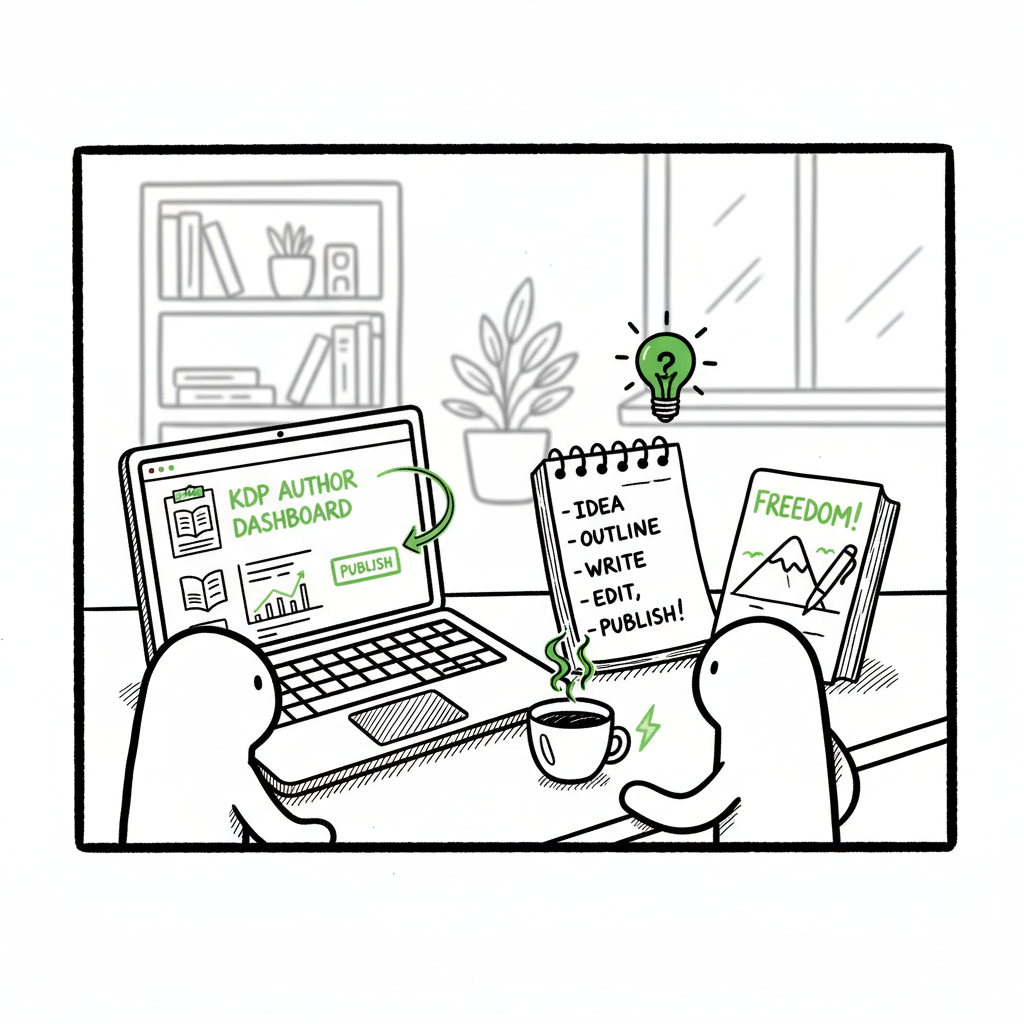
Beginner KDP Author Practical Guide to Your First Book
Beginner KDP Author: A Practical Guide to Your First Book
Estimated reading time: 18 minutes
Key takeaways
- Self-publishing on KDP is practical and fast when you follow a clear, repeatable process.
- Focus on manuscript readiness, accurate metadata, and a clean cover to avoid delays and errors.
- Once you publish multiple books, multi-platform automation (CSV batch uploads, platform-specific checks) saves time and cuts mistakes—an obvious upgrade for serious authors.
Table of Contents
- Why KDP is the right place to start
- A practical step-by-step process for the beginner KDP author
- Formatting, covers, and distribution details you can’t skip
- Scaling beyond one book: multi-platform automation
- FAQ
Why KDP is the right place to start
If you’re a beginner KDP author, Kindle Direct Publishing is one of the simplest, lowest-risk ways to get a book into readers’ hands. Amazon’s platform lets you publish eBooks, paperbacks, and hardcovers without upfront printing costs, and the interface is built for repeatable steps: account sign-up, metadata entry, manuscript upload, cover upload, pricing, and publish. For a first project, that simplicity matters—fewer moving parts means fewer avoidable errors.
KDP also gives fast feedback. eBooks often appear on Amazon within hours, and the platform shows clear rejection messages when there’s a problem. That loop helps you learn what KDP expects. It doesn’t replace careful preparation, but it means you can iterate quickly and improve future releases.
A practical advantage many beginners miss is treating KDP as the first node in wider distribution. You’ll want Amazon coverage, but you’ll often want your book available on Kobo, Apple Books, Draft2Digital, and via Ingram for physical distribution. That’s where scalable approaches—templates, batch uploads, and lightweight automation—pay off. If you’re planning to publish more than one title, think ahead about how you will copy metadata and files from book to book without redoing every field manually.
A practical starting point is summarized in the Amazon KDP for Authors guide.
A practical step-by-step process for the beginner KDP author
This section walks through the exact operational steps that get a first book live on KDP. Follow them in order and you will avoid the common pitfalls that slow new authors down.
- Prepare your account and files
- Create a free KDP account at kdp.amazon.com. Use the exact author name you want on the book; that name appears on the product page. Keep account details tidy: tax info, payment, and contact email should be correct before you begin uploading.
- Create a clean manuscript file. For eBooks this is typically a well-formatted Word document or an EPUB. For print, you’ll need a print-ready PDF sized to your chosen trim and with proper margins and bleed.
- Build a simple folder structure per book: Manuscript, Cover, Marketing (description, keywords), Assets (author photo, barcode if provided). This makes repeatable uploads easier.
- Get your metadata right before you upload
- Title, subtitle, author name, and description must match the manuscript where relevant (for example, the title page). Inaccurate metadata causes delays and can confuse readers.
- Spend some time on keywords and categories. Think like a reader: what phrases would someone search to find your book? Avoid stuffing keywords—choose 7-10 relevant terms and test different combinations over time.
- If you plan to release in series, finalize the series name and numbering now so Amazon can display it cleanly.
- Upload the manuscript and preview carefully
- For eBooks: upload your manuscript file and use Amazon’s online previewer to check layout, spacing, and chapter breaks. Don’t skip checking on mobile views—most readers use phones or tablets.
- For paperback: confirm trim size, paper color (cream or white), and bleed settings. Upload a print-ready PDF. Use the PDF preview to confirm pagination and margins.
- Keep a checklist of common formatting errors (extra page breaks, orphan lines, images set without alt text for eBook accessibility) and run through it each time.
- Choose or create the cover
- A professional cover matters more than price or page count. If you’re not hiring a designer, use a template-based approach and test how the thumbnail looks at 100×150 pixels—most buys happen from small images.
- If you need a quick, automated option for cover generation, consider tools built for batch processing and consistent sizing that produce print-ready files for both eBook and paperback. For automated cover processing, cover generator processing tools can help.
- Set pricing and rights
- Decide on KDP Select if you want Amazon-specific promotional tools and page-read royalties for eBooks; otherwise, wide distribution gives you more channels.
- Set territories appropriately; most authors choose worldwide rights unless there’s a specific reason not to.
- Choose pricing that covers royalties and matches similar titles in your niche. If you plan to publish many titles, create a pricing matrix to keep prices consistent by format and page count.
- Publish and monitor
- After you click Publish, the eBook often appears within a few hours; paperbacks can take a few days. Check the product page for errors or display issues.
- Keep a log for each book: ISBN or ASIN, final file names, price, and the date published. This record saves time for future updates.
A practical note on learning: save one release as your “template book.” Once you complete your first title, clone the folder and swap manuscript and cover files for the next book. You’ll reduce repetitive work and avoid field mismatch problems.
Early in your journey, it helps to read a concise guide designed for new publishers. If you want a direct walkthrough that covers account setup, the creation sequence, and dashboard basics, see our internal resource Amazon KDP for Authors which explains the platform steps in plain language and shows the UI direction for each format.
Formatting, covers, and distribution details you can’t skip
Formatting and cover decisions determine whether your first book looks professional and meets KDP’s technical checks. Treat them as core publishing tasks, not optional extras.
Manuscript formatting essentials
For eBooks: use a clean Word file (no strange fonts) or produce a validated EPUB. Keep chapters separated with consistent heading styles; avoid running headers and footers. A linked table of contents is essential for navigation in long reads.
For print: choose a trim size (6×9 is common for trade paperbacks). Set internal margins for binding (gutter) and convert images to 300 DPI for print quality. Export a print-ready PDF and proof it carefully on different devices when possible.
If converting to EPUB is new to you, use a reliable conversion tool that preserves chapter structure and images. A good EPUB generator reduces common errors that block publishing. For automated EPUB conversion, you can explore tools at EPUB converter.
Cover basics and where automation helps
For thumbnails, contrast and legibility are paramount. Use large, clear title type and a single focal image. Complicated designs become unreadable at small sizes.
For print covers, account for back cover text, barcode placement, and spine width (which depends on page count and paper type).
If you prefer automated processing for covers—especially useful when producing many books with consistent templates—look for batch cover generators that output both eBook and print-ready variants. For automated cover processing, see the cover generator processing tool.
Converting and validating files
Every platform has slight format preferences. While KDP accepts Word and EPUB for eBooks and PDF for print, converting once and checking in a validation tool or previewer is a good habit.
If you plan to distribute wide and need EPUB conversions for Apple Books and Kobo, use a dedicated EPUB converter that keeps layout clean and generates metadata embedded within the file. For automated EPUB conversion, see the EPUB converter.
Distribution and platform specifics
KDP is Amazon-first. If you want wide distribution (Apple, Kobo, Ingram), you will either use each platform manually or route distribution through an aggregator like Draft2Digital or IngramSpark for print.
Each platform has small differences in required metadata and cover specs. Maintaining a central CSV of your book’s metadata makes filling forms faster and more consistent.
For ISBNs: Amazon can provide a free ISBN for paperback distribution exclusive to Amazon, but if you want control across platforms and print-on-demand through multiple vendors, buy and assign your own ISBNs.
When you’re ready to automate parts of this process—cover processing, EPUB conversion, and generating both eBook and print-ready files—you will save hours per title. Book creation and processing tools can help keep everything consistent.
(If you need a reliable EPUB conversion tool for preparing electronic files, a dedicated EPUB converter can simplify the process and reduce rejections.)
(For cover generation and processing that works at scale, automated cover tools can create both thumbnail-safe and print-ready covers quickly.)
(When you need consistent book files for multiple formats—eBook and paperback—book creation and processing tools handle front matter, spine calculation, and export in one place.)
Note: The parenthetical sentences above include links to processing and conversion tools designed to help with cover generation and EPUB conversion while keeping files compliant for multiple platforms.
Scaling beyond one book: multi-platform automation
If you intend to publish once and stop, a manual approach works. If you’re serious about publishing consistently, scale becomes the primary operational challenge. You want to spend time writing and marketing, not repeatedly filling the same fields.
What scaling looks like in practice
- Batch metadata upload: A CSV with title, subtitle, author, description, keywords, categories, price, and file names lets you populate platform forms in minutes rather than hours.
- Platform-specific intelligence: Each service has rules for categories, keyword length, and cover dimensions. A good automation layer applies those rules as it prepares uploads so your files and data pass checks the first time.
- Error reduction: The single biggest time sink is fixing rejected uploads. Automating format checks and metadata validation prevents the most common rejections before you hit Publish.
Where BookUploadPro fits
- – BookUploadPro automates repetitive uploads across Amazon KDP, Kobo, Apple Books, Draft2Digital, and Ingram. It uses CSV batch uploads and platform-specific intelligence to reduce manual work by roughly 90% for active publishers.
- – The service validates manuscript and cover files, aligns metadata to each platform’s requirements, and surfaces precise, fixable error messages rather than generic rejections. That means fewer interruptions to your publishing calendar.
- – For authors ready to scale, BookUploadPro is an obvious upgrade once they start publishing seriously: Automate the upload. Own the distribution.
Operational checklist for scaling
- Standardize a project folder template. Include final filenames that match your CSV so automated systems can pick up the right files.
- Maintain a master CSV and update it whenever a field changes (price, series info, or author bio).
- Run an automated preflight check to confirm ePub validity, print PDF bleed/margins, and cover spine dimensions.
- Schedule releases and track publication windows—automation helps you coordinate multi-format releases so the eBook and paperback go live simultaneously across platforms.
Cost and testing
- Automation is an investment. Most authors recover the cost quickly once they republish multiple titles or run frequent updates and promotions.
- Use the free trial to test with one book and measure the time saved in uploads, error handling, and formatting fixes.
Final operational note: automation doesn’t remove editorial discipline. You still need clean manuscripts, accurate metadata, and good covers. Automation removes the repetitive, error-prone work and leaves the creative parts to you.
FAQ
What is the first step a beginner KDP author should take?
Start by finalizing a manuscript and creating a clean folder for your project. Then set up a KDP account and prepare metadata (title, subtitle, author name, description, keywords). Having files and metadata ready will make the upload step straightforward.
Do I need an ISBN to publish on KDP?
For eBooks, no ISBN is required. For paperbacks, KDP offers a free ISBN, but it is tied to Amazon. If you plan to sell the same paperback elsewhere, buy and use your own ISBN to retain full control.
Which file formats should I use for eBook and print?
For eBooks, a clean Word file or validated EPUB works well. For print, export a print-ready PDF sized to your chosen trim with correct bleed and margins.
How do I avoid common formatting issues?
Use consistent heading styles, avoid manual page breaks, keep images at 300 DPI for print, and validate EPUBs with a conversion tool. Preview every format on multiple devices before publishing.
Can I publish wide and still use KDP?
Yes. Many authors use KDP for Amazon and an aggregator like Draft2Digital or IngramSpark for other retailers. If you choose KDP Select, you agree to Amazon exclusivity for eBooks for the enrollment period.
When should I consider automating uploads?
If you plan to publish more than one title, or to release frequent updates and regional variations, automation saves time, avoids repetitive errors, and enforces consistency. Automation tools that accept CSVs and produce platform-specific uploads are the most efficient.
How do I ensure my cover looks good as a thumbnail?
Design with contrast and large title type, and test the image at small sizes. Avoid overly detailed images for the thumbnail; keep the focal point clear.
Sources
- Create a Book – Kindle Direct Publishing
- eBook Manuscript Formatting Guide – Kindle Direct Publishing
- Start publishing with KDP – Amazon.com
- KDP Jumpstart – Amazon.com
- Amazon KDP for Beginners: A Step-by-Step Guide to Self-Publishing (video)
- Amazon KDP: A Writer’s Guide to Kindle Direct Publishing – Reedsy
- A 101 Guide to Kindle Direct Publishing Basics: Insider Secrets
- How to Publish a Novel on Kindle A Beginner’s Guide
Final thoughts
Publishing your first book on KDP is a practical exercise in repeatable systems: clean manuscript, accurate metadata, correct formatting, and a clear cover. Those elements get a book live and reduce friction. When you start producing more than one title, shift your attention from single uploads to scalable processes—CSV-based metadata, preflight checks, and platform-aware exports. That’s when automation tools become essential and obvious.
Visit BookUploadPro.com to try a free trial and see how CSV batch uploads, platform-specific checks, and automated file processing can cut time and errors for serious authors.
Sources
- Create a Book – Kindle Direct Publishing
- eBook Manuscript Formatting Guide – Kindle Direct Publishing
- Start publishing with KDP – Amazon.com
- KDP Jumpstart – Amazon.com
- Amazon KDP for Beginners: A Step-by-Step Guide to Self-Publishing (video)
- Amazon KDP: A Writer’s Guide to Kindle Direct Publishing – Reedsy
- A 101 Guide to Kindle Direct Publishing Basics: Insider Secrets
- How to Publish a Novel on Kindle A Beginner’s Guide
Beginner KDP Author: A Practical Guide to Your First Book Estimated reading time: 18 minutes Key takeaways Self-publishing on KDP is practical and fast when you follow a clear, repeatable process. Focus on manuscript readiness, accurate metadata, and a clean cover to avoid delays and errors. Once you publish multiple books, multi-platform automation (CSV batch…