Beginner KDP Author Practical Guide to Your First Book
Beginner KDP Author: A Practical Guide to Your First Book and Beyond
Estimated reading time: 14 minutes
Key takeaways
- Start simple: a clear manuscript, a clean cover, and correct file formats get you published fast.
- Know the platform differences; Amazon KDP is one part of a wider multi-platform strategy.
- Automating uploads and batch work saves time and reduces errors once you publish more than a few books.
Table of Contents
- Quick start for the beginner kdp author
- Prepare files: formatting, covers, and file types
- Scale distribution: multi-platform publishing and automation
- FAQ
- Final thoughts
- Sources
Quick start for the beginner kdp author
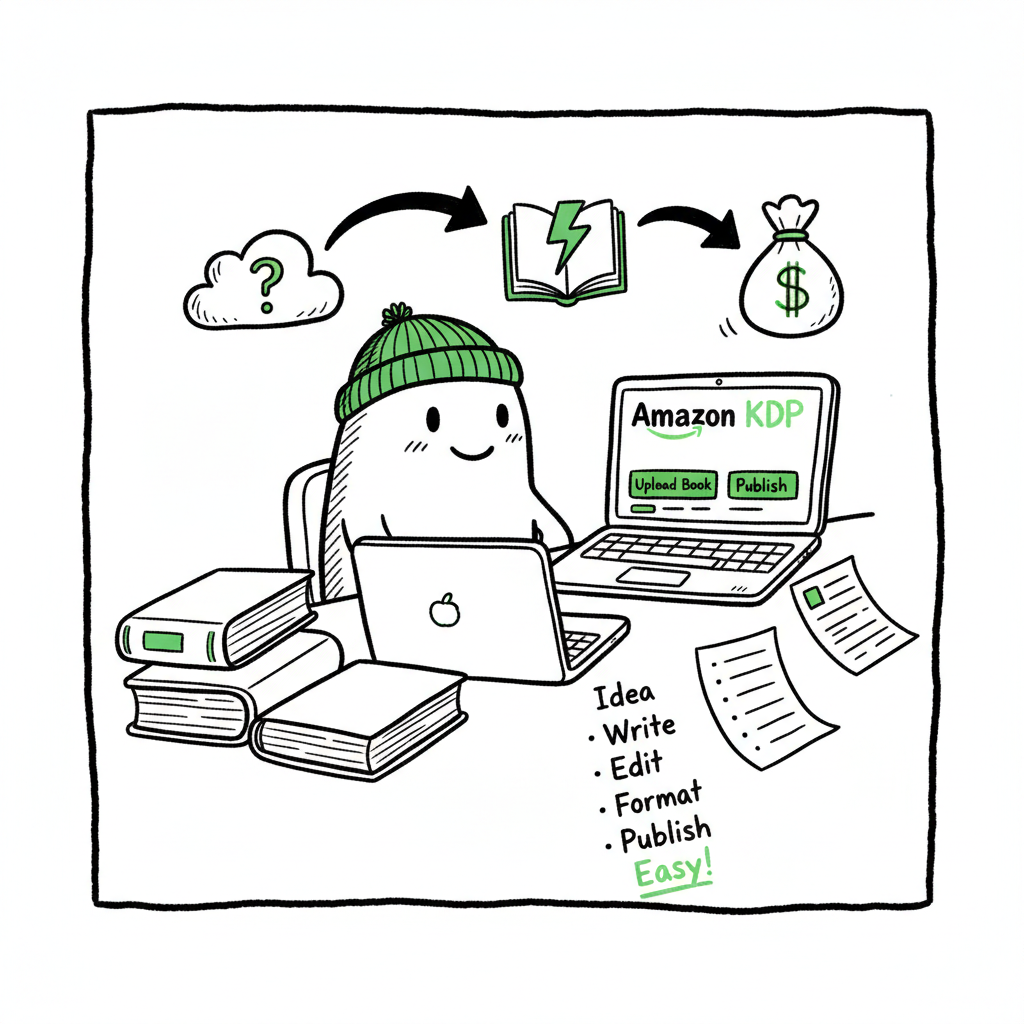
If you’re a beginner KDP author, the first book can feel like a mountain of small tasks. The core steps are straightforward: finish and proof your manuscript, make a cover, format files for ebook and paperback, set metadata and pricing, and publish. Those steps are the same whether you publish one book or a hundred, but the details matter.
Start with a realistic scope. A short, well-edited book with a clean cover and correct files outsells a longer book that looks amateurish. Your initial goal is to ship a professional product that readers enjoy, then learn from sales and feedback.
Account and setup
- Create your KDP account tied to your Amazon account. Fill in tax and payment details so you won’t hit delays when you publish.
- Choose whether to enroll in KDP Select (exclusive ebook distribution) or wide distribution for different platforms. Each has trade-offs; exclusivity helps Amazon marketing but limits reach.
Metadata matters
Your book’s title, subtitle, series name, book description, keywords, and categories are the discovery tools Amazon uses. Treat them like product copy. Use plain language, mention the promise of the book, and include reader-focused benefits. Don’t stuff keywords; make them readable.
A helpful internal guide on platform basics can speed setup and clarify KDP-specific fields. For a straightforward reference, see Amazon Kdp For Authors — it explains the interface and common questions you’ll encounter as a new publisher.
Proof and preview
Use the KDP previewer or the downloadable proof copy to check pagination, images, and margins. Spot-check physical proofs on different devices and order at least one paperback proof before finalizing. A loop of small fixes now prevents refunds and negative reviews later.
Prepare files: formatting, covers, and file types
Getting your files right is the technical work that separates “published” from “published well.” This section covers manuscript formatting, ebook conversion, covers, and paperback layout.
Manuscript formatting basics
- Use a clean source file: a well-structured Word DOCX or a proper typeset file.
- Keep a single font family for body text, use paragraph styles for headings and body, and avoid manual tabs.
- Set page size and margins to match the paperback trim size you choose. This affects page count and royalties.
- Include front matter (title page, copyright), and back matter (about the author, other books, calls to action). Use simple hyperlinks in ebooks and clear chapter breaks.
EPUB conversion
For ebooks, EPUB is the industry standard and what most stores accept. Converting a manuscript to a validated EPUB file will reduce rejections and display errors. If you want a reliable conversion process without manual trial-and-error, use a dedicated EPUB tool built for publishers — a proper converter makes the structure, metadata, and images EPUB-ready. EPUB converter
Cover design and production
A reader judges your book in seconds, and the cover is the first asset they see. Covers should be high-contrast, legible at thumbnail size, and true to genre. You can use a designer or a reliable cover generator that produces print-ready files. If you plan to scale production, a cover tool that outputs both ebook and print-ready covers reduces rework and speeds publishing. Book Cover Generator Processing
Paperback layout and PDFs
Paperbacks require interior PDFs with correct bleed, margins, and embedded fonts. Use a PDF that matches the chosen trim size and DPI for images. Confirm gutter and margin settings for page count—these affect ISBN and pricing. If you’re creating both ebook and paperback, generate separate files for each format; do not reuse the ebook file for print.
Images, DPI, and color space
- For print, images must be 300 DPI and converted to CMYK where required.
- For ebooks, RGB images at 72–150 DPI are acceptable, but higher quality helps on modern devices.
- Embed fonts in print PDFs to avoid substitution and layout shifts.
Creation workflow
If you’re producing multiple titles or variants (paperback, large print, translated editions), build a consistent workflow. Use templates for trim sizes, a naming standard for files, and a checklist for each upload. This reduces mistakes and speeds up batching.
One option for a unified book creation tool is BookAutoAI.
Scale distribution: multi-platform publishing and automation
After your first book, you’ll notice repetitive steps: metadata entry, uploads, cover assignment, pricing, and territory choices. That repetition is where manual publishing costs time and introduces errors. Scaling responsibly means standardizing file preparation and using tools that automate uploads.
Why multi-platform matters
Amazon is the biggest ebook retailer, but readers live across apps and stores. Wide distribution—Kobo, Apple Books, Draft2Digital, Ingram, and others—expands readers, library access, and long-term discoverability. Each platform has different file rules and metadata fields. Handling them manually multiplies the work.
Batch work and CSV uploads
When you publish several titles, a batch process becomes practical. A CSV-driven workflow lets you prepare rows of metadata and point to files for each platform. This approach supports mass updates, coordinated releases, and consistent metadata across stores.
Platform-specific intelligence
Automation that knows platform quirks saves time. For example:
- Some platforms require separate fields for subtitle and series; others combine them.
- File naming conventions vary, and image size limits differ between stores.
- Pricing and royalty rules are unique; automation can calculate local prices and royalty outcomes.
Why BookUploadPro helps
At scale, the obvious upgrade is a publishing automation service that handles repetitive uploads across platforms. BookUploadPro automates repetitive book uploads to Amazon KDP, Kobo, Apple Books, Draft2Digital, and Ingram. It uses CSV batch uploads, applies platform-specific intelligence, and flags errors before they become rejected submissions. Most authors report roughly 90% time savings when moving from manual uploads to an automated flow.
Practical benefits
- Fast, repeatable releases: upload dozens of titles with consistent metadata in a fraction of the time.
- Error reduction: the system checks common issues so fewer uploads get rejected.
- Wide distribution: one workflow pushes to multiple retailers without separate accounts for each step.
- Affordable pricing and a free trial make it low-risk to test automation.
What to expect when you automate
- One clean source of truth: your CSV + file repository.
- Reusable templates for series, imprints, or co-authors.
- A queue manager that tracks uploads, status, and reporting.
- Fewer manual clicks, fewer transcription errors, and predictable publishing windows.
FAQ
Q: How long does it take to publish my first book on KDP?
A: Once your manuscript and cover are ready and your account is set up, uploading and publishing can be done in a few hours. Final delivery to stores and review processes may add a day or two. If you order a paperback proof or need to fix formatting, factor in extra time.
Q: Which file formats do I need?
A: For ebooks, a validated EPUB or a properly formatted MOBI (less common now) is typical. For paperback, a print-ready PDF matching your trim size and embedded fonts is required. Keep clean DOCX source files to regenerate outputs as needed.
Q: Do I need an ISBN?
A: Amazon can assign a free ASIN/ISBN for KDP paperbacks, but using your own ISBN (purchase) gives you full control over the imprint and distribution. For wide distribution, an ISBN you own is often preferable.
Q: How do I choose keywords and categories?
A: Use reader-focused phrases and categories that match your book’s genre and audience. Look at comparable titles in your niche to see how they’re described. Choose categories that improve discoverability and reflect the intended reader.
Q: I want to publish on Apple Books, Kobo, and Ingram. Do I have to upload separately to each?
A: You can upload separately, use an aggregator like Draft2Digital, or use a multi-platform automation service that pushes files for you. Aggregators simplify the process but may limit some distribution options. Automation services that support CSV batch uploads and platform intelligence make multi-platform publishing practical at scale.
Q: Will automation handle covers and EPUB conversion?
A: Automation tools typically accept your files and push them to platforms. Some services include conversion or integrate with tools that generate covers and convert to EPUB. If you need automated cover generation, use a tool that outputs both ebook and print-ready covers to avoid manual rework. If EPUB conversion is part of your workflow, a dedicated converter ensures valid files before uploading.
Q: Can I create both paperback and ebook from the same workflow?
A: Yes. A consistent workflow produces separate files for ebook and paperback, and a publishing automation service can upload the correct file to each platform automatically. If you’re creating a new title from scratch, a unified book creation tool simplifies the step of generating both formats.
Q: Is automation necessary for a serious author?
A: While not strictly required, automation can dramatically reduce repetitive tasks, increase consistency, and expand reach when publishing multiple titles.
Q: How do I maintain control of my rights?
A: Automation doesn’t replace rights management. You still own your files, ISBNs, and account access. A good service just removes repetitive grunt work and makes wide distribution practical.
Q: Where can I learn more about automation tools?
A: Explore reputable publishing tools and platforms that support CSV uploads and platform-aware checks to reduce errors and speed up releases.
Final thoughts
Publishing on KDP is a learnable, repeatable process. As a beginner KDP author, focus first on a clean manuscript, a readable cover, and correct files. Learn the metadata and preview steps so your first readers see a professional product. When you’re ready to publish multiple titles, move toward a batch workflow and consider automation: the time savings, fewer errors, and wider reach will make publishing sustainable.
BookUploadPro automates uploads across Amazon KDP, Kobo, Apple Books, Draft2Digital, and Ingram, using CSV batch uploads and platform-aware checks to reduce repetitive work. For authors publishing seriously, it’s an obvious upgrade—speed up releases, reduce errors, and keep control of your files.
Visit BookUploadPro.com and try the free trial.
Sources
- KDP help topics and publishing guidelines
- EPUB specifications and ebook distribution best practices
- Practical publisher workflows and batch upload strategies
Beginner KDP Author: A Practical Guide to Your First Book and Beyond Estimated reading time: 14 minutes Key takeaways Start simple: a clear manuscript, a clean cover, and correct file formats get you published fast. Know the platform differences; Amazon KDP is one part of a wider multi-platform strategy. Automating uploads and batch work saves…