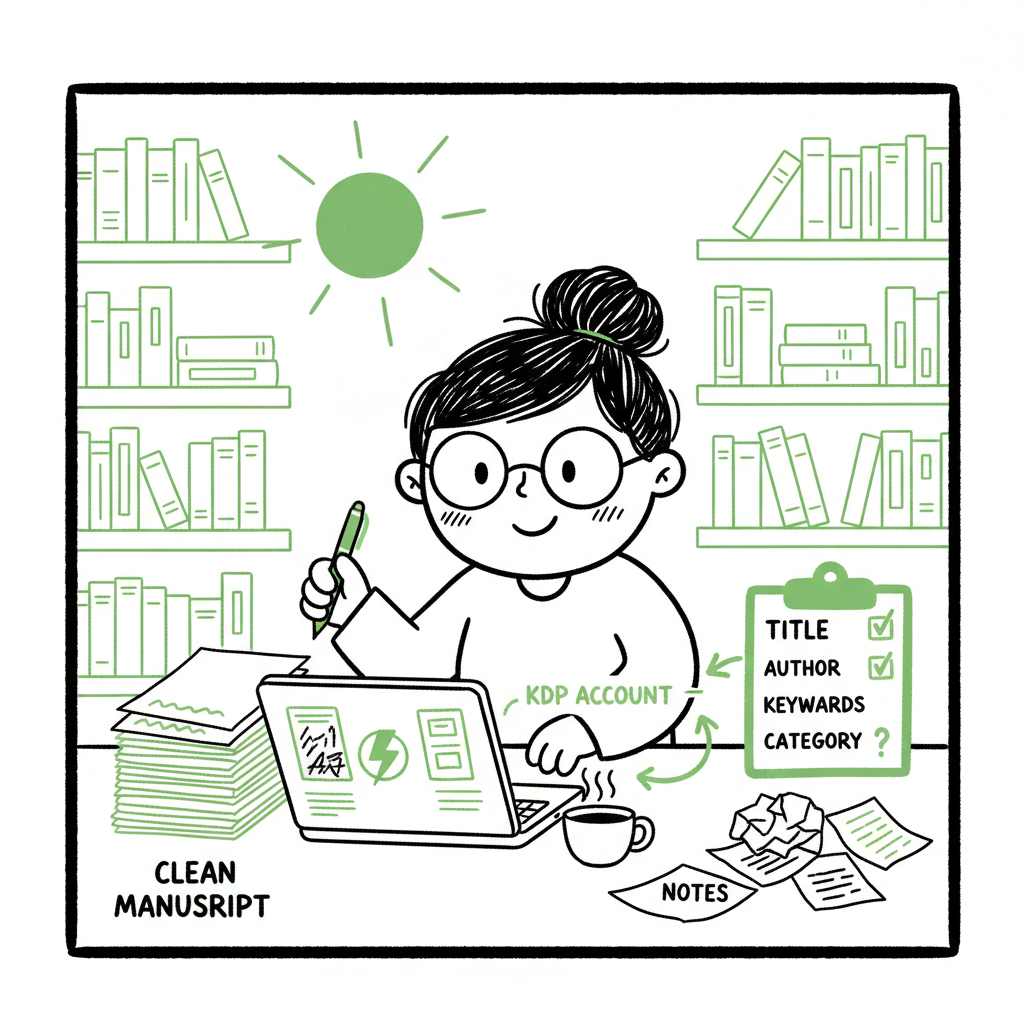
Beginner KDP Author Practical First-Book Roadmap Guide
Beginner KDP Author: A Practical First-Book Roadmap
Estimated reading time: 12 minutes
Key takeaways
- Start with the basics: set up your KDP account, prepare a clean manuscript, and build a compliant cover before you upload.
- Metadata—title, author, description, keywords, and categories—drives discoverability; take time to get these right.
- Use multi-platform automation once you publish more than one book: CSV batch uploads and platform‑specific checks save time and reduce errors.
Table of Contents
- What KDP does and how it fits your goals
- Prepare your manuscript, cover, and files
- Upload, metadata, preview, and publish
- FAQ
What KDP does and how it fits your goals
If you are a beginner KDP author, your immediate job is to turn a finished manuscript into a properly formatted product page on Amazon. KDP (Kindle Direct Publishing) is Amazon’s free self-publishing platform. It lets you publish ebooks, paperbacks, and hardcovers and makes them available across Amazon’s global marketplaces. For a first book, the KDP workflow is straightforward: create an account, prepare files that meet Amazon’s technical specs, add accurate metadata, upload and preview your files, then set your rights and pricing and publish.
Expect technical details. KDP enforces specific formatting rules: trim sizes, margin requirements for print, and clean digital formatting for ebooks. These rules prevent surprises like missing pages, badly wrapped text, or covers that don’t sit correctly on a product thumbnail. They also affect whether Amazon accepts your book quickly or flags it for review.
Beyond the technical, KDP is a marketplace. That means metadata matters: a clear title, a useful description, accurate categories, and the right keywords help readers find your book. Strategy for discoverability often comes after you complete the file work—but you should plan it before your first publish.
A reference guide like Amazon KDP for Authors provides a full walkthrough of every field in the “Create a Book” process.
The work you do here determines whether publishing is routine or frustrating. Focus on three elements: manuscript formatting, a compliant cover, and the correct file types.
Manuscript formatting: make it clean and consistent
- Start with one clean source file. For most authors that’s a Word document (.docx) or a properly built EPUB. Avoid sending multiple different versions to KDP.
- Use consistent paragraph styles, limit the number of fonts, and remove manual spacing hacks. Use page breaks for chapters rather than multiple hard returns.
- Set your page size early for print (for example, 6″ x 9″). That affects margins, gutters, and page count. KDP will calculate the final trim and requires specific bleed and margin settings for print interiors.
- If you produce an EPUB for the ebook, validate it and check that images, tables, and special characters render correctly.
If you need automated EPUB conversion or want to avoid manual formatting, there are dedicated tools that convert Word to a clean EPUB and flag common issues—using a conversion tool early saves hours of rework. For straightforward conversions and validation, a reliable EPUB converter removes a lot of friction.
Cover: make one that meets KDP rules and looks professional
- KDP requires exact cover dimensions for print and a simple rectangular image for ebooks. For print, the cover must include front, spine, and back combined at the correct DPI and include bleed if your design reaches the page edge.
- Even for a first book, invest in a good cover or use a quality cover generator that produces print-ready files. Poor covers lower click-through rates and make a book look amateur.
If you want automated help producing a compliant cover file, you can use a book cover generator that handles the math for spine width and bleed so the file is upload-ready.
File types and art
- Ebook: EPUB is the preferred format. If you upload a Word file, KDP will convert it, but a validated EPUB usually gives better results for layout and internal navigation. cover generator options can help ensure consistency.
- Paperback/Hardcover: a PDF for the interior and a PDF or JPEG for the full‑wrap cover (depending on how you create it) are typical. Make sure fonts are embedded and images are 300 DPI.
- Images: keep them high resolution and confirm color profiles. KDP will convert RGB to CMYK for print, which can change how colors look.
If you are creating both ebook and paperback, treat them as separate deliverables. You will generate an EPUB or MOBI for the ebook and a print-ready interior PDF plus a full-cover file for the paperback or hardcover.
Ebook: EPUB is the preferred format. If you upload a Word file, KDP will convert it, but a validated EPUB usually gives better results for layout and internal navigation. EPUB converter options can help ensure clean results.
Images and art: keep them high resolution and confirm color profiles. KDP will convert RGB to CMYK for print, which can change how colors look.
If you are creating both ebook and paperback, treat them as separate deliverables. You will generate an EPUB or MOBI for the ebook and a print-ready interior PDF plus a full-cover file for the paperback or hardcover. For streamlined workflows you can explore a book creation tool to manage formats at scale.
Upload, metadata, preview, and publish
This is the step where technical work meets the marketplace. KDP’s dashboard walks you through a sequence: book details, content upload, and pricing/rights. For a beginner KDP author, focus on entry accuracy and clean previews.
Account setup and required information
- Before you publish, complete your KDP account profile—payment, tax information, and author name must be set. Amazon won’t pay royalties without payment details, and withholding rules apply until tax info is correct.
- Pick an author name and maintain consistency between your metadata and the book’s interior. Mismatches can cause processing delays.
Book details and metadata
- Title and subtitle: clear and accurate. Avoid stuffing keywords into the title field. Use the subtitle for short clarifications if needed.
- Description: write a short, scannable description that explains what the book is about and who it’s for. Use short paragraphs and some bolding or italics in the KDP description editor if helpful.
- Keywords: KDP lets you enter a fixed number of keyword phrases. Think like a reader—phrases they would use to search, not internal genre jargon.
- Categories: choose two categories that match your book. You can request category changes later, but pick carefully at launch.
- BISAC codes: these are standard category codes used by retailers; pick the closest match.
Upload and preview
- Upload your ebook file (EPUB) and your cover image. For print books, upload the interior PDF and the full-cover file.
- Use KDP’s previewer for both ebook and print. The previewer is not perfect, but it catches most layout issues—misplaced page breaks, truncated images, and problems with the table of contents.
- When you preview a print book, flip through every page. Check margins, chapter starts, and page numbers. For the ebook, test how headings, drop caps, and images behave across devices.
A reference guide like Amazon KDP for Authors gives a full walkthrough of every field in the “Create a Book” process.
Rights, pricing, and distribution choices
- Rights: confirm you have the right to publish. If you own the content outright, select the standard options. If you use public-domain material or translations, read KDP’s rules carefully.
- Pricing and royalties: KDP offers different royalty rates depending on price and distribution. For ebooks, the 35% and 70% royalty bands depend on list price and delivery costs. Paperbacks use a formula that subtracts printing costs.
- Expanded distribution: KDP can distribute print copies to some retailers via Expanded Distribution; royalties change and availability varies.
- Select territories: you can choose worldwide rights or specific territories.
Preview everything again after you set the price. Price can change, but rounding and territory rules sometimes adjust how Amazon displays your book.
After publish: checks and patience
- Publishing is usually fast, but sometimes Amazon flags books for manual review. A flagged book can take longer to go live. Most problems relate to copyright, formatting, or metadata conflicts.
- Give it time. Once approved, check the product page for accuracy: descriptions, categories, images, and pricing across marketplaces.
Scaling beyond one book
- If this is your first title, you will probably repeat these steps. After two or three books, manual uploads become a bottleneck. That’s where platform automation and batch uploads make sense.
- A multi-platform publishing service automates repetitive uploads across Amazon KDP, Kobo, Apple Books, Draft2Digital, and Ingram. It uses CSV batch uploads and platform-specific intelligence to reduce errors and save time—up to roughly 90% on routine tasks—and makes wide distribution practical.
- Automating uploads is an obvious upgrade once you start publishing seriously: you provide the metadata and files once, and the system adapts and uploads where each retailer requires a different format or field.
Final thoughts and next steps
Publishing your first book through KDP is a mix of art and checklist. Get the technical pieces right—file types, cover dimensions, and clean formatting—and invest time in metadata that helps readers find your work. After your first title, consider the cost of continuing manual uploads. A multi-platform automation service brings practical benefits: unified distribution, CSV batch uploads, platform-specific intelligence, and substantial time savings. If you plan to publish more than one book, automation reduces repetitive work, lowers the chance of human error, and makes broad distribution practical.
Automate the upload. Own the distribution.
If you mentioned covers or conversions earlier and want tools to speed the technical steps, practical resources include a reliable book cover generator that produces print-ready covers, and an EPUB converter that validates files before upload. For help building print-ready interiors or publishing multiple formats at scale, look for services that combine conversion and distribution checks with affordable pricing and a free trial. book creation tool can streamline workflows.
Visit BookUploadPro.com to try the free trial.
FAQ
Q: Do I need an ISBN for Kindle ebooks?
A: No. KDP provides Amazon identifiers for ebooks. For print books, KDP can provide a free ISBN or you can use your own.
Q: What file type should I submit for the ebook?
A: EPUB is the preferred, modern ebook format. KDP accepts MOBI and Word documents, but a validated EPUB typically produces cleaner results.
Q: How do I make a spine for my paperback cover?
A: Spine size depends on page count and paper type. Use a cover generator or your layout tool to calculate the correct spine width, and export a full-wrap cover at the required bleed and DPI.
Q: Can I publish the same book on multiple platforms?
A: Yes. Amazon allows non-exclusive publishing for most works. Distribute widely to reach more readers, and use pricing or promotional choices to manage exclusivity if you enroll in Kindle Select.
Q: How do I change a mistake after publishing?
A: Update the file or metadata in KDP and republish. Changes usually take effect within 24–72 hours for most marketplaces. Some updates, like pricing and pages in print, can be immediate or slightly delayed.
Q: What about large-scale publishing?
A: When you start publishing multiple titles, look for automation that supports CSV batch uploads, platform-specific field mapping, and error reduction checks. A single upload process that outputs valid files for KDP, Kobo, Apple Books, Draft2Digital, and Ingram saves time and minimizes manual mistakes.
Sources
- https://kdp.amazon.com/help/topic/GHKDSCW2KQ3K4UU4
- https://kdp.amazon.com/help/topic/G202172740
- https://kdp.amazon.com/help/topic/G200645680
- https://www.publishing.com/blog/amazon-kdp-for-beginners
- https://reedsy.com/blog/guide/kdp/
- https://damyantiwrites.com/kindle-direct-publishing/
- https://www.youtube.com/watch?v=klnIsGHa2kQ
Beginner KDP Author: A Practical First-Book Roadmap Estimated reading time: 12 minutes Key takeaways Start with the basics: set up your KDP account, prepare a clean manuscript, and build a compliant cover before you upload. Metadata—title, author, description, keywords, and categories—drives discoverability; take time to get these right. Use multi-platform automation once you publish more…