Amazon KDP Banking Setup Problems – Causes and Fixes
amazon kdp banking setup problems
Estimated reading time: 14 minutes
Key takeaways
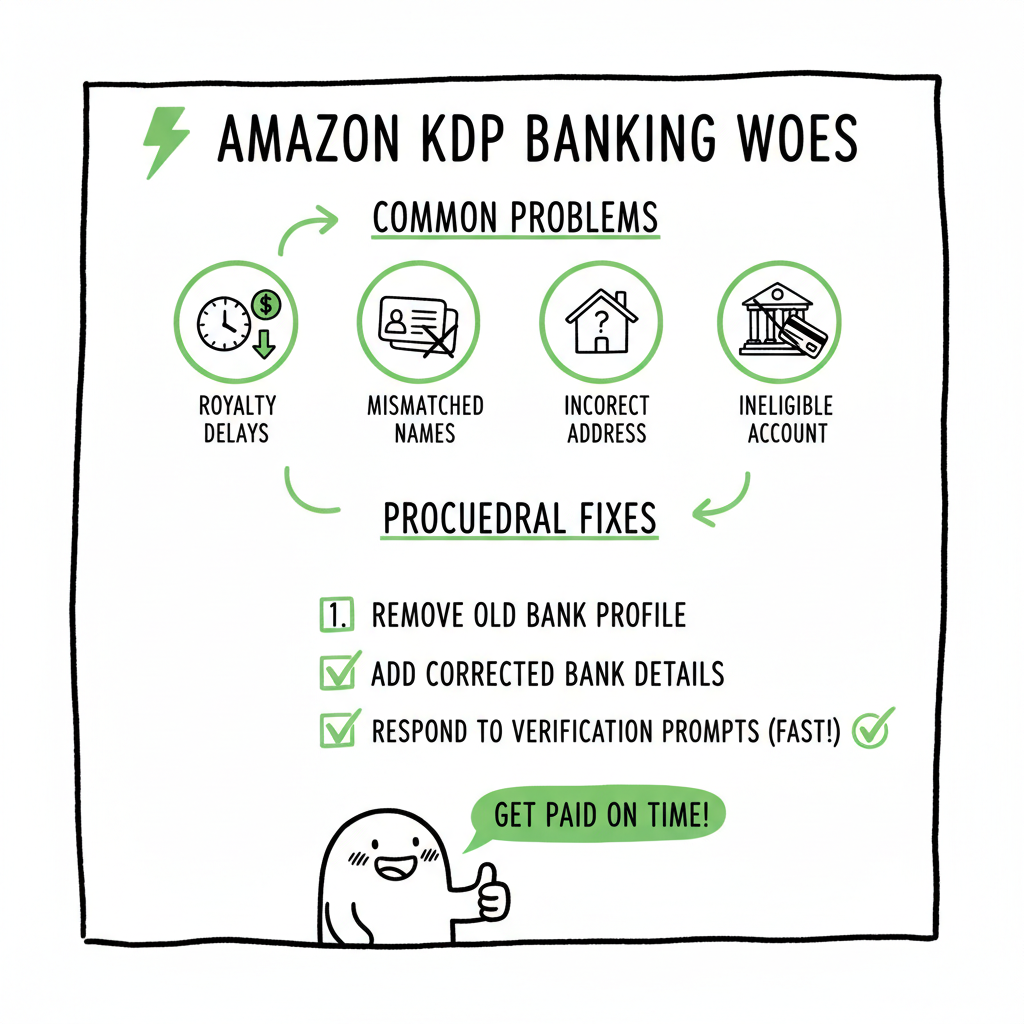
- Most royalty delays come from mismatched names, addresses, or ineligible payment accounts — double-check what your bank has on file.
- Fixes are usually procedural: remove the old bank profile in KDP, add corrected details, and be ready to wait for verification or respond to PSP requests.
- For authors publishing at scale, automation and platform-aware uploads remove repetitive tasks and reduce the chance of simple data errors that block payments.
Table of Contents
- Why KDP banking setup problems happen
- Fixing common KDP bank account errors
- Preventing future KDP payment setup issues
- When broader publishing automation helps
- FAQ
Why KDP banking setup problems happen
If you see the phrase amazon kdp banking setup problems on forums or help pages, it usually points to one of a few consistent causes: data mismatch, invalid or changing bank details, and Payment Service Provider (PSP) rules. KDP expects the bank account holder name and address to match exactly what the bank has on file. Small differences — a pen name instead of your legal name, adding “Mr.” or “Dr.,” or abbreviating an address — can trigger automatic rejections and block payouts.
KDP also enforces rules about what kinds of accounts can receive royalties. Accounts that are not deposit-taking banks — some fintech or virtual accounts — are frequently flagged as ineligible. If KDP decides an account is not a permitted PSP, the account will be blocked and royalties can be held until you switch to an eligible bank. Finally, verification can stall when the bank or PSP delays KYC or risk checks; KDP won’t release funds until verification completes.
This combination of strict data checks, evolving PSP policies, and multi-party verification is the root of most kdp bank account errors. The fix often isn’t a technical bug you can retry; it’s a procedural alignment between your bank’s records, the Getting Paid profile in KDP, and any PSP involved.
Practical note: if you publish on multiple stores and need to keep copies of payment info or tax docs, a repeatable workflow helps avoid mistakes. For authors who start publishing seriously, automation becomes an obvious upgrade. If you’re expanding wide distribution, consider reading about streamlined upload workflows like Self Publish Book Amazon KDP to see how consistent metadata and repeated processes reduce these errors. (Self Publish Book Amazon Kdp)
Fixing common KDP bank account errors
When KDP reports an error such as “Invalid bank information,” “Only accounts from deposit-taking banks are allowed,” or “Banking verification pending,” follow a simple, repeatable troubleshooting flow. These steps mirror KDP’s official guidance but add practical checks that save time.
- Stop and verify the three records that must match
- Bank records: Call your bank or check online to confirm the exact legal name on the account, the mailing address they have on file, and the full account routing details (IBAN, SWIFT, routing number).
- KDP account settings: Open KDP > Account Info > Getting Paid and view the bank profile you added. Compare letter-for-letter with the bank’s version.
- Tax/profile documents: If your payment depends on a tax form or identity verification, confirm those details match too.
- Why this matters: KDP’s systems perform automated checks. A tiny mismatch — a missing “Ltd.” or a different street suffix — is enough to reject the setup and trigger kdp banking verification delays.
- If details don’t match, remove and re-add the bank profile
- KDP does not allow direct editing of an existing bank profile for security reasons. If something is wrong, you must:
- Delete the incorrect bank account from Getting Paid.
- Prepare the exact data the bank has on file.
- Add a new bank profile with that exact information.
- After you re-add, KDP may take up to five business days to validate the account. If validation fails, KDP typically sends an email that asks you to re-check details or contact the bank.
- Practical tip: take a screenshot of the bank’s name and address page or a PDF statement that shows the registered account name. Use that as your source when you enter data into KDP.
- Watch out for PSP or fintech accounts
- If you used a fintech provider, digital wallet, or some virtual accounts, KDP may mark the account as ineligible. The message “Only accounts from deposit-taking banks are allowed” means KDP wants an account at a bank that accepts cash deposits or ATM deposits — basically a traditional bank.
-
If KDP rejects your PSP:
- Contact the PSP and confirm the account is classified as a deposit-taking bank and ask whether they are listed as a participating PSP with Amazon.
- If the PSP cannot confirm eligibility quickly, open a traditional bank account and add that to KDP. This is the fastest path to restoring payouts and unblocking publishing.
- If verification is stuck, coordinate three parties
- Your bank (internal processing or record correction)
- Your PSP (KYC or risk review)
- KDP (internal validation)
- If you see stalled status for kdp banking verification:
- Contact your bank to confirm they have no pending blocks or name/address inconsistencies.
- If you use a PSP, check their dashboard or support for pending KYC items.
- Use KDP’s help pages to confirm whether the issue is on Amazon’s side and to submit any requested documents.
- International accounts and IBAN issues
- International authors commonly face repeated attempts to add IBANs or SWIFT details that KDP’s validation flags. Differences in formatting or missing bank codes are typical. Your bank can provide the correct IBAN string and the precise account holder name format required for international transfers.
-
If you have repeated failures:
- Ask your bank for the exact format KDP will accept — some banks give a standard phrase or format for international payments.
- Consider opening a local-dollar account at a traditional bank if your PSP is repeatedly rejected.
- What to do if royalties are held
- If your royalties are held because of a banking issue, KDP will typically prevent new books from going live or block payouts for existing titles. The fastest recovery path is:
- Fix the bank profile as above.
- Respond promptly to any verification requests from your PSP or from KDP.
- If necessary, provide KDP with proof that the bank account is valid and that their name/address match bank records — a statement PDF or bank letter can help.
Preventing future KDP payment setup issues
Prevention is the most scalable strategy for authors who publish regularly. The fewer times you enter bank details manually, the less chance of a typo or mismatch. Here are practical, repeatable practices.
- Use the bank’s exact legal name and address
- When you open a bank account, request a document that clearly states the account holder name and address exactly as the bank will store it. Save that PDF or screenshot and use it as the authoritative source for KDP and tax records.
- Avoid using pen names in payment profiles
- Pen names are fine for book metadata, but KDP’s Getting Paid profile must use your legal name as it appears on the bank account. If you prefer to be paid to a business, set up a business bank account in that business’s legal name and ensure all registration documents match.
- Prefer deposit-taking banks for payments
- Fintech platforms are convenient, but KDP’s Payment Service Provider rules change. If you plan long-term publishing, prefer a traditional deposit-taking bank for your KDP payments. That reduces the chance of being flagged as ineligible and avoids repeated PSP rejections.
- Keep tax and identity documents up to date
- KDP may link payment verification with tax information. When you update your address or legal name, update those records with KDP promptly. Consistent tax information reduces the chance of holds.
- Build a repeatable onboarding checklist
- Create a short checklist you use every time you add a bank profile:
- Bank PDF with exact name and address? Yes/No
- IBAN/SWIFT/Routing number copied from bank doc? Yes/No
- KDP profile uses the same name format? Yes/No
- PSP confirmed as deposit-taking bank? Yes/No
- Create a short checklist you use every time you add a bank profile:
- Automate where reasonable
- Re-entering metadata and payment info manually invites errors. For multi-platform publishing — Amazon KDP, Kobo, Apple Books, Draft2Digital, Ingram — a unified upload process reduces repeated manual entry and the human errors that lead to banking setup problems. For example, consistent account naming and centralized metadata minimize mismatches that can cascade into payment rejections.
- If you also handle covers or format conversions at scale, build repeatable tasks. For manuscript conversion needs, using a reliable tool for EPUB conversion avoids formatting errors that can delay platform acceptance; see a recommended EPUB converter for a straightforward path. (convert to EPUB)
- If you need consistent cover files for multiple platforms, a dedicated cover generator speeds repeat uploads and keeps metadata aligned with file names and dimensions. (book cover generator)
- When you want to generate both paperback and ebook files from a single project, consider a set of tools designed for book creation to keep everything consistent across formats. (book creation tools)
When broader publishing automation helps
After you’ve published a few titles, the manual tasks multiply: entering bank info, adding metadata, uploading covers, converting to EPUB, and repeating similar steps for each store. At scale, these repetitive operations increase the chance of simple errors that block payments. That’s where a unified, automated approach becomes a practical upgrade.
What automation helps solve
- Consistent data: One source of truth for author name and address prevents mismatches.
- Batch uploads: CSV batch uploads reduce manual entry and the risk of typos in account names or tax fields.
- Platform-specific intelligence: Automation that understands each store’s rules prevents you from accidentally using an ineligible PSP or the wrong bank format.
- Time savings: For routine tasks, automation saves roughly 90% of the time compared with manual uploads.
- Error reduction: Fewer human keystrokes mean fewer typos, and built-in validation flags issues before they reach KDP.
How BookUploadPro fits (practical operator view)
BookUploadPro automates repetitive uploads across Amazon KDP, Kobo, Apple Books, Draft2Digital, and Ingram. It centralizes metadata, supports CSV batch uploads, and applies platform-specific checks so authors don’t repeatedly enter the same bank or tax info. For authors publishing multiple titles, this reduces the likelihood of kdp payment setup issues and helps maintain clean, consistent records.
It’s not a consultancy — it’s an operational upgrade. When you publish seriously, automation makes wide distribution practical. If errors come from mismatched names or ineligible PSP accounts, having a repeatable, validated upload routine is the fastest way to prevent those problems from happening again. Automate the upload. Own the distribution.
Practical scenario
Imagine you publish ten titles in a quarter. Manually entering bank data and metadata ten times multiplies the risk of a single mismatch. With a CSV batch upload and a central profile, you enter the bank and tax info once, validate it, and apply it to all titles. If the bank details need to change, you update one profile, revalidate, and the system propagates the correct values. That single-change model eliminates many common kdp bank account errors.
Cost and risk
Automation tools are affordable compared with the time lost troubleshooting a held payout or dealing with repeated KDP verification requests. They also reduce the need to contact support multiple times. For authors who want to focus on writing and production, the operational improvement is straightforward: less time spent on platform maintenance; more time on new titles.
Final thoughts
KDP banking setup problems are frustrating but predictable. Most come from mismatched details, unsupported PSP accounts, or stalled verification. The practical response is methodical: confirm what your bank has on file, delete and re-add the KDP bank profile with exact values, and switch to a deposit-taking bank if a PSP is repeatedly rejected. For authors who publish multiple books, the smartest move is to remove repetition and human error from the process — use batch uploads, single-source metadata, and platform-aware validation. Once you publish seriously, automation is an obvious upgrade.
FAQ
Q: What is the single most common cause of KDP payment setup issues?
A: The most common cause is a mismatch between the bank’s records and the data entered in KDP — name, address, or account numbers. Fixing those to match exactly resolves the majority of errors.
Q: Can I keep my pen name as the account holder for payments?
A: No. For getting paid, KDP requires the legal name that matches your bank account. Use a business bank account if you want payments under a company name.
Q: I use a fintech account and KDP rejected it. What should I do?
A: Check whether your fintech is classified as a deposit-taking bank. If KDP marks it ineligible, the quickest fix is to add a traditional bank account to your Getting Paid profile.
Q: KDP says verification pending. How long will that take?
A: KDP may take up to five business days to validate an account after you add it. If verification stalls longer, check with your bank and any PSP for pending KYC or documentation requests.
Q: Will automation tools prevent all banking problems?
A: Automation reduces human errors and enforces consistency, which prevents many problems. It can’t change banking or PSP policy, but it will stop the common mistakes that cause the majority of kdp bank account errors.
Sources
- Troubleshoot Payment Issues – Kindle Direct Publishing Help
- Payment Service Provider Program FAQ – Kindle Direct Publishing Help
- Add or update a bank account – Kindle Direct Publishing Help
- Troubleshooting common bank account errors – Kindle Direct Publishing Help
- I set up my bank account, but I haven’t received any payments – KDP Help
- Ongoing payment problems with KDP – KDP Community
- Bank account setup problem – KDP Community
amazon kdp banking setup problems Estimated reading time: 14 minutes Key takeaways Most royalty delays come from mismatched names, addresses, or ineligible payment accounts — double-check what your bank has on file. Fixes are usually procedural: remove the old bank profile in KDP, add corrected details, and be ready to wait for verification or respond…