KDP Author Dashboard explained for self-publishers
kdp author dashboard: what it does and how to use it efficiently
Estimated reading time: 12 minutes
Key takeaways
- The kdp author dashboard is your publishing control center: create, edit, price, and track every title from a single interface.
- Learn practical ways to navigate the Bookshelf, prepare files, and read reports so you can make fast, informed decisions.
- When publishing at scale, tools like BookUploadPro reduce repetitive work, cut errors, and free you to write more.
Table of Contents
- Overview: the kdp author dashboard in plain terms
- Navigate the KDP dashboard and manage your Bookshelf and files
- KDP reports overview: read numbers that matter
- How BookUploadPro helps with dashboard work
- FAQ
Overview: the kdp author dashboard in plain terms
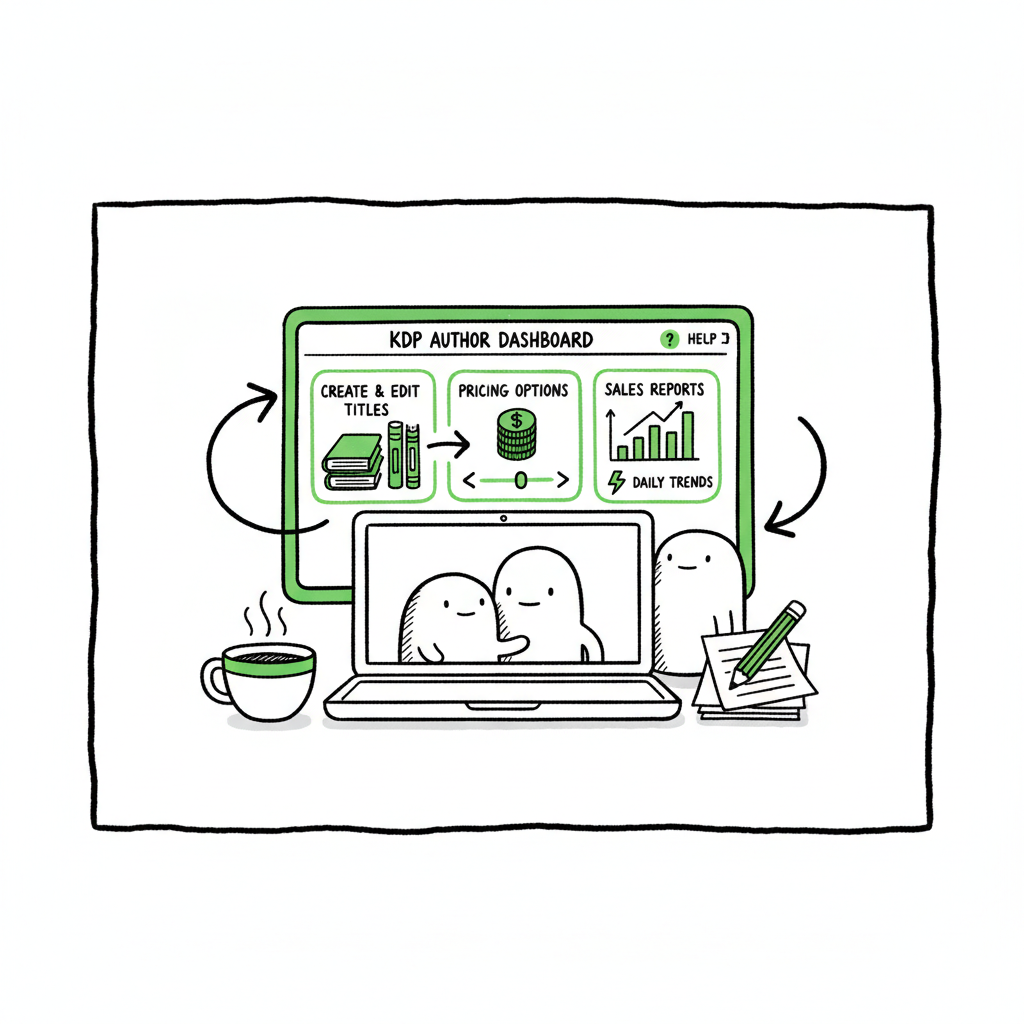
The kdp author dashboard is Amazon’s web control panel for self-publishers. It groups the work you do every day into a few clear areas: the Bookshelf for titles, the Reports area for sales and royalties, and additional tools for marketing and enrollment. If you publish one book or one hundred, this is where you go to change a price, fix a description, upload a new file, or check how a promotion performed.
If you want a focused walkthrough of the publishing steps on Amazon, see Amazon KDP for Authors — it explains the core screens and the order in which you usually work. The dashboard’s purpose is simple: put every setting and report you need in the same place so you can move from idea to published book without hunting through menus.
Why this matters for authors
- Centralized control: metadata, files, and pricing live in the same place.
- Iteration-friendly: you can edit descriptions, keywords, and pricing any time without republishing.
- Visibility: Reports show activity like sales, orders, and Kindle page reads so you can measure what’s working.
This article covers the main things you’ll do in the dashboard and how to do them without wasting time. It focuses on practical steps and common pitfalls so you can use the dashboard more efficiently.
Navigate the KDP dashboard and manage your Bookshelf and files
A quick layout of the interface
When you log into KDP you’ll land on a page that shows top-level options: Bookshelf, Reports, Community, and Marketing tools. The Bookshelf is the daily workspace. Each title appears in a list that shows status (draft, live), format (Kindle eBook, paperback), and basic actions.
How to navigate KDP dashboard screens
- Use the Bookshelf to find a specific title. Click the title or use the actions menu (the three dots) to edit.
- When you edit a title, KDP walks you through three main tabs: Details, Content, and Pricing. Do each in order and use the preview tools before you save changes.
- Keep a naming convention for drafts so you know which files belong to which edition or revision. For example: “My Book — 2nd proof — paperback.”
KDP Bookshelf management: practical habits that save time
- Keep one master source file for each edition (ebook, paperback). That avoids confusion when you upload new versions.
- Use consistent metadata templates. Store your title, subtitle, series metadata, and a short description in a single document so you can copy it into KDP quickly.
- Use the per-title actions to make quick updates: change price, enroll in KDP Select, order author copies, or update contributors.
Files and formats you’ll upload
- Manuscript files: For paperbacks you’ll typically upload a print-ready PDF. For ebooks you upload a properly formatted EPUB or a supported manuscript file that converts cleanly.
- Cover files: Paperbacks need a print-ready cover PDF that matches trim size and bleed. eBook covers use an image file with recommended pixel dimensions.
- If you need help converting files or creating standard outputs, you can use tools that automate these tasks. For EPUB conversion, there are dedicated converters that cleanly build a Kindle-ready EPUB from your manuscript; for example, use an EPUB conversion tool to avoid format errors and speed uploads.
Prepare files so uploads move quickly
- Run a clean check: margins, fonts embedded for print, and a table of contents that links correctly in ebooks.
- Hit the previewer: KDP’s ebook and paperback previewers catch many rendering problems before you publish.
- Keep versions labeled and dated so you can roll back if needed.
Automating repetitive steps and creating multiple formats
- If you publish multiple formats or many titles, manual uploads become time-consuming. Tools that build consistent EPUB files, generate print-ready covers, and batch-create metadata entries can reduce errors and free your time. When you mention generating a paperback or ebook, consider a tool that helps assemble all parts into a ready-to-upload package so you don’t repeat formatting work for each title. For assistance creating paperback and ebook packages, some services provide end-to-end file assembly and formatting that plug directly into your workflow.
Covers and assets
- A strong cover matters. If you’re designing or generating covers at scale, you can use a cover generator service that batch-creates artwork and sizes it to KDP specifications. That keeps your catalog visually consistent while saving manual resizing and export work.
Publishing checklist before you hit Publish
- Details tab: confirm title, subtitle, series info, and author/contributor names.
- Content tab: upload manuscript and cover; run the previewer for each format.
- Pricing tab: set price, decide territories, and choose royalty options.
- Optional: enroll in KDP Select if you want Kindle Unlimited exposure (note the exclusivity rules).
Anchor practices for fast recoveries
- Keep a short log of every change: date, what you changed, and why. This is helpful when you test pricing or run a promotion.
- Use consistent folder structures on your computer: /book-title/ebook/, /book-title/print/, /book-title/assets/.
(a note on file tools)
If you need reliable EPUB conversion, there are converters designed specifically for publishing workflows that remove guesswork and produce cleaner outputs than a casual export. A dedicated EPUB converter reduces formatting errors and can save hours per title.
KDP reports overview: read numbers that matter
What the Reports area shows
The reports section gives you a snapshot of estimated royalties, orders, and KENP (Kindle Edition Normalized Pages) reads. It’s not perfect to the cent, but it’s enough to spot trends and measure the effect of changes like pricing or a new cover.
Key report types and when to use them
- Sales dashboard (summary): daily totals and quick filters. Use this for a morning check to see whether a promotion moved the needle.
- Royalties reports: look here for payout estimates and breakdowns by marketplace.
- KENP and Kindle promotion metrics: if you use Kindle Unlimited or free promotions, this is where you watch page reads and enrollments.
- Historical reports: long‑range trends help you decide whether a title needs a refresh or more marketing.
How to interpret basic signals
- A bump in sales that’s isolated to one market likely points to a marketplace-specific promotion or a coverage change. Investigate where sales came from before assuming it’s a permanent shift.
- Slow, steady declines often signal discoverability issues: metadata, categories, or a tired cover.
- High KENP reads with low units sold can still be a good sign if page reads convert into higher royalties through Kindle Unlimited.
Simple experiments that give useful data
- Price test: change price for a week and compare daily sales and revenue to the same weekday range prior.
- Description test: try a stronger opening line and measure sessions-to-sales if you can get session data through Amazon Advertising.
- Cover test: swap the cover for a short period to see if conversion improves. Make only one variable change at a time so you know what caused the result.
Exporting reports and keeping records
Export CSVs for bookkeeping and to feed into spreadsheets. If you manage many titles, consolidate sales and royalties into a single dashboard so you can spot patterns across the whole catalog.
Turn data into actions
- If a title sells well, consider widening distribution or creating a follow-up.
- If a title underperforms, test metadata changes, tweak pricing, or refresh the cover.
- Use short experiments and log their start and end dates to build an evidence base for decisions.
How BookUploadPro helps with dashboard work
When authors publish seriously—multiple books, versions, or frequent updates—the dashboard work becomes operational. BookUploadPro automates repetitive uploads and setups so you don’t have to repeat the same manual steps for each title.
What BookUploadPro stands for in practical terms
- Unified multi-platform publishing: one workflow to upload to Amazon KDP, Kobo, Apple Books, Draft2Digital, and Ingram.
- CSV batch uploads: update metadata or push many titles at once without clicking through every Bookshelf row.
- Platform-specific intelligence: the service tunes fields for each store so you don’t have to learn every portal’s quirks.
- Error reduction: fewer rejections and preview issues because files are prepared to platform standards.
- Time savings: authors report roughly 90% time saved on bulk publishing tasks.
Typical operational uses
- A series rollout: create and publish multiple linked titles with consistent metadata, series settings, and pricing.
- Wide distribution: publish the same files and metadata to multiple stores with one push.
- Catalog maintenance: update pricing, descriptions, or covers across many titles quickly.
Why this matters
For authors who value control but dislike repetitive work, BookUploadPro feels like an obvious upgrade once publishing volume grows. It’s not a replacement for your decisions—authors keep final say—but it handles the mechanical parts of getting those decisions into the stores.
Security and control
BookUploadPro works as a publishing tool, not a consultancy. You keep ownership and final approval over account changes; the service focuses on assembling and delivering ready-to-upload packages and making mass updates reliable.
A calm close on automation
Automate the upload. Own the distribution. If you want to stop repeating the same dashboard tasks and instead focus on writing and marketing, tools like BookUploadPro make that change practical and affordable. The predictable cost trades time and error risk for repeatable, fast execution.
FAQ
Q: What exactly is the Bookshelf in the KDP dashboard?
A: The Bookshelf is where your titles live. It lists drafts and published books, and it’s where you click a title to edit details, content, or pricing. Use the actions menu to access quick operations like ordering author copies or enrolling in KDP Select.
Q: How often can I change pricing or metadata?
A: You can change pricing and most metadata at any time. Price changes usually take effect within 24–48 hours. Metadata edits are generally immediate in the dashboard but may take time to propagate across Amazon storefronts.
Q: Do I need separate files for paperback and ebook?
A: Yes. Paperbacks require print-ready PDFs that match dimensions and include bleed where needed. eBooks typically use EPUB files or manuscript files that convert to EPUB. Converting properly avoids rendering issues on devices.
Q: Can I publish the same book to multiple stores from the KDP dashboard?
A: KDP only publishes to Amazon. For wide distribution—Apple Books, Kobo, Ingram, and others—you’ll either use each platform’s dashboard or a multi-platform service that automates the work and adapts files per store.
Q: What are the most common mistakes authors make in the dashboard?
A: Common issues include uploading the wrong cover size for print, not checking the ebook previewer, mismatched metadata across formats, and forgetting geographic rights or royalty selections. A final checklist before publishing prevents most of these.
Final thoughts
If you publish infrequently, the KDP author dashboard is easy to learn and fine for occasional edits. When you publish many titles, however, the work scales: repeated uploads, file prep, metadata cleanup, and multi-store distribution become time sinks. That’s where tooling and batch workflows are worth the investment—BookUploadPro is designed to be that operational upgrade, cutting manual work while keeping the author in control.
Visit BookUploadPro.com and try the free trial to test batch uploads and file preparation without commitment.
Sources
- https://help.selfpublishing.com/en/5-things-to-know-about-your-kindle-direct-publishing-kdp-dashboard
- https://rubenstomdesign.com/blogs/news/getting-started-with-self-publishing-a-comprehensive-guide-to-kindle-direct-publishing-kdp
- https://kdp.amazon.com/help/topic/GX7EGDFGS9CZCA2F
- https://kdp.amazon.com/help/topic/GVTTXHKHVPAPBEDQ
- https://kdp.amazon.com
- https://www.writtenwordmedia.com/what-is-kdp-amazon-kindle-direct-publishing-explained/
- https://reedsy.com/blog/guide/kdp/how-to-publish-a-book-on-amazon/
- https://www.youtube.com/watch?v=N7d8Dci_KVs
kdp author dashboard: what it does and how to use it efficiently Estimated reading time: 12 minutes Key takeaways The kdp author dashboard is your publishing control center: create, edit, price, and track every title from a single interface. Learn practical ways to navigate the Bookshelf, prepare files, and read reports so you can make…