Beginner KDP Author Practical Guide for First Book
Beginner KDP Author: A Practical Guide for Your First Book
Estimated reading time: 16 minutes
Key takeaways
- Start with a clean KDP account and finish tax and payment setup before creating your title.
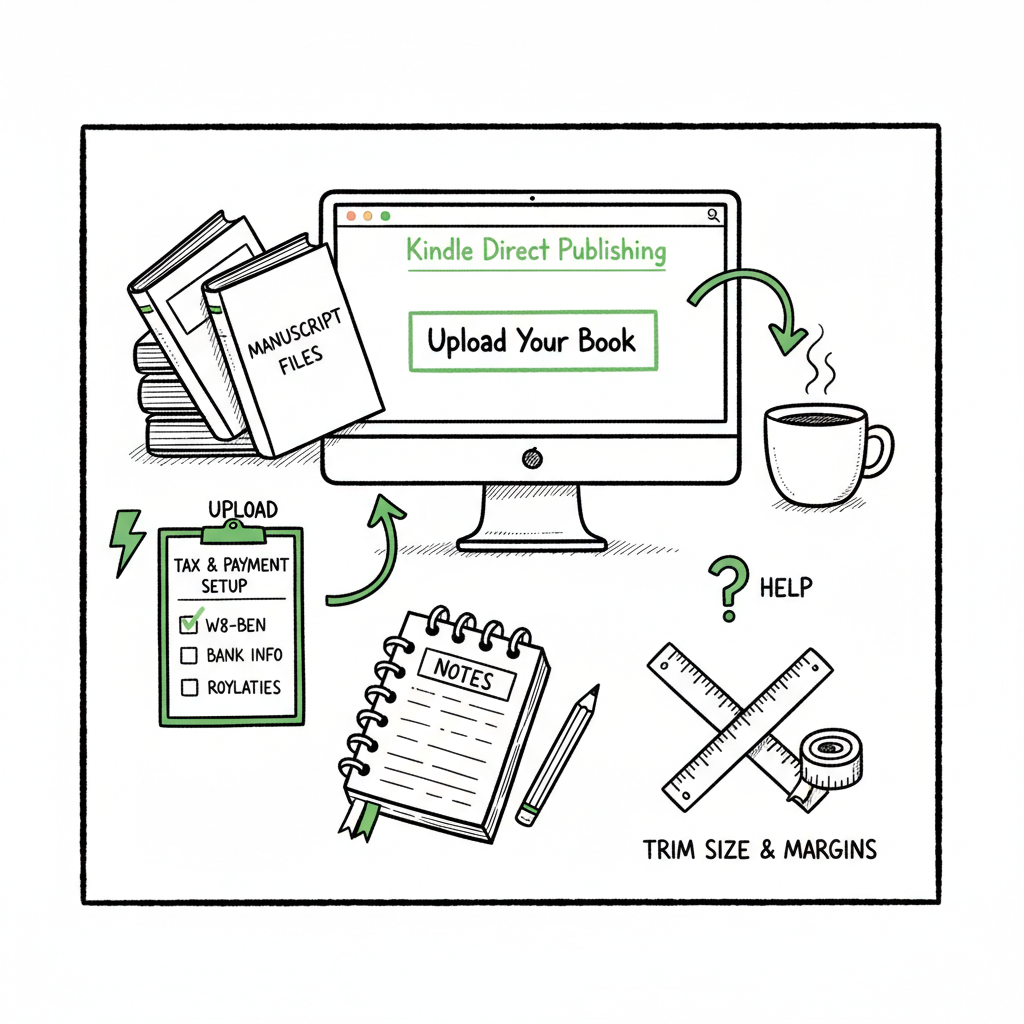
- Get the manuscript and files right up front: trim size, margins, table of contents, and cover must match the metadata.
- Preview carefully, choose rights and pricing with a plan, and use automation to publish wide without repeating work.
Table of Contents
What a beginner kdp author needs to know
If you are a beginner kdp author, your goal should be to remove surprises. Publishing on KDP is free and straightforward when you follow a predictable sequence: account setup, prepare files, enter title details, upload and preview, then set rights and pricing. Doing those steps in the right order reduces rework and avoids rejected uploads.
Before you click “Create,” read the KDP guidance and consider a practical walkthrough. If you want a focused walkthrough for publishing on Amazon, see Amazon KDP for Authors for a deeper step-by-step presentation. That kind of short, reliable guide helps you avoid the most common first-time errors and keeps your first title moving forward.
For many writers, the technical parts—file formatting, cover sizing, and metadata accuracy—are the hardest. Once you understand the KDP workflow and the key file requirements, publishing a book becomes a repeatable process. The rest of this article breaks that process into clear, usable steps and shows how to scale to multiple stores when you are ready.
Account setup and the KDP Jumpstart
Start by finishing every part of your KDP account setup before creating a title. That includes verifying your profile, entering payment details, and completing tax information. If payments or tax details are missing, royalties can be delayed and your account can run into blocks later. Doing this once up front saves time and stress.
KDP’s own Jumpstart and help pages walk new authors through what to enter on the Bookshelf screens: book details, manuscript and cover upload, and rights and pricing. Spend time on the book details step. Title, subtitle, author name, and ISBN (if you use one) must match what’s inside your manuscript and on the cover. Small mismatches—an extra space, a different punctuation mark—can create problems tying editions together.
- Confirm your display author name and what appears on the manuscript.
- Decide whether you’ll use a free Amazon ISBN or provide your own.
- Prepare a short, clear description and a few focused keywords.
- Think about categories and whether you’ll enroll in KDP Select (exclusivity rules apply).
These are simple choices, but they affect discoverability and what you can change later. Treat the first upload like a single source of truth you can update deliberately, rather than a rush to go live.
Preparing your manuscript, cover, and files
Formatting the manuscript is where many first-time authors lose time. For paperbacks, KDP enforces trim sizes, margins, and gutter settings. For ebooks, consistent styles, a clean table of contents, and simple formatting are key. If the file fails checks, the upload stops. Spend time here and you avoid repeat fixes.
Manuscript basics
- Use styles for headings, body text, and chapter starts. That gives you a reliable table of contents and a clean ebook conversion.
- Pick the right trim size for print and set margins and gutter to match expected page count. KDP’s formatting guide shows the math; if you supply a PDF for print, ensure fonts are embedded.
- Test the ebook on multiple devices or use the KDP previewer. Look for orphaned lines, messed up lists, or images that don’t scale.
Cover and visual assets
A good cover does more than look professional. It needs to meet KDP’s size and bleed rules. If you are creating a cover yourself, use a template that matches the chosen trim size and page count so the spine width is correct.
If you want help generating or processing a cover, consider a cover generator that produces correctly sized files automatically. A cover generator can prevent common layout mistakes and speed the process when you publish multiple books.
EPUB and ebook conversion
Ebooks must be converted into a clean EPUB or MOBI file. Poor conversion creates display problems and bad reader experiences. If you need reliable conversion, a dedicated EPUB conversion tool will transform manuscripts into validated EPUBs that pass platform checks. That reduces rejections and lets you focus on content rather than file quirks.
Creating both paperback and ebook formats
If you plan to offer both paperback and ebook, prepare files for each format from the start. Many authors make a single source document and export separate files—PDF for print, EPUB for ebook. If you’re building a workflow for many books, consider tools that generate both formats automatically so each edition matches your metadata and design.
Small but important details
- The title and author in your manuscript must match the metadata you enter on KDP.
- Remove live links that point to Amazon product pages inside the manuscript; they can interfere with KDP checks.
- Keep images at a high enough resolution for print (usually 300 dpi) and use RGB or CMYK as required for the chosen export format.
Upload, preview, rights, pricing, and launch
The KDP upload flow is three main stages: book details, upload and preview, and rights & pricing. Follow that order and the platform’s checks guide you through what to correct.
Upload and preview
- Upload the manuscript and cover files in the formats recommended by KDP.
- Use the online previewer to check both the ebook and print layouts. For print, page breaks, margins, and the spine need visual confirmation.
- If the previewer shows warnings, handle them before you publish. It is faster to fix a single validated source file than to make incremental edits after launch.
Rights and pricing
- Decide where you hold distribution rights—worldwide or select territories. That choice affects which markets your book appears in.
- Choose a royalty plan for ebooks and set list price for each market. Understand the royalty thresholds and delivery cost rules for each format.
- If you enroll in KDP Select, you gain promotional tools but trade away wide distribution for that title. Consider the trade-offs carefully.
Final checks before publishing
- Reconfirm that metadata in KDP matches the manuscript cover exactly.
- Consider a short soft launch or a limited release to check sales reporting and delivery.
- Keep a record of your ISBNs, file versions, and launch dates so you can manage revisions without confusion.
Launch is not the end; once live you can update pricing and some metadata. However, edits can take time to propagate across marketplaces, and certain fields become more difficult to change after publication. Treat the first public release as the version you plan to keep for a while.
Scaling with multi-platform automation
If you’re publishing more than one title, manual uploads become a bottleneck fast. That’s where multi-platform automation pays off. BookUploadPro automates repetitive uploads across Amazon KDP, Kobo, Apple Books, Draft2Digital, and Ingram, giving you consistent results and major time savings.
Why automation matters
- Repetition: The same metadata, files, and settings must be entered on multiple platforms. Automation removes manual repetition.
- Platform specifics: Each store has different file requirements and UI quirks. Platform-specific intelligence handles those differences so your files are accepted.
- Batch work: CSV batch uploads let you publish many titles at once, which is the only practical way to scale without errors.
What automation should do for you
- Validate and format files for each store to reduce rejections.
- Map metadata once and reuse it across platforms, while respecting store-specific limits and field names.
- Produce platform-specific artifacts: EPUBs that pass each store’s checks, covers sized correctly for each print-on-demand service, and pricing mapped to local markets.
The benefits are practical: about 90% time savings on the repetitive parts of publishing, much fewer upload errors, and the freedom to distribute wide without doubling your administrative work. That makes wide distribution practical instead of just aspirational. For authors getting serious about publishing multiple books, automation is an obvious upgrade.
How to get started with automation
- Start by documenting a single title’s full workflow: manuscript source, export steps, cover sizing, metadata, and marketplace settings.
- Pick one tool that supports the stores you use. Ensure it can handle CSV batch uploads and has logic for platform differences.
- Run a single test upload, then one small batch. Check each store’s listing, preview, and delivery reports.
BookUploadPro highlights
BookUploadPro unifies multi-platform publishing, reduces errors with platform-specific intelligence, and supports CSV batch uploads to speed bulk publishing. It’s positioned for authors who reach a publishing cadence where manual uploads slow them down. Affordable pricing and a free trial let authors test the system with a small batch before committing. Automate the upload. Own the distribution.
Final thoughts
When you publish your first book, think small and accurate: finish account setup, make the files correct, and follow KDP’s upload workflow. When you publish more than a couple of titles, plan to automate the repetitive parts so distribution is reliable and efficient. The technical details—formatting, cover sizing, and metadata matching—are where most delays happen. Solve those first, and every future title will publish faster.
For more practical publishing steps, see Amazon KDP for Authors.
Frequently asked questions
Q: What is the most common mistake for a beginner KDP author?
A: The top mistake is mismatched metadata—differences between the manuscript, cover, and the book details entered on KDP. That mismatch can stop uploads or complicate edition linking.
Q: Do I need an ISBN to publish on KDP?
A: KDP can provide a free ISBN for paperbacks. You may prefer to use your own ISBN if you want full control over publisher metadata. For ebooks, an ISBN is not required by KDP; stores usually use their own identifiers.
Q: How do I handle the cover for paperback and ebook?
A: Create separate files sized for each format. For print, use the trim-size template and correct spine width. For ebooks, use a front cover file saved at the recommended pixel dimensions. If you need assistance, a cover generator will produce correctly sized files and avoid layout mistakes.
Q: Should I publish exclusively with KDP Select?
A: KDP Select gives promotional tools but requires digital exclusivity for the enrolled ebook. If you want wide distribution across multiple retailers, do not enroll that title in Select.
Q: What file format should I submit for ebooks?
A: Submit a validated EPUB or a KDP-supported file that converts cleanly to Kindle format. Clean styles and a proper table of contents reduce conversion issues.
Q: How can I publish to other stores without doing everything manually?
A: Use a multi-platform uploader with CSV batch support and platform-specific intelligence. Automation reduces repetitive work, saves time, and lowers the chance of human error.
Sources
- Create a Book – KDP help (workflow, details, upload, pricing)
- KDP Jumpstart – best practices for new authors
- Start publishing with KDP
- eBook Manuscript Formatting Guide – KDP
- Amazon KDP for Beginners: Comprehensive Starter Guide (independent blog)
- A 101 Guide to Kindle Direct Publishing Basics
- The Complete Amazon KDP Tutorial for Beginners (2025)
Beginner KDP Author: A Practical Guide for Your First Book Estimated reading time: 16 minutes Key takeaways Start with a clean KDP account and finish tax and payment setup before creating your title. Get the manuscript and files right up front: trim size, margins, table of contents, and cover must match the metadata. Preview carefully,…