KDP Author Dashboard Guide for Self-Publishing Authors
KDP Author Dashboard: A Practical Guide for Self-Publishing Authors
Estimated reading time: 7 minutes
Key takeaways
- The KDP Author Dashboard is the control center for your Kindle books: manage books, check reports, and run promotions.
- Use the Bookshelf to edit listings, handle pre-orders, and enroll in programs; use Reports to track royalties and KENP reads.
- When you publish at scale, automation and platform-aware uploads cut errors and save time — BookUploadPro makes multi-platform distribution practical.
- Basic formatting and assets (EPUB, covers, paperback files) are routine; tools exist to convert and prepare these quickly.
- Start simple: organize titles, monitor performance weekly, and automate repeatable uploads once you publish more than a few books.
Table of Contents
- Overview of the KDP Author Dashboard
- Manage books and track performance
- Marketing, distribution, and promotions
- Scale multi-platform publishing with automation
- Frequently asked questions
Overview of the KDP Author Dashboard
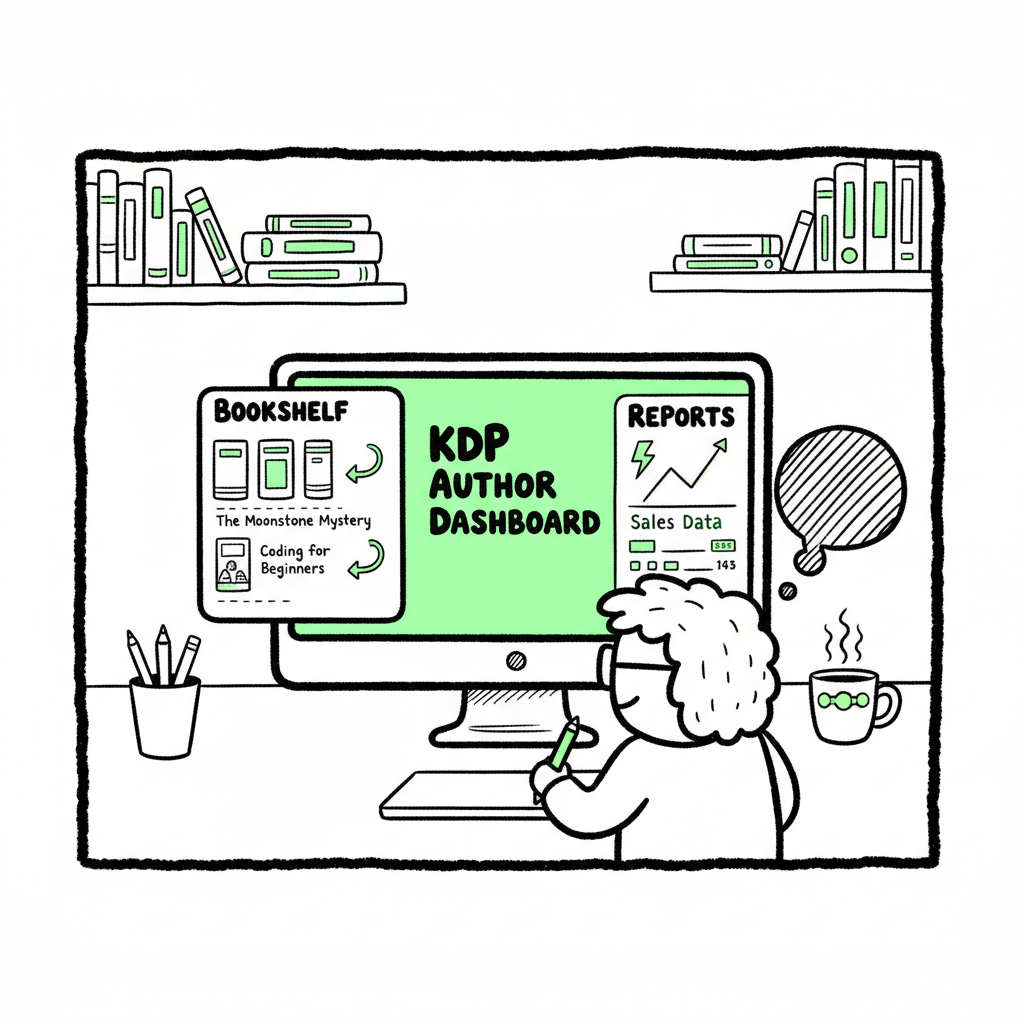
The kdp author dashboard is where every Kindle Direct Publishing author lands to control titles. Log in at kdp.amazon.com and you’ll find the Bookshelf, Reports, Marketing tools, and community resources laid out for quick access. The dashboard is deliberately simple: Bookshelf lists your live books and drafts, Reports shows sales and royalty snapshots, and Marketing links to tools like Author Central and ad management.
If you’re getting started, a good next read is our Amazon KDP for Authors guide, which walks through the interface with practical tips for first uploads and common pitfalls. The dashboard’s design is focused on tasks you do repeatedly: upload files, set prices, check delivery and sales details, and run promotions. Learn the few clicks that change a book’s status from draft to live, and you’ll reduce the friction that slows most new authors.
Why this matters: The dashboard is both the publishing interface and the basic reporting system. For one-off books you can work entirely inside KDP. For authors who publish multiple titles or need wide distribution, the dashboard is the place to monitor performance and spot issues, but it’s not built for batch uploads. That’s where automation tools become an obvious upgrade.
Manage books and track performance
Bookshelf basics
The Bookshelf is your operations screen. Each title shows status (live, draft, in review, or pre-order), the formats offered (ebook, paperback), and quick actions. To edit a title, click the ellipsis (…) next to the book and choose the edit option — you’ll update descriptions, pricing, categories, or files from there. That’s kdp bookshelf management in practice: it’s where metadata lives and where you apply changes that customers see.
Common bookshelf tasks and tips
- Update metadata carefully. Title, subtitle, and description affect discoverability. Use clear, short language and keep keywords accurate.
- Change files only when necessary. Replacing an ebook or paperback file launches a review process; expect short delays.
- Price and territories. Set list prices per marketplace and check expanded distribution options if you want bookstores to carry print copies.
- Sales channels. KDP fills Amazon storefronts; for other retailers you’ll need additional distribution or platforms.
File preparation: EPUB, paperbacks, and covers
Before you upload, make sure your files are ready. EPUB is the standard ebook file; convert from your manuscript format with tools that preserve structure and metadata. If your workflow includes converting to EPUB automatically, a EPUB converter can save time and prevent common formatting errors. For print books, export a print-ready PDF with correct trim size, margins, and embedded fonts.
Covers are just as important as the interior. A clean, readable thumbnail is the first sales driver on Amazon. If you need a quick, production-ready cover, a book cover generator can speed the process and produce files that meet KDP’s specs.
Tracking performance: reports overview
The Reports area gives you the kdp reports overview: sales, units sold, estimated royalties, and KENP (Kindle Edition Normalized Pages) reads if you’re enrolled in Kindle Unlimited. Daily and month-to-date snapshots are available. Use Reports to spot top-performing titles, seasonal trends, and unexpected drops in sales.
Practical rhythm
- Weekly: check Bookshelf for errors or processing issues and confirm new files uploaded correctly.
- Monthly: review Reports for royalties, KENP reads, and region breakdowns.
- Quarterly: audit metadata, refresh descriptions, and consider new promotions.
Remember: print orders update within different windows than ebook sales. For print-on-demand, production and shipping details are separate and can take 24–48 hours to register in reports.
Marketing, distribution, and promotions
Built-in promotional tools
The KDP Author Dashboard links to several marketing functions. Author Central lets you build your author page with biography and photos. KDP Select enrolls an ebook in Kindle Unlimited and gives promotional options like free days and countdown deals. Amazon Ads are available for paid advertising.
How to approach promotions
- Start with an accurate author page. It’s a credibility signal.
- Use KDP Select selectively. It can increase exposure through Kindle Unlimited but requires exclusivity for ebooks on Amazon while enrolled.
- Test small ad campaigns. Track results in Reports and adjust.
Expanded distribution and retail reach
KDP handles Amazon channels well, but for wide distribution you’ll want other platforms: Kobo, Apple Books, Draft2Digital, and Ingram. Uploading separately to each storefront increases workload but expands reach beyond Amazon. If you offer paperback distribution to bookstores, use expanded distribution and consider Ingram for wider print availability.
Automate repetitive uploads without sacrificing quality
When you’re publishing multiple titles, tools that batch-upload and handle platform-specific requirements reduce mistakes and save time — a practical step once your publishing volume grows.
Automating repetitive tasks across retailers is supported by a scalable approach. When you’re publishing multiple titles, it reduces errors and saves time. A centralized approach helps maintain consistency across Kindle, Kobo, Apple Books, Draft2Digital, and Ingram.
Scale multi-platform publishing with automation
When manual uploads stop scaling
Most authors start by managing one book at a time on the KDP Author Dashboard. That works for a handful of titles. Once you start publishing at scale — dozens of books or repeated new releases — manual work becomes the bottleneck. You will repeat the same metadata, formatting, and checkbox decisions on every platform.
BookUploadPro: when automation matters
BookUploadPro automates repetitive uploads across Amazon KDP, Kobo, Apple Books, Draft2Digital, and Ingram. It uses CSV batch uploads and platform-specific intelligence to reduce errors and deliver consistent listings. The benefits are practical and predictable:
- ~90% time savings on uploads and updates
- Error reduction from standardized metadata and files
- Unified multi-platform publishing from a single workflow
- Affordable pricing and a free trial so you can test at your scale
If you publish seriously — more than a few titles per year — automation is an obvious upgrade. It doesn’t replace your judgment; it removes repetitive clicking and translates a single source of truth (your CSV and asset files) into correctly formatted uploads for each retailer.
Where automation helps in the KDP workflow
- Syncing metadata across platforms so titles, descriptions, and keywords match expectations.
- Handling format conversions in bulk (epub creation, interior PDFs for paperbacks).
- Managing cover assets and ensuring correct file specs across storefronts.
- Updating prices or descriptions across marketplaces with a single action.
Integration with file preparation tools
A scalable workflow pairs automation with the right file-prep tools. Convert manuscripts to EPUB with an EPUB converter to produce clean ebook files that pass KDP’s checks. Generate covers that meet thumbnail and print specifications using a book cover generator. For paperbacks and ebooks you can use centralized book creation tools that export both print-ready PDFs and EPUBs in one flow.
Practical steps to move from one-off publishing to scale
- Standardize your metadata in a CSV: titles, subtitles, descriptions, keywords, categories, pricing, series info, release dates.
- Centralize assets: a single source folder for interior files, covers, and ISBNs.
- Test an end-to-end upload on one title to confirm settings on KDP and other platforms.
- Use an automation platform like BookUploadPro to batch-upload and monitor errors.
- Establish a monitoring routine: check daily for upload errors and weekly for sales anomalies in Reports.
Why platform intelligence matters
Each retailer accepts slightly different metadata and file standards. A naive batch uploader will hit errors you’d otherwise find during manual uploads. Intelligent automation maps your source data to the correct fields on each platform and flags items that need manual attention. That preserves quality and keeps you from wasting time on platform-specific edge cases.
Affordable automation that fits publishing economics
Automation is not only for large publishers. For independent authors who publish multiple titles, the hourly time saved quickly repays a modest subscription. BookUploadPro offers a free trial so you can confirm it reduces time and errors for your catalog before committing.
Final thoughts
The KDP Author Dashboard is the entry point for ebook publishing on Amazon. It’s an effective tool for single-title authors and a useful monitoring hub for everyone. As your publishing activity grows, pair the dashboard with tools that handle conversion (EPUB converter), cover production (book cover generator), and batch uploads. That combination lets you maintain quality while scaling reach across Kindle, Kobo, Apple Books, Draft2Digital, and Ingram.
Automate the upload. Own the distribution. When the repetitive parts of publishing are automated, you keep control of creative and strategic decisions and free time for writing and promotion.
Frequently asked questions
How do I navigate the KDP dashboard?
Start at the Bookshelf for uploads and edits, then use Reports for sales and royalties. The dashboard groups tasks: Bookshelf for book management, Reports for performance, and Marketing for promotional tools.
Where do I find sales data in KDP?
Open Reports to view units, estimated royalties, and KENP reads. Use the date filters to compare periods and identify trends.
Can I update a book’s file after it’s live?
Yes. Upload a new ebook or paperback file via the Bookshelf by choosing the edit option beside the title. Expect a brief review period; replacements aren’t instantaneous.
Should I enroll in KDP Select?
KDP Select can help with discoverability via Kindle Unlimited but requires exclusive ebook distribution to Amazon while enrolled. Consider whether the KU audience and promotional tools outweigh exclusivity limits for your goals.
How do I prepare files for KDP and other platforms?
Convert your manuscript into EPUB for ebooks and a print-ready PDF for paperbacks. Use a dependable EPUB converter to avoid formatting issues, and a book cover generator for correctly sized art. For multi-platform publishing, centralize files so the same assets can be used across retailers.
What if I want to publish to Apple Books, Kobo, and Ingram too?
You can upload individually to each platform or use an automation service to batch-upload and manage differences. For broad print distribution, Ingram is the industry standard; for ebooks, Kobo and Apple reach different reader bases.
How does BookUploadPro fit into the workflow?
BookUploadPro automates uploads across major platforms using CSV batch uploads and platform-aware rules. It’s designed to reduce manual work and errors for authors publishing multiple titles.
Sources
- https://help.selfpublishing.com/en/5-things-to-know-about-your-kindle-direct-publishing-kdp-dashboard
- https://rubenstomdesign.com/blogs/news/getting-started-with-self-publishing-a-comprehensive-guide-to-kindle-direct-publishing-kdp
- https://kdp.amazon.com/help/topic/G200644310
- https://www.writtenwordmedia.com/what-is-kdp-amazon-kindle-direct-publishing-explained/
- https://kdp.amazon.com/help/topic/GX7EGDFGS9CZCA2F
- https://kdp.amazon.com/help/topic/GVTTXHKHVPAPBEDQ
KDP Author Dashboard: A Practical Guide for Self-Publishing Authors Estimated reading time: 7 minutes Key takeaways The KDP Author Dashboard is the control center for your Kindle books: manage books, check reports, and run promotions. Use the Bookshelf to edit listings, handle pre-orders, and enroll in programs; use Reports to track royalties and KENP reads.…