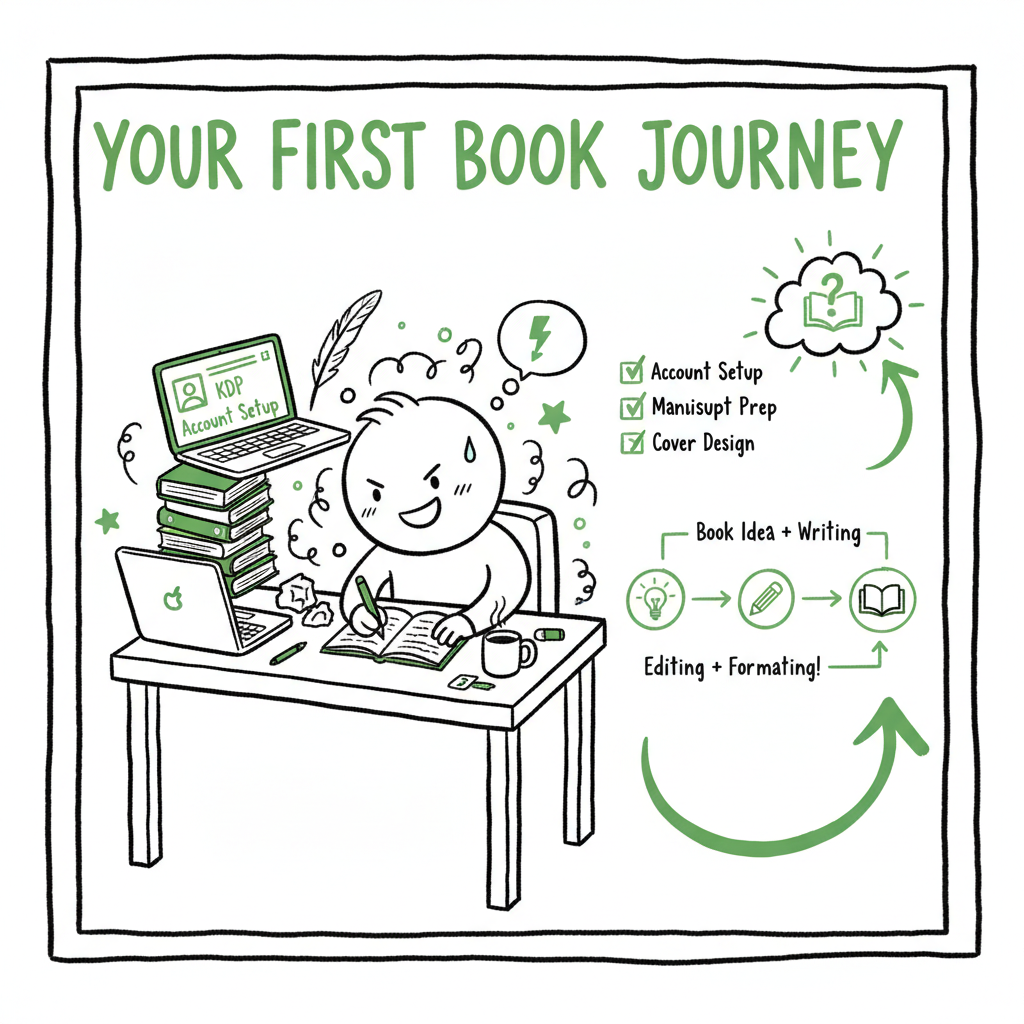
Beginner KDP Author Practical Guide to Your First Book
Beginner KDP author: a practical guide for your first book
Estimated reading time: 18 minutes
Key takeaways
- Publishing your first book on KDP is a clear, repeatable process: account setup, book details, file upload, preview, and pricing.
- Prepare clean files: a properly formatted manuscript, a converted EPUB for ebooks, and a print-ready cover; tools can automate these steps.
- Once you publish more than a handful of titles, multi-platform automation saves time and reduces errors — it’s an operational upgrade, not a luxury.
Table of Contents
- Beginner KDP author — why this matters
- First KDP book steps: from account to live book
- Prepare files and conversions: manuscript, EPUB, cover, print
- Scale: multi-platform publishing and practical automation
- FAQ
- Final thoughts
- Sources
Beginner KDP author — why this matters
Becoming a beginner KDP author means moving from idea to a live product readers can buy. The process is straightforward, but detail matters. Small mistakes in metadata, formatting, or file setup create delays, rejected uploads, and bad page appearances. This guide explains the practical steps you’ll repeat every time you publish, and it points to the right automation when you decide to scale.
If you prefer a step-by-step walkthrough focused on Amazon specifics, see Amazon KDP for Authors for a clear reference that matches the platform prompts. That guide is useful when you want the official flow next to an operator’s checklist.
First KDP book steps: from account to live book
Start strong. The KDP interface walks you through the basics, but knowing the sequence and common traps saves time.
1) Account setup and dashboard
- Use your Amazon login to sign up on KDP. Add payment and tax details early so you don’t block royalty payments.
- In the dashboard, click “+ Create” and choose your format: Kindle eBook, paperback, or hardcover.
2) Book details (metadata)
- Title and subtitle: enter the exact text that appears on your manuscript and cover. Consistency links editions automatically.
- Author name: pick the display name you want on product pages. For series or pen names, keep a consistent format.
- Description: write readable copy that highlights benefits to the reader. KDP accepts some simple HTML for bold and paragraph breaks; don’t rely on heavy formatting.
- Keywords and categories: use them to match reader search habits. Focus on 5 keyword phrases that reflect your book’s topic and audience.
3) Manuscript and cover upload
- Upload your manuscript file and your cover file. KDP supports Word and EPUB for ebooks; print requires a PDF formatted to trim size.
- Use the previewer. The digital previewer catches layout issues and font scaling problems; for print, order a proof copy if the content matters to your brand.
4) Print options and ISBN
- For paperback or hardcover, choose trim size, paper color, and cover finish.
- KDP offers a free ISBN for paperbacks; you can also use your own. For series or different formats, manage ISBNs carefully so Amazon links editions correctly.
5) Pricing and territory rights
- Choose pricing and royalty option (35% or 70%, with rules). Set territories where you have distribution rights.
- You can change price after publishing, but initial pricing affects early visibility and promotions.
Common beginner issues to avoid
- Mismatched title/subtitle between cover and metadata. That breaks connections between editions.
- Uploading an unflattened PDF for print files that contains layers or fonts not embedded.
- Ignoring margin and gutter settings for print — small books often need special margins.
Prepare files and conversions: manuscript, EPUB, cover, print
File preparation is where the majority of beginner headaches come from. Fixing files before upload is the most efficient use of time.
Manuscript basics
- Keep a clean source file. Use styles for headings and body text rather than manual formatting. That keeps headings consistent and makes conversion predictable.
- For ebooks, avoid complex page breaks, headers, and footers. Ebooks reflow; static page elements can create odd gaps.
- For print, export a PDF using the correct page size and embed fonts. Check margins and gutter for binding.
Converting to EPUB
- EPUB is the standard ebook format. If you write in Word, export to a clean EPUB or use a dedicated converter to ensure chapters, table of contents, and images are handled correctly.
- A proper EPUB contains a navigable table of contents, metadata, and optimized images. Poor conversions create display problems across devices.
If you want a reliable conversion tool to create clean EPUB files without repeated manual fixes, consider an automated EPUB converter to handle styles, images, and table of contents generation.
Cover design and file rules
- Your ebook cover and your print cover are different deliverables. Ebooks need a single front cover image; print requires a full cover PDF sized to include back cover and spine.
If you need a cover generator or processing tool to turn a concept into print-ready and ebook-ready files, cover generator can speed the work and remove layout errors.
Print-specific files
- Create a print-ready PDF with the exact trim size and bleed. Check spine width calculations — they depend on page count and paper type.
- Always use the KDP preview tool to check alignment, gutters, and page numbers before approving.
Scale: multi-platform publishing and practical automation
After your first book, the real operational question is scalability. Publishing one book is a learning project. Publishing ten or a hundred requires different tools and workflows.
Why multi-platform matters
- Amazon is the largest retailer, but readers use Kobo, Apple Books, Ingram for bookstores and libraries, and Draft2Digital can push wide.
- Each platform has slightly different file expectations and storefront rules. Manually uploading the same book five times multiplies small mistakes.
When automation becomes obvious
- If you publish multiple books or editions, automation saves time — roughly 80–90% of repetitive work. CSV batch uploads let you push consistent metadata across platforms in minutes instead of hours.
- Automation enforces consistency: same cover naming, same metadata fields, and platform-specific intelligence to prevent rejected files.
What a practical automation tool does
- Batch uploads: push multiple titles at once using CSVs, reducing manual form entry and cut-and-paste errors.
- Platform-specific intelligence: each retailer has its quirks. Automation applies the correct publishing options for Amazon, Kobo, Apple Books, Draft2Digital, and Ingram.
- Error reduction: checklists and validation steps catch missing fields, wrong file types, or incorrect ISBN assignments before upload.
- Time savings: the operational math is simple. If one upload takes an hour and you have 50 books, automation converts work from weeks to hours.
This is part of a streamlined book creation workflow.
Positioning BookUploadPro
- For authors who are publishing seriously, a multi-platform uploader is an obvious upgrade. Full distribution stops being aspirational and becomes practical.
- BookUploadPro automates repetitive uploads across Amazon KDP, Kobo, Apple Books, Draft2Digital, and Ingram, often saving about 90% of the manual time involved.
- It supports CSV batch uploads, enforces platform-specific rules, and reduces the kind of small errors that delay publication or produce bad page displays.
Operational tip: keep a single source of truth for metadata
Maintain your metadata in a spreadsheet or a CMS. That source exports to CSVs for batch uploads and keeps cover file names and ISBNs consistent across retailers.
Practical setup for scale
- Prepare a master folder per title with the manuscript source, converted EPUB, print-ready PDF, cover files, and a metadata file.
- Use automation to map the metadata fields to each retailer’s required fields. Validate and preview before final submission.
- Track uploaded editions and retailer IDs so you can manage price changes and updates without guesswork.
FAQ
Q: Do I need an ISBN to publish on KDP?
A: For ebooks, no ISBN is required. KDP assigns an ASIN for Kindle editions. For print, KDP offers a free ISBN or you can use your own. Using your own gives you more control over publisher assignment and distribution options.
Q: Should I upload EPUB or Word for my Kindle book?
A: EPUB is the preferred format for Kindle now. It preserves styles and navigation reliably. If you start with Word, export a clean EPUB or use a converter to avoid formatting surprises.
Q: How do I choose keywords and categories?
A: Think like a reader: what search phrases would someone use to find your book? Use categories that match your genre and cross-genre audience. Keep consistency across platforms.
Q: What if my cover is rejected or flagged?
A: Rejections usually point to technical issues: wrong file type, missing bleed, or embedded fonts. Fix the file per platform requirements. If the problem is content-related, review the retailer’s content guidelines.
Q: When should I automate and use a multi-platform uploader?
A: Automation pays off when you have more than a few books or when you update metadata across multiple retailers. If you publish seriously, automation is an operational necessity, not a luxury.
Final thoughts
Publishing on KDP is a repeatable, operational process. Learn the details for your first book: consistent metadata, clean files, and the preview step. As you move from single titles to scale, move the repetitive parts into a toolset that handles EPUB conversion, cover processing, and CSV batch uploads. That’s when distribution becomes practical rather than painful.
Visit BookUploadPro.com to try the free trial.
Sources
- https://www.publishing.com/blog/amazon-kdp-for-beginners
- https://kdp.amazon.com/help/topic/G202172740
- https://damyantiwrites.com/kindle-direct-publishing/
- https://kdp.amazon.com/help/topic/GHKDSCW2KQ3K4UU4
- https://kdp.amazon.com/en_US/help/topic/G202187740
- https://kdp.amazon.com/help/topic/G200645680
Beginner KDP author: a practical guide for your first book Estimated reading time: 18 minutes Key takeaways Publishing your first book on KDP is a clear, repeatable process: account setup, book details, file upload, preview, and pricing. Prepare clean files: a properly formatted manuscript, a converted EPUB for ebooks, and a print-ready cover; tools can…