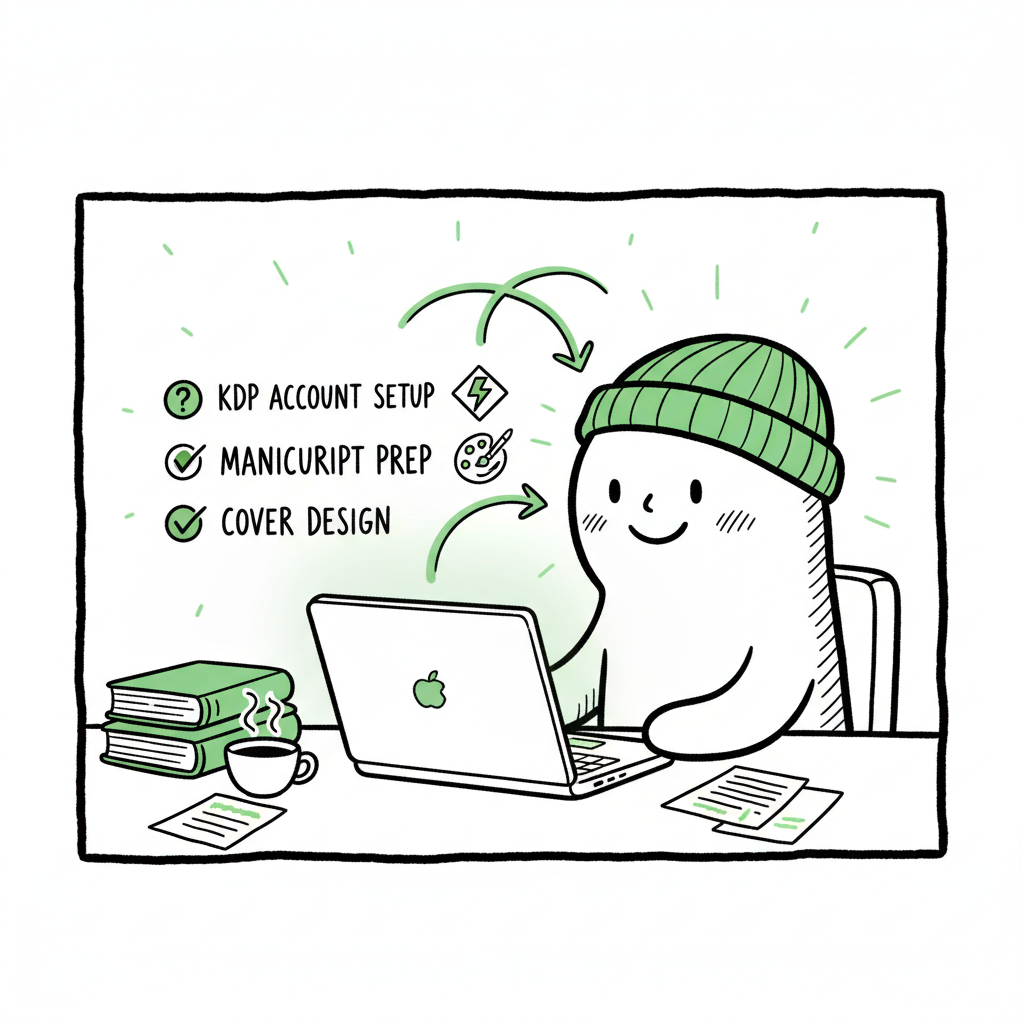
Beginner KDP Author Practical Guide to Your First Book
Beginner KDP Author: A Practical First-Book Guide
Estimated reading time: 14 minutes
Key takeaways
- Start by fully configuring your KDP account (tax, payments, and author details) before you build a book.
- Prepare a clean manuscript, a KDP-compliant cover, and a correct EPUB/print format to avoid rejections.
- Use batch, multi‑platform tools once you publish more than one book to save time and reduce upload errors.
Table of Contents
- Setup your KDP account and plan
- Prepare and format the manuscript
- Upload, metadata, pricing, and publish
- Scale distribution with multi‑platform automation
- FAQ
Setup your KDP account and plan
If you are a beginner kdp author, the first practical step is account setup and planning. Create your Amazon KDP account and finish the administrative items: name, address, tax information, and bank/payment details. KDP won’t publish a book without payment and tax setup, and missing data delays your launch. For detailed guidance, Amazon KDP for Authors offers deeper walkthroughs.
Plan the book before you log into the Bookshelf. Decide whether you want Kindle eBook only, paperback, or both. For many first authors the steps are the same: write, format, design a cover, upload, preview, and publish. If you prefer a step‑by‑step walk‑through of the KDP dashboard, our longer walkthrough titled Amazon KDP for Authors covers the interface and common pitfalls in detail. This guide points you to the exact fields you’ll fill out so you avoid simple mistakes like mismatched metadata or missing rights statements.
Why planning matters
- Publishing is an administrative workflow. If you rush one part—especially the metadata and pricing—you create extra work later.
- Choose file types and trim sizes before formatting the manuscript. For example, using the wrong trim size forces reflow and re-formatting.
- Set a realistic launch timeline: editing, proofreading, formatting, cover design, and a final proofing pass take time.
What to configure first
- Tax and payment: complete the tax interview and add your bank details. Royalties won’t route to you without this.
- Author name and display: set your pen name or real name consistently across Amazon and retailer accounts.
- KDP preferences: review your KDP account settings for language and regional options that match your target readers.
Prepare and format the manuscript
A clean manuscript is the single biggest factor that keeps your first upload smooth. For a beginner kdp author the common faults are messy front matter, missing table of contents, wrong margins, and inconsistent styles.
Manuscript checklist
- Final text: edited and proofread. Use a human editor or at least a focused pass for common errors.
- Front matter: title page, copyright page, dedication, and acknowledgments where relevant.
- Internal structure: chapters with consistent headings, page breaks between chapters, and a linked table of contents for ebooks.
- Styles: use paragraph styles for body text, headings, and captions. Avoid manual carriage returns to set spacing.
- Images: embed at high enough resolution for print (300 dpi) and set them to the correct color space (RGB for Kindle, CMYK considerations for print).
Ebook formatting basics
- EPUB is the standard for Kindle and other stores. If you are converting from Word, export cleanly or use a dedicated converter to avoid clumsy HTML.
- Create a linked table of contents. Readers expect clickable chapter links on Kindle.
- Keep images optimized and consider where flow will adapt to different screen sizes.
If you need a reliable EPUB conversion step, use a tested converter rather than guessing export settings. For many authors, a dedicated tool that converts and validates EPUB files prevents simple rejections and bad reader experiences.
Print formatting basics
- Trim size and margins must match your chosen product. KDP rejects print files with incorrect gutters or insufficient margins.
- Page numbers, headers, and footers need to be consistent and should not appear on title pages.
- Use KDP templates if you are uncertain; they set the correct trim and margin defaults for you.
Covers and art
- Covers are the first sales asset your book has. For ebooks, a simple, strong front cover works. For print, you need a full wrap including spine and back.
- If you’re creating a cover yourself or with a designer, follow KDP’s pixel and bleed requirements. If you want an automated cover processing option, a cover generator can handle trim calculations and bleed automatically.
- Keep typography legible at thumbnail size. Many readers decide based on a thumbnail view.
Tools and practical tips
- Work on a single master file. Use that file for both EPUB and print exports where possible; track changes carefully.
- Validate the EPUB. Load it into Kindle Previewer and an EPUB validator to catch errors early.
- Save step versions. Keep a copy named “final-for-upload” so you never upload drafts by mistake.
Upload, metadata, pricing, and publish
The Bookshelf flow is predictable. For a first-time upload follow the sequence: Create > Enter book details > Upload manuscript and cover > Preview > Rights & Pricing.
Metadata matters
- Title and subtitle: be accurate and keyword-aware. Don’t stuff keywords into the title.
- Description: write short paragraphs and a clear hook. Use the first two lines to communicate whether the book is fiction or non-fiction and who it’s for.
- Keywords: pick five keyword phrases that readers might search. Use variations and phrases rather than single words.
- Categories: pick two that fit. You can later request category changes via KDP support if needed.
File uploads
- For Kindle eBook: upload the validated EPUB or a properly formatted Word DOCX. Use Kindle Previewer to see how the book will flow on multiple devices.
- For paperback: upload a print-ready PDF that matches the trim size and includes the correct margins and bleed.
- For covers: upload the eBook cover for Kindle and a separate print cover for paperback, or supply a PDF with the full cover wrap.
Preview and proof
- Use the online previewer. Don’t skip the preview step. The previewer shows common faults like orphaned headings, wrong page breaks, and image issues.
- Order a physical proof for paperbacks you plan to sell widely. Screens are not perfect substitutes for a printed copy.
Rights and pricing
- Rights: confirm territorial rights. Most first authors select “worldwide rights.”
- Pricing and royalties: choose a list price that matches similar books in your niche. KDP shows royalty ranges and delivery costs; read those prompts carefully.
- Kindle Select: consider the trade‑off before enrolling. Exclusive enrolment can boost visibility through Kindle Unlimited but limits distribution.
Launch checklist before you hit Publish
- Final metadata check: title, author name, subtitle, description, keywords, and categories are correct.
- Files verified in previewer: EPUB and print PDF checked.
- Proof page count: ensure page count and ISBN (if using KDP ISBN) are consistent.
- Marketing copy ready: a short blurb, author bio, and launch plan for promotions.
Common beginner mistakes and how to avoid them
- Uploading the wrong file version: keep a clear naming convention like BookTitle_FINAL_v3.epub.
- Ignoring previewer warnings: the previewer often flags layout problems you won’t see in Word.
- Rushing pricing decisions: research comparable books and price competitively for launch.
Scale distribution with multi‑platform automation
After you publish one book, you’ll notice repetition: the same metadata fields, the same cover variations for different trim sizes, and the same uploads across multiple retailers. That’s when multi‑platform automation becomes an obvious upgrade.
Why automate
- Time savings: automating uploads and using CSV batch uploads can cut upload time dramatically—BookUploadPro sees ~90% time savings for structured repeat publishing workflows.
- Error reduction: platform-specific intelligence prevents common format rejections by adjusting files to each store’s requirements.
- Wide distribution: a single platform that pushes to Amazon KDP, Kobo, Apple Books, Draft2Digital, and Ingram makes wide distribution practical without manual repetition.
- Consistency: retain identical metadata and assets across stores so your book looks the same everywhere.
What automation handles well
- Transforming a single master file into platform-specific outputs (EPUB variants, print PDFs, and cover wraps).
- Batch uploading dozens of titles using CSV manifests.
- Applying retailer rules automatically (for example, cover color spaces or trim exceptions).
- Reporting errors with clear fix instructions rather than raw platform logs.
When to move to automation
- Publish more than two books per year: the admin costs grow quickly.
- You sell in multiple channels or plan to push a backlist.
- You want to remove repetitive clerical tasks and focus on writing and marketing.
Practical notes on multi‑platform publishing
- Keep a single canonical metadata source. Your automation tool should read one CSV or spreadsheet and apply that data to all store uploads.
- Retain platform-specific overrides for things like territory or pricing. Not all stores have the same royalty logic.
- Automate previews and proof orders where possible to catch print issues early.
Automation in practice
- Upload your manuscript and cover once. Let the system generate platform-specific files.
- Review a consolidated error report rather than logging into each store separately.
- Use scheduling to stagger launches across stores if needed.
A realistic example
- You publish a 40‑book series. Manually uploading each title to five stores would take weeks of copy/paste work. With batch CSV uploads and platform intelligence you complete the job in hours, with fewer mistakes.
Note on cover, EPUB, and book creation tools
- If you create covers yourself or via a designer, consider a processing tool that handles spine calculations and bleed for print covers automatically. A cover generator can speed that step and ensure accuracy.
- If you convert manuscripts to EPUB, use a dedicated converter to get clean, validated EPUB files that pass retailer checks.
- For authors producing both ebooks and paperbacks, a consolidated book creation workflow keeps formats and metadata aligned across outputs.
Automate the upload. Own the distribution.
FAQ
Q: How long does it take to publish my first KDP book?
From a finished manuscript, expect several hours to set up metadata, format files, and create a cover. If you need editing or a professional cover, add days or weeks. The KDP review process can take 24–72 hours after upload.
Q: Do I need an ISBN for Kindle eBooks?
No. Kindle eBooks do not require an ISBN. Paperbacks usually need an ISBN; KDP offers a free KDP ISBN or you can supply your own.
Q: Should I enroll in Kindle Select?
It depends. Kindle Select requires exclusivity for the ebook. It can help Kindle visibility through Kindle Unlimited but prevents distribution of the ebook version elsewhere. For broad distribution, skip exclusivity.
Q: What file types should I upload for Kindle and print?
For Kindle, a validated EPUB or clean DOCX works. For print, a print-ready PDF sized to your chosen trim, with correct bleed and margins.
Q: How do I avoid common KDP rejections?
Use KDP templates, validate EPUBs, follow image and margin guidelines, and preview carefully. Automation tools with platform-specific intelligence also reduce rejections.
Final thoughts
Sources
- Amazon KDP Help: Create a Book
- Amazon KDP Help: Start publishing with KDP
- KDP Jumpstart
- KDP eBook Manuscript Formatting Guide
- Publishing.com blog: Amazon KDP for Beginners
- Damyanti Writes: A 101 Guide to Kindle Direct Publishing Basics
- YouTube: The Complete Amazon KDP Tutorial for Beginners (2025)
Beginner KDP Author: A Practical First-Book Guide Estimated reading time: 14 minutes Key takeaways Start by fully configuring your KDP account (tax, payments, and author details) before you build a book. Prepare a clean manuscript, a KDP-compliant cover, and a correct EPUB/print format to avoid rejections. Use batch, multi‑platform tools once you publish more than…