KDP Author Dashboard Navigate the Bookshelf and Reports
kdp author dashboard
Estimated reading time: 16 minutes
Key takeaways
- The kdp author dashboard is the control center for publishing: learn where Bookshelf, Reports, Marketing, and community tools live and how they interact.
- Mastering kdp bookshelf management and the KDP reports overview lets you make faster pricing, enrollment, and promotion decisions.
- When you publish at scale, time-saving processes save time and reduce errors — BookUploadPro handles batch uploads, handles platform-specific requirements, and makes wide distribution practical.
Table of Contents
- Overview: what the kdp author dashboard does
- Manage the Bookshelf, run KDP reports overview, and scale your workflow
- FAQ: common questions about the dashboard and publishing
- Final thoughts
Overview: what the kdp author dashboard does
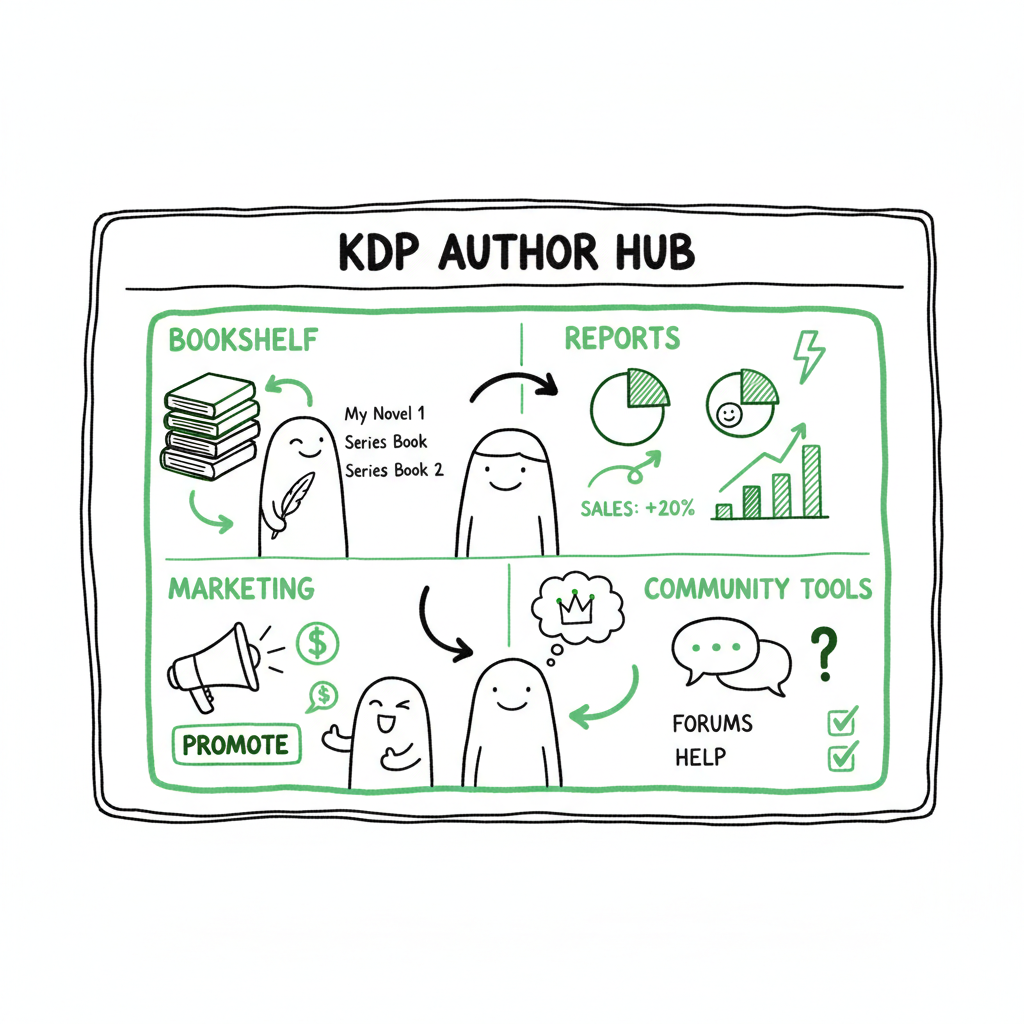
The kdp author dashboard is the single screen most self-publishers live in. In the first minutes after you sign in it tells you what’s live, what’s a draft, what’s earning, and which tools are available to promote titles. If you’re new, think of it as the operations console: Bookshelf for content, Reports for money and reads, Marketing for visibility, and Community for support. For authors who want a deeper, step-by-step guide tied to the dashboard workflow, see Amazon Kdp For Authors.
Why this matters: the dashboard isn’t just a place to upload files. It’s the place where metadata, pricing, enrollment in promotions, and distribution choices are all set. When those elements are consistent and accurate, discoverability and fulfillment run smoothly. When they’re not, you’ll spend time troubleshooting listings instead of selling books.
What you’ll see on first visit
- Bookshelf: lists every manuscript tied to the account. Status flags like Draft, Live, or Pre-Order are visible, along with pricing and marketplace links.
- Reports: a small dashboard for royalties, orders, and KENP reads that you can filter by date, title, or market.
- Marketing: links to KDP Select enrollment, A+ Content, Advertising, and Author Central integration.
- Tools and help links: upload wizards, file checks, and the KDP previewer.
Quick navigational tips
- Scan Bookshelf first. It’s where you start and return to for almost every publishing action.
- Use the Reports filter to compare formats (ebook vs print) and date ranges before you change prices or run promotions.
- Keep a short checklist by your keyboard: update cover, edit description, confirm categories and keywords, run previewer, and then publish.
This early discipline — a quick dashboard scan and a short publishing checklist — is what separates occasional publishers from those who build a steady catalog.
Manage the Bookshelf, run KDP reports overview, and scale your workflow
Bookshelf: the operational hub for kdp bookshelf management
The Bookshelf is where titles are created, edited, and maintained. Every step that leads to a live listing begins here. From the Bookshelf you:
- Start a new Kindle eBook or paperback upload.
- Edit metadata: title, subtitle, series, contributors.
- Manage descriptions, keywords, and categories that affect discoverability.
- Set pricing by marketplace and choose royalty options.
- Enroll in KDP Select or remove enrollment.
- Order author copies for print books and check print specifications.
Practical Bookshelf routine
- Drafts first: keep a naming convention that includes version and format (example: MyBook v3 – Kindle).
- Metadata checklist: title, subtitle, series info, description, keywords, BISAC categories, language, and release date.
- Files: verify manuscript and cover files using KDP’s previewer before saving changes. If you need a quick, automated cover or processing for a cover file, use a cover tool rather than re-exporting manually from whatever design software you used.
- Pricing and marketplaces: check the effective price in each region and the royalty thresholds; small price changes can affect royalty rate and marketplace visibility.
Preparing files and formats
Before you upload, make sure your interior and cover files meet KDP’s technical requirements. A common failure point is mismatched trim sizes, incorrect margins, or an EPUB file that doesn’t render chapter breaks correctly. For EPUB conversion tasks, use a reliable converter that preserves structure and accessibility. If you need a fast, programmatic EPUB conversion, use a dedicated EPUB tool to avoid repeated rework.
When you generate paperback or ebook files, a quality pipeline saves hours. If you’re producing both print and ebook versions, consider a service that prepares both outputs from a single manuscript master to keep pagination, front matter, and metadata consistent.
Reports: read the KDP reports overview like an operations manager
KDP Reports give you the data to make decisions. The main dashboard provides estimated royalties, units ordered, and KENP reads. Understanding the cadence and what updates when is crucial:
- Ebook sales and KENP reads update frequently. These figures are useful for near-real-time promotion adjustments.
- Print orders fulfilled by Amazon can lag, and returns or author copies can affect apparent trends.
- Use date-range filters and title filters to isolate the impact of a promotion or price change.
Actionable uses for reports
- Track a promotion: check units and KENP reads daily during an ad run or price promotion.
- Identify slow sellers: look at long-term trends by title and decide whether to change categorization, revise the cover, or run a targeted ad.
- Calculate breeder titles: find titles with consistent low-level sales that, with minor updates, could earn more.
Combine Reports with Bookshelf edits
When a report shows declining sales or low KENP reads, don’t panic — use the combination of Bookshelf edits and marketing tools:
- Update description and keywords if the book’s visibility appears weak.
- Refresh the cover if click-throughs from ads are low despite decent impressions.
- Consider a short discount period and monitor Reports closely.
Scaling: batch publishing, CSV workflows, and time-saving processes
Once you publish several books, manual uploads become a time sink. This is where time-saving processes matter. Batch processing with CSVs, platform-specific intelligence, and error checks are the difference between a catalog of ten books and a catalog of one hundred.
What to streamline first
- Metadata uploads: titles, descriptions, categories, and keywords formatted into CSVs that map cleanly into each platform.
- File dispatch: automated delivery of manuscript and cover files to the right slots in the Bookshelf or equivalent across platforms.
- Price matrix application: set regional prices across markets without manual entry.
How BookUploadPro fits into the process
BookUploadPro is built for authors who publish seriously. It streamlines repetitive uploads across Amazon KDP and parallel platforms like Kobo, Apple Books, Draft2Digital, and Ingram. Key benefits include:
- Unified multi-platform publishing from a single project record.
- CSV batch uploads that save roughly 90% of the time spent on manual entries.
- Platform-specific intelligence that formats metadata and files to each retailer’s requirements.
- Error reduction through preflight checks that catch mismatched trim sizes, missing metadata, or incorrect pricing before upload.
- Affordable pricing and a free trial, making it practical to test at scale.
For authors who reach a steady cadence of releases, BookUploadPro becomes an obvious upgrade. Streamline the upload. Own the distribution.
Practical example: publishing a 10-book series
- Prepare a single master manuscript and split it for different formats.
- Use a cover pipeline that outputs a print-ready cover and an ebook cover at correct resolutions and dimensions.
- Build a CSV with title variants, ISBNs (if you use your own), pricing tiers, and keywords.
- Run batch upload and review any flagged issues from platform-specific checks.
- Monitor KDP reports and platform dashboards for the first 14 days and then adjust metadata or run promotions based on performance.
Tools and file preparation notes
- Covers: a properly-sized cover is the quickest way to get a listing rejected or returned for fixes. If you need consistent cover processing, a cover generator and processing pipeline will be faster than manual fixes.
- EPUB conversion: a clean EPUB that retains table of contents and chapter structure saves time in previewing and avoids reader-facing rendering errors.
- Pocketed in one pass: paperback and ebook creation: generate both outputs from a single, controlled workflow to keep things consistent across formats.
If you need an automated cover processing solution, see a dedicated cover processing service that handles bleed, spine calculation, and resolution automatically. For EPUB creation, use a tested converter that preserves chapters and metadata. And if you produce both paperback and ebook versions routinely, a single tool that supports both creation flows reduces mistakes and keeps listings consistent.
Platform differences to account for
- Amazon KDP: tight integration for an ebook and print from the same account. KENP reads and KDP Select are Amazon-specific.
- Kobo and Apple Books: metadata expectations differ; categories and keyword fields may need reformatting.
- Draft2Digital and Ingram: distribution rules and lead times vary, especially for print distribution.
A common scaling error is treating every platform like Amazon. Platform-specific mapping of fields, file types, and price rounding rules helps prevent repeated rework and listing mismatches.
Operational checklist before publishing at scale
- Validate manuscript and cover files with platform previewers.
- Run a preflight check on metadata for duplicates, banned keywords, and category suitability.
- Confirm price tiers and royalty calculations per marketplace.
- Automate uploads where possible and reserve manual edits for final checks.
FAQ: common questions about the kdp author dashboard and publishing
Q: Where is the Bookshelf and what does it show?
A: Bookshelf is the first tab in the dashboard. It lists draft and live titles and shows status, format, price, and quick actions like Edit Content, Edit Pricing, and Order Author Copies.
Q: How often do KDP reports update?
A: Ebook sales and KENP reads update frequently. Print orders and some adjustments can lag up to 24 hours or more, depending on fulfillment and returns processing.
Q: Can I edit metadata after my book is live?
A: Yes. Most metadata fields, including description, keywords, categories, and pricing, can be updated from the Bookshelf. Some changes, like content file uploads, will require reprocessing and re-checking in the previewer.
Q: Do I need separate files for ebook and paperback?
A: Yes. Ebook files are typically EPUB or MOBI-compatible, while paperback files need specific page layout (PDF) with trim size and bleed accounted for.
Q: How do I track promotions and KDP Select benefits?
A: Use the Marketing area and Reports. KDP Select enrollment and A+ content links appear from the dashboard, and Reports shows the effect in units and KENP reads.
Q: Is time-saving processing safe for my KDP account?
A: Time-saving processes save time but require careful configuration. Use tools that respect platform rules, validate files, and give you a final manual review before any live change.
Final thoughts
The kdp author dashboard is more than a portal — it’s the operational layer where decisions about metadata, pricing, and distribution are made. Learning to navigate kdp dashboard and managing the Bookshelf and Reports will make your publishing predictable and repeatable. As your catalog grows, adopt tools and processes that scale: batch metadata, automated file processing, and platform-specific checks.
If your time is better spent writing instead of repeating uploads, consider a time-saving approach. BookUploadPro streamlines multi-platform uploads, reduces manual errors, and provides platform-aware checks that keep your listings consistent. It’s an obvious upgrade once you start publishing seriously: unified distribution, CSV batch uploads, platform intelligence, and time savings that let you focus on new books.
If your workflow includes cover processing or EPUB conversion, use purpose-built processors to avoid rework. A reliable cover processing pipeline ensures print covers meet bleed and spine specs; a robust EPUB converter preserves structure and saves preview time. And when you’re creating both paperback and ebook files, consolidating the process keeps metadata and content aligned.
Streamline the upload. Own the distribution.
Visit BookUploadPro.com to try the free trial and see if streamlining uploads fits your publishing process.
Sources
- https://help.selfpublishing.com/en/5-things-to-know-about-your-kindle-direct-publishing-kdp-dashboard
- https://rubenstomdesign.com/blogs/news/getting-started-with-self-publishing-a-comprehensive-guide-to-kindle-direct-publishing-kdp
- https://kdp.amazon.com/help/topic/GX7EGDFGS9CZCA2F
- https://kdp.amazon.com/help/topic/GVTTXHKHVPAPBEDQ
- https://kdp.amazon.com/help/topic/G200735480
- https://www.writtenwordmedia.com/what-is-kdp-amazon-kindle-direct-publishing-explained/
kdp author dashboard Estimated reading time: 16 minutes Key takeaways The kdp author dashboard is the control center for publishing: learn where Bookshelf, Reports, Marketing, and community tools live and how they interact. Mastering kdp bookshelf management and the KDP reports overview lets you make faster pricing, enrollment, and promotion decisions. When you publish at…