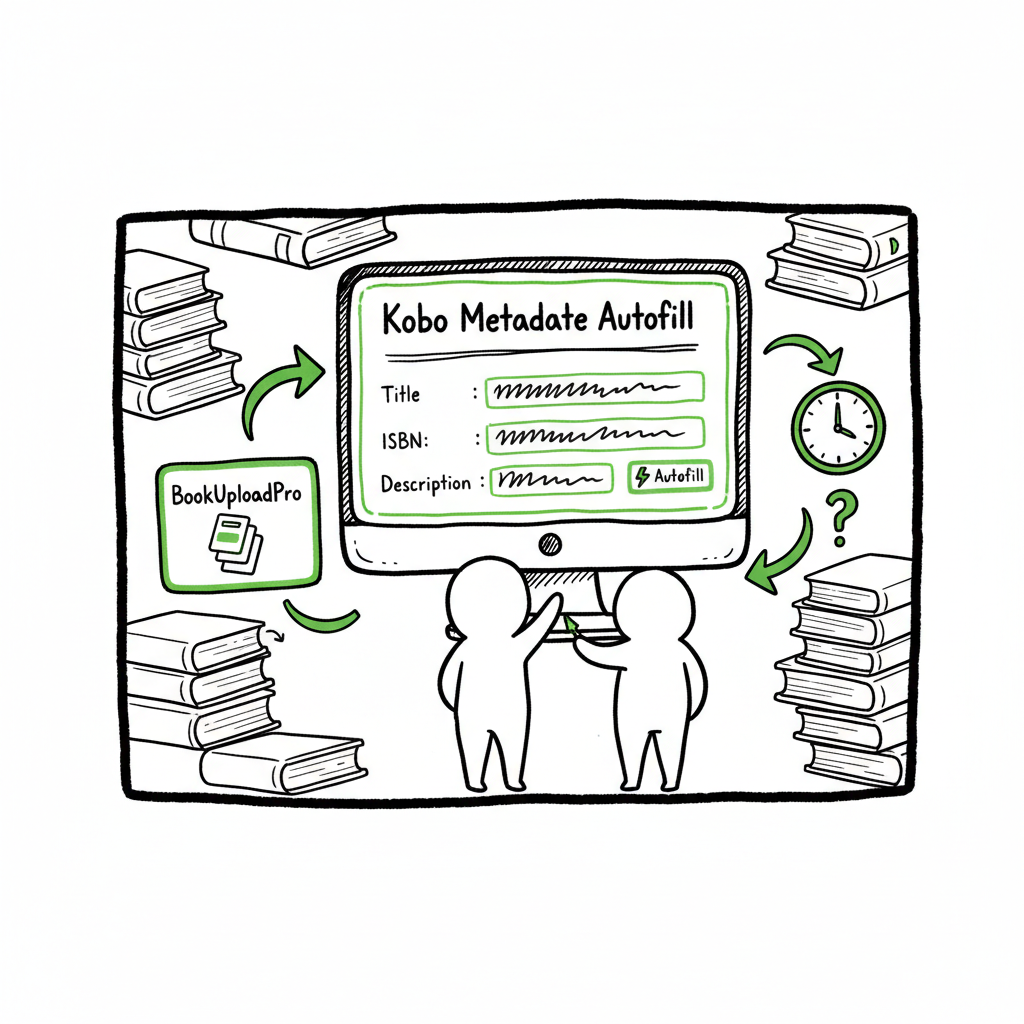
Kobo Metadata Autofill Stop Re-Typing Book Details
Kobo Metadata Autofill: Stop Re-Typing Book Details
Estimated reading time: 14 minutes
Key takeaways
- Kobo metadata autofill saves hours by reusing accurate book details instead of retyping them for every upload.
- Practical workflows combine a reliable metadata source, batch tools, and a form‑filler like BookUploadPro to publish more titles with fewer errors.
- Automating metadata entry is not a magic ranking trick — it’s a productivity upgrade that keeps your catalog consistent and lets you focus on publishing more books.
Table of Contents
- Why metadata autofill matters for self-publishers
- How to add Kobo metadata autofill to your workflow
- Common problems and how BookUploadPro helps
- FAQ
- Sources
Why metadata autofill matters for self-publishers
If you publish more than one book, the same metadata fields appear over and over: title, subtitle, author, series, description, BISAC, keywords, publisher, published date, and cover. Typing those fields by hand for every upload is slow and invites mistakes. Kobo Metadata Autofill: Stop Re-Typing Book Details is about removing that repeat work so you can publish reliably and at scale.
There are two separate problems here. First, where do you get accurate, store‑specific metadata? Tools like calibre’s Kobo Metadata plugin pull structured data from the Kobo catalog so you don’t have to guess how Kobo lists a title. Second, how do you move that structured data into Kobo Writing Life or other retailer dashboards without retyping? That’s the gap BookUploadPro fills: it stores your templates, maps fields to the right inputs, and auto‑fills the upload forms so you can verify and submit.
If you manage dozens of titles or run a small publishing imprint, this is not a nice‑to‑have. It’s a workflow change that reduces errors, keeps metadata consistent across stores, and saves real time. For authors ready to commit to publishing seriously, adopting automation like Kobo Publishing Automation Publish Faster is an obvious upgrade: you keep control of wording and pricing while cutting the repetitive work out of the process.
This is the kind of upgrade you can explore in Kobo Publishing Automation Publish Faster, which helps you keep control of wording and pricing while cutting repetitive work.
How to add Kobo metadata autofill to your workflow
Start with a single truth source
Choose where you will maintain your canonical metadata. That can be:
- A spreadsheet or CSV that lists every book and its fields.
- A library manager like calibre with the Kobo Metadata plugin enabled to pull high‑quality store details.
- Your author platform or CMS that already stores series, subtitles, and descriptions.
If you use calibre, the Kobo Metadata source plugin can bulk download metadata and covers for many books at once. That gives you a high‑fidelity starting point that matches Kobo’s own listings, which helps with consistency when you later upload to Kobo Writing Life.
Standardize field names
Decide on a consistent set of field names and formats. Keep these simple:
- Title
- Subtitle (if any)
- Author (or Pen Name)
- Series and Series Number
- Short Description (first 1–3 lines)
- Full Description (HTML allowed)
- BISAC / Categories
- Keywords (comma separated)
- Publisher
- Price tier
When these field names match one another across your source (CSV, calibre, or a spreadsheet) and the extension that will auto‑fill forms, mapping is predictable. That mapping reduces errors when the tool writes into Kobo’s “Describe your eBook” fields.
Use templates for repeated settings
Some fields repeat across a list of books: publisher name, price tiers, territory rights, and default BISAC categories for a series. Save those settings as templates so each new upload starts with the same baseline. BookUploadPro stores and reuses metadata templates so you don’t have to recreate the same settings for every title.
Move data from source to store without retyping
The missing link for many publishers is a safe, reviewable way to populate the store dashboard automatically. That’s where an extension like BookUploadPro changes the work:
- It reads your CSV or stored templates.
- It maps fields to the right form inputs on Kobo Writing Life and other retailers.
- It auto‑fills the form for you to verify, adjust, and submit.
This approach gives you automation without removing human review. You still check covers, blurbs, and pricing before finalizing publication.
Don’t skip formatting and conversion
Ebook stores accept files in different formats. Kobo prefers EPUB. If you convert manuscripts to EPUB as part of your upload pipeline, make sure you use a consistent converter to avoid format drift. If your process includes converting to EPUB, consider a reliable EPUB conversion tool to get predictable results. For a straightforward conversion tool tailored to publishing workflows, see EPUB conversion resources that streamline the step from manuscript to store delivery.
Cover art and file preparation matter
Metadata is the label for your book, but the cover is the visual handshake that sells it. If you’re creating covers or testing multiple designs, use a predictable image pipeline and export high‑resolution cover files that match each store’s technical specs. If you need faster cover production, a book cover generator can speed up mockups and final files while keeping sizing consistent across stores.
Batch uploads and CSVs for scale
When you have many titles, manual forms are not scalable. A well‑structured CSV lets you update many records and reuse the same metadata across multiple uploads. BookUploadPro supports CSV batch uploads, applying templates to batches so you can keep many titles moving through the pipeline at once and cut manual entry by as much as 90%.
Platform intelligence and review
Each retailer has slightly different fields and allowed formatting. Good automation tools map fields differently for each platform rather than using a one‑size‑fits‑all write. That platform‑specific intelligence helps you avoid common mistakes like pasting HTML where a plain text field is required or misaligning BISAC categories.
How to test and iterate responsibly
- Start with one title. Use automation to populate the form, verify every field, then publish. Learn where mappings need tweaks.
- Use a sandbox or a low‑stakes title to run several test uploads before committing your whole catalog.
- Keep backups of your CSVs and templates. If a mapping breaks because of a retailer change, you can restore the previous template quickly.
Common problems and how BookUploadPro helps
Problem: Metadata sources disagree
Different sources list slightly different titles, subtitles, and publication dates. That can cause inconsistent storefront listings.
What to do: Choose and maintain a single truth source for your catalog. If you use calibre with the Kobo Metadata plugin to harvest store‑side details, treat that as your reference and adjust other fields to match. Where necessary, preserve author‑preferred wording for descriptions and blurbs.
Problem: Manual retyping causes typos and broken links
A single mistyped ISBN, category, or keyword can break discoverability or cause confusion.
What to do: Automate the repetitive entries so you paste once and reuse many times. BookUploadPro stores templates and applies them consistently, reducing both copy‑paste mistakes and the time spent correcting small errors.
Problem: Different stores need slightly different formats
Kobo Writing Life may accept different characters, HTML, or metadata tags than Amazon KDP or Apple Books.
What to do: Use platform‑specific mappings inside your metadata automation. BookUploadPro recognizes platform differences and maps your stored fields to the right inputs for each retailer, keeping formatting correct while preserving your original language.
Problem: Cover mismatches and file naming confusion
Uploading the wrong cover size or misnaming the file is a common cause of rejections or low‑quality storefront thumbnails.
What to do: Standardize your image pipeline. Use a cover generator to export correctly sized files and keep a consistent naming convention. Keep the final cover files referenced in your CSV so the auto‑fill tool attaches the correct image every time.
Problem: Uploading many titles is still slow because of repeated manual steps
Even with templates, clicking into each dashboard and pasting fields wastes time.
What to do: Automate the form population step. When the extension auto‑fills fields and pre‑attaches assets, your work becomes a review and confirm action instead of a type‑and‑paste grind. That’s where automated batch uploads and form‑fill tools deliver real time savings—often 80–90% of the manual workload.
Why BookUploadPro fits here
BookUploadPro is designed as a form‑filling, template‑driven extension that works across major retailer dashboards, including Kobo Writing Life. It stores your metadata templates, applies platform‑specific mappings, handles CSV batch uploads, and reduces the repetitive work of entering the same fields over and over. The extension focuses on structured metadata — not on writing your descriptions for you — so the author keeps full control of wording and tone.
Operational benefits you can expect
- Unified multi‑platform publishing from one template store.
- CSV batch uploads for consistent, repeatable updates.
- Platform intelligence that maps your fields correctly across Kobo, Amazon, Apple, and others.
- Error reduction through consistent templates and fewer manual keystrokes.
- Affordable pricing and a free trial so you can test it on a small set of titles.
Practical example: One small imprint’s day
Imagine a small press with 50 backlist titles and 4 new releases each year. Before automation, each new title requires filling metadata into five dashboards, resizing the cover several times, and copying pricing tiers manually. With a structured CSV, a single template, and automated form filling, the publisher:
- Prepares book records in a spreadsheet or enables Kobo Metadata in calibre to pull store‑specific details.
- Uploads the manuscript and EPUB file, then uses a template to populate all descriptive fields on Kobo Writing Life.
- Applies the same template across other stores with mapped differences already handled.
That same day, a bulk update (say, a price change for a series) is a CSV edit and a batch apply, not a day of clicking.
Security and accuracy: what to watch for
Automation is powerful, but it requires safeguards:
- Keep templates under version control or backups so you can roll back if a mapping changes.
- Use two‑factor authentication on retailer accounts and be careful with shared passwords.
- Review every automated fill before final submission. The extension is a time‑saver, not a blind submitter.
If a platform changes its dashboard layout, mappings can break. Part of using any extension is monitoring tool updates and keeping templates current. BookUploadPro releases updates to handle many common dashboard shifts and provides a review step so you never submit without confirming.
FAQ
Q: Will autofill make my metadata less unique or less optimized for search?
A: No. Autofill reproduces the metadata you supply. If your descriptions and keywords are optimized, automation keeps that optimization consistent across stores. Autofill is about accuracy and scale, not drafting unique copy for each retailer.
Q: Can Kobo metadata autofill pull data from Kobo’s catalog automatically?
A: Tools like calibre with a Kobo Metadata plugin can pull Kobo store details into your library. That helps create a high‑quality source of truth, but it’s separate from the form‑filling step that places those details into Kobo Writing Life. The two steps together—harvest accurate data, then autofill retailer forms—solve the retyping problem.
Q: Is it safe to use an extension on retailer dashboards?
A: Use reputable tools that emphasize security and require user consent for actions. Keep two‑factor authentication enabled on accounts, and treat the extension as a productivity assistant that still needs your review before finalizing uploads.
Q: How much time will I actually save?
A: Time savings depend on scale. For a single title, automation might save an hour. For dozens of titles or frequent uploads, the savings compound—some users report workflow reductions of up to 90% on repetitive entry tasks through templates and batch uploads.
Q: Does this replace learning each retailer’s metadata rules?
A: No. You still need to know each retailer’s guidelines and required fields. Automation reduces manual typing and mapping errors, but you must configure templates to respect each store’s rules.
Final thoughts
Kobo Metadata Autofill: Stop Re-Typing Book Details is a practical shift, not a gimmick. It starts with accurate metadata sources — whether that’s a CSV, calibre with the Kobo Metadata plugin, or a maintained spreadsheet — and ends with a reliable form‑filling tool that maps those fields to each retailer dashboard. When done well, the process reduces errors, standardizes your catalog, and makes multi‑platform publishing practical.
If you handle covers or file conversions as part of the pipeline, keep those steps predictable. Use a cover generator to produce store‑ready images, and use a dependable EPUB conversion tool to ensure consistent file output.
Automation is not a shortcut around quality control. It’s the muscle that lets you apply quality at scale: reuse the same vetted metadata, attach the right covers, and publish more without burning time on repetition. For authors and small publishers who publish seriously, automation is an obvious upgrade. Automate the upload. Own the distribution.
Visit BookUploadPro.com to try the free trial and see how a template‑driven, multi‑platform autofill can free time for what matters: writing and publishing more books.
Sources
- https://github.com/NotSimone/Kobo-Metadata
- https://www.mobileread.com/forums/showthread.php?t=355983
- https://manual.calibre-ebook.com/metadata.html
- https://wiki.mobileread.com/wiki/Kobo_Shelves_and_Collections
- https://kobowritinglife.zendesk.com/hc/en-us/articles/360058975792-Metadata-Guidelines
- https://blog.bookautoai.com/best-kobo-upload-automation-extension/
Kobo Metadata Autofill: Stop Re-Typing Book Details Estimated reading time: 14 minutes Key takeaways Kobo metadata autofill saves hours by reusing accurate book details instead of retyping them for every upload. Practical workflows combine a reliable metadata source, batch tools, and a form‑filler like BookUploadPro to publish more titles with fewer errors. Automating metadata entry…