KDP eBook Upload Workflow for Self-Publishing Authors
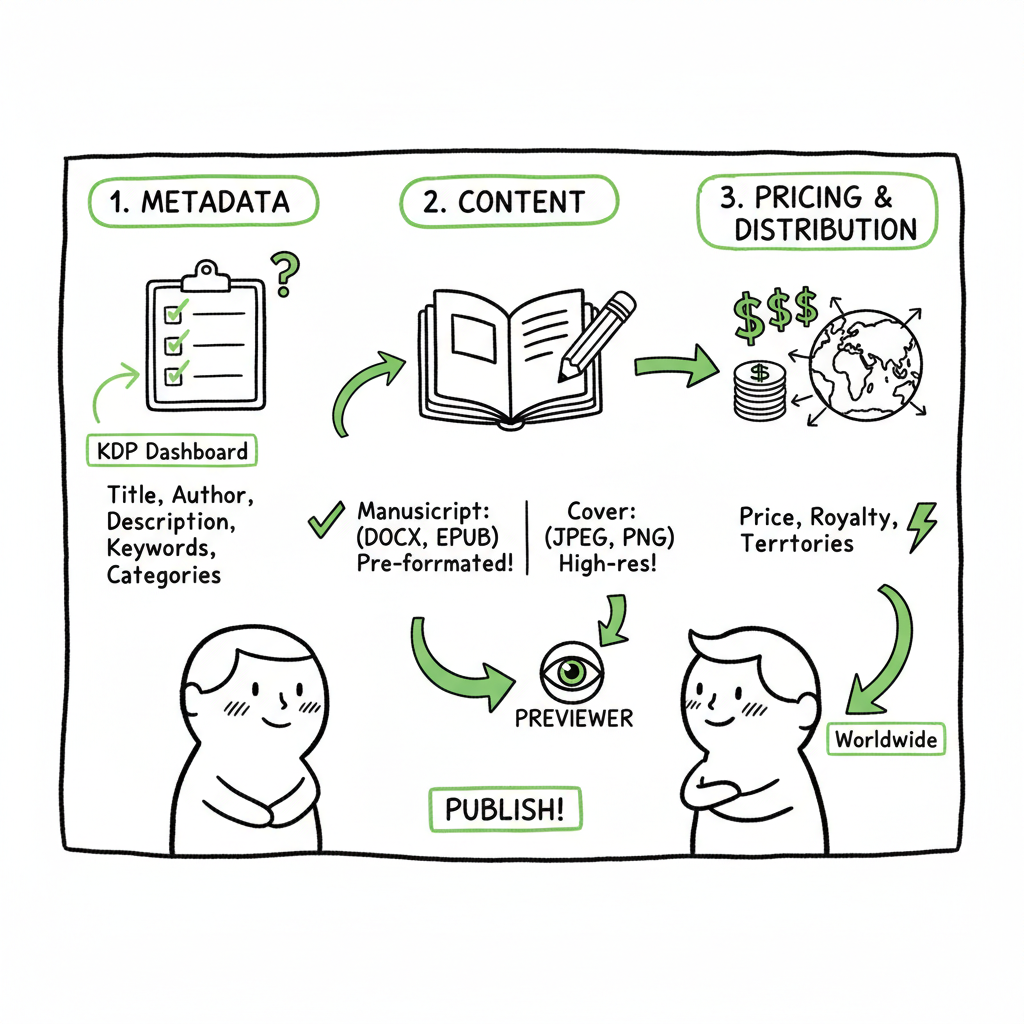
The three-stage KDP ebook upload workflow
Estimated reading time: 9 minutes
Key takeaways
- The KDP ebook upload workflow is a three‑page process: metadata, content (manuscript and cover), then pricing and distribution.
- Good results depend on pre‑formatted files (preferably a validated EPUB), a clean cover, and careful use of the previewer to catch device issues.
- For authors publishing at scale, automated multi‑platform tools like BookUploadPro cut repetitive work, reduce errors, and make wide distribution practical.
Table of Contents
- The three-stage KDP ebook upload workflow
- Preparing files, metadata, and validation
- Uploading, previewing, and resolving common errors
- Pricing, territories, and publishing
- FAQ
- Sources
The three-stage KDP ebook upload workflow
If you’re about to publish on Amazon, understanding the kdp ebook upload workflow turns a fiddly afternoon into a predictable, repeatable task. KDP guides you through three main pages that together become the funnel your title must pass: Kindle eBook Details (metadata), Kindle eBook Content (manuscript and cover), and Kindle eBook Pricing (rights, royalties, list price). The first time you do this, the steps feel like form filling. The second time, you’ll see where mistakes happen. The third time, you’ll streamline it.
One practical way to shorten that learning curve is to use a documented reference. See our Kdp Upload Workflows Format for a concise template that maps each KDP field to the author inputs you should prepare before you click Create. That kind of preparation removes guesswork and keeps you focused on quality over dashboard busywork.
Why this structure matters
- It prevents missing fields that affect discoverability, like keywords and categories.
- It isolates the technical checks (file formats and preview) on the middle page, so you can get the layout right before setting price and distribution.
- It makes batch or repeated uploads predictable—if the same three pages are always filled the same way, you reduce human error.
This article walks the whole process from the author’s file folder to a review‑ready KDP listing. It includes specific, practical actions you can take to avoid the most common upload problems and to make publishing repeatable and fast—particularly when you’re publishing multiple titles.
If you’re curious about cover automation, see the cover generator processing option for speed and consistency. You can also explore EPUB conversion options with an EPUB converter to ensure your manuscript is ready for KDP’s previewer, and consider the book creation workflow when coordinating assets across titles.
For readers who want more, there are further steps and notes later in this guide. This section focuses on the core three‑page flow you’ll repeat as you publish.
Preparing files, metadata, and validation
Start here. A lot of time is wasted fixing problems that could be prevented by better preparation. The KDP dashboard will accept several file types, but it is not a formatting service. Plan to hand in clean files and clear metadata.
Account checklist before you publish
- Confirm your Amazon/KDP account is active and has tax and payment details completed. KDP will block publishing until those basics are set.
- Decide who will own the account. Keep full access under your control; if you hire help, use limited access methods or a trusted workflow so authors remain the account owner.
Manuscript: format first, upload second
KDP accepts DOC/DOCX, EPUB, KPF, HTML, and more. In practice, the safest option is a well‑formed EPUB or a Kindle Package Format (KPF) created by a validated conversion tool. Uploading a raw Word file is tempting, but Word artifacts often create bad line breaks, font mismatches, or lost spacing on Kindle devices.
If you need a reliable conversion, professional EPUB tools save time and grief. If you don’t have a dedicated formatter, services exist that convert and validate for you. For straightforward conversions, consider an EPUB converter that produces validated files ready for KDP’s previewer.
Cover files: one image, many rules
KDP requires a separate cover upload for ebooks. The file should be high resolution and follow Amazon’s pixel and file‑size recommendations. You can use KDP’s Cover Creator, but many authors prefer to prepare a print‑ready or web‑optimized cover image in advance.
If you’re creating covers quickly or testing variations, an automated cover generator can speed the process while preserving required dimensions and DPI. A clean, readable cover on a Kindle thumbnail matters for clicks; a blurry or poorly cropped image will hurt conversions even at low price points.
EPUB converter and cover resources
If you’re optimizing for consistency, feel free to explore an EPUB converter that produces validated files ready for KDP’s previewer, and consider using a cover generator processing option to streamline covers. For broader workflows, a book creation workflow may help you coordinate assets across titles.
Metadata: the discoverability controls
- Metadata fields—title, subtitle, contributors, description, categories, and keywords—are your primary tools to reach readers on Amazon. Treat them as part of the product, not administrative fields.
- Title and subtitle: Accurate and consistent with the interior and cover.
- Contributors: Add co‑authors, editors, and narrators correctly.
- Description: Two short paragraphs up top, then a longer body with clear benefits or a short hook. Use natural language and avoid stuffing keywords.
- Categories: Choose categories relevant to the book’s audience. You can’t add unlimited categories, so pick the best fit.
- Keywords: KDP allows up to seven keyword slots; use phrases readers would search for. Think like a reader, not an algorithm.
Batch publishing notes
If you plan to publish many titles, organize metadata in a CSV. That makes it easier to reuse fields, test variations, and perform bulk updates. CSV batch uploads and platform‑aware tooling are especially helpful when you publish seriously and want to scale without repeating manual entry.
Preparing a final checklist
- Before you move to the Content page in KDP, confirm:
- Manuscript is a validated EPUB (or KPF).
- Cover file is exported and named clearly.
- Description is drafted and above‑the‑fold hook is written.
- Categories and keyword list are ready.
- Required account settings (tax, payment) are complete.
Putting this prep work in place reduces the time you spend in the KDP dashboard and lowers the chance of repeated re‑uploads.
Uploading, previewing, and resolving common errors
This is the most technical part of the kdp ebook upload workflow. It’s where KDP processes files and the previewer reveals spacing, images, and layout problems. Treat the upload and preview as quality control.
Upload steps, step by step
- On the KDP dashboard, choose Create > Kindle eBook to begin a new title.
- Fill in the Details page (if you haven’t already) and move to the Content page.
- On the Content page, choose DRM on/off (consider the tradeoffs), then Upload eBook manuscript and select your EPUB or KPF file.
- Upload your cover file separately, or opt to use KDP’s Cover Creator if you don’t have a cover prepared.
- Wait for KDP to process the files. The system will validate and report processing messages; don’t ignore warnings.
- Open the online eBook Previewer and check common viewports: small phone, standard Kindle, and a larger tablet.
Common processing messages and how to fix them
- Image issues: Low DPI or incorrect color profile can cause warnings. Reexport images at 300 DPI and use RGB for ebook covers.
- Font embedding errors: Use system fonts or embed fonts properly in EPUB. Avoid exotic fonts that won’t render on devices.
- Broken table or list formatting: Recreate complex tables as simplified structures or images; lists should be consistent in the source file.
- Strange page breaks: Check for manual page breaks in the source document; use section markers and consistent styles instead.
- Large file size: Remove unnecessary images or compress them. KDP may reject very large files or significantly slow processing.
The previewer is your friend
Don’t skip the preview. The previewer shows how the book flows on different devices and highlights clumsy breaks, orphaned lines, or images that don’t scale. When you correct a problem, reupload and test again.
Versioning and updates
KDP lets you overwrite an existing manuscript or cover with new uploads. Each upload replaces the old file and starts a new processing round. Use clear filenames with a version tag (e.g., mybook_v1.2.epub) in your records so you know what you uploaded and when. This is especially important when you publish many titles and need to track changes.
Automating repeatable uploads
For authors publishing multiple books or editions, automation is the obvious next step. Tools that support CSV batch uploads, platform‑specific intelligence, and error reduction make publishing practical at scale. A good automated tool will apply platform rules, prefill metadata consistently, and reduce manual errors by up to 90%—turning dozens of clicks into a single batch action.
When to bring in extra help
If you’re not comfortable producing validated EPUBs, or if you constantly hit formatting problems that take hours to debug, consider outsourcing the conversion or using a service. They can generate a clean EPUB and ensure the previewer shows no critical errors. For covers, you can use a generator to produce compliant files quickly. When creating any paperback or ebook assets, use trusted tools that export KDP‑friendly files to avoid rework.
(Note: if you want one‑click EPUB generation or batch cover processing, tools exist that do both reliably and fast. They can be a time‑saver when you’re managing dozens of titles.)
Pricing, territories, and publishing
Once your files are validated and you’re satisfied with the preview, you reach the final KDP page: pricing and distribution. This page determines who can buy your book and how much you earn.
Royalty options and price bands
KDP offers a 70% royalty option for most ebooks sold in certain territories when your price meets the rules (and delivery costs may apply for large files), and a 35% option that applies more broadly. Understand the restrictions for each band so you don’t accidentally price yourself out of a higher royalty.
Territories and rights
You can choose worldwide rights or select specific territories. If you control rights worldwide, select that to keep distribution simple. If you have territorial restrictions (third‑party rights or translations), make the selection explicit.
List price and marketplace conversion
Set your primary list price and check how KDP converts it into other currencies. Confirm that the final price looks acceptable in major marketplaces, especially where you expect most sales.
Pre‑order and release timing
KDP supports pre‑orders. If launching with a promotion or advertising plan, use the pre‑order window to collect early sales momentum. For most authors, however, a clean, immediate publish after thorough previewing is the faster path to listing stability.
After you click Publish
Amazon typically reviews new ebook submissions within 24–72 hours. For updates to an existing title, processing can be faster. Expect a short wait and check your KDP Bookshelf for status changes. If the review finds problems, KDP will send notifications. Address issues, reupload, and resubmit.
Keeping control after publishing
Even when you outsource uploads or use an automated tool, maintain access to your KDP account. You are responsible for pricing, tax details, and any future changes. Use automation to reduce repetitive work, not to cede control.
How BookUploadPro fits in
When authors publish seriously—multiple titles, frequent updates, or cross‑platform distribution—BookUploadPro becomes the obvious upgrade. It automates the upload across Amazon KDP, Kobo, Apple Books, Draft2Digital, and Ingram, saving about 90% of the manual effort. Key features include CSV batch uploads, platform‑specific intelligence that applies the right file types and rules for each store, and error reduction that prevents common rejections. For authors scaling output, BookUploadPro makes wide distribution practical and affordable.
Automation caveats
Automation speeds the process but can’t replace good inputs. The service expects clean manuscripts and covers. It handles the repetitive entries and technical rules so you can focus on craft and promotion. Automate the upload. Own the distribution.
FAQ
Q: What file format should I upload to KDP?
A: Upload a validated EPUB or KPF when possible. These formats produce the most reliable results in the Kindle Previewer. Word files can work, but they often introduce formatting problems.
Q: Can I change the manuscript or cover after publishing?
A: Yes. Upload a new file and KDP will replace the current version. Reuploads trigger a processing and review cycle. Use clear versioning in your records.
Q: Should I enable DRM?
A: DRM is optional. It may discourage some unauthorized file sharing but can complicate legitimate file transfers. Consider the tradeoffs for your audience and distribution strategy.
Q: How do I choose keywords and categories?
A: Think like a reader. Use natural phrases and categories that match the book’s subject and tone. Use all seven keyword slots to cover common search terms your audience uses.
Q: Can BookUploadPro publish to multiple platforms at once?
A: Yes. BookUploadPro automates multi‑platform publishing across major stores, using CSV batch uploads and platform‑specific rules to reduce manual work and errors.
Q: I need EPUB conversion and cover generation—what are my options?
A: There are automated converters and cover generators that produce KDP‑ready files. A reliable EPUB conversion tool will validate the file for Kindle. If you need batch cover processing, specialized generators can handle consistent sizing and exports. Use tools that produce standard outputs to avoid rework.
Sources
- How to Publish a Book on Amazon in 6 Simple Steps (KDP Workflow Overview)
- How to Publish an eBook in 9 Easy Steps (KDP eBook Upload Section)
- Create a Book – Kindle Direct Publishing Help (Official KDP Setup Workflow)
- Start publishing with KDP – Amazon KDP Overview
- 2024 Amazon KDP Self-Publishing Step-by-Step Upload Tutorial (video)
Final thoughts
The kdp ebook upload workflow is simple in concept and precise in execution. Prepare validated files, write clear metadata, use the previewer, and pick pricing with your audience in mind. When you publish multiple titles, adopt batch processes and platform‑aware tools to avoid repeating the same manual steps. BookUploadPro is designed for that scale: unified multi‑platform publishing, CSV batch uploads, platform‑specific intelligence, large reductions in repetitive work, and pricing that makes automation an accessible upgrade once you start publishing seriously.
Automate the upload. Own the distribution.
Visit BookUploadPro.com to try the free trial.
The three-stage KDP ebook upload workflow Estimated reading time: 9 minutes Key takeaways The KDP ebook upload workflow is a three‑page process: metadata, content (manuscript and cover), then pricing and distribution. Good results depend on pre‑formatted files (preferably a validated EPUB), a clean cover, and careful use of the previewer to catch device issues. For…