Upload Books to KDP Faster Using Practical Workflows
Upload Books to KDP Faster
Estimated reading time: 12 minutes
Key takeaways
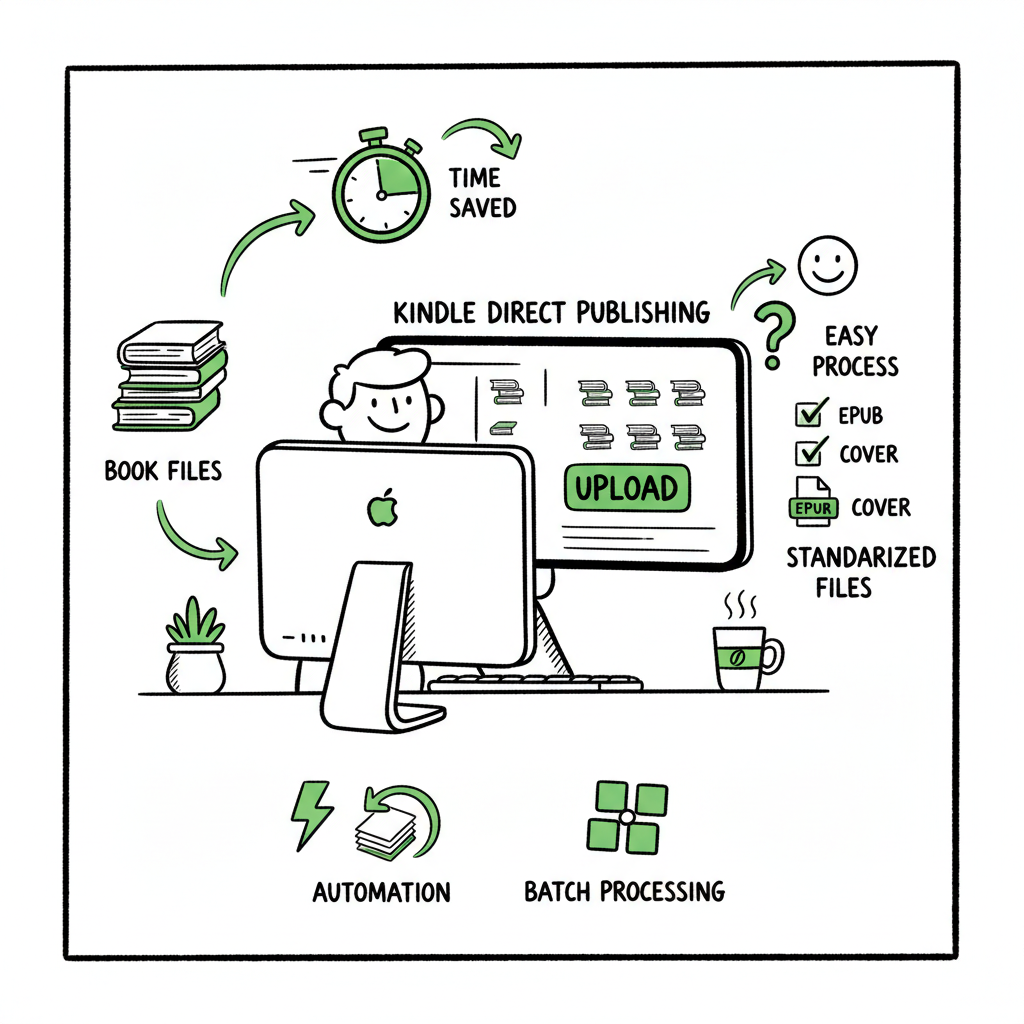
- You can reduce repetitive upload time from minutes per book to seconds by standardizing files, using CSV batch steps, and automating repetitive fields.
- Practical shortcuts (multi-tab workflows, templates, EPUB-first formatting) cut manual errors and preview time.
- When you outgrow manual tricks, unified multi-platform publishing tools offer ~90% time savings and make wide distribution practical.
Table of Contents
- Why faster uploads matter
- Practical strategies to upload books to kdp faster
- Automation and tools that actually work
- Workflow templates and next steps
- Single-title fast upload
- Small batch (3–10 titles)
- Multi-platform batch (10+ titles)
- Practical checks to add into any workflow
- Operational notes and risk controls
- A note on EPUB, covers, and print files
- Final thoughts
- FAQ
- Sources
Why faster uploads matter
If you publish more than a handful of books a year, time spent uploading becomes a fixed cost that eats into writing, editing, and marketing. The official KDP process requires one-by-one uploads: fill metadata, upload manuscript (EPUB or PDF), upload cover, set pricing, choose territories, and preview. Even for a simple paperback that can mean several minutes of waiting while KDP processes files. That makes publishing at scale impractical with a purely manual approach.
Faster KDP uploads aren’t just about speed. They reduce errors, keep metadata consistent across titles, and let you experiment with pricing and formats more often. When systems are repeatable you avoid wasted preview cycles and account holds caused by mismatched files. At the point an author goes from occasional to regular publishing, automating the upload is an obvious upgrade — not because automation is glamorous, but because it removes predictable friction and human error.
If you want to explore a purpose-built route to automating uploads, see Automate Amazon Kdp Publishing. That resource explains how a focused automation workflow handles the repetitive fields, so you can concentrate on what actually matters: content and distribution.
Additionally, you can explore a practical route via a dedicated publishing workflow that centralizes repetitive metadata handling and file validation. This helps keep your catalog consistent as you scale up.
Practical strategies to upload books to kdp faster
This section breaks the manual-to-fast transition into concrete steps. You can apply these tactics immediately; they don’t require new services.
-
Standardize your source files
- Keep a single workable manuscript format (EPUB for ebooks; print-ready PDF or EPUB for print depending on your workflow). EPUBs preview faster in many pipelines and avoid layout surprises. If you convert manuscripts regularly, use a trusted EPUB converter early in your process so your files are consistent before upload.
- Name files clearly and use a folder structure by ISBN or project code. When KDP asks for a manuscript or a cover, you’ll pick the correct file without opening folders.
-
Use templates for metadata
- Maintain a master CSV or a simple spreadsheet with title, subtitle, series, author name, keywords, description, and BISAC categories. Copy-paste becomes copy-choose rather than freeform typing.
- Store frequently used categories and keywords as short codes you can paste into KDP fields quickly.
-
Prepare covers and size them in advance
- Have a single cover process that outputs both JPEG for eBook thumbnails and print-ready PDFs for paperbacks. If you use a cover generator or service, keep the exact output specs so you avoid re-exports later. If you need a quick option for batch cover work, a book cover generator can save time on consistent sizing and bleed settings.
-
Use multi-tab workflows for small-scale batching
- For small runs of low-content or similar books, open multiple KDP Bookshelf tabs in Chrome, duplicate a freshly completed tab, and cycle through them with keyboard navigation. This trick can let you have several books in progress in parallel, so you’re not waiting idle for file processing to finish on a single tab.
-
Preview efficiently
- Preview only when the file or configuration changes. For repeated uploads of the same interior and dimensions, you can skip full-proofs until the last check. Keep a checklist: correct manuscript uploaded, correct cover uploaded, pricing visible, territories set.
-
Automate repetitive copy
- Use text expanders or simple automation macros for long fields like descriptions and expanded author bios. That reduces typing time and keeps content consistent across multiple platforms.
These practical steps shave minutes from each title. With repetition, minutes become hours saved each month.
Automation and tools that actually work
Manual shortcuts are effective for a few books. When you scale past a dozen releases a year, tools start to matter. There are three classes of tools to consider:
- Browser extensions and macros
- Upload assistants built for KDP tasks
- Multi-platform publishing platforms that centralize distribution
Browser extensions and macros
Extensions like listing helpers can auto-fill titles, subtitles, and descriptions from a spreadsheet. For low-content creators these tools can dramatically speed tasks without changing your account workflows. They’re light to adopt but carry limits: they still rely on your browser session and KDP’s web interface, so they don’t eliminate preview or processing waits.
Upload assistants built for KDP tasks
Some products focus solely on automating the KDP web actions: selecting books, uploading files, and navigating field-by-field. They reduce the “hands-on deck” time and keep a queue of uploads running while you work on other tasks. These are useful when you want automation but plan to keep KDP as your single distribution point.
Multi-platform publishing platforms
If you plan to distribute beyond Amazon — to Kobo, Apple Books, Draft2Digital, and Ingram — a multi-platform publishing tool becomes especially valuable. These platforms accept CSV or batch inputs, apply platform-specific intelligence (format checks, category mapping, price conversions), and push files where they belong. The benefit is threefold:
– Unified multi-platform publishing: submit once, distribute everywhere.
– CSV batch uploads: manage metadata and assets in a single file, then run a batch job.
– Error reduction: platform rules and checks prevent common rejections.
When you publish seriously, this type of tool often delivers ~90% time savings compared to manual one-by-one uploads. It makes wide distribution practical and reduces the friction of maintaining consistent metadata across stores.
What to look for in a tool
- Platform-specific intelligence: the tool should know KDP’s file rules and how Apple or Kobo differ.
- CSV batch capability: large sets of titles are easiest to manage as a spreadsheet.
- Preview and validation steps: the tool should catch issues before uploading.
- Control over assets: you must be able to map covers, interiors, and ISBNs precisely.
Many authors are nervous about third-party tools. A practical approach is to test with a few low-risk titles and verify that each platform’s output matches your expectations. Automation should remove repetitive pain, not replace critical quality checks.
Workflow templates and next steps
Below are compact workflow templates for three common scenarios: single-title fast upload, small batch (3–10 titles), and wide distribution (multi-platform batch).
Single-title fast upload
- Prepare final EPUB and cover files in dedicated folder.
- Open the KDP Bookshelf, fill metadata from a short-term template, and paste keywords and description from your spreadsheet.
- Upload EPUB, upload cover, run Amazon previewer.
- Set pricing and territories, then publish.
Small batch (3–10 titles)
- Create a CSV with one row per title and columns for all required metadata.
- Produce a folder with all manuscript and cover files named to match CSV identifiers.
- Open multiple Bookshelf tabs, duplicate a filled tab, and use keyboard navigation to paste fields quickly.
- Upload files and queue previews in each tab; while KDP processes, prepare the next title’s files.
Multi-platform batch (10+ titles)
- Prepare a master CSV including platform-specific fields where supported.
- Use a multi-platform publishing tool that accepts CSV batch uploads, maps fields to store requirements, and validates files.
- Let the tool apply platform intelligence — converting to EPUB where needed, checking cover bleed, suggesting categories.
- Review the validation reports, fix flagged issues, and execute the batch upload.
Practical checks to add into any workflow
- File names that map to the CSV ID
- A single source of truth for descriptions and author names
- A preflight checklist for page count, trim size, and cover bleed
- A rollback plan: keep the original files and CSV so you can republish if needed
When a workflow is repeatable, you reduce the mental overhead of each upload. The faster you make uploads with fewer errors, the more experiments you can run with pricing, series bundles, and promotions.
Operational notes and risk controls
- Keep one authoritative spreadsheet and back it up.
- Use dummy ISBNs or internal test records when experimenting with a tool.
- Maintain a simple naming convention for versions (title_v1.epub, title_v2.epub).
- If you use a third-party tool to create EPUBs, verify the file in an independent previewer before uploading to stores.
A note on EPUB, covers, and print files
Convert manuscripts to EPUB early in the pipeline to catch structural issues. If you need a reliable tool for that step, an EPUB converter can handle batch conversions and reduce preview errors. For covers, use a consistent process: generate, export at the right resolution, and keep both a web-friendly JPEG and a print-ready PDF. If you rely on automated cover production, confirm bleed, spine width, and text legibility across sizes. When you create paperbacks and ebooks, keep one source for interior content and generate outputs to match platform demands. If you produce both formats often, a dedicated book creation workflow tool will pay for itself with time saved.
Consider using a book cover generator for consistent sizing and bleed settings. See the cover workflow at the book auto AI site for capabilities. If you need to convert manuscripts to EPUB, check the EPUB converter tool. For a complete approach to publishing, explore the book creation workflow.
Additionally, you can explore a practical route via a dedicated publishing workflow that centralizes repetitive metadata handling and file validation. This helps keep your catalog consistent as you scale up.
For a focused cover workflow, you can use a dedicated cover generator path from BookAutoAI. For EPUB conversion, there is an EPUB converter tool. And for end-to-end book creation orchestration, a comprehensive book creation workflow is available.
cover generator |
EPUB converter |
book creation workflow
Final thoughts
Faster KDP uploads come from a combination of disciplined file preparation, efficient manual techniques, and pragmatic use of automation when you scale. Start by standardizing files and templates, then adopt lightweight browser tricks for small batches. When your publishing volume justifies it, move to unified multi-platform publishing with CSV batch uploads and platform-specific intelligence. The goal isn’t to eliminate human oversight — it’s to automate the repetitive parts so you can spend time on writing, editing, and selling.
FAQ
Does Amazon KDP support bulk uploads natively?
No. KDP’s official process requires individual uploads through the Bookshelf. Community workarounds and browser workflows can speed the manual steps, but true bulk or API-driven uploads aren’t officially supported.
Will automation get my account flagged?
Automated tools that act like a human filling the web form typically don’t cause issues, but always use reputable services and follow KDP rules. Test with a few low-risk titles and verify that previews and metadata are correct.
Which file type should I use for ebooks?
EPUB is the recommended source for ebooks in most workflows. Convert and validate EPUBs early using a reliable EPUB converter so content structure and metadata are correct before upload.
I publish paperbacks and ebooks — how do I manage both?
Keep a single content source and export into the formats each platform requires. Use a consistent cover process for both thumbnail and print files. If you publish widely, a multi-platform tool with a book creation workflow will simplify the mapping between formats.
When should I move from manual tricks to an automated platform?
If you’re publishing dozens of titles per year or distributing across multiple platforms, the time saved and error reduction from a batch-capable multi-platform tool usually justifies the switch.
Sources
- Upload and Preview Book Content – Kindle Direct Publishing
- Upload Book Resources – Kindle Direct Publishing
- How to Upload KDP Low Content Books in BULK
- Automate your Amazon KDP Uploads 2023 Tutorial
- How to Publish a Book on Amazon in 6 Simple Steps
- Amazon KDP Automation – Flying Upload
- Mass Upload? – KDP Community
Upload Books to KDP Faster Estimated reading time: 12 minutes Key takeaways You can reduce repetitive upload time from minutes per book to seconds by standardizing files, using CSV batch steps, and automating repetitive fields. Practical shortcuts (multi-tab workflows, templates, EPUB-first formatting) cut manual errors and preview time. When you outgrow manual tricks, unified multi-platform…