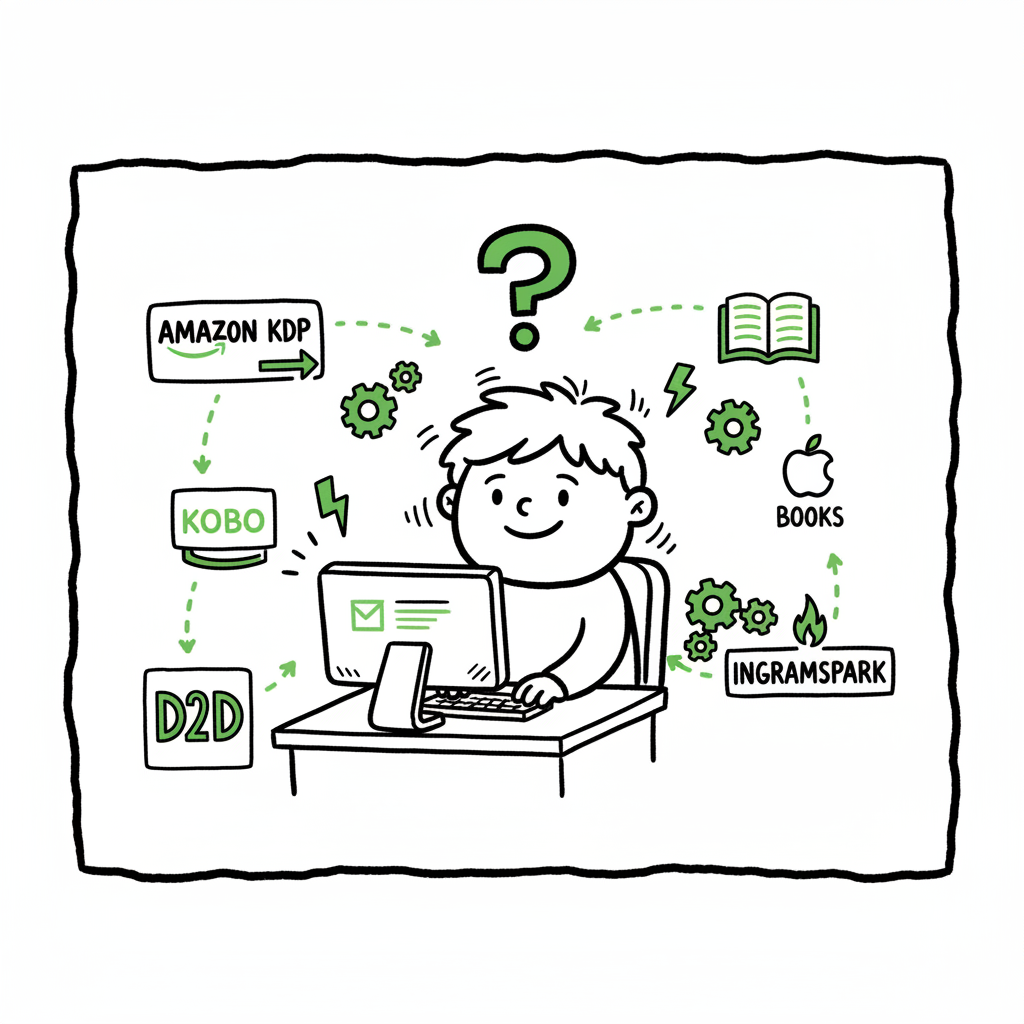
Automate Wide Publishing Across All Platforms Explained
Automate Wide Publishing Across All Platforms
Estimated reading time: 18 minutes
Key takeaways
- Automate Wide Publishing Across All Platforms removes repetitive uploads and lets authors publish the same title to Amazon KDP, Kobo, Apple Books, Draft2Digital, and Ingram from one control panel.
- The right setup combines clean files—interior, cover, EPUB—and platform-aware metadata with a batch upload tool to save roughly 70–90% of manual time and reduce human error.
- BookUploadPro is an operational tool for upload automation: CSV batch uploads, per-marketplace intelligence, and automated retries make wide distribution practical once you scale beyond a few titles.
Table of Contents
- Why automate wide publishing?
- How upload automation works in practice
- Preparing files, covers, and EPUBs for batch upload
- Operational best practices and risk management
- FAQ
- Sources
Why automate wide publishing?
If you publish more than one title, or you plan to sell in multiple stores, the phrase Automate Wide Publishing Across All Platforms stops being jargon and becomes a productivity rule. Manually uploading the same book to Amazon KDP, Kobo, Apple Books, Draft2Digital, and Ingram means repeating dozens of clicks, typing the same metadata several times, and juggling multiple price and territory rules. Automation moves those repetitive steps into software so you can focus on the parts that need human judgment.
Automation is not about removing human oversight. It’s about removing manual repetition and predictable mistakes. When you Automate Wide Publishing Across All Platforms, you trade clicking through dashboards for a short setup process: prepare a proper set of files, define the metadata once (and map it to each marketplace), then let the uploader fill the forms, attach the right files, and submit. For most small presses and independent authors, that change scales publishing from occasional to routine.
There are two common approaches in the market. Aggregators take your files and push them out under one contract to many retailers. Upload-automation tools, like BookUploadPro, instead keep you connected to your platform accounts and automate the steps you’d perform in each store’s dashboard. Both approaches reduce work; upload automation preserves direct relationships with platforms while removing the need to copy-paste or manually enter every field.
How upload automation works in practice
Upload automation tools are operational software: they mimic the steps a human takes in a retailer dashboard, but they do it reliably and at scale. At a practical level, this looks like a few components working together.
Single dashboard and per-market flows
A unified control panel lists your titles. When you pick a title and a marketplace, the system follows a marketplace-specific flow: place metadata fields in the right spots, attach the interior file, attach the cover file, choose print options or ebook territories, and submit. The per-marketplace intelligence is crucial—each retailer has different required fields, accepted file types, and validation rules. A good uploader remembers those differences so you don’t have to.
CSV batch uploads and templates
When you have many titles, uploaders let you work in bulk. CSVs describe each SKU—the title, subtitle, contributors, series, price, territory, ISBN, and file names. The uploader maps CSV columns to marketplace fields and runs the batch. Templates speed repeatable tasks: a series template, a paperback template with print settings, or a wholesale pricing template for specific territories.
File matching and validation
Automation checks the file types before submission: is that EPUB valid, is the paperback interior the correct trim and margin for the selected paper, does the cover meet pixel or bleed requirements? Some uploaders include basic validation; other times you’ll run separate conversion or validation tools first. The point is this step is handled programmatically rather than by error-prone eyeballing during fifty manual uploads.
Retries, error handling, and reporting
Platforms change, connections fail, or files get rejected. The best automation remembers what succeeded and what failed, displays clear error messages, and retries where possible. Instead of a live session where you stare at progress bars, you get a queue with status, reasons for failure, and a single retry button for the whole batch.
Where BookUploadPro fits
BookUploadPro focuses on upload automation rather than content generation. It logs into each marketplace and performs the structured uploads from a single interface. That means you keep direct platform accounts—important if you want to manage promotions on KDP or see platform-native analytics—while removing the repetitive dashboard work. BookUploadPro highlights unified multi-platform publishing, CSV batch uploads, platform-specific intelligence, and error reduction. For authors publishing seriously, it’s an obvious upgrade: automate the upload. Own the distribution.
Preparing files, covers, and EPUBs for batch upload
Automation saves hours, but it depends on clean inputs. If the files you hand the uploader are inconsistent, the automation will surface problems faster, but it won’t fix layout or editorial issues. This section covers the files and assets you need and how to prepare them so uploads complete without surprises.
The three core assets
- Interior file(s): For print-on-demand, produce a print-ready PDF sized to the chosen trim with correct margins and embedded fonts. For ebooks, produce a validated EPUB or a well-formed reflowable file that readers expect.
- Cover file: For paperbacks this is the wraparound PDF including spine calculations. For ebooks provide a high-resolution front cover image in the accepted formats.
- Metadata file: A CSV or spreadsheet that includes every field the marketplaces require: title, subtitle, series title and number, contributors (author, editor, illustrator), description, categories, keywords, ISBN or ASIN if relevant, language, publication date, price by territory, and marketplace-specific booleans like pre-order or DRM.
Cover creation and processing
A consistent cover workflow matters. Use a single master cover file and export platform-specific versions: JPEG/PNG for ebooks, a print-ready PDF with bleeds for paperbacks. If you create covers with a cover tool, drop the exported files into the same folder referenced by your CSV so the uploader can find them automatically. If you need processing or batch cover generation, consider a cover generator processing pipeline to standardize sizes and bleed—this reduces rework when the uploader flags a trim mismatch. (If you need a processing tool for bulk covers, there are services that automate cover generation and resizing to make the upload-ready files.)
EPUB conversion and validation
Many authors start with a Word document. Converting to EPUB safely often requires a conversion step followed by validation. A validated EPUB avoids rejections in stores and makes the reading experience uniform across devices. If you handle multiple titles, use a dedicated EPUB conversion workflow to batch-convert files and run a validator on each output before handing the files to the uploader. A reliable EPUB converter that supports batch processing speeds this stage and reduces the last-minute fixes that break a large run.
Creating paperback and ebook files
If you create both ebook and paperback versions, keep conventions consistent: same title metadata, same ISBN logic (separate ISBNs where required), and coordinated publication dates if you go simultaneous wide. Generate the paperback interior at the final trim size and the ebook as a separate, reflowable file. If you work with POD printers outside retailer converters, confirm the printer-ready PDF follows the chosen distributor’s specs so the uploader won’t encounter conversion errors.
Where to insert automated conversions
Two practical models work well:
– Pre-process outside the uploader: Use dedicated tools for EPUB conversion, cover processing, and print-ready PDFs. When everything validates, point the uploader at the final files.
– Light-touch in the uploader: Some uploaders accept source formats and attempt conversions during upload. This saves steps but shifts responsibility for quality control to the uploader. For scale, many publishers prefer the pre-process model because it isolates each step for easier debugging.
Operational best practices and risk management
Automation is not a set-and-forget switch. It changes the operations of publishing and demands a slightly different discipline.
Start with one title as a test run
Before you batch-publish, run one title through every marketplace the way the uploader will. Confirm the metadata mapping, check how descriptions and categories appear, and verify prices and territories. This single-title run catches mapping mistakes that could affect entire batches.
Use clean CSV templates and version control
Treat your CSV as a controlled asset. Use a template that maps columns to marketplace fields and keep version history. When you change a pricing strategy or series format, add a comment column explaining the edit. If something fails in a batch, the CSV history tells you what changed and when.
Quality assurance and human checkpoints
Automation accelerates the routine, but QA remains crucial. Build checkpoints into your workflow:
– Automated validations for file formats, EPUB passes, and cover dimensions.
– One human review of metadata for market tone, keywords, and categories.
– A soft-launch strategy: publish to a smaller marketplace or single territory first, check live listings, then roll out the rest of the batch.
Understand platform-specific rules
Each retailer has quirks: KDP accepts specific interior PDF requirements and has subscription and pre-order rules; Apple Books expects specific EPUB structures; Kobo has its own category taxonomy. Upload automation handles many differences, but when a platform changes rules or UI, you’ll need to update your mapping or template.
Monitor royalties and returns
Automation speeds listing and distribution, but it doesn’t replace post-publication monitoring. You still need to collect sales and royalty reports, reconcile them with expected payouts, and remove problematic editions if necessary. Combine automation with reporting tools or exportable logs so you can audit uploads when something goes wrong.
Scale considerations
As you scale, the inefficiencies you fixed by automating become new challenges if you don’t prepare for them:
– Metadata drift: If series naming or author credits vary across CSVs, your catalog fragments. Standardize metadata at source.
– Duplicate SKUs: Keep a single source of truth for ISBNs and internal SKUs so the uploader doesn’t create duplicate listings.
– Title lifecycle: Plan for reissues, price updates, and territory changes. A good upload tool should support updates and replacements without re-creating listings.
Costs, time savings, and tradeoffs
A realistic expectation: automation typically delivers 70–90% time savings on the upload step itself. The upfront work—standardizing files, building CSV templates, and running a test title—takes time, but the per-title marginal effort drops dramatically. For authors who publish multiple titles a year or maintain a catalog, automation becomes cost-effective quickly. For occasional one-off titles, manual uploads may still make sense.
Final operational checklist (short)
- Run a full test upload for one title across all target platforms.
- Validate EPUBs and print PDFs before queueing them for batch upload.
- Use CSV templates, keep versions, and lock metadata fields that should not change.
- Include human QA steps: metadata review and live listing checks.
- Monitor logs and royalties after roll-out and be ready to correct mapping errors.
FAQ
Question?
Will automation publish my book everywhere automatically?
Automation submits your files and metadata to the platforms you select, but you control which stores and territories receive each title. Automation speeds the process and reduces errors, but publishing decisions—rights, pricing, promotions—remain yours.
Question?
Do I lose control of my platform accounts if I use an uploader?
No. Upload automation usually works with your direct accounts or via credentials you supply. You retain platform access and the ability to run native promotions or access platform-specific analytics.
Question?
What happens when a marketplace changes its requirements?
Automation tools need maintenance. Good uploaders monitor platform changes and update per-marketplace flows. You should still verify the first few uploads after any known platform update and watch error logs for rejected submissions.
Question?
Can automation handle paperback formatting?
Automation can submit print-ready PDFs and configure POD options in marketplace flows, but the uploader depends on you to provide correct print files. For complex print layouts, prepare and validate the PDF before upload.
Question?
How much time will automating save me?
Time savings vary by catalog size, but many authors report reducing upload time by roughly 70–90% per title when moving from manual dashboard entry to batch automation.
Question?
Is automation suitable for a single title?
Yes, but the benefits are largest when you publish multiple titles or maintain a growing catalog. A careful initial setup pays off as you add more titles.
Sources
- BookUploadPro – Upload to All Major Publishing Platforms
- About – BookUploadPro
- 23 SaaS Automation Tools and Technology for Modern Publishers
- Kobo Upload Automation & Batch Publishing (BookAutoAI blog)
- Benefits of Automating Kobo Uploads (BookAutoAI blog)
- Best Kobo Upload Automation Extension (BookAutoAI blog)
- I Automated My Entire Amazon Book Publishing Business (YouTube)
- How To Use AI To Build a Six-Figure Self-Publishing Business (YouTube)
Automate Wide Publishing Across All Platforms Estimated reading time: 18 minutes Key takeaways Automate Wide Publishing Across All Platforms removes repetitive uploads and lets authors publish the same title to Amazon KDP, Kobo, Apple Books, Draft2Digital, and Ingram from one control panel. The right setup combines clean files—interior, cover, EPUB—and platform-aware metadata with a batch…