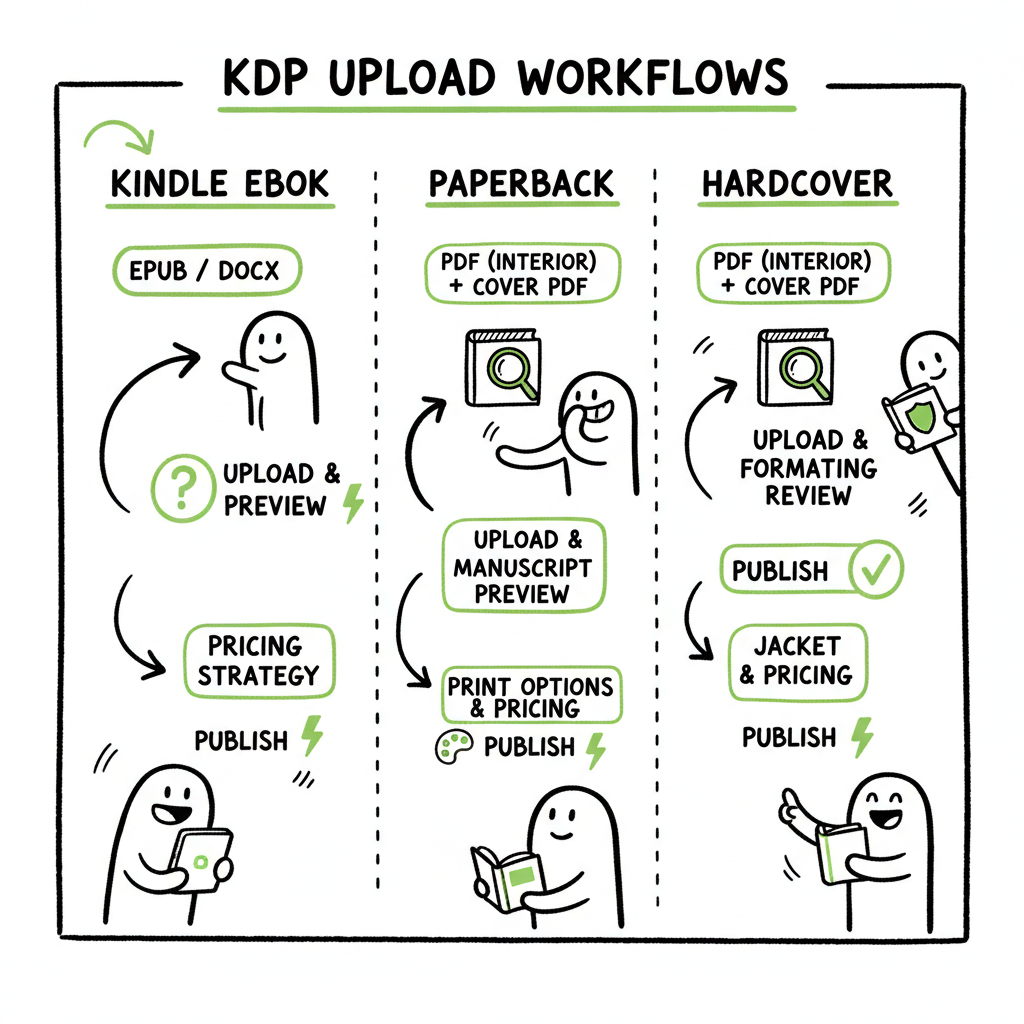
KDP Upload Workflows by Format for Ebook Paperback Hardcover
KDP Upload Workflows by Format (Ebook, Paperback, Hardcover)
Estimated reading time: 14 minutes
Key takeaways
- KDP splits publishing into three parallel content tracks: Kindle eBook, Paperback, and Hardcover—each needs the right file types and its own preview and pricing steps.
- Use EPUB or DOCX for reflowable eBooks and press-ready PDFs for print interiors; each format may require a separate ISBN and has distinct print options like trim size and paper type.
- For authors scaling across platforms, a unified, CSV-driven upload tool saves time, cuts errors, and makes multi-format distribution practical.
Table of Contents
- Why KDP separates ebook, paperback, and hardcover
- Step-by-step upload workflows by format
- Common errors, ISBNs, and print specifics
- Scale publishing: CSV batch uploads, platform intelligence, and BookUploadPro
- FAQ
- Sources
Why KDP separates ebook, paperback, and hardcover
Amazon KDP treats an eBook, a paperback, and a hardcover as three distinct products. The site asks for the same core metadata—title, author, description, keywords—but each format needs different files and checks. That split exists because how a file displays on a Kindle device is not the same as how it prints on paper. A reflowable EPUB adapts to font size and screen width. A paperback needs fixed dimensions, margins, and a print-ready PDF. A hardcover shares many print rules with paperback but adds its own binding and cover layout requirements.
Understanding this distinction keeps uploads clean. Authors who think of a book as one product and try to use the same file for all three formats will run into preview problems, layout shifts, or rejected uploads. Treat each format as a separate delivery that shares metadata but uses format-specific assets and settings.
Why this matters in practical terms
- The eBook content tab emphasizes reflow and device preview; it checks EPUB or Word-derived content and offers DRM choices.
- The print content tabs require page-count-aware cover templates and a print-cost calculation tied to trim, paper stock, and page count.
- If you plan multiple formats, start by entering metadata once and then create additional formats from that base so KDP copies shared data and links editions on the product page.
Quick note on preparing files
- If you need to convert a manuscript to EPUB for Kindle, use a reliable EPUB converter to preserve structure and images. For straightforward EPUB conversion, consider a dedicated tool such as an EPUB converter that keeps chapter breaks and tables of contents intact.
- When you need a cover for print and digital, a dedicated cover tool speeds up sizing and bleed calculations. A book cover generator is useful when you must produce both a full-wrap print cover PDF and a thumbnail-ready eBook cover.
book cover generator can produce both formats. If you need conversion help, an EPUB converter can preserve structure and navigation. For broader production automation, BookAutoAI tools offer platform-ready capabilities.
Step-by-step upload workflows by format
This section walks through the three KDP content tabs in the order you will encounter them. The platform flow is consistent: create a title entry, fill metadata, pick a format, upload manuscript, upload cover, use the previewer, set rights, and price. The differences come when you reach the content and pricing screens.
Shared first steps (metadata layer)
For every format you begin with the same fields:
- Book title and subtitle
- Author(s) and contributors
- Book description (HTML allowed but keep it simple)
- Language
- Categories and keywords
- Age and grade ranges if applicable
- Territories and rights
Fill these once and save time by reusing the title entry to create additional formats. KDP lets you make a paperback or hardcover from an existing Kindle eBook entry so the metadata copies forward and the product page links the formats.
1) Kindle eBook (recommended files: EPUB, DOCX)
File format and structure
KDP prefers EPUB or DOC/DOCX for reflowable text. These formats let the Kindle rendering engine adapt fonts, spacing, and images.
Keep images optimized and embedded; avoid overlarge files.
Use a clean table of contents and consistent chapter markers. Kindle devices rely on proper headings to build navigation.
Upload and preview
Upload the EPUB or DOCX in the Kindle eBook Content tab.
Run the Kindle Online Previewer to check how text flows, how images scale, and whether chapter breaks appear correctly.
Choose whether to enable DRM. This is a one-time choice per eBook and can’t be changed after publication.
Best practices for Kindle
Use semantic headings in your source file so the converter builds a usable table of contents.
Test on the previewer for small screens (phone) and larger readers (tablet) to catch line breaks or oversized images.
If conversion errors appear, fix the source DOCX or regenerate the EPUB with a tool designed for eBooks.
2) Paperback (recommended files: press-ready PDF interior; cover PDF sized to trim)
File format and layout
For print, KDP prefers a high-quality PDF for the interior so layout, page breaks, and margins remain fixed.
The cover for a paperback is a full-wrap PDF sized to the chosen trim and page count. KDP offers cover templates you can use, or create your own at the exact dimensions.
Print options you will set
– Trim size (e.g., 5″ x 8″, 6″ x 9″)
– Bleed or no-bleed (bleed needed if art or backgrounds extend to the edge)
– Paper color (white or cream)
– Cover finish (gloss or matte)
– Paperback spine dimensions depend on page count and paper type; KDP calculates this automatically when you upload the interior and cover.
Preview and pricing
Use the Print Previewer to view interior pages, margins, and how the spine lines up with the cover.
KDP shows the estimated print cost based on trim, page count, and paper. Set your price accordingly to hit your royalty target.
Each print edition needs either a KDP-assigned ISBN or one you provide. If you use your own ISBN, that ISBN is tied to that specific print format edition.
Cover and interior workflow tips
When designing covers, match the template for the selected trim and paper type to avoid cropping or quality loss.
If you need help generating a print-ready cover quickly, a book cover generator can produce correctly sized PDFs and speed up the upload.
3) Hardcover (recommended files: PDF interior and cover; some markets limited)
What’s different
Hardcover options vary by market; hardcover may not be available everywhere.
Hardcover cover layout uses dust jacket or case laminate settings. KDP provides options based on the binding style.
Spine and board thickness calculations differ slightly from paperback. Expect slightly higher print costs and different minimum page counts.
Files and preview
- Upload a press-ready PDF interior and a cover PDF sized to hardcover specifications.
- Use the online previewer to check spine alignment, board margins, and any image bleed.
ISBN and identifiers
Hardcover editions are separate products and typically require their own identifier if you use ISBNs.
You can use a KDP-assigned ISBN for print, or supply your own. Each print format (paperback vs. hardcover) needs a unique ISBN if you choose to use one.
Making formats link on the product page
After you publish one format, create new formats from the existing title entry so Amazon links them on a single product page.
KDP copies metadata to the new format entry; you only need to upload format-specific files and set pricing.
Common errors, ISBNs, and print specifics
This section covers the predictable mistakes—and how to prevent them—so your uploads move from draft to live without back-and-forth fixes.
Typical file and formatting errors
Wrong file type for the format.
Uploading a DOCX when KDP expects a print-ready PDF for the interior will cause layout issues in the print preview.
Incorrect margins or missing bleed.
Bleed images that touch the edge must extend past the trim line by the required bleed measurement; otherwise part of the image may be cut.
Low-resolution cover images.
Use high DPI (usually 300 dpi) for print covers to avoid pixelation.
TOC and heading tags missing in EPUBs.
Without proper headings, navigation breaks on Kindle.
ISBN handling pitfalls
Treat each format as a separate product with its own ISBN if you use ISBNs. An ISBN for the paperback can’t be reused for the hardcover or the eBook.
Letting KDP assign ISBNs is fast and free for print, but that ISBN will list KDP as the publisher. If you want to keep your own imprint, supply your own ISBNs.
Previewer mismatches
The Kindle Online Previewer and the Print Previewer simulate different outputs. Fix issues in the appropriate source file: EPUB/DOCX for eBooks; PDF for print.
Run both previewers until you are satisfied with page breaks, image placement, and chapter starts.
Print-cost and pricing traps
Print cost depends on trim size, page count, and paper. A change in font size that increases page count will increase your unit cost and affect royalties.
Test multiple price points to balance competitiveness and royalties. KDP shows royalty estimates after you input price and royalty territory.
When you need quick conversions or assets
If your manuscript is ready but you need an EPUB quickly for Kindle, use a trusted EPUB converter to keep chapter structure and links intact.
If you must create both a digital thumbnail and a full-wrap print cover, a focused cover tool helps you export the correct files without guessing dimensions.
Scale publishing: CSV batch uploads, platform intelligence, and BookUploadPro
Once you understand the three KDP tracks and the file rules, the next challenge is scale. Repeating manual uploads for dozens of titles—or multiple formats per title—becomes tedious and error-prone. That is where a unified publishing assistant saves time.
Why authors reach for automation
Manual entry multiplies errors: mistyped metadata, inconsistent keywords, incorrectly formatted files.
Publishing multiple formats per title means repeating the same metadata across entries unless you use a tool that maps and reuses it.
Time is the limiting factor. Automating the upload process turns a multi-hour sequence into a repeatable, fast task.
What an effective publishing assistant should do
Accept CSV batch uploads to push metadata and file references across titles.
Understand platform-specific rules so it sends the right file type to KDP’s eBook, paperback, and hardcover tabs.
Detect common errors early: print file not PDF, missing bleed, invalid EPUB structure, or missing ISBN for a print edition.
Offer platform intelligence for other stores too—Kobo, Apple Books, Draft2Digital, and Ingram—so you can distribute widely with consistent metadata.
For quick cover generation, a book cover generator can produce both formats. If you need conversion help, an EPUB converter can preserve structure and navigation. For broader production automation, BookAutoAI tools offer platform-ready capabilities.
How BookUploadPro fits practical needs
BookUploadPro automates repetitive uploads across Amazon KDP, Kobo, Apple Books, Draft2Digital, and Ingram, saving roughly 90% of the manual time once your assets and CSV are ready.
It supports CSV batch uploads so you can push dozens of titles or multiple formats at once and maintain consistent metadata across platforms.
Platform-specific intelligence helps map file formats correctly (EPUB for Kindle eBooks, PDF for print), reduce errors, and present warnings before files go live.
The system reduces the human error that shows up as failed previews or incorrect pricing, making wide distribution practical and affordable.
For production teams or authors serious about publishing multiple formats, BookUploadPro becomes an obvious upgrade: Automate the upload, Own the distribution.
Practical scaling tips
- Prepare a single master CSV that contains metadata and file links for all formats. Test with a small batch to confirm mappings.
- Store format-specific assets with clear names (title_ebook.epub, title_paperback_interior.pdf, title_paperback_cover.pdf) so a CSV-driven tool assigns them correctly.
- Keep a edge-case checklist (images that exceed size limits, books with unusual trim sizes, large page counts) and mark those rows in the CSV for manual review.
When to keep things manual
- If you publish one or two titles a year, manual KDP uploads may be fine.
- If you publish multiple titles or multiple formats per title, move to batch processes and a tool that understands each store’s requirements.
Practical asset generation during scale
- For cover production, a single tool that outputs both the thumbnail for the eBook and the full-wrap PDF for print cuts design time dramatically; a book cover generator is the kind of tool that can handle both outputs with correct dimensions.
- If your manuscript originates in Word and you need both EPUB and print PDF, convert to EPUB with a reliable EPUB converter and generate a press-ready PDF for print from the same source to keep structure consistent.
Final thoughts
Working with KDP’s three-track system becomes straightforward once you accept that eBook, paperback, and hardcover are separate delivery paths with shared metadata. Prepare appropriate source files—EPUB or DOCX for eBooks, PDF for print—check the previewers, be intentional with ISBNs, and set pricing after reviewing print costs.
If you are publishing a single title, a careful manual process works. If you are publishing multiple titles, multiple formats, or distributing across stores, invest in a tool that automates uploads, understands platform differences, offers CSV batch support, and reduces the routine errors that slow release schedules. For authors who publish seriously, automation shifts work from “uploading” to managing distribution and promotion.
FAQ
Question 1?
Do I need a separate ISBN for each format?
If you use ISBNs, yes. KDP treats ebook, paperback, and hardcover as distinct products. You may use KDP-assigned ISBNs for print formats or supply your own, but each print edition must be unique if you manage your own ISBNs.
Question 2?
Can I create a paperback from my Kindle eBook listing so metadata copies over?
Yes. KDP allows you to create additional formats from an existing title so metadata is reused and formats can be linked on the Amazon product page.
Question 3?
Which file should I use for the Kindle eBook upload?
EPUB or DOC/DOCX are the recommended reflowable formats for Kindle eBooks. If you need conversion help, use a reliable EPUB converter to preserve structure and navigation.
Question 4?
What file type does KDP prefer for print interiors?
KDP prefers press-ready PDFs for paperback and hardcover interiors so page breaks, margins, and layout remain fixed.
Question 5?
How do I fix a cover that is the wrong size for print?
Regenerate the cover at the exact dimensions KDP specifies for your chosen trim size and page count. If you need a fast tool to produce correctly sized images and PDFs for both eBook thumbnail and print cover, consider using a book cover generator.
Sources
- https://kdp.amazon.com/help/topic/G200641240
- https://kdp.amazon.com/help/topic/G202175860
- https://kdp.amazon.com/help/topic/G202172740
- https://kdp.amazon.com/help/topic/G200645680
- https://www.thebookdesigner.com/upload-your-book-to-kdp/
- https://writersofthewest.net/blog/how-to-publish-a-book-on-amazon-kdp-step-by-step-detailed-with-pictures/
- https://help.selfpublishing.com/en/uploading-a-book-to-kdp
- https://www.youtube.com/watch?v=VQvER_NGnNc
- https://kdpcommunity.com/s/question/0D58V000082iug0SAA/i-have-one-book-that-i-would-like-to-simultaneously-create-ebook-paperback-and-hardcover-versions
KDP Upload Workflows by Format (Ebook, Paperback, Hardcover) Estimated reading time: 14 minutes Key takeaways KDP splits publishing into three parallel content tracks: Kindle eBook, Paperback, and Hardcover—each needs the right file types and its own preview and pricing steps. Use EPUB or DOCX for reflowable eBooks and press-ready PDFs for print interiors; each format…