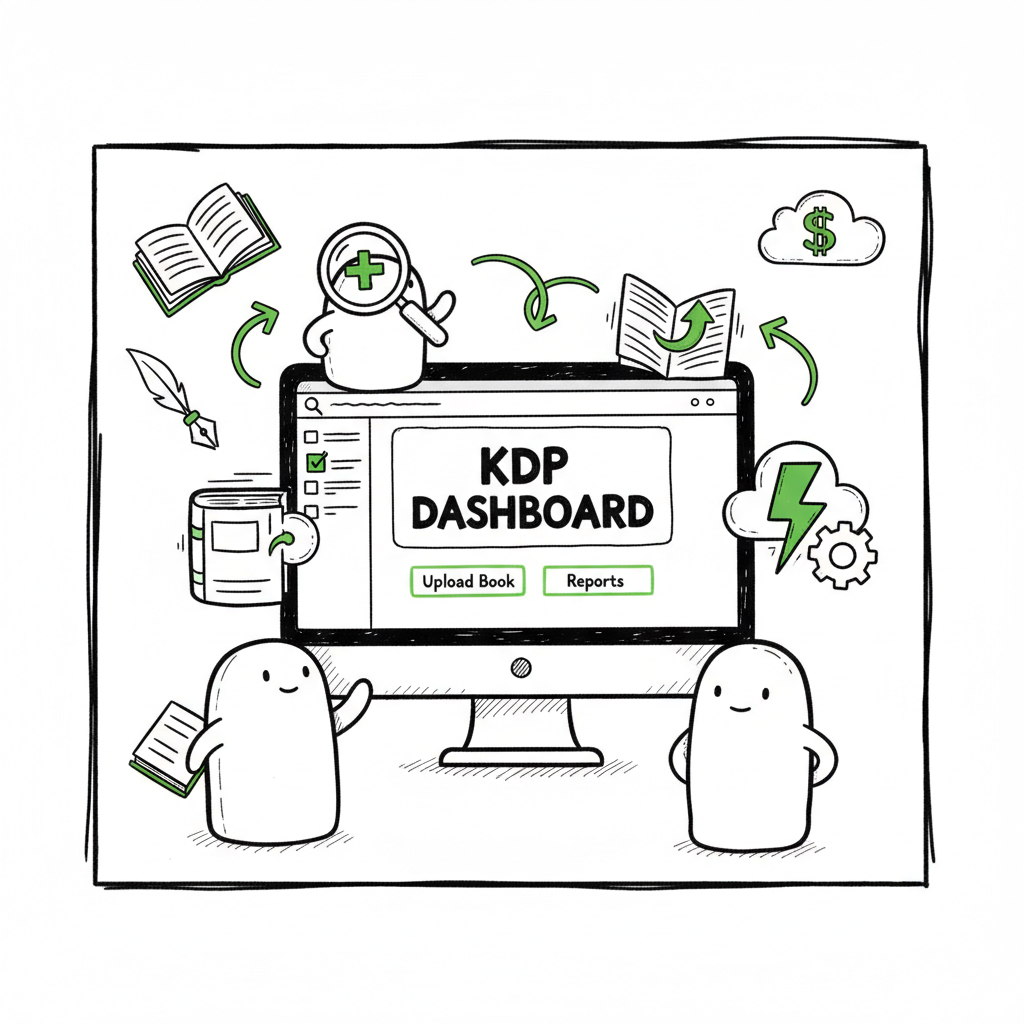
How to Automate Amazon KDP Publishing with Chrome Extensions
How to Automate Amazon KDP Publishing (Chrome Extension Guide)
Estimated reading time: 12 minutes
Key takeaways
- Chrome extensions can remove the repetitive work of filling KDP fields and uploading files, saving hours when you publish at scale.
- Use uploader-style tools for batch uploads, research extensions for niche and keyword tasks, and a multi-platform system to publish beyond Amazon.
- For high-volume authors, automating uploads and using CSV batch workflows makes wide distribution practical and reduces errors.
Table of Contents
- Why automation matters
- Chrome extension workflow to automate KDP
- Scaling beyond KDP: multi-platform publishing
- FAQ
Why automation matters
If you publish more than a handful of books a year, manual entry becomes a time sink. How to Automate Amazon KDP Publishing (Chrome Extension Guide) is about reducing that repetitive work without risking account safety or quality. In plain terms: automating uploads takes the same steps you do every time—title, description, keywords, files—and repeats them reliably, across many listings.
Three things change when you automate:
- – Speed. A manual upload takes 10–30 minutes. At scale, that’s dozens of hours. Automation can cut that by roughly 90% when you use CSV batch uploads and reliable tools.
- – Accuracy. Copy-and-paste errors, wrong file versions, or mis-typed ISBNs stop being a constant worry when data comes from a single spreadsheet.
- – Reach. Automation makes it practical to publish across platforms—Amazon KDP, Kobo, Apple Books, Draft2Digital, and Ingram—so a single workflow creates more distribution.
This guide focuses on Chrome extensions as a practical entry point. Extensions let you automate tasks inside your browser: autofill fields, upload files, and trigger actions on KDP pages. You’ll learn what works, what to watch for, and when a purpose-built multi-platform service becomes the obvious upgrade.
Why this matters for authors
If you write a handful of novels or build a small catalog of niche low-content books, manual publishing is fine. Once you want a catalog of dozens or hundreds of titles, the economics change. You need tools that:
- Let you control data in spreadsheets
- Upload files automatically
- Apply platform-specific rules (trim sizes, file types, metadata fields)
- Track progress and errors
BookUploadPro automates repetitive uploads across Amazon KDP, Kobo, Apple Books, Draft2Digital, and Ingram. It uses CSV batch uploads and platform-specific intelligence to reduce errors and make wide distribution practical. For authors publishing seriously, it’s an obvious upgrade.
Chrome extensions you should know
- Extensions fall into two groups:
- Uploader and autofill tools (they act on the KDP UI to fill and submit listings).
- Research and market tools (keyword, niche, and competitor analysis).
- Uploader-style extensions save repeated field entry and perform file uploads from a spreadsheet. Autofill tools keep reusable templates for titles, descriptions, and keywords. Research extensions help you pick niches and validate ideas but they don’t replace uploaders.
- Chrome extensions are an easy first step toward automation, but they aren’t an end state. Later sections cover how to combine extensions with a multi-platform automation system for the full workflow.
For automated cover generation and processing, see BookAutoAI’s cover generator processing.
Chrome extension workflow to automate KDP (#workflow)
This section walks through a practical, repeatable workflow that authors can implement using Chrome extensions and simple CSV files. The goal is to move from manual clicks to a consistent, scalable process.
Step 1 — Prepare your master spreadsheet
Start with a single CSV that becomes your source of truth. Columns should include:
– Title, subtitle
– Series and edition fields
– Description (full HTML if needed)
– Primary and secondary keywords (comma-separated)
– Publisher, author name, contributor roles
– Price per marketplace
– File paths for manuscript, cover, and additional assets
– Trim size, paper type, page count
– ISBN or identifier where applicable
A clean CSV reduces mistakes. When an uploader extension reads the file, it maps each column to a KDP field. Work in one spreadsheet and keep versions; that makes updates and re-uploads manageable.
Step 2 — Use an uploader or autofill extension
Uploader-style extensions will:
– Read your CSV
– Open KDP book creation pages
– Fill fields automatically
– Upload manuscript and cover files
– Submit or save drafts
Autofill extensions let you store reusable metadata snippets that you can paste into the KDP form when needed. Both options reduce manual typing and human error.
Step 3 — Add formatting and file checks before upload
Automation handles data entry but not file quality. Set up checks in your workflow:
– Validate EPUB and PDF files with Kindle Previewer or an EPUB validator.
– Confirm cover bleed and spine size for print books.
– Confirm fonts and hyphenation in interior files.
If you convert to EPUB as part of the workflow, use a reliable converter. If you need a quick online tool, consider a dedicated EPUB converter to standardize outputs before the upload step. Using a consistent EPUB workflow reduces rejections and preview issues. For a practical converter you can rely on, try an EPUB converter that processes files cleanly and preserves layout.
For automated cover generation and processing, BookAutoAI’s cover generator processing tools streamline batch outputs and ensure correct dimensions and bleed.
Step 4 — Automate uploads in batches
When your spreadsheet and files are ready, run your uploader extension to process batches. Typical flow:
– Select 10–50 rows (books) at a time
– Start the uploader and monitor progress
– Fix rows flagged with errors (missing files, invalid ISBNs)
– Let the tool save drafts or submit listings according to your strategy
Monitoring remains essential. Extensions mark progress and errors, and an author can pause and correct issues. The key benefit is that the repetitive, error-prone typing is gone.
Step 5 — Add research extensions to refine decisions
Use research tools to choose niches, keywords, and price points. Extensions like KDP Spy and BookBeam can show estimated sales and keyword competition. Combine the insights with your spreadsheet data to prioritize which titles to upload first.
Common pitfalls and how to avoid them
- Relying on one extension for everything. No single Chrome extension handles research, formatting, and wide distribution. Use the right tool for each job.
- Skipping file validation. Automated uploads don’t fix bad files.
- Ignoring platform differences. KDP has unique fields for print; Apple Books and Kobo have other requirements. That’s where multi-platform intelligence matters.
Scaling beyond KDP: multi-platform publishing
If you publish a few titles, KDP-only automation is useful. If you publish dozens, you want multi-platform distribution without repeating the same upload on every site. That’s where a system that automates across KDP, Kobo, Apple Books, Draft2Digital, and Ingram becomes necessary.
Why multi-platform matters
- Audience reach. Different platforms reach different reader segments and retailers.
- Revenue diversification. Amazon is often the largest share, but other platforms add steady revenue.
- Control. A unified system keeps your metadata consistent and prevents title mismatches.
What a multi-platform automation system should do
- Accept a CSV master file and map fields to each platform.
- Apply platform-specific rules automatically (trim sizes, file types).
- Upload files and metadata to each store or to aggregators.
- Track status across platforms and report errors.
BookUploadPro automates these repetitive uploads and adapts to each platform’s requirements. Its platform-specific intelligence handles differences that trip up generic uploaders. For authors who publish seriously, switching to a system like BookUploadPro delivers time savings and fewer mistakes.
Workflows to combine extensions with a multi-platform system
Many authors begin with Chrome extensions for KDP and then add a publishing automation service when they need wider distribution. A practical workflow:
– Use research extensions to validate niches and keywords.
– Prepare the master CSV with all files and platform-specific settings.
– Run batch uploads to KDP via a Chrome uploader.
– Push the same CSV through a multi-platform system to publish to Kobo, Apple Books, Draft2Digital, and Ingram.
That approach prevents duplicate work. It also centralizes metadata updates: change one CSV row, and republish updates across stores.
File creation and conversion tips
- Covers and interior files are the most frequent sources of upload issues. Build a repeatable file creation pipeline:
- Use templates for interiors and generate print-ready PDFs for paperbacks.
- Use a consistent EPUB process for ebooks and validate with an EPUB checker.
- For covers, use a cover design system that outputs correct dimensions and bleed.
If you create covers at scale, consider a programmatic cover solution. A reliable cover tool speeds production and reduces designer bottlenecks. For automated cover generation and processing, use a streamlined cover tool that supports batch processing and the correct print specifications.
If your workflow includes converting manuscripts to EPUB, a dedicated EPUB converter will standardize output and reduce errors across platforms. A good converter preserves formatting and handles images and table of contents predictably.
For automated cover generation and processing, BookAutoAI’s cover generator processing tools streamline batch outputs and ensure correct dimensions and bleed.
When to move off extensions and onto an automation platform
Chrome extensions are great for entry-level automation. But they have limits:
– They operate in a browser session and can struggle with very large batches.
– They don’t always support multiple storefronts or platform-specific nuances.
– They require you to manage many separate tools as you scale.
If you want to publish at scale to multiple stores, a platform that accepts CSV batch uploads, applies intelligence per store, and reports progress will save time and reduce risk. BookUploadPro offers unified multi-platform publishing with CSV batch uploads, platform-specific intelligence, error reduction, and roughly 90% time savings for authors moving from manual uploads to automated workflows. It’s affordable and includes a free trial, making it easy to test the system before committing.
Real-world example: from idea to distribution
Imagine you have a set of 50 children’s activity books. The steps differ slightly for print and ebook, but the core process is the same:
1. Research niches and keywords with market tools to validate demand.
2. Create interiors and covers using templates and batch export.
3. Populate the CSV with titles, descriptions, prices, and file paths.
4. Run a KDP uploader extension to create drafts and verify uploads.
5. Push the same CSV to a multi-platform system to publish to Kobo, Apple Books, Draft2Digital, and Ingram.
6. Monitor statuses and fix errors flagged by the automation system.
This pipeline keeps your metadata consistent and lets you update or unpublish across channels from one place. When you multiply this by dozens of titles, automation is not optional—it’s how you maintain quality without burning time.
Practical tips for safer automation
- Keep your master CSV under version control. Save iteration files with dates.
- Use test accounts where possible before pushing live listings.
- Start small: run a batch of 5–10 books to learn how the tool reports errors.
- Keep local backups of your files and metadata.
- Audit published listings periodically for formatting or content issues.
FAQ
Q: Are Chrome extensions safe for KDP uploads?
A: Most reputable extensions act on the pages you’re already logged into and don’t require sharing your Amazon credentials. Check permissions, reviews, and official sites. Avoid extensions that ask for account passwords or broad site access without a clear reason.
Q: Can I automate both ebooks and paperbacks?
A: Yes. Ebook uploads and print uploads have different file requirements. Uploader tools and automation platforms can handle both, but you must provide the correct file types—EPUB for ebooks and print-ready PDFs for paperbacks. If you need reliable conversions, use an EPUB converter to standardize ebook files and a robust cover tool for print jackets.
Q: Will automation harm my KDP account?
A: Automation itself doesn’t violate KDP rules as long as listings comply with Amazon’s content and metadata policies. Avoid bulk publishing of low-quality or spammy content. Automation should improve quality controls, not bypass them.
Q: Do I need a developer to set this up?
A: No. Most uploader extensions and automation platforms are built for non-technical users. They use CSV templates and guided mapping. That said, you’ll spend time building an accurate CSV and validating files.
Q: What about cover and interior creation at scale?
A: Use templates and batch processing. For covers, a cover generator or batch cover processing tool can speed output and maintain specs. When you generate multiple covers, be sure to validate DPI, color profile, and bleed. If you need programmatic cover processing, use a cover processing tool designed for batch jobs.
Final thoughts
Automating Amazon KDP publishing with Chrome extensions is a practical first step for authors who want to stop repeating the same tasks. Extensions can speed uploads and reduce typing errors. For authors publishing seriously—or who want to distribute widely—the next step is a multi-platform system that accepts CSV batch uploads, maps to each store’s rules, and handles error reporting.
A complete automation path looks like this: use extensions and research tools to validate ideas, prepare a clean CSV and validated files (including EPUB and print PDFs), run uploads in controlled batches, and move to a multi-platform automation service when you need consistent distribution beyond Amazon.
BookUploadPro combines CSV batch uploads, platform-specific intelligence, and multi-platform distribution to automate the upload and own the distribution. It reduces repetition, cuts errors, and makes wide distribution practical.
Call to action
Visit BookUploadPro.com and try the free trial.
Sources
- KDP Uploader – Chrome Web Store
- KDP Autofill – Chrome Web Store
- KDP Uploader automation tool
- KDP extension overview (video)
- KDP Miner – Chrome Web Store
- KDP Spy overview
- KDP community thread
- BookBeam Chrome Extension
- BookAutoAI — EPUB converter
- BookAutoAI — book cover generator processing
- BookAutoAI — book creation tools
How to Automate Amazon KDP Publishing (Chrome Extension Guide) Estimated reading time: 12 minutes Key takeaways Chrome extensions can remove the repetitive work of filling KDP fields and uploading files, saving hours when you publish at scale. Use uploader-style tools for batch uploads, research extensions for niche and keyword tasks, and a multi-platform system to…