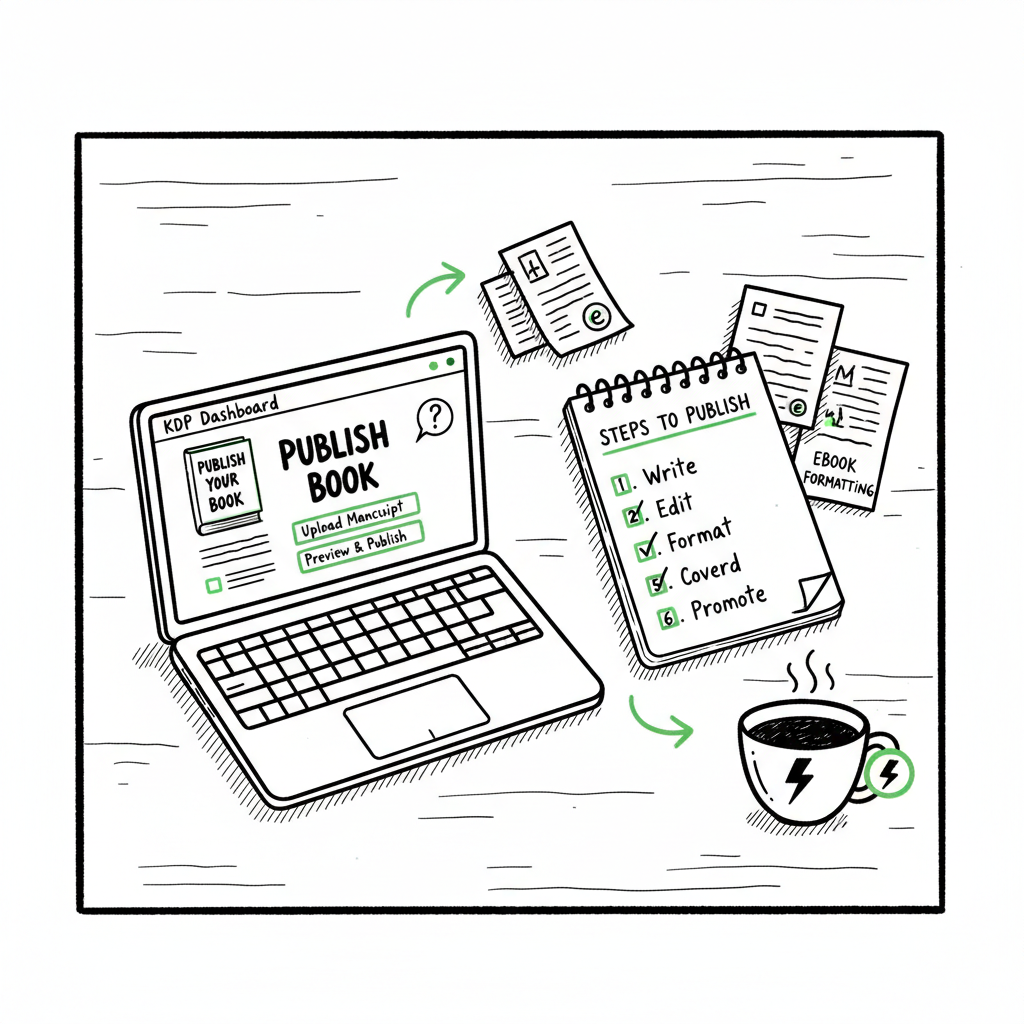
Beginner KDP Author Practical Start-to-Finish Guide
Beginner KDP Author: A Practical Start-to-Finish Guide
Estimated reading time: 11 minutes
Key takeaways
- Publishing your first book on KDP is a series of repeatable steps: prepare files, set metadata, upload, preview, and price. Accuracy prevents delays.
- Format for the platform: eBook needs clean flow and EPUB or well-formatted Word; paperbacks need print-ready PDFs and correct trim size.
- When you begin publishing multiple titles, multi-platform automation (CSV batch uploads, platform-specific checks) saves time and cuts errors—BookUploadPro makes this step obvious.
Table of Contents
- Getting started: account, goals, and a simple plan
- Manuscript, formatting, and file prep
- Covers, interiors, and print settings
- Scaling: multi-platform distribution and automation
- FAQ
- Sources
Getting started: account, goals, and a simple plan
If you’re a beginner KDP author, the first week is mostly about setting up reliable habits. Sign up at kdp.amazon.com, confirm your tax and payment information, and spend time on one small, practical goal: publish a single clean book. Treat this first title like a template that you’ll reuse.
As you start, use the official KDP workflow as a checklist: book details, manuscript upload, cover upload, preview, and pricing. If you want a concise walkthrough that focuses on Amazon’s interface, see the Amazon KDP for Authors guide for stepwise help. Keeping one clean, consistent process ensures your metadata (title, author name) matches exactly across formats, which avoids problems with Amazon’s format linking.
Before you upload, set two simple goals:
- One technical goal: get a readable eBook and a print-ready file.
- One business goal: list your target price and the markets you want to reach.
Why that matters: matching metadata ties your eBook and paperback together on Amazon and ensures buyers see the right formats. It also keeps your publishing workflow repeatable—critical when you add more books.
Practical checklist
- Create and verify your KDP account.
- Prepare a manuscript and a cover.
- Decide trim size and file types.
- Draft a short, clear book description and five to seven keywords.
- Choose pricing and royalty options for markets you want.
Accessibility and metadata
Accessibility and metadata
Add alt text to essential images in your eBook and use clear metadata. For a kdp new author guide, the metadata (title, subtitle, description, keywords) is how readers discover your book—don’t treat it like an afterthought. Keywords should reflect search phrases a reader would type, and descriptions should answer: who is this for and what problem does it solve?
Manuscript, formatting, and file prep
The single most common cause of delays for first KDP books is formatting. A clean file removes hours of troubleshooting in previewers and reduces rejection risks.
What to aim for
– eBook: flowing text, no fixed layout unless required. Use Word (DOCX) saved with simple styles, or an EPUB exported from a reliable tool. Include front matter (title page, copyright, dedication), a linked table of contents, and consistent chapter headings.
– Paperback: print-ready PDF with correct trim, margins, and embedded fonts. All images must have suitable resolution (300 DPI recommended) and the interior must match the selected trim size.
Practical steps
- Start with one source file. Maintain a single master manuscript and export from it to the formats you need. This reduces version confusion.
- Use consistent styling. Apply Heading styles for titles and chapters so any converter or table-of-contents generator detects them reliably.
- Build a linked table of contents for eBooks. Readers expect it; Amazon uses it for navigation. If you use Word, insert a TOC based on Heading styles before conversion.
- Check images and tables. For eBooks, avoid wide images that force zooming. For print, confirm image bleed settings if you need edge-to-edge printing.
- Test in a previewer. KDP and other platforms provide preview tools. Use them early and often.
When you need conversion help
If you prefer to convert separately, use a good EPUB converter early in the process to confirm structure. A reliable tool helps you catch problems that only appear in flowable formats—hyphenation, orphaned lines, or incorrect TOC links. If you want a simple conversion option, consider using an EPUB converter that preserves your structure and styles.
Manuscript tips for first kdp book steps
- Keep chapter titles consistent—same font size and style.
- Use page breaks between chapters in print files.
- Avoid complex fonts or excessive typographic flourishes for your first title.
- Proof read on a device that approximates how readers will view the book: phone for eBooks, and a print proof for paperbacks.
Accessibility and metadata
Add alt text to essential images in your eBook and use clear metadata. For a kdp new author guide, the metadata (title, subtitle, description, keywords) is how readers discover your book—don’t treat it like an afterthought. Keywords should reflect search phrases a reader would type, and descriptions should answer: who is this for and what problem does it solve?
Covers, interiors, and print settings
A cover is the first thing a reader sees. For print, you need a full cover (front, back, spine) sized to your trim and page count. For eBooks, you need a strong front cover image.
Covers that work
- Simpler is often better. Clear title and author name, strong focal image, and readable fonts at thumbnail size.
- For paperbacks, calculate spine width based on page count, paper type, and ink. KDP provides a spine calculator you can use as a guide.
If you need fast cover options
When you’re building multiple titles or testing variations, a cover generator can speed the process while keeping results consistent. A good cover tool creates print-ready files, applies spine calculations, and outputs the files you upload directly to KDP’s paperback form. If you want a ready option, try a book cover generator that handles processing and output to the sizes KDP expects.
Interior and trim settings
- Pick a standard trim size (6″ x 9″ is common) and stick with it for series.
- Choose paper color (white or cream) depending on content; fiction and most nonfiction are fine with cream for comfort, but image-heavy books often use white.
- Set margins and gutter for print. KDP recommends particular minimums depending on page count; follow those to avoid clipping.
ISBNs and rights
KDP offers free ISBNs for paperbacks, but using a free ISBN lists Amazon as the publisher. If you prefer control over publisher imprint, buy your own ISBN. For eBooks, KDP uses ASINs internally—no ISBN required. Decide this early so your metadata is consistent across platforms.
Proof copies
Always order a printed proof before wide distribution. The screen previewer is helpful, but a physical proof lets you check color, margins, and paper feel. Accept minor variations—printers differ slightly—but fix anything that affects readability.
Scaling: multi-platform distribution and automation
If you intend to publish more than one book, the manual upload-to-every-platform approach becomes costly in time and errors. You’ll repeat the same steps on Amazon, Apple Books, Kobo, Draft2Digital, and Ingram: metadata, file upload, pricing, and territory selections.
Where automation helps
- Batch uploads from CSV files. One spreadsheet can hold metadata for many titles and feed multiple platforms.
- Platform-specific checks. Good automation validates file types, warns about mismatched metadata, and catches missing spine images, incorrect EPUB validation, or ISBN conflicts before you hit publish.
- Error reduction and time savings. Automation removes repetitive clicks and data re-entry and reduces copy-paste mistakes.
BookUploadPro in the workflow
When authors go from one book to many, BookUploadPro becomes an obvious upgrade. It automates repetitive uploads across Amazon KDP, Kobo, Apple Books, Draft2Digital, and Ingram. Authors see around 90% time savings on bulk tasks, plus CSV batch uploads, platform-specific intelligence to reduce errors, and consistent distribution across stores. For teams or solo authors publishing at scale, automation makes wide distribution practical and affordable.
Make the leap when you’re publishing seriously
If you’re publishing three or more titles a year, batching metadata and uploads will free time for writing and marketing. Automate the upload. Own the distribution.
Practical tips for multi-platform publishing
- Keep one canonical spreadsheet with titles, descriptions, keywords, prices, and territories.
- Standardize file names and folder structure by ISBN or internal ID.
- Use automation to populate platform-specific fields, then review before final handoff.
- Maintain a publishing calendar to stage releases and preorders across stores.
When platforms need different files
Not every store accepts the same files. For example, some platforms want EPUB and others accept Word or PDF for print. Convert master files into platform-ready versions and store them with clear naming. If you need a conversion tool, an EPUB converter will save time and avoid manual formatting mistakes when you prepare files for multiple stores.
The cost-benefit calculation
Automation tools carry a subscription cost, but the time saved scales quickly. For an author with multiple titles, CSV batch uploads and validation often recover their cost in the first few projects by eliminating repetitive manual work and preventing rejections that waste time.
FAQ
Q: How long will it take to publish my first book on KDP?
A: If your manuscript and cover are ready and formatted, publishing can take under an hour from upload to submission. Amazon’s review process may take longer to approve the book for sale, but the technical upload itself is quick.
Q: What files should I upload for an eBook and a paperback?
A: eBooks typically use EPUB or a well-structured Word DOCX; paperbacks require print-ready PDFs sized to the chosen trim with embedded fonts and correct bleed settings.
Q: Do I need my own ISBN?
A: No. KDP provides free ISBNs for paperbacks. If you want to retain the publisher imprint, buy your own ISBNs and use them across platforms.
Q: What are common mistakes new authors make?
A: Mismatched metadata across formats, incorrect trim or bleed settings, low-resolution images, missing front/back matter, and skipping proof copies are frequent problems.
Q: When should I use an automation service?
A: When you publish multiple titles or want consistent distribution across stores, automation becomes valuable. If you’re testing out several books or running series releases, automation saves time and reduces errors.
Sources
- Create a Book – Kindle Direct Publishing
- eBook Manuscript Formatting Guide – Kindle Direct Publishing
- Start publishing with KDP – Amazon.com
- Amazon KDP for Beginners: A Step-by-Step Guide to Self-Publishing (video)
- Kindle Direct Publishing! A Beginner’s Guide to KDP (video)
Beginner KDP Author: A Practical Start-to-Finish Guide Estimated reading time: 11 minutes Key takeaways Publishing your first book on KDP is a series of repeatable steps: prepare files, set metadata, upload, preview, and price. Accuracy prevents delays. Format for the platform: eBook needs clean flow and EPUB or well-formatted Word; paperbacks need print-ready PDFs and…