KDP Author Workflow for Efficient Publishing Steps
The practical kdp author workflow, step by step
Estimated reading time: 14 minutes
Key takeaways
- A reliable kdp author workflow turns repetitive publish steps into a short, repeatable routine that reduces errors and saves time.
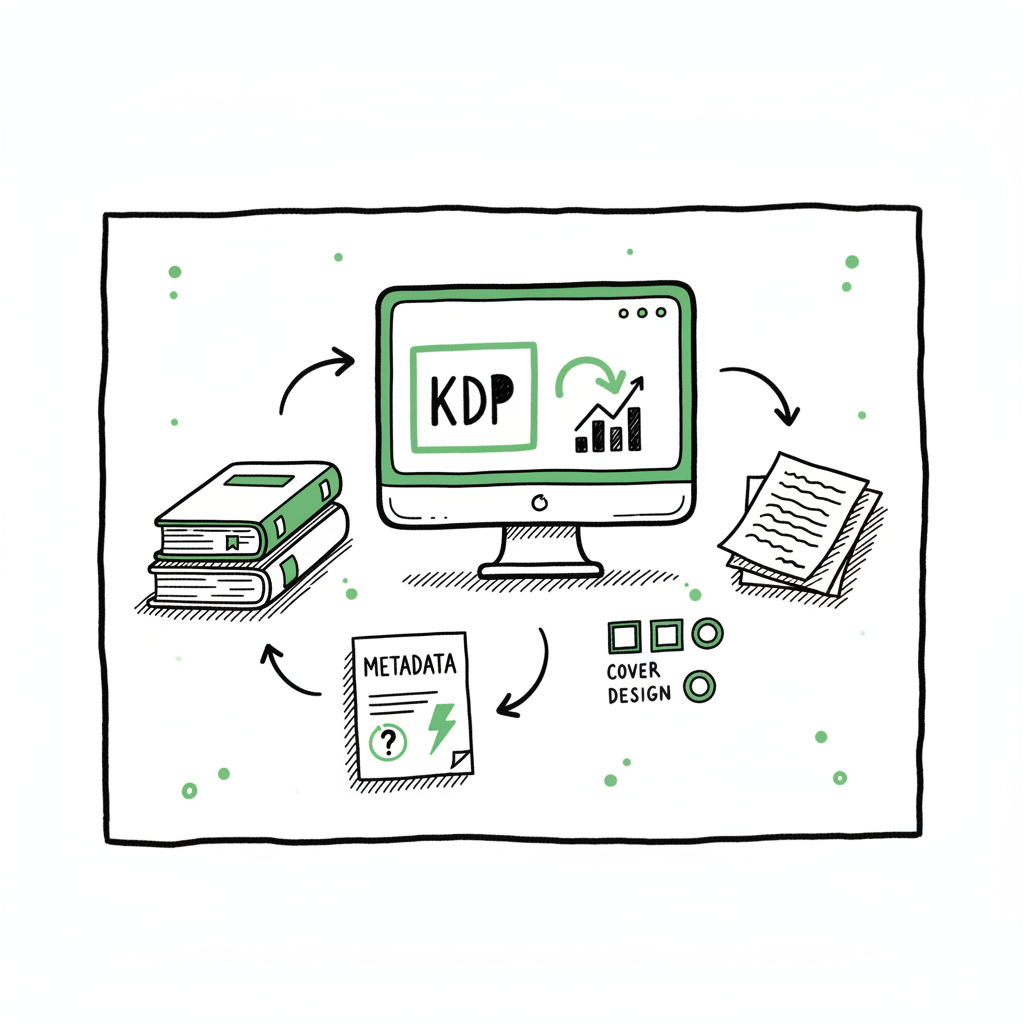
- Use a consistent set of files (manuscript, cover, metadata) and a staged preview process before hitting Publish to avoid delays and review rejections.
- When you scale beyond one title, automation and multi-platform batch uploads make wide distribution practical and affordable — BookUploadPro is designed for that next step.
Table of contents
- Why this workflow matters
- The practical kdp author workflow, step by step
- Automating multi-platform publishing
- FAQ
Why this workflow matters
If you publish more than one book a year, you need a formal kdp author workflow. Doing the same work differently each time invites small errors: title typos, mismatched author names, wrong file formats, and missed preview issues. Those small errors create delays, bad reviews for formatting, or broken editions on Amazon. A clear workflow keeps each title consistent across ebook, paperback, and hardcover, and helps you spot problems before the book goes live.
For fast reference on KDP’s interface and required fields, see Amazon KDP for Authors. That short guide is useful when you need to match what KDP asks for during the upload.
A practical workflow protects your time and your catalog. KDP will link ebook and print editions automatically if the metadata matches exactly, so consistency matters. A repeatable process also gives you checkpoints for marketing assets (cover, description, category choices, and keywords) and technical checks (file formats and previewer passes). When you follow the same steps in the same order, publishing becomes predictable — and predictable means it can be automated.
The practical kdp author workflow, step by step
This is a straight, operational sequence you can apply to fiction, nonfiction, and low-content books. I describe what to do, why it matters, and quick tips that cut common errors.
1) Prepare and lock the manuscript
- Finalize the text in your editor. Your upload file for ebooks should generally be a well-structured EPUB; for print, use a print-ready PDF or properly formatted DOCX depending on KDP’s current recommendations.
- Run basic formatting checks: consistent chapter headings, no orphaned lines, correct page breaks for print, and embedded fonts where needed.
- Why: Mismatched formatting is the top cause of preview errors and poor reading experience.
- Quick tip: Keep a “master” folder for each title with one ready-to-upload EPUB, one print-ready PDF or DOCX, and a plain-text or markdown source file. That single-folder approach avoids accidental uploads of drafts.
2) Design and finalize the cover
Create covers sized to the format: ebook cover for EPUB; full wrap cover for paperback/hardcover including spine and back. If you use a cover generator or need batch processing for multiple covers, a tool for consistent output saves time and keeps the brand consistent across a series. For fast, production-ready cover files, consider a professional cover generator that can produce print and ebook art to spec. cover generator processing.
Why: Covers operate at the point of sale. A poor fit or wrong dimensions can delay approval or lead to stretched images.
Quick tip: Export the ebook cover as a single-image JPEG/PNG and the print cover as a high-resolution PDF or TIFF depending on platform requirements, with bleeds set correctly.
3) Assemble metadata and marketing copy
- Title, subtitle, series name, edition information, author name, contributors, keywords, categories, and book description belong in the metadata file or a single metadata spreadsheet.
- Keywords and categories should be chosen with discoverability in mind. Categories determine browsing placement; keywords help search relevance.
- Why: Metadata is how readers find you. Correct, consistent metadata also ensures KDP links editions correctly.
- Quick tip: Keep a CSV or spreadsheet that stores these fields. That spreadsheet becomes invaluable when you batch upload or migrate to other retailers.
4) Convert and validate file formats
Convert the manuscript to EPUB for ebooks and check it with an EPUB reader and KDP’s previewer. Convert print files to the correct format for the print option you choose. If you need a reliable converter for EPUB creation, use a dedicated tool that preserves chapter structure, images, and metadata. EPUB converter.
Why: KDP accepts several formats, but not all conversions are equal. Errors in conversion are hard to detect without careful previewing.
Quick tip: Run the converted EPUB through multiple previewers (desktop and KDP previewer). If your book has complex layouts or images, validate the EPUB structure.
5) Upload in a staging routine
Create the title in KDP and go through the sections in order: book details, content upload, book preview, and pricing. Use the same sequence every time and check items off as you go. For example: fill title and author, choose series and edition info, paste the book description, set categories and keywords, upload the EPUB and cover, and preview.
Why: KDP’s flow has multiple steps where errors are common. A staged routine keeps you from skipping the preview or forgetting to add a contributor.
Quick tip: Copy-paste descriptions from a plain text file to avoid stray formatting. Double-check author names and ISBN entries for print books.
6) Preview, review, and save drafts
Use KDP’s previewer for both ebook and print. When you see issues, fix them in the master files and re-upload. Don’t rely on a single preview pass. Save the KDP title as a draft while you QA. If a price or distribution needs review, leave it in draft until everything is verified.
Why: The previewer will catch layout and pagination issues that conversion tools might miss.
Quick tip: Keep a short QA checklist: front matter, TOC links, chapter breaks, images, margins for print, and back matter links. Run through it for every title.
7) Rights, pricing, and distribution choices
- Confirm territorial rights and select distribution channels. If you plan to distribute widely, decide what stays exclusive to KDP Select and what you distribute elsewhere.
- Set pricing and royalty options carefully. Remember you can change price after publishing, but the first listing often determines initial discoverability and promotions.
- Why: Wrong territory settings or incorrect pricing tiers can create pay and rights complications later.
- Quick tip: Record pricing history in your metadata spreadsheet so you can reverse or replicate price changes across platforms.
8) Publish and monitor
Hit Publish only when the master files, metadata, and previews are verified. Monitor review timelines: Amazon can take hours to days to process new listings and link editions. Check the live listing once it’s indexed and confirm the ebook–print linkage.
Why: Immediate monitoring allows you to catch botched uploads quickly and minimize time spent fixing live listings.
Quick tip: For anything time-sensitive (promotions, newsletter drops), schedule publishing to align with those activities and allow buffer for review.
9) Post-publish checks and backups
Verify the live listing: cover displays, price is correct, description formatting holds, and internal links work. Archive the final upload files and metadata in a versioned folder. Keep backups so you can re-upload or fix a title quickly.
Why: You’ll often need the original files for future revisions or translations.
Quick tip: Use a standard naming convention for folder versions: Title_V1_YYYYMMDD, Title_V2_YYYYMMDD, etc.
Practical notes on format choices
- Ebook: EPUB is the best long-term choice. Maintain a clean master EPUB and a backup of the original source.
- Print: Use a print-ready PDF or a properly configured DOCX. Confirm trim size and bleed settings early.
- Series: Keep series metadata consistent and maintain a master series spreadsheet for ordering and numbering.
Housekeeping items that save time
- Maintain a single metadata CSV that contains all fields for each title. That file becomes your source of truth when you scale.
- Keep cover templates and font files in a shared folder for quick updates.
- Keep a QA checklist in plain text you can copy into your project management tool for each title.
Automating multi-platform publishing
Once you’re consistent with the manual workflow, automation becomes a productivity multiplier. Manual uploads are fine for one or two titles, but they don’t scale. Automation and multi-platform uploads let you publish more titles, maintain consistency, and reduce repetitive tasks.
What automation should do
- Supply the same master files to multiple retailers without repeated manual entry.
- Map your metadata fields to each retailer’s requirements.
- Batch upload titles from a CSV or spreadsheet and push EPUB/cover files to multiple stores.
- Apply platform-specific intelligence for things like trim sizes, region pricing, and category mapping.
Why multi-platform matters
- Exposure: Different retailers reach different reader segments.
- Redundancy: Relying only on one store can be risky long-term.
- Price and royalty optimization: You can tailor options per platform.
Where BookUploadPro fits
BookUploadPro automates repetitive uploads across Amazon KDP, Kobo, Apple Books, Draft2Digital, and Ingram. It uses CSV batch uploads and platform-specific intelligence to reduce manual work by roughly 90% for power publishers.
How automation changes the workflow
- Replace manual entry with a single metadata CSV that the system reads and distributes.
- Use the same master EPUB and covers; the system adapts them to retailer specs where necessary.
- Batch process pricing and territory settings with templates.
- Track publishing status across platforms from a single dashboard.
Platform-specific intelligence
Retailers require different fields, file formats, and cover treatments. Automation that understands those differences prevents repeated rejections. A good system flags mismatches (e.g., spine width for a particular trim size) and gives you an actionable error message instead of a generic rejection.
When to keep manual steps
- Creative decisions: cover design choices and editorial changes should stay manual.
- Initial launch marketing: some promotions and exclusive deals may need careful timing that you’ll still control.
- Complex books: textbooks or books with heavy image layouts sometimes require manual attention per platform.
Production tools that integrate with the workflow
If you use a cover generator for consistent cover files, cover generation processing can be integrated into the master folder. For fast cover creation and processing, a robust cover processing tool can export print and ebook formats to spec. For EPUB, use a dependable EPUB converter and validate the output before distribution. And if you produce print and ebook files as part of your book creation workflow, keep those outputs organized so the multi-platform tool can pick them up. Book creation workflow.
Relevant tools (operational)
- Book cover generator tools streamline consistent art and produce print-ready files. They save hours when you manage a backlist or series.
- EPUB converters that integrate into your pipeline reduce manual conversions and errors.
- Multi-platform uploaders that accept a CSV and master-file folder reduce a full day of manual work to minutes.
Practical automation checklist
- Build a master ZIP per title with: final EPUB, print-ready PDF/DOCX, front cover (JPEG/PNG), full-wrap print cover (PDF/TIFF), and a metadata CSV row.
- Run a single validation pass locally: preview EPUB, check PDF margins, and confirm cover sizes.
- Submit the ZIP and CSV to your upload tool and let the system handle the rest.
- Review the dashboard for platform-specific errors and resolve a small number of exceptions rather than repeating the full upload.
If you need fast, consistent cover processing, a reliable cover processing tool will produce the right files quickly. If your pipeline includes converting masters to EPUB, a dedicated EPUB converter reduces rework. And if you produce print and ebook files as part of your book creation workflow, keep those outputs organized so the multi-platform tool can pick them up.
Real-world gains
- Time saved: Publishers who move from manual uploads to CSV batch processing see roughly 80–90% time savings on the upload stage.
- Error reduction: Pre-validation and platform-aware checks reduce rejections and the need for re-uploads.
- Catalog growth: When uploading becomes a 10–20 minute task, experimenting with more titles or formats is realistic.
Operational caveats
- Automation is only as good as your masters. Poorly formatted masters will multiply problems across platforms.
- Keep human QA in the loop. Automation handles repetitive work, but a human should verify covers, metadata descriptions, and promotional timing.
Final operational note
Start with one title in the automation tool and compare the result to a manual upload. Confirm the metadata, distribution choices, and live listing match your expectations. Once you trust the output, expand to batch uploads confidently.
FAQ
Q: How does Amazon link ebook and print editions?
A: Amazon links editions when the title and author metadata match exactly across formats. Consistency in the metadata fields you enter during upload is crucial.
Q: What file formats should I keep as masters?
A: Keep a clean source (DOCX, Markdown, or similar), a final EPUB for ebook distribution, and a print-ready PDF or DOCX for print. Store images and fonts used in covers in the same project folder.
Q: Can I change pricing or metadata after publishing?
A: Yes. Pricing and many metadata fields can be adjusted after publish. Changes may take hours to days to propagate across platforms.
Q: Is automation safe for book quality?
A: Yes, if you validate your masters and run QA checks before you batch upload. Automation should handle delivery and mapping; quality control should remain a human step.
Q: What should I automate first?
A: Start with metadata mapping and batch uploads for titles that share format and template settings. Move to cover and EPUB conversions once the metadata flow is stable.
Sources
- How To Publish A Book On Amazon – 2025 KDP Guide – LivingWriter
- Create a Book – Kindle Direct Publishing – Amazon.com
- Title Setup: Book Details, Content, & Pricing – Kindle Direct Publishing
- How to Publish on Amazon KDP (Step-by-Step Guide to Getting Sales)
- Start publishing with KDP – Amazon.com
The practical kdp author workflow, step by step Estimated reading time: 14 minutes Key takeaways A reliable kdp author workflow turns repetitive publish steps into a short, repeatable routine that reduces errors and saves time. Use a consistent set of files (manuscript, cover, metadata) and a staged preview process before hitting Publish to avoid delays…